
Nano Banana 2 tips: How to make 5 different types of images
 Follow Us
Master Nano Banana 2 to create five distinct AI image styles.
Enhance your AI-generated images with detailed lighting and atmospheric prompts.
Use reference photos and specific descriptions for accurate cinematic portraits.
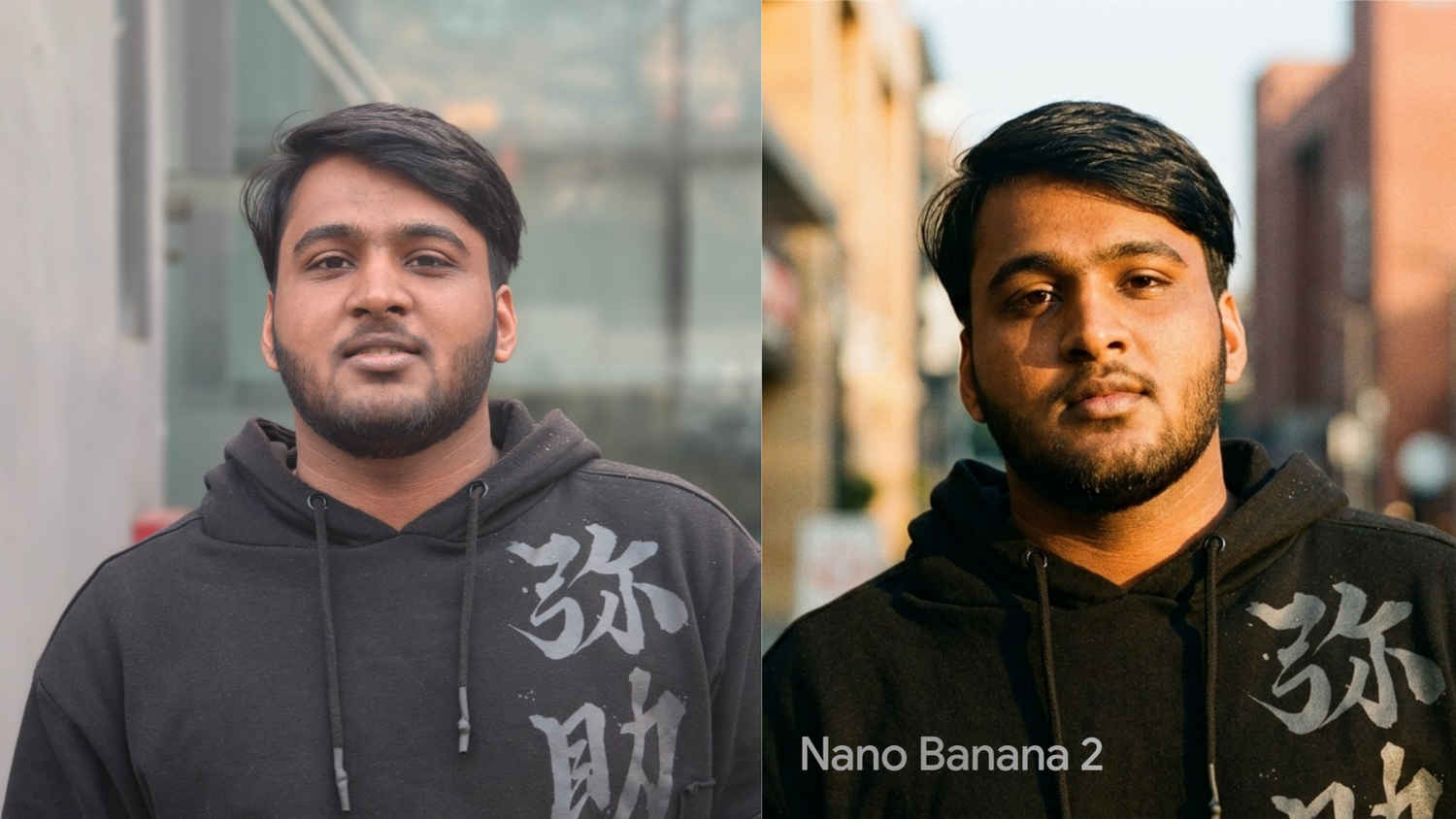

Google’s Gemini is one of the most complete AI tools out there. Not only does it answer your questions, but one of its most popular features is its ability to create images using Nano Banana 2. But honestly, most people don’t even scratch past the surface of all the capabilities the tool possesses.
 Survey
Let’s take a look at some of the best tips and prompts you can use to create exceptional images using Google Gemini’s Nano Banana 2. It will make you an expert in making better-than-average AI-generated images through Gemini’s Nano Banana 2 tool for sure.
Also Read: How to set up parent-managed account on WhatsApp: Step-by-step guide
Before you make the images
It’s important to understand that every generated image is different from the others. Using a tool like Nano Banana 2, it’s possible to create a variety of images. Ideally, we would recommend not just sticking to the prompts mentioned – rather, it would be a lot better if you tweaked these prompts based on how you like the image.
The idea is to give you an idea of how to move beyond your all creative limits, conceptually. The more detailed prompts you give out, the better images Nano Banana is going to give out. If you’re having trouble writing the prompts, we would recommend using the prompt enhancer tools available on the web, as they’re very useful in these situations.
Another small tip is to just give out reference images to the tool and not just the prompts. Even though Gemini is smart enough to understand the language of prompts, it’s always better to give out reference images too, so that the results are as accurate as possible.
Cinematic portraits
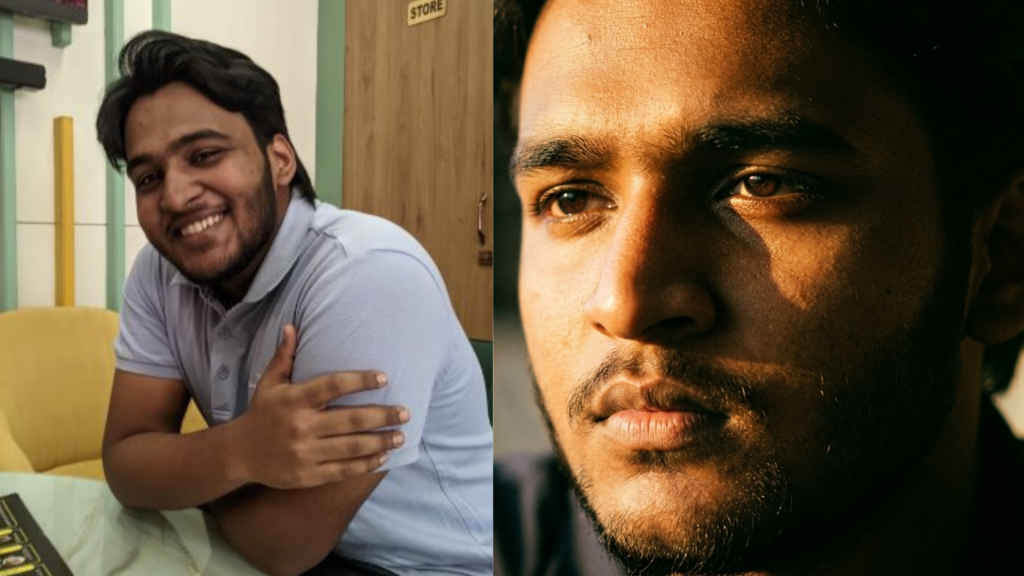
First up, talking about portraits, cinematic portraits are something that is getting quite popular these days. And the most interesting thing that Gemini does is how well it is able to play with lighting. The latest Nano Banana 2 responds very well to lighting descriptions. Adding terms like ‘side lighting’ or ‘golden hour’ gives image-generation tools a good sense of the image’s nature, resulting in far more cinematic portraits.
To enhance an image into a cinematic portrait, follow the steps below:
- Open Google Gemini, and open a new chat window
- In the chat box, drop an already clicked portrait picture
- Use the prompt like this: “A close-up portrait of a young person with deep-set eyes, dramatic side lighting, film grain texture, shot on 35mm, golden hour glow, shallow depth of field, 16:9 aspect ratio, wide cinematic frame.”
- Press enter and wait for Nano Banana to process the result
- Once done, just click on the image and press ‘download’ to save the image locally
Street portraits
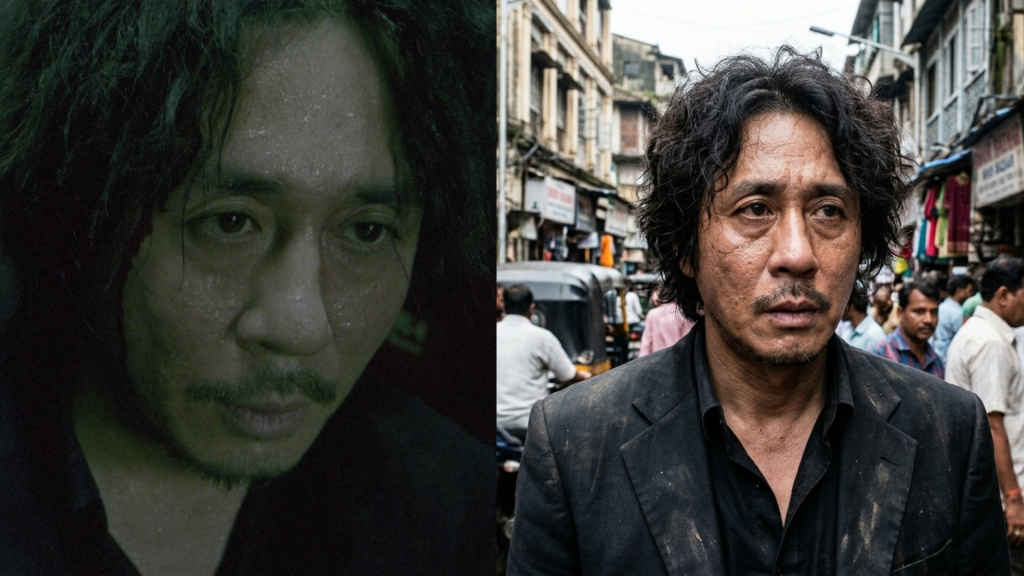
Street photography is awesome; capturing the vibes of a busy street often gives off some exceptional images. Though, not everyone has a professional camera which could capture the raw emotions. But with the help of Nano Banana 2, it’s very much possible to enhance some great portraits while also capturing the vibes of the street. Gemini really likes listening to prompts with local names and cities, so you can go as detailed as you want, and the tool will be very accurate.
To enhance an image into a street portrait, follow the steps below:
- Open Google Gemini, and open a new chat window
- In the chat box, drop an already clicked street potrait picture
- Use this prompt: “A candid street portrait of a person in a busy Mumbai market, weathered skin texture, authentic expression, photorealistic, overcast natural light, documentary style, 16:9 wide frame, environmental context visible.”
- Press enter and wait for Nano Banana to process the result
- Once done, just click on the image and press ‘download’ to save the image locally
Double-exposure portraits
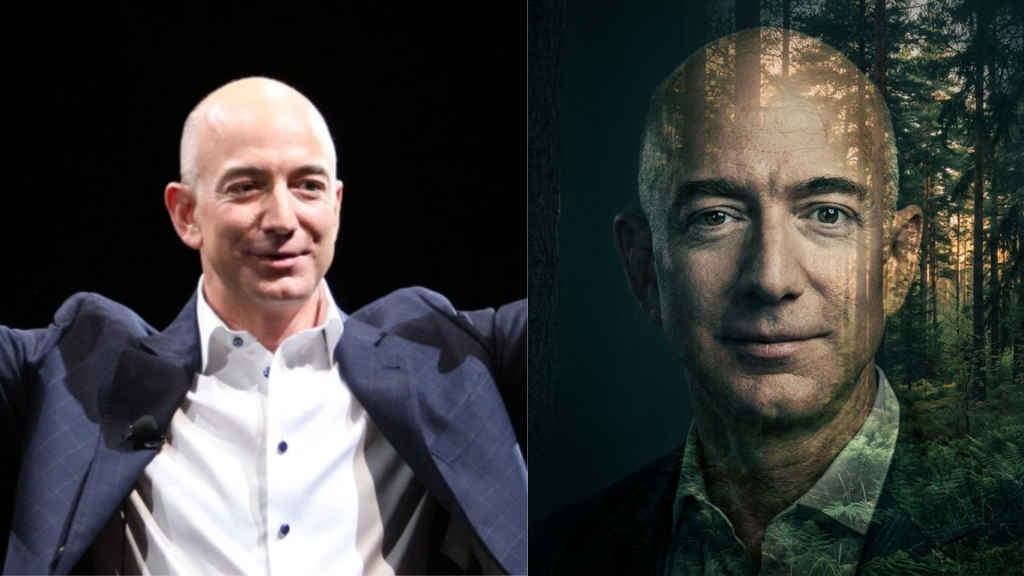
Trust me when I say this, but double-exposure portraits are something that is extremely hard to pull off. Not only do you need great lighting and a good environment, but more importantly, it’s essential to have know-how of every single camera setting possible, be it the ISO, shutter speed, exposure, aperture or everything else.
For beginners, it’s close to impossible to capture something like this. But with the help of Gemini and Nano Banana 2, it’s getting very easy. As long as you have a good portrait for reference and you use a well-detailed prompt, the tool will be able to give out some exceptional shots.
To enhance an image into a double-exposure portrait, follow the steps below:
- Open Google Gemini, and open a new chat window
- In the chat box, drop an already clicked portrait picture
- Use the prompt: “A double exposure portrait of a woman merged with a dense forest at dusk, soft greens bleeding into skin tones, ethereal and contemplative, fine art photography style, 16:9 widescreen, subject framed left with negative space right.”
- Press enter and wait for Nano Banana to process the result
- Once done, just click on the image and press ‘download’ to save the image locally
Anime-styled portraits
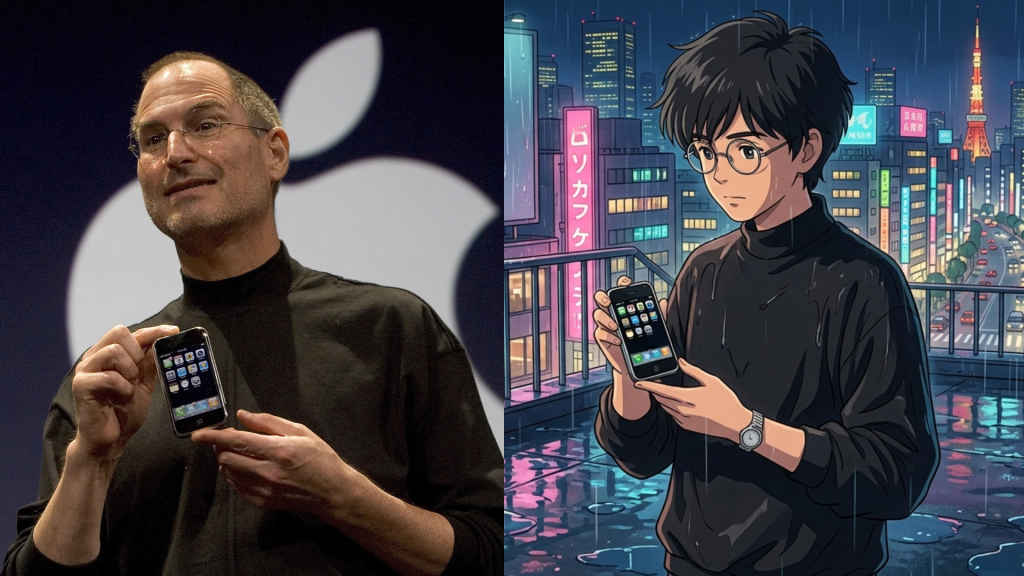
Moving on, we also have anime-styled portraits. These types of images are never going out of fashion, because of the way the results come out. A few months back, the Ghibli trend became very popular because of ChatGPT too. But moving beyond that, let’s have a look at some other styles too. Gemini really pairs environmental detail like rain or neon lighting that makes the anime art pop.
To create an anime-styled portrait, follow the steps below:
- Open Google Gemini, and open a new chat window
- Download some samples of abstract images, and attach them for reference
- Use this prompt: “A young anime person standing on a rain-soaked Tokyo rooftop at night, neon city lights reflecting on wet surfaces, Studio Ghibli-inspired art style, soft cel shading, vibrant colours, detailed background, 16:9 widescreen, cinematic anime composition”
- Press enter and wait for Nano Banana to process the result
- Once done, just click on the image and press ‘download’ to save the image locally.
Festival special portraits
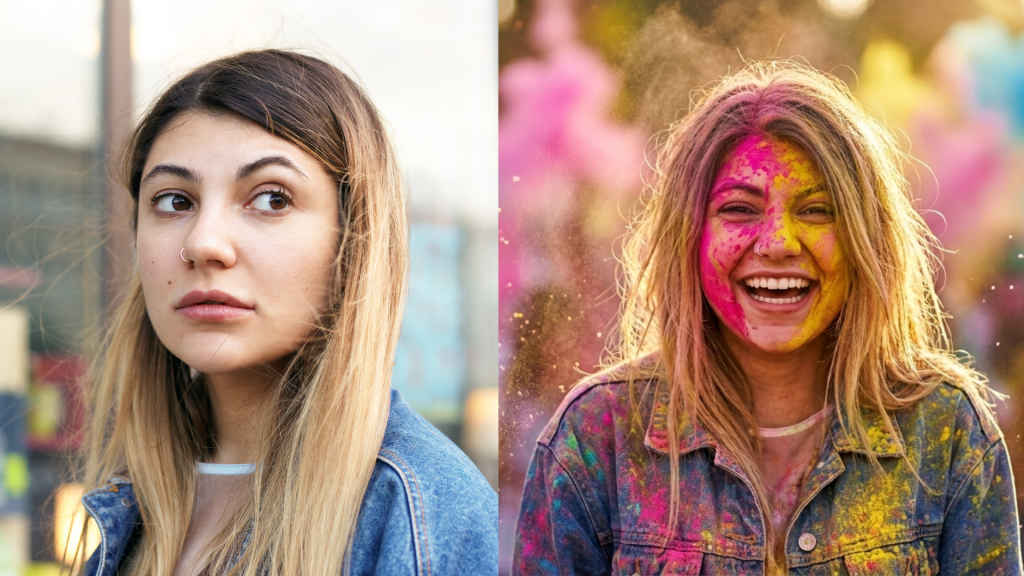
Last but not least, if you’re a fan of festival special images and are willing to try something new, then you should definitely give this Holi image a shot. On Nano Banana 2, when you describe emotion words like “mid-celebration” and “laughing expression”, it pushes the model toward dynamic, energetic images rather than static posed shots.
To create a festival special image, Holi in this case, follow the steps below:
- Open Google Gemini, and open a new chat window
- Attach a reference portrait image
- Use the prompt: “A joyful young person mid-celebration during Holi, face and hair drenched in vibrant pink and yellow powder, laughing expression, bokeh background of colour clouds, photorealistic with painterly finish, warm afternoon sunlight, 16:9 widescreen, subject centred with colour explosions filling the frame.”
- Press enter and wait for Nano Banana to process the result.
- Once done, just click on the image and press ‘download’ to save the image locally.
Hopefully, you learned a few things about creating images with Nano Banana 2 and how detailed prompts can help you get there with relative ease. Enjoy creating images with Nano Banana 2!
Also Read: How to book AC service online before the seasonal price hike: Complete guide


