
How to set up parent-managed account on WhatsApp: Step-by-step guide
 Follow Us
Meta has introduced a new parent-managed account feature on WhatsApp.
This feature allows parents or guardians to create and manage WhatsApp accounts of pre-teens.
All personal chats remain protected with end-to-end encryption.
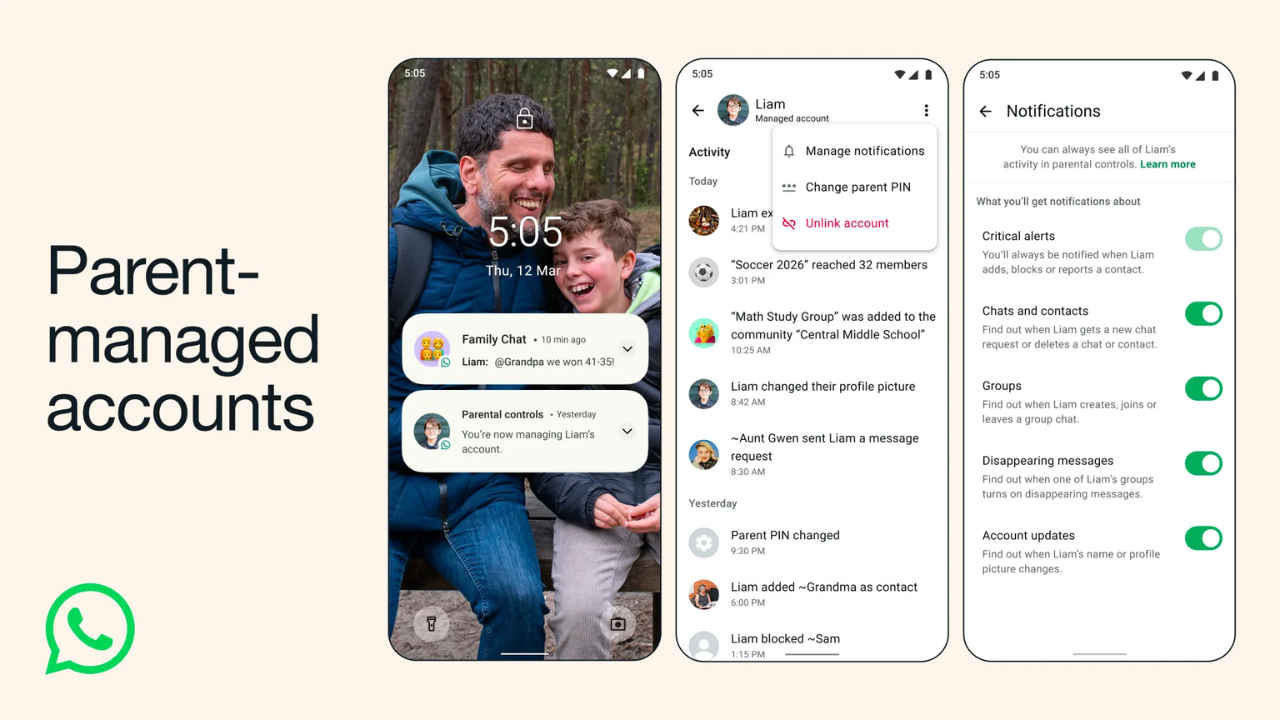

Meta has introduced a new parent-managed account feature on WhatsApp. This feature allows parents or guardians to create and manage WhatsApp accounts for children under the required age limit. Once set up, parents can decide who can contact their child, which groups they can join, and manage several settings. This will make sure that younger users can communicate safely while still staying connected with family and friends. Keep reading to know more details about the feature and how to set it up.
 Survey
What is a parent-managed WhatsApp account?
A parent-managed account is designed for children under 13 years old (or below the minimum age required in their country or region). These accounts must be created and controlled by a parent or guardian who is at least 18 years old.
Also read: Struggling with math or science? ChatGPT will now show interactive visuals to explain concepts
Parents can manage their child’s experience on WhatsApp. For example, they can approve or reject message requests from unknown contacts, control which groups they can join, and manage privacy settings. Access to these controls is protected by a parent PIN.
All personal chats remain protected with end-to-end encryption, which means that messages and calls cannot be read or listened to by anyone else, including WhatsApp.
Also read: Apple iPhone 18 Pro Max and iPhone 18 Pro leaks: Price in India, display, camera and more
How to set up a parent-managed account on WhatsApp
- Step 1: Install WhatsApp on your child’s phone.
- Step 2: Open the app, select the preferred language, and tap ‘Agree and continue.’
- Step 3: Tap More options and select Create a parent-managed account.
- Step 4: Enter the phone number that will be used for your child’s account and verify it.
- Step 5: Enter your child’s date of birth. In some cases, app stores may share the age range automatically.
- Step 6: A QR code will appear on the child’s device. Use the parent’s phone to scan the code and tap the link to be taken to WhatsApp.
- Step 7: Confirm that you are an adult and create a 6-digit parent PIN.
- Step 8: Enter the parent PIN on the child’s device to finish the process. Your child can then add their name and profile photo.


