
How to use QR-based quick share file transfers between Android and iPhone: Step-by-step guide
 Follow Us
Google has started rolling out QR code-based sharing in Quick Share for all Android phones.
iPhone users can receive files by simply scanning the QR code through the Camera app.
The files are end-to-end encrypted and remain available for 24 hours after being shared.
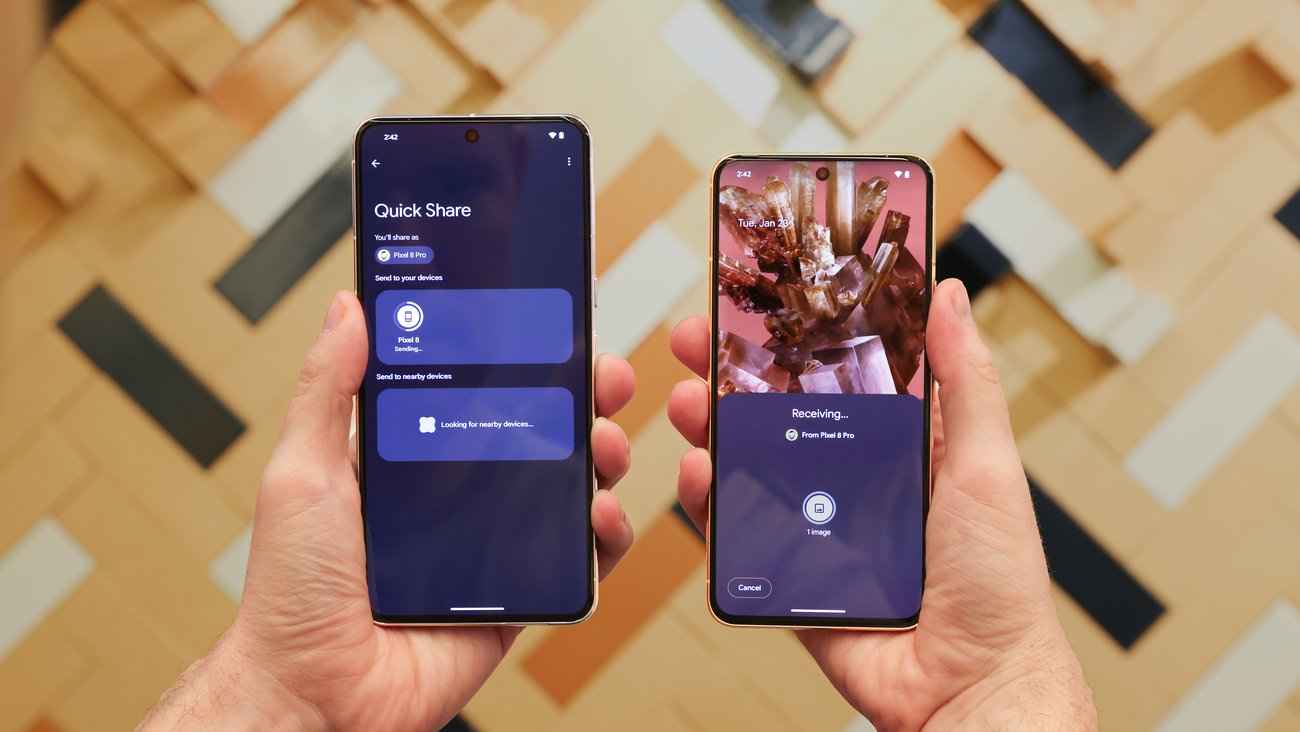

Sharing files between Android and iPhone has always involved using workarounds, as there has never been native support for it. But that’s finally changing, since Google is going all in on Quick Share. They’re now letting users send files to an iPhone using just a QR code. What this allows for is that you wouldn’t need any app installation on the iPhones or any accounts to sign in to; basically, it’s the most seamless experience ever. The feature was announced during The Android Show at I/O ’26 earlier this week and has already begun rolling out. So without wasting much time, let’s take a look at how this feature works and how you can use it for yourself.
 Survey
Also Read: Are you annoyed with Instagram Instants? Here is how to turn it off
How does the feature work?
The new QR code feature in Quick Share is specifically designed as a kind of bridge for Android-to-iPhone transfers. When you share a file through Quick Share on Android, the app now gives you the option to generate a QR code. Over on the iPhone, users can scan this code directly on the native Camera app. Once scanned, the file gets transferred to the recipient. Google has also confirmed that all files shared this way are end-to-end encrypted. The shared link remains active for up to 24 hours, after which it expires automatically.
How to use the feature?
Once the feature is available on your Android device, check out the steps mentioned below to check how you can use it to send a file to an iPhone:
- First up, open the file you want to share on your Android phone.
- Now, tap the Share button and look out for Quick Share in the sharing options.
- Once inside the Quick Share app, you should see the QR code sharing option.
- Tap on it to generate a QR code for your file.
- Now, on the iPhone, scan the QR code displayed on the screen.
- A link will appear on the iPhone screen, and the recipient will just need to tap on it.
- Once that’s done, the file will begin downloading directly to their device.
With that said, I hope this guide helped you understand how exactly you can use the latest QR-based Quick Share feature to transfer files between Android and iPhone. For more such informative guides, keep on reading Digit.in
Also Read: How to spot fake smartphone: 4 methods explained


