
Microsoft starts testing password free sign-in on Windows 10
 Follow Us
Microsoft releases Windows 10 Insider Preview Build to Windows Insiders in Fast ring.
It is now testing the passwordless sign-in feature for PCs.
Your Phone app functionality is now available on more Surface devices.

Moving closer to its goal of improving security by using modern authentication technologies, Microsoft has started testing password-less sign-in into Microsoft accounts. The feature comes in the latest Windows 10 Insider Preview Build 18936 (20H1) released to Windows Insiders in the Fast ring, users that have early access to test the build and give feedback on it. Apart from passwordless sign-in feature, the build also brings Your Phone app functionality on more Surface devices, Quick Event Create from the Taskbar, general changes, improvements, and fixes for systems.
 Survey
Passwordless sign-in into Microsoft accounts on devices
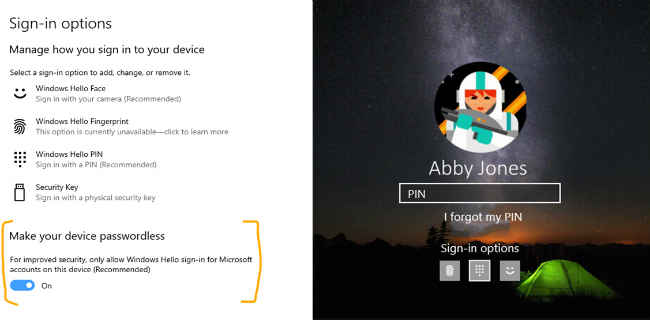
If you have signed up for the Microsoft Insider Program are running the latest build, passwordless sign-in can now be enabled for Microsoft accounts on your Windows 10 device by going to Settings > Accounts > Sign-in options, and set the toggle to ‘On’ under ‘Make your device passwordless.’ Enabling passwordless sign-in will switch all Microsoft accounts on your Windows 10 devices to perform authentication with Windows Hello Face, Fingerprint, or PIN. If you don’t have Windows Hello set up yet, Microsoft has made sure that you get a walk-through to set it up on your next sign-in.
Your Phone app: Phone screen on more Surface devices
With the latest driver update in the Windows insider rings (Marvell 15.68.17013.110), Microsoft has expanded the availability of its phone screen feature to the following Surface devices: Surface Laptop, Surface Laptop 2, Surface Pro 4, Surface Pro 5, Surface Pro 6, Surface Book, and Surface Book 2.
Create a quick event from the taskbar
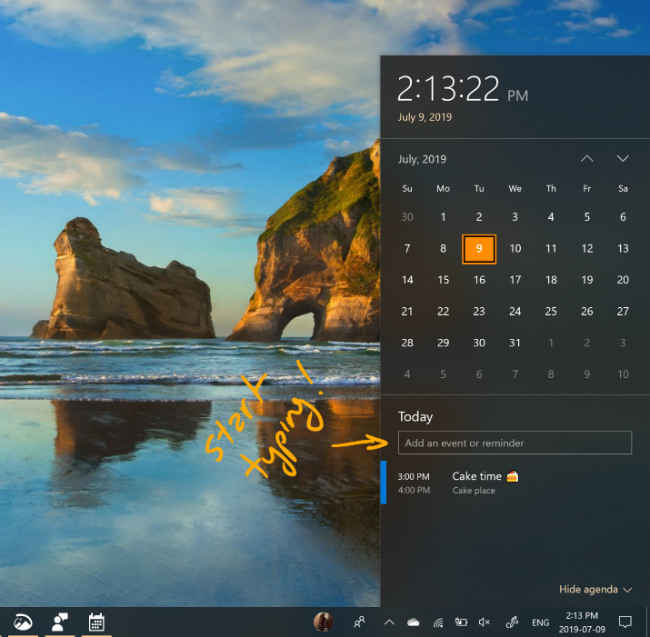
Microsoft is also making it easier to create events and reminders by introducing additional functionality by providing a dedicated space just below the calendar to type-in the notes. As you can see in the images below, you can pick the desired date and start typing.
Just like other builds that have been released early in the development cycle, the latest one may also contain bugs. If you decide to go ahead with the installation of this build, you won’t be able to switch Slow or Release Preview rings without doing a clean-install on the machine that you flashed with the Fast ring build. If you wish to remain on 19H1, change your ring settings via Settings > Update & Security > Windows Insider Program *before* installing the build.


