
How to use new split view on Google Chrome
 Follow Us
Chrome split view shows two tabs side by side for easier work.
Update Chrome, then use right-click, drag, or link option to split tabs.
You can resize, switch sides, and use shortcuts for quick use.
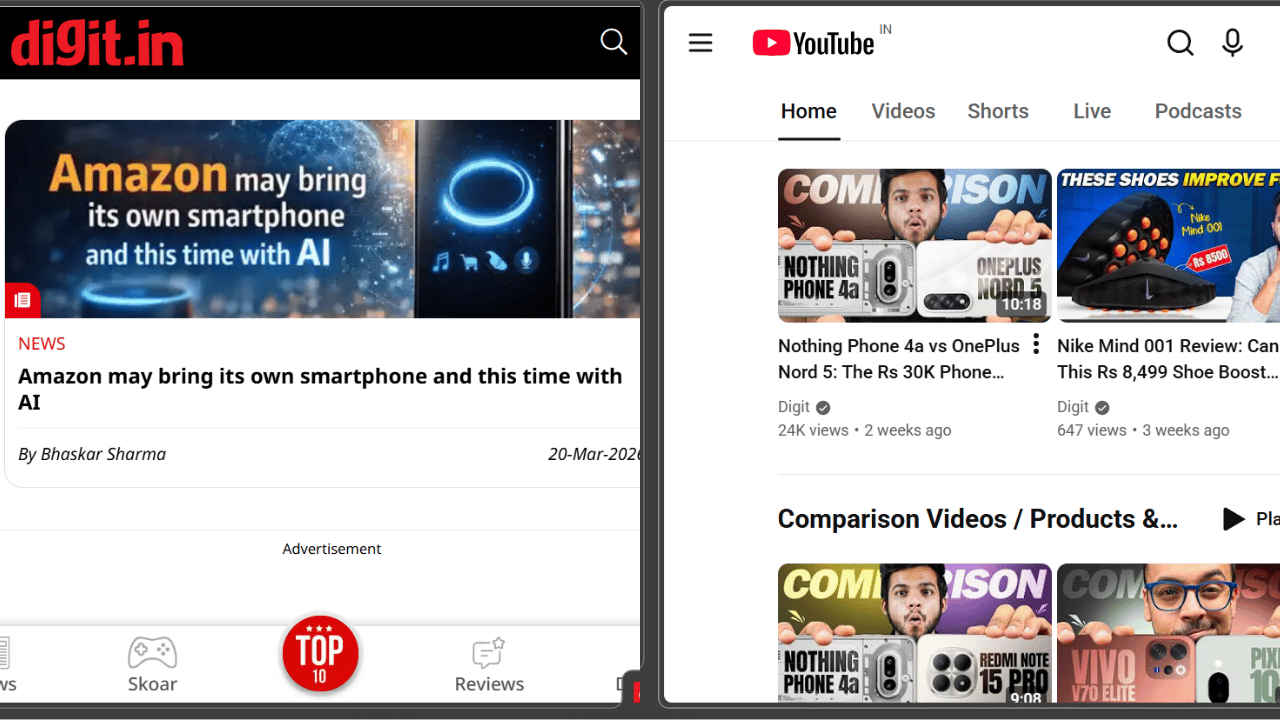

If you often work with many tabs open in Google Chrome, you know how confusing and slow it can become. It is common to switch between tabs again and again to compare information, copy content, or follow steps. This constant switching can break your focus and waste valuable time, especially while studying, working, or doing online research. Google Chrome has recently introduced a helpful feature called split view to solve this problem. The feature allows you to open two tabs side by side in the same window, and in this article we will check how you can use the new split view on Google Chrome.
 Survey
How to enable split view in Chrome
To enable and use this feature, you must have the latest version of the browser installed. split view is available in Chrome version 145 and later. If you’re not on the latest version, then you can follow the steps below to update your Chrome browser:
1. Click the three dots in the top right corner of Chrome.
2. Select Help and then About Google Chrome.
3. The browser will check for updates and install them automatically.
4. Once the update finishes, click Relaunch to restart Chrome.
Also read: Amazon may bring its own smartphone and this time with AI
How to use split view on Chrome
There are three main ways to trigger the side-by-side layout:
1. Right-click method
You just need to right-click on any of the currently opened tabs at the top of your window and select Add tab to new split view. Now, you will have the option to choose another tab to go into the second half of the window.
2. Drag and drop
In this method all you need to do is to click on a tab and drag it to the left or right edge of your window. Once you do so, a ghost image will appear on that end, and as soon as you release the tab, it will lock into that place.
Also read: Applied for Mudra loan recently? It could be fake: Here is how to spot them
3. Link method
If you want to have your current page open and view a link, right-click on the link and select Open link in split view.
Tips to use split view better
Here are some of the easy tips that can help you use the split view better on your Chrome window:
- Click and drag the thin line between the two pages to make one side wider or narrower.
- Double-click the centre divider to flip the positions of the two websites instantly.
- Press Shift + Alt + N (Windows) or Cmd + Option + N (Mac) to quickly split your active tab.
- Right-click the split view icon in your toolbar and select Pin to keep the button visible for one-click access in the future.


