
How to make UPI payments without internet or smartphone
 Follow Us
You can still send money using UPI without internet or a smartphone through simple call-based options.
Feature phones and sound-based payments make it easy to pay without mobile data.
Options like missed calls and voice steps keep payments quick and simple.
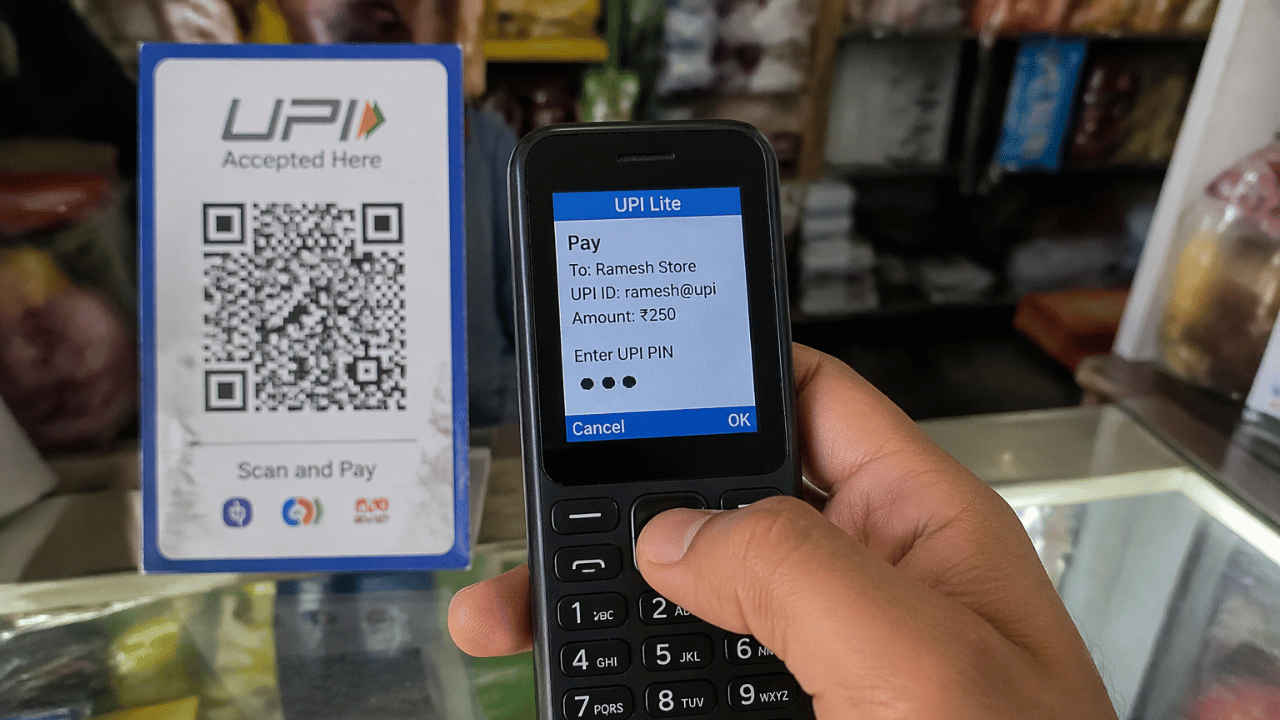

Digital transactions have certainly simplified our lives. However, at times, one may find themselves in situations where they lack access to the internet or their smartphones. Nevertheless, the transfer or receipt of money using UPI can still be accomplished in very easy ways even when such circumstances arise. The use of features such as dial codes and voice calls that link you directly to your bank account can still be utilised in performing money transfers. These methods work smoothly without using mobile data, allowing money to be sent quickly and safely. In this guide I’ll walk you through simple methods using which you can make UPI payments without needing the internet or a smartphone.
 Survey
Method 1: Using Interactive Voice Response (IVR)
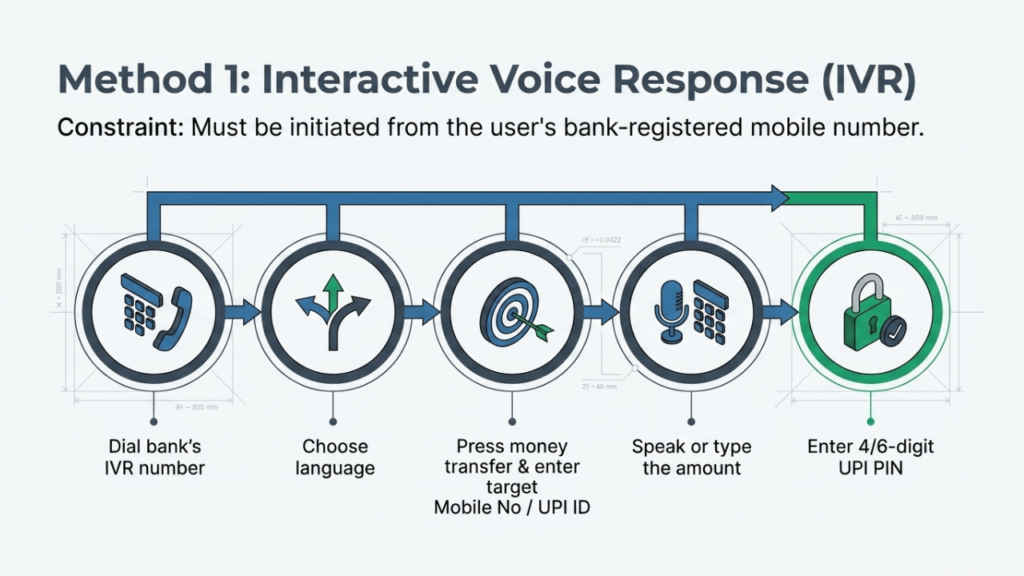
One of the easiest methods of transferring money that doesn’t require the use of the internet or smartphones is just making a call. This is how you do it:
1. Launch your phone app and dial your bank’s IVR number using your registered mobile number.
Note: It won’t work with any other number.
2. Choose the language you’re comfortable with.
3. When the menu plays, press the option for money transfer.
4. Enter the mobile number or UPI ID of whoever you’re sending money to.
5. Enter the amount. You can either type it in or just say it out loud.
6. Finish up by entering your 4 or 6-digit UPI PIN to confirm the payment.
Also read: Thinking of buying new air cooler? These 5 tips may help you make better choice
Method 2: Via app on feature phones
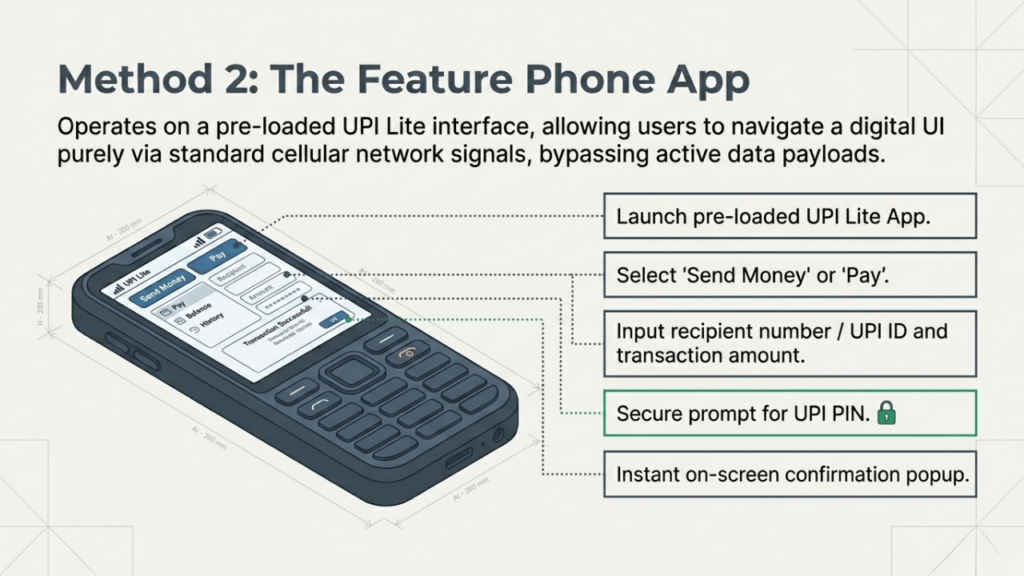
Quite a few feature phones these days come with a lightweight UPI app already loaded in, and the good part is, it works even without a data connection.
1. Open the UPI Lite app on your feature phone.
2. Find the Send Money or Pay option and select it.
3. Put in the recipient’s phone number or UPI ID.
4. Type in the amount you want to send.
5. Enter your UPI PIN when prompted.
Once the payment goes through, a confirmation message will pop up on your screen.
Method 3: With proximity sound
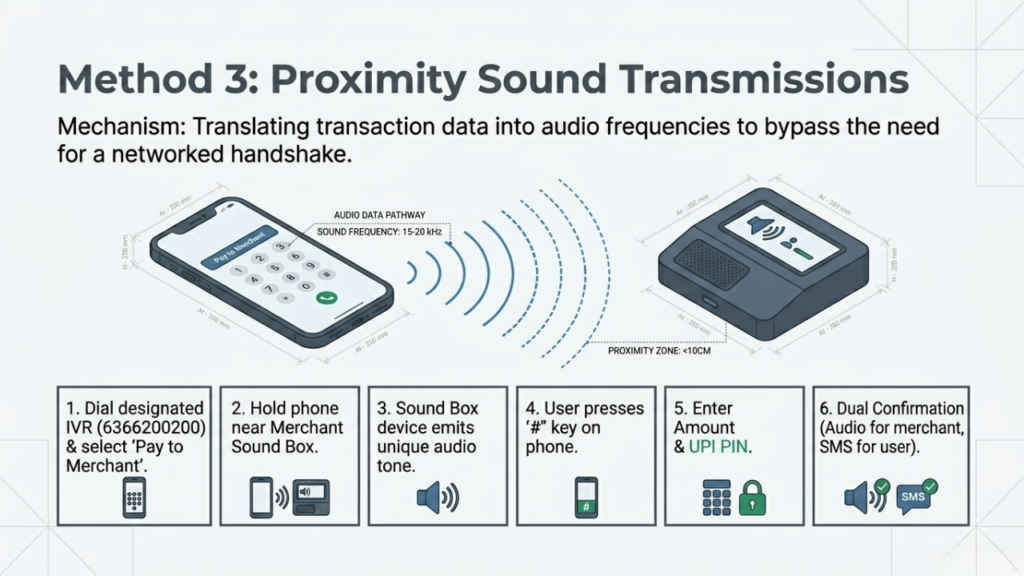
The other way is by using the sound proximity system. This technique is quite unique since it uses the sound waves to communicate from your device to the other party’s device rather than the data. But here’s how easy it is to do this:
1. Open your Phone app and call 6366200200 (this is the designated IVR number for this).
2. From the menu, pick the Pay to Merchant option.
3. Hold your phone close to the merchant’s sound-based payment device, usually a Sound Box.
4. Once you hear the unique tone from the device, press the # key on your keypad.
5. Enter the payment amount.
6. Type your UPI PIN to complete the transaction.
After that, both you and the merchant will get an instant audio or SMS confirmation that the payment went through.
Also read: Apple may finally bring 200MP telephoto camera but not anytime soon
Method 4: Using missed call
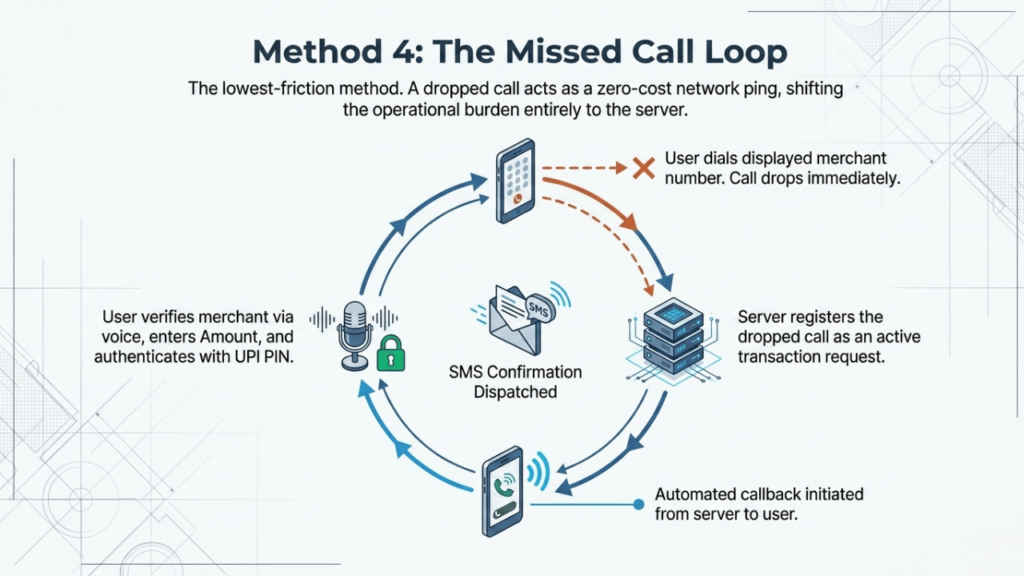
If the other methods feel like too many steps, this one’s about as simple as it gets.
1. Open your Phone app and dial the specific number shown at the merchant’s counter or shop.
2. You’ll get an automated call back almost immediately. Just wait for it.
3. The call will ask you to verify the merchant’s name and confirm the transaction.
4. Enter the amount as prompted by the voice.
5. Authenticate by typing your UPI PIN.
Now, you’ll get a text message shortly after confirming the payment was successful.


