
iMessage cool tips: How to send text with effects
 Follow Us
Most of the iOS users are not using iMessage to its full potential.
There are various options and effects that you can choose to make texting a more fun experience.
You can choose full screen effects, bubble effects, and more.
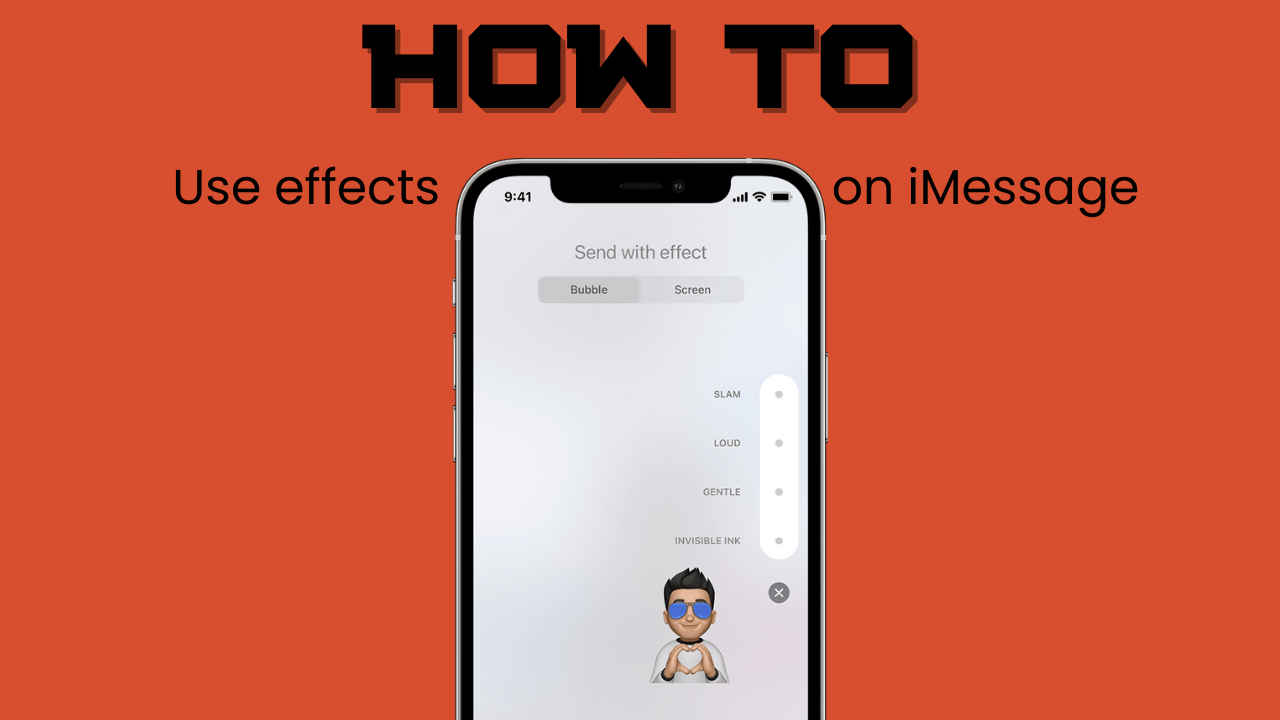

Are you an iPhone user? If yes, stay put as I have to share some cool tips with you that you might miss out on. With iPhones comes iMessages which is the cool in-built messaging app offered by Apple. Its blue text message bubbles are considered superior in some way and a lot of Android guys have tried to mimic and get the same for Android, cue the Sunbird App. However, I believe that even iOS users are not using iMessage to its full potential. iMessage helps you move beyond boring texting and adds filters, memojis, and whatnot to your chats. Today, I will tell you how you can add effects with iMessage.
 Survey
How do I send messages with effects on iMessage?
There are various options and effects that you can choose to make texting a more fun experience on iMessage.
Also read: Nothing decides to bring its own iMessage: Will Apple stay ‘Muted’?
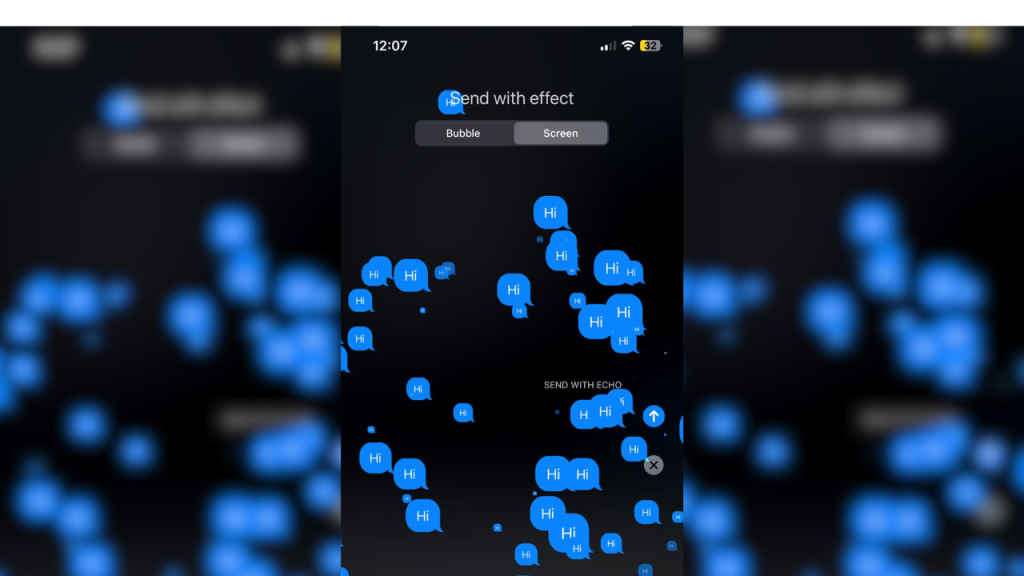
How to add a full-screen effect?
Step 1: Firstly, open the Messages app and type in your message in a new or existing conversation.
Step 2: Once you have written your message, long press the Send button.
Step 3: Next, tap on the screen.
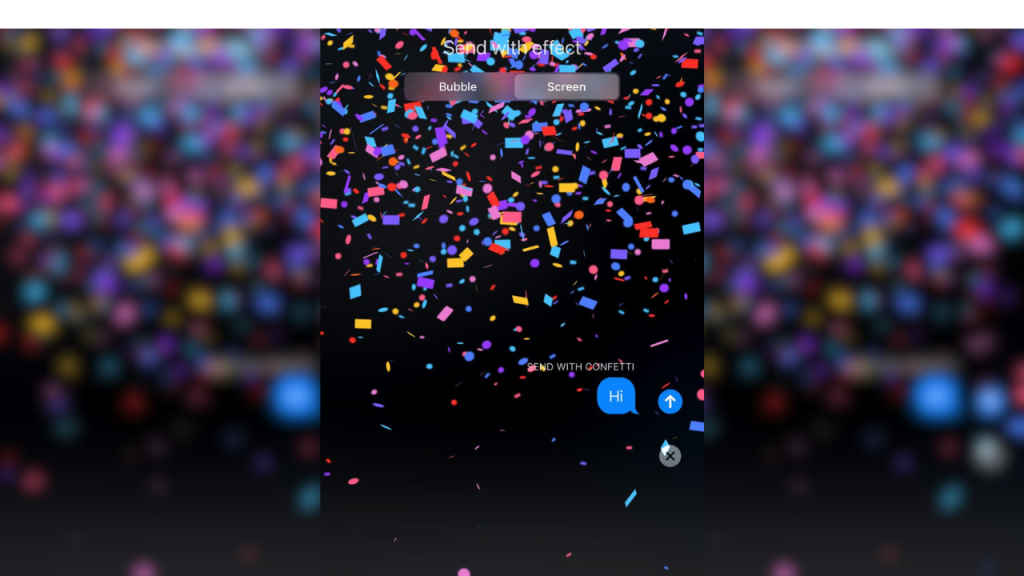
Step 4: On the top, you will see the “Screen” option. Swipe left on the screen if you wish to send a full-screen effect.
Step 5: Swipe and choose the effect of your choice.
Step 6: Click on send to deliver your message with a full-screen effect.
Also read: Google trolled Apple over SMS feature yet again: Here’s why
How to add a bubble effect?
Step 1: Open messages and tap on a new message or an existing one.
Step 2: Type in the message or add a photo.
Step 3: Long press on the send button.
Step 4: Select the “Bubble” option on the top and choose from the options.
Step 5: Now click on send to send the message with the bubble effect.
How to add a camera effect?
Step 1: Open the Messages app and click on the conversation.
Step 2: Now, tap on the camera icon.
Step 3: Then select the “Effects” button. You can then select an effect which could either be a Memoji or from an iMessage app. You can even add more than one effect if you like.
Step 4: Next, tap on done and then on the send button. You can even add a text message if you like.
Voila! With these easy steps, you can create many interesting conversations.


