
Galaxy S26 Series Photo Assist tested: Which AI features are worth using?
 Follow Us

I have been using the Samsung Galaxy S26 Ultra for the past couple of months, with much of my attention focused on Samsung’s new Photo Assist tools. In fact, these tools are among the reasons the Galaxy S26 Ultra is so practical for me in day-to-day use. Yes, the 200MP camera system is impressive on its own, but what genuinely surprised me was how useful the AI editing features have become. When you are shooting in busy places like Delhi streets, crowded launch events or outdoor spaces, you do not always get the perfect frame in one go. That is where the Photo Assist tools help.
 Survey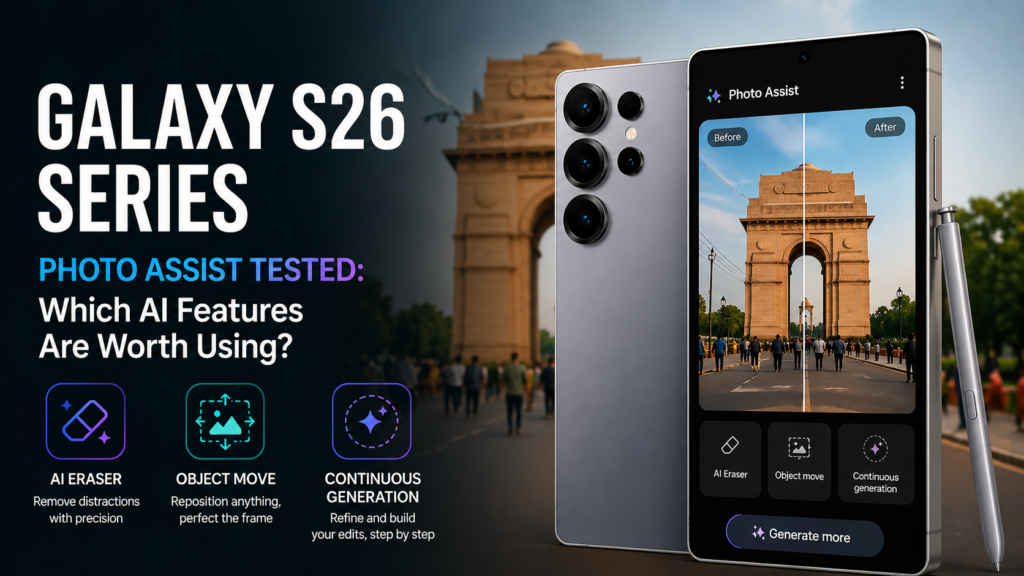
The good part is that Photo Assist is not limited to the Galaxy S26 Ultra. Whether you pick the Samsung Galaxy S26 Plus or the standard Galaxy S26, the features sit inside the Gallery app on One UI 8.5. You do not need to download extra software or learn complicated editing apps. Open a photo, tap edit, and the tools are right there. After spending real time with them, I can say some are genuinely helpful, while others are more about creative fun.
Also read: Samsung Galaxy S26 series: 26 most asked questions answered
AI Eraser feels properly improved
Samsung’s AI Eraser is not new. In fact, it is one of the best implementations out there. But this time around, it feels even smarter. Older object removal tools worked well for the most part, but sometimes left soft patches or strange-looking backgrounds once something was removed. On the S26 series, results are cleaner and more believable.


I tried it on a portrait photo of two kids riding a bicycle with people standing in the background. The best thing about AI Eraser is that the software automatically detects and suggests what needs to be erased on its own. So, after hitting remove, the final output came out surprisingly well. You still need to zoom in sometimes to spot small imperfections, but for social media, quick uploads or casual sharing, it does the job very well.
What also helps is speed. Edits happen quickly, so cleaning up multiple photos does not feel like a chore.
Object Move is more useful than it sounds
At first, Object Move sounds like one of those features you use once and forget. In reality, it can be very handy.
Say you click a nice product shot, but the subject is slightly off-centre. Instead of retaking the photo, you can select the object and reposition it. The phone then fills the empty space and adjusts the scene to make the edit look natural.
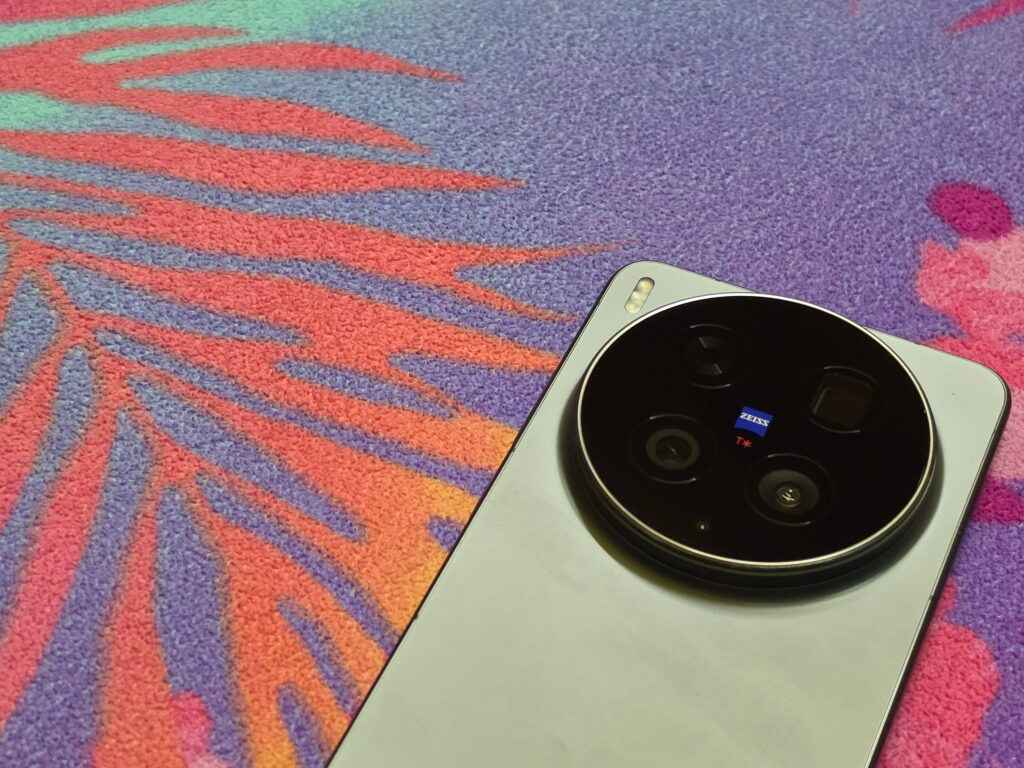
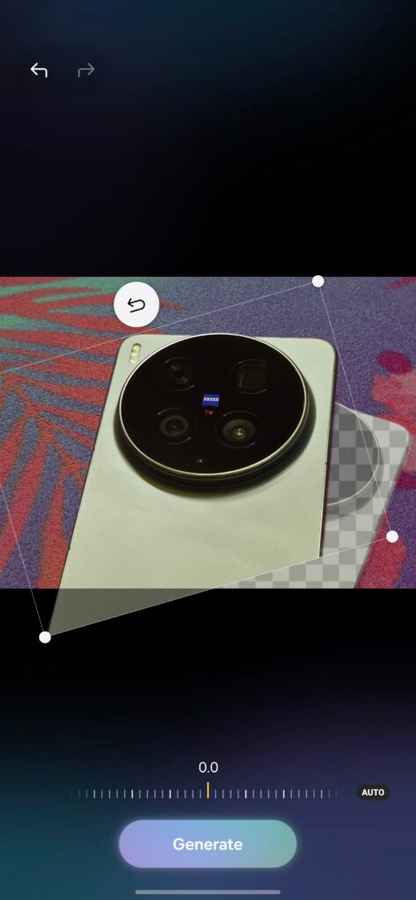
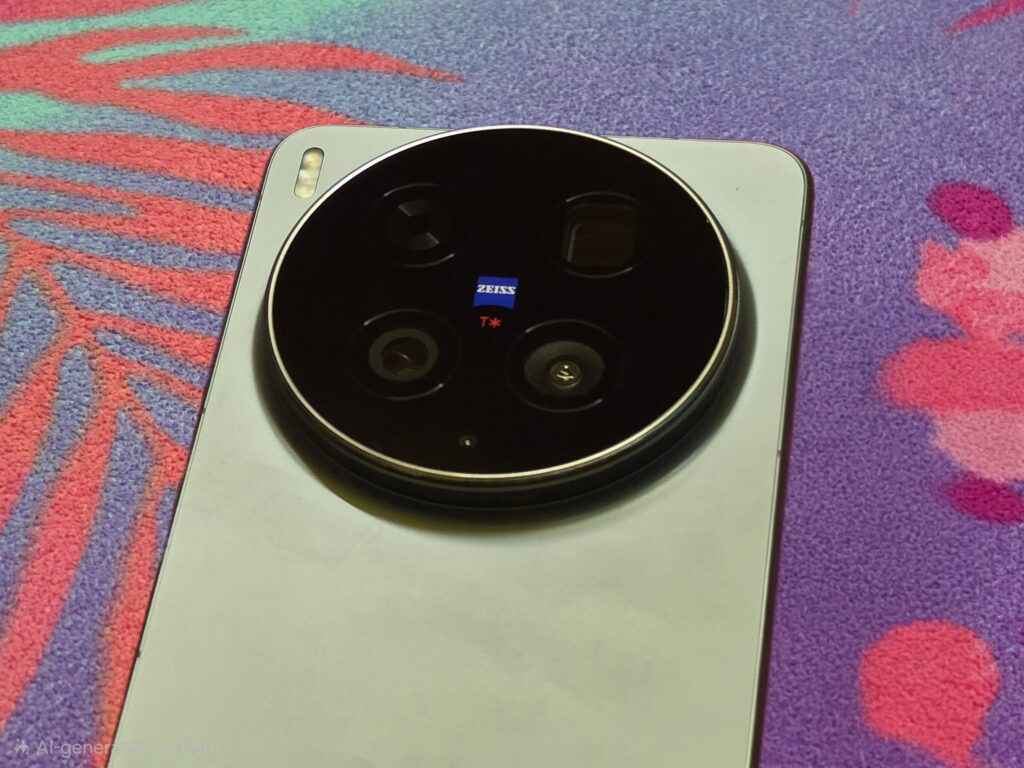
I used this while taking a phone’s product shot, where framing matters a lot. Moving the phone slightly towards the centre made the image look better balanced without needing another round of photos. It is one of those tools you may not use daily, but when you need it, you are glad it is there.
Continuous Generation is the headline feature
This is the most interesting part of Photo Assist. Continuous Generation makes editing feel more natural. Instead of making one big change and hoping for the best, you can keep building on the same image step by step. You can type simple instructions such as changing the sky, improving colours or adjusting parts of the background. Then you can continue refining the image without starting again.
That matters because photo editing usually involves trial and error. Sometimes the first result is close, but not perfect. Here, you can keep going until it looks right.
It can fix missing or damaged parts too
Another clever trick is how the AI handles incomplete objects. If something is cut off, damaged or distracting, the phone can often rebuild it based on what is already in the image.
For example, it can restore part of an object, change your clothing, or even adjust the background and colours in a believable way. These are the sort of edits that once needed proper desktop software, so seeing them inside the gallery app of a phone is quite impressive.


Of course, results depend on the photo. Some edits look brilliant, others can still miss the mark. But when it works, it feels genuinely smart rather than gimmicky.
Creative Studio keeps everything in one place
Samsung has also bundled these AI editing features into a dedicated area called Creative Studio. It makes sense because all the creative tools now feel connected rather than scattered across menus.
You can start with a photo, create stickers, make edits or experiment with ideas from one place. I liked using it for quick sticker creation from my own images. It is simple, fast and does not overcomplicate things.
Final thoughts
The camera hardware on the Galaxy S26 series might have grabbed most of the headlines, but Photo Assist deserves attention too. These tools are not just there for demo purposes when they were first shown at the launch event. Because once you take a photo, it’s what you can do with it afterwards. Some of these tools can genuinely save a shot, improve composition or speed up your workflow when time is short.
Also read: Samsung Galaxy S26 Ultra vs S26 Plus vs S26: Which one should you actually buy?
Of course, not every feature on a phone will matter to every user, and some will be used more than others. But the bigger takeaway is this: smartphone editing in 2026 has become far more practical, and the Galaxy S26 series takes all of this to a whole new level.


