Users can share their location for up to 24 hours.
The recipient get sharable Google Maps link that can be opened on device browsers or Find Hub app.
It is rolling out to Android users globally.
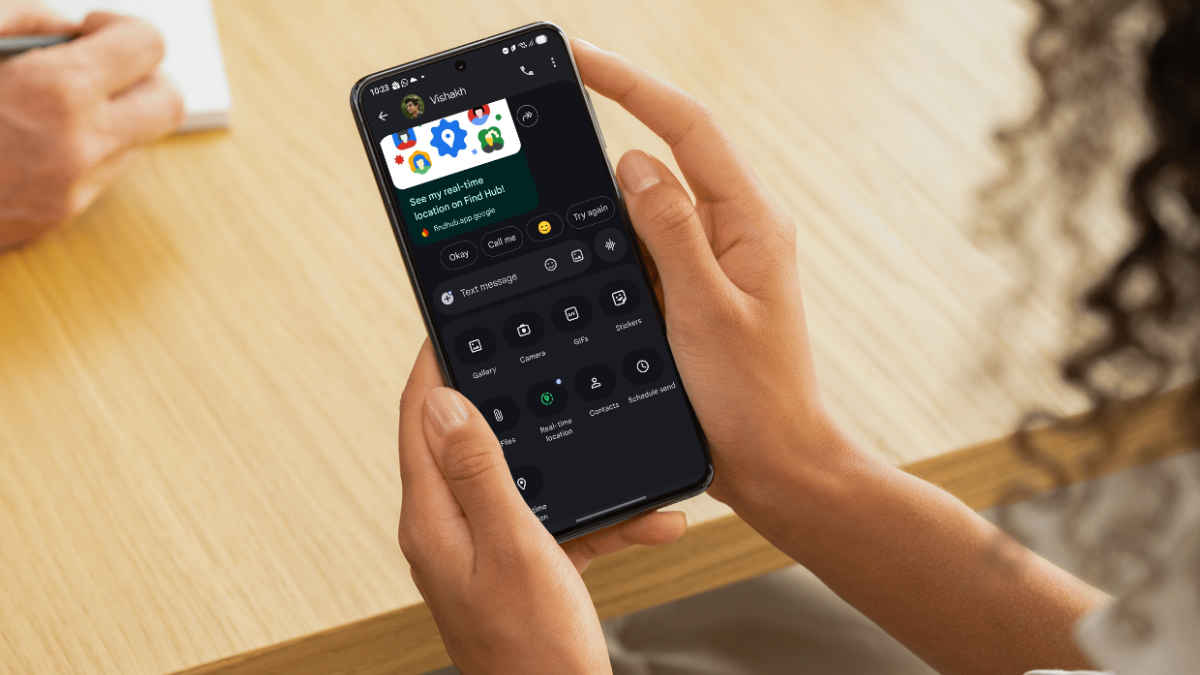
Google has started rolling out live location sharing in its default messaging app, Google Messages. This brings a long-anticipated feature directly into standard text conversations. Previously, the messaging app only supported one-time static location sharing, forcing users to rely on other apps for live tracking. The update allows Android users to share their real-time whereabouts without switching to a separate app like Maps or a third-party messenger like WhatsApp. Here, you can learn how it works and how you can send one yourself.
 Survey
How the feature works
Google Message live location sharing is powered by the Find Hub feature of Google Maps. When the recipient taps the shared location link, it opens in the default browser on your phone if the Find Hub app isn’t installed.
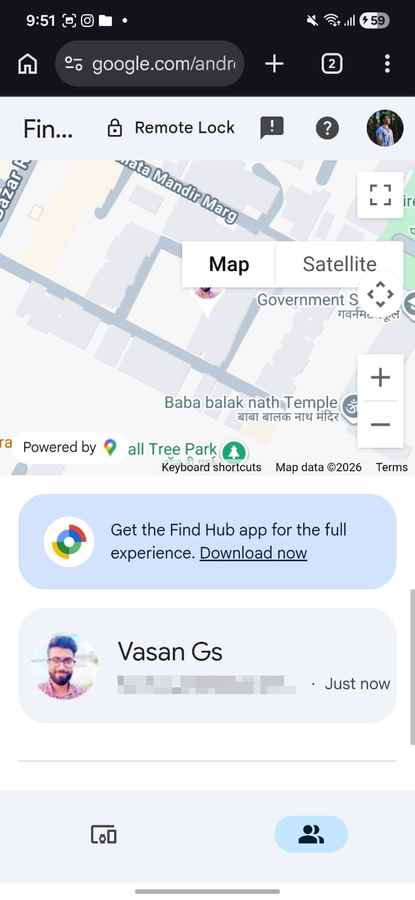
You can choose how long you want to share your location:
- For 1 hour
- Today only
- Until you turn it off manually
- Custom duration, maximum 24 hours
A visible banner at the top of the chat indicates that location sharing is active, so that you can avoid unintentionally leaving it on.
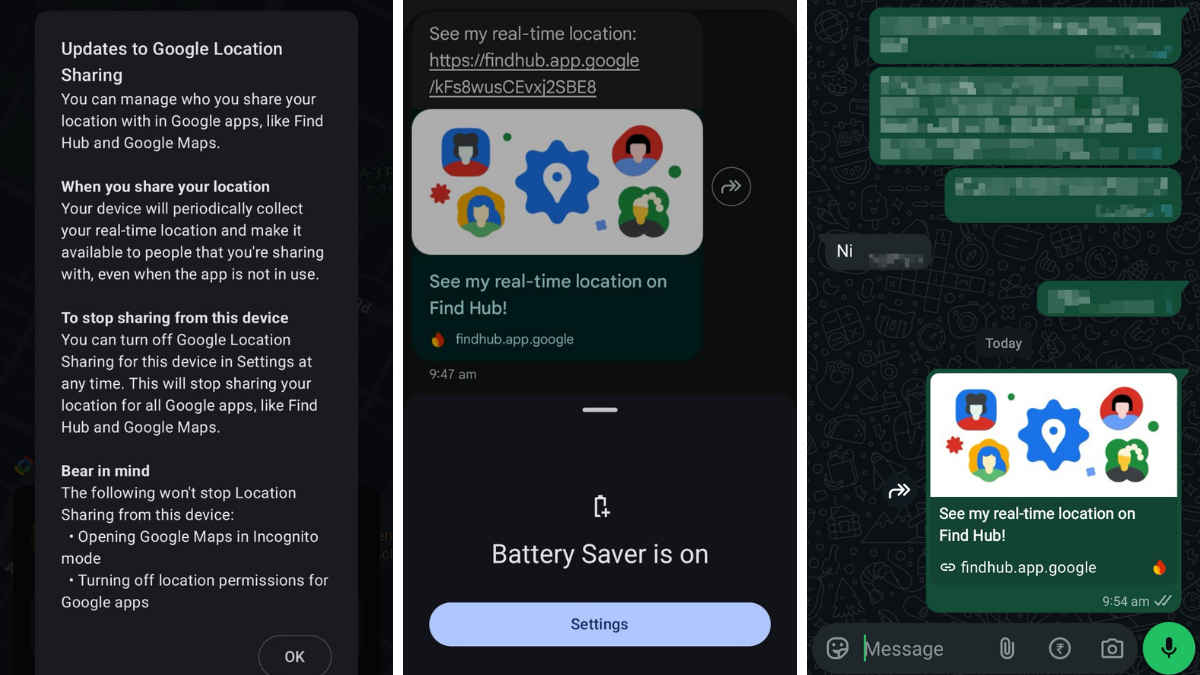
For recipients who are not using Google Messages, including iPhone users, the feature still works. They receive a shareable link that opens a live map in their browser. You can share it via WhatsApp or another platform of your preference.
How to send live location on Google Messages
Step 1: Open the Google Messages app on your Android phone
Step 2: Select an existing conversation or start a new chat
Step 3: Tap the ‘+’ icon next to the text input field
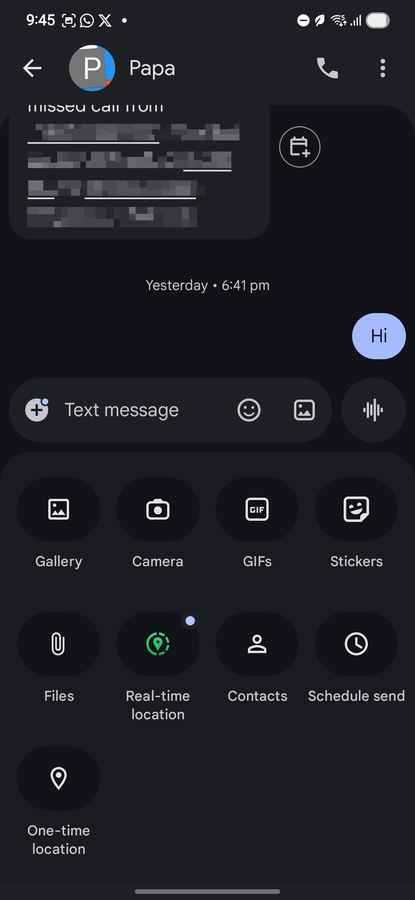
Step 4: Choose the new Real-time location option (green icon)
Step 5: Grant location sharing permissions
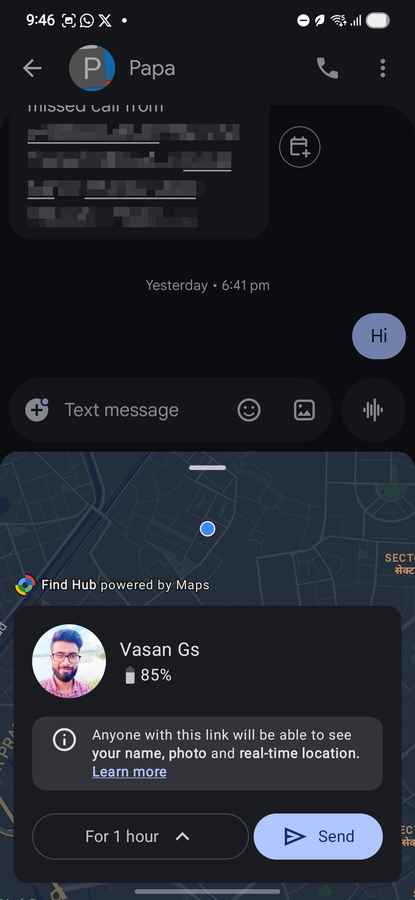
Step 6: Select how long you want to share your location
Step 7: Confirm and tap send
If the update is live for you, you will see this new green live location button. Ensure Google Messages is updated to the latest version.
Also, if battery saver mode is active on your phone, this won’t work as intended. You will have to disable the power saver mode.
Also Read: YouTube’s recent changes make free viewing worse and paid plans more tempting
How to stop sharing your location
Step 1: Open the chat
Step 2: Tap your location message. You can tap the banner up top.
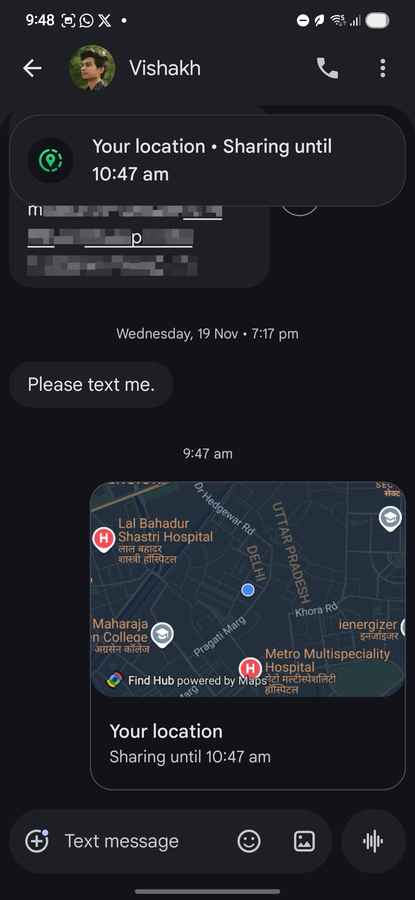
Step 3: Tap ‘Stop’, then confirm ‘Stop sharing’
Live location sharing has been available for years on apps like WhatsApp. By adding it natively, Google is closing a clear feature gap in its messaging ecosystem.
Since Google Messages is the default messaging app on Android, we do not have to open multiple apps just to coordinate meetups or share travel progress. If not WhatsApp, we can use Google Messages now.
The rollout appears to be gradual, so availability may vary by device and region.
Keep reading Digit.in for similar stories.
Also Read: Samsung adds Family Care feature to SmartThings in India: How it works
 Follow Us
G. S. Vasan
G.S. Vasan is the chief copy editor at Digit, where he leads coverage of TVs and audio. His work spans reviews, news, features, and maintaining key content pages. Before joining Digit, he worked with publications like Smartprix and 91mobiles, bringing over six years of experience in tech journalism. His articles reflect both his expertise and passion for technology. View Full Profile


