
ChatGPT photo editing prompt for professional studio-like pictures: Step-by-step guide
 Follow Us
Transform smartphone photos into professional studio portraits using ChatGPT.
Single-person photos with good lighting give out the best AI results.
Using detailed prompts will give out cinematic and studio-like images.
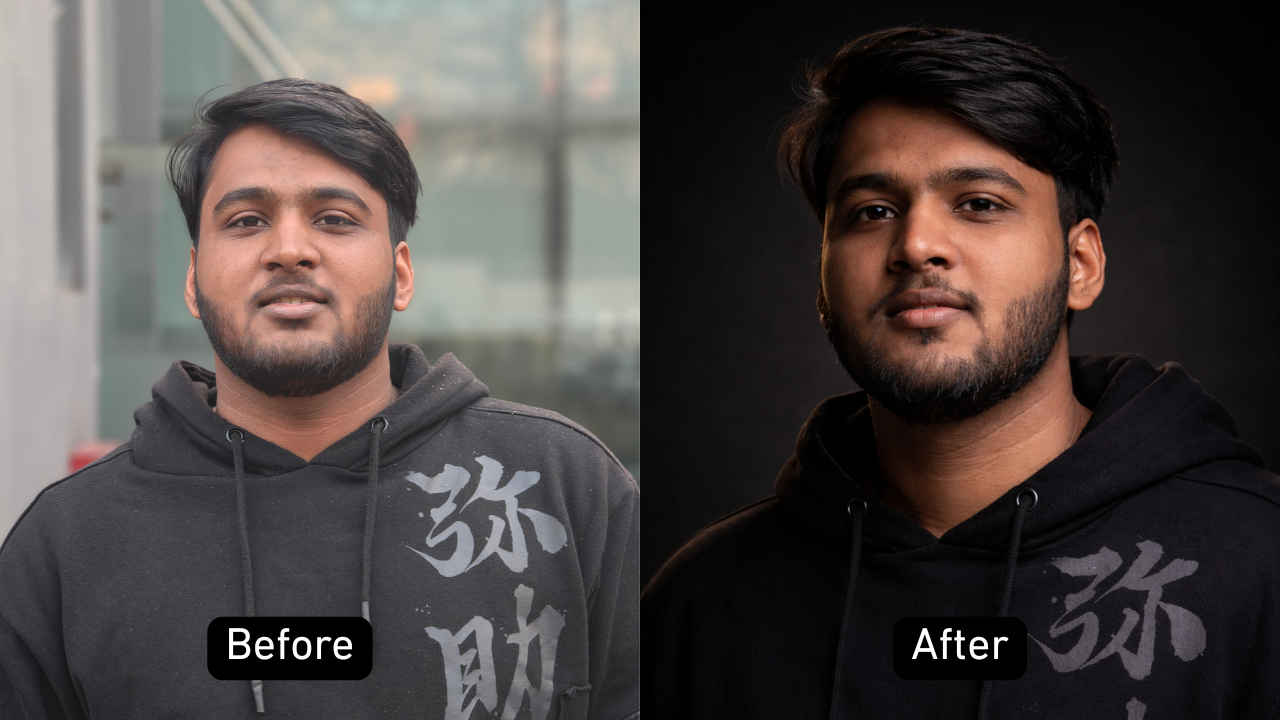

AI advancements have revolutionised photography in recent years. Gone are the days when you had to book full-blown studios with professional cameras and lighting to get excellent pictures. You can now get the same results with just your smartphone and a little help from ChatGPT, as it has become very easy to get a professional, studio-like picture within minutes. Though most users often struggle with finding the best way to create such images. But well, that’s what we’re here for. Without wasting much time, let’s check out how to create professional, studio-like pictures using ChatGPT.
 Survey
Also Read: Best prompt for Linkedin profile pic: Gemini, ChatGPT step-by-step instruction
Step-by-step guide to get professional studio pictures with ChatGPT
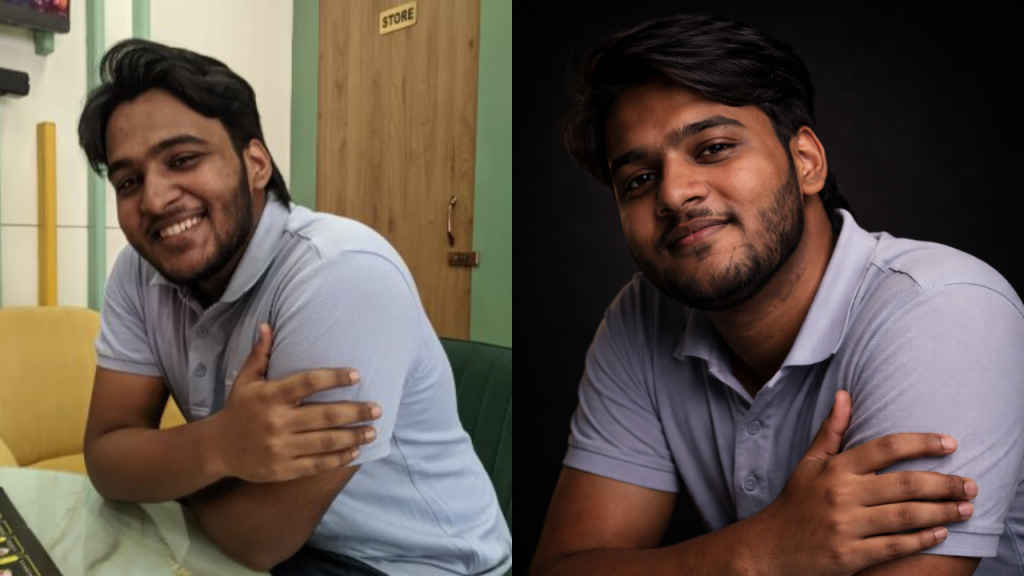
Step 1: Finding the perfect picture
First and foremost, finding a suitable picture for the chatbot is crucial. You can’t just upload any pictures and expect the results to be good, since there are a lot of factors to keep in mind for the best results.
For example, group pictures are a big no, as the AI could have trouble finding the correct person and may not produce accurate results. It is best to use a picture that has just a single person in frame, and ideally, it should also be shot with decent lighting, so that the AI can easily replace the background as well.
Step 2: Uploading the image to ChatGPT
Once you’re done with selecting the picture, the next step would be to upload it to ChatGPT. Doing that is pretty simple and does not require much effort. Simply open the ChatGPT app/website on either your mobile device or desktop.
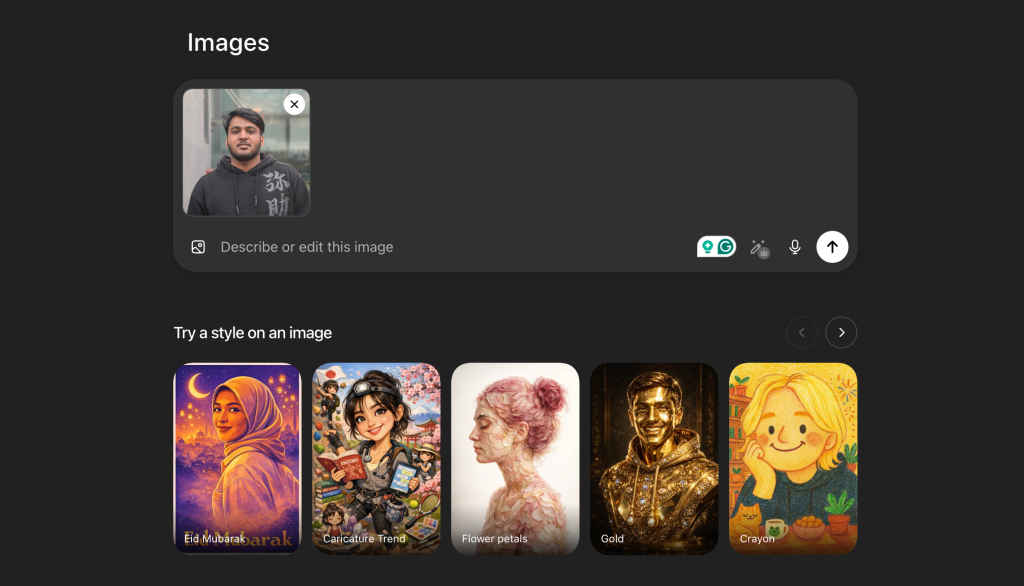
After you’re there, head on over to the images tab to create the studio-like image. In there, you should see the chat window; click on the ‘Add Photos’ icon to select pictures from your local machine. Alternatively, you can also copy and paste the images into the chat window.
Step 3: Entering the prompts for the desired picture
Next, you need to enter a detailed prompt to get the most ideal results. You can try some of the most popular options used by many, as well as frame and enhance your prompts in various ways. Below, we outline the prompt we used to generate our professional studio-like images. You can copy and paste it into the ChatGPT chat window.
Prompt for professional studio-like pictures in ChatGPT:
“Produce a cinematic low-key studio portrait with a dark background and moody lighting. Use a single key light with high contrast and deep shadows. Shot with an 85mm lens, f/1.8. Emphasise facial structure, texture, and intensity. Hollywood-style lighting, sharp focus, rich blacks, and dramatic tone. The frame should be rendered in a 9:16 ratio. Use diffused soft lighting and macro-level detail. High clarity, natural skin tones, polished but realistic retouching”
Step 4: Waiting for the magic to happen
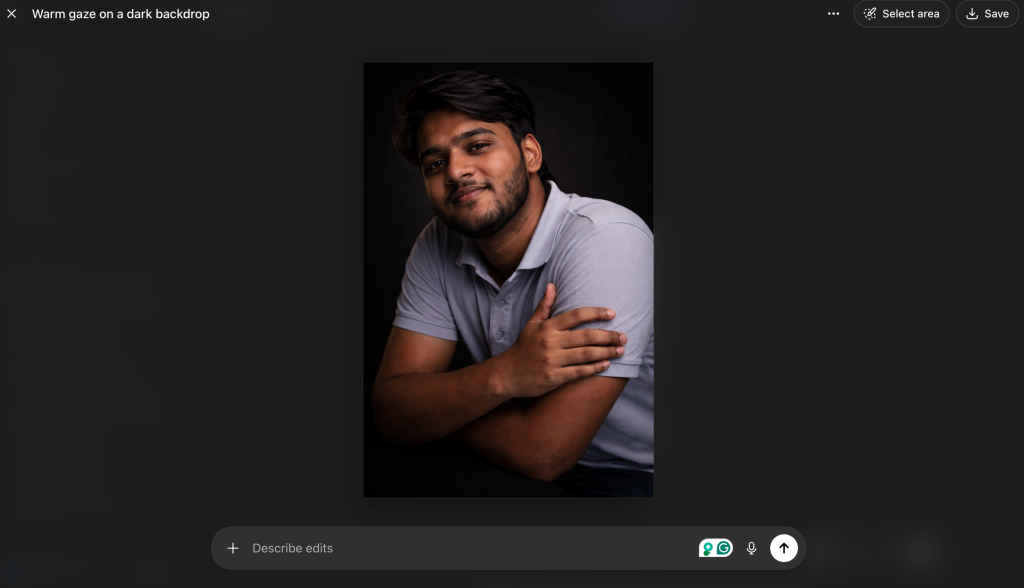
Once the prompt for the image has been entered, you can click on the Enter key. Now comes the fun part of waiting! As the famous quote says, patience pays. While ChatGPT analyses the reference image and generates the output, you should wait for the magic to happen.
Once ChatGPT is done with the image, the output should be right in front of you. You can now download and use this image by clicking on the ‘share image’ option and then pressing ‘download’. In case you aren’t satisfied with the result, you always have the option to modify/edit it in any way you want. Simply click on the edit icon and give out further details required for the edit.
Hope you understood how you can create professional studio-like pictures using ChatGPT within minutes. For more such awesome and helpful guides, keep on reading Digit.in
Also Read: ChatGPT photo editing prompts for Dhurandhar movie-inspired images


