
Asus AiO review: Minimalist look, maximum performance
 Follow Us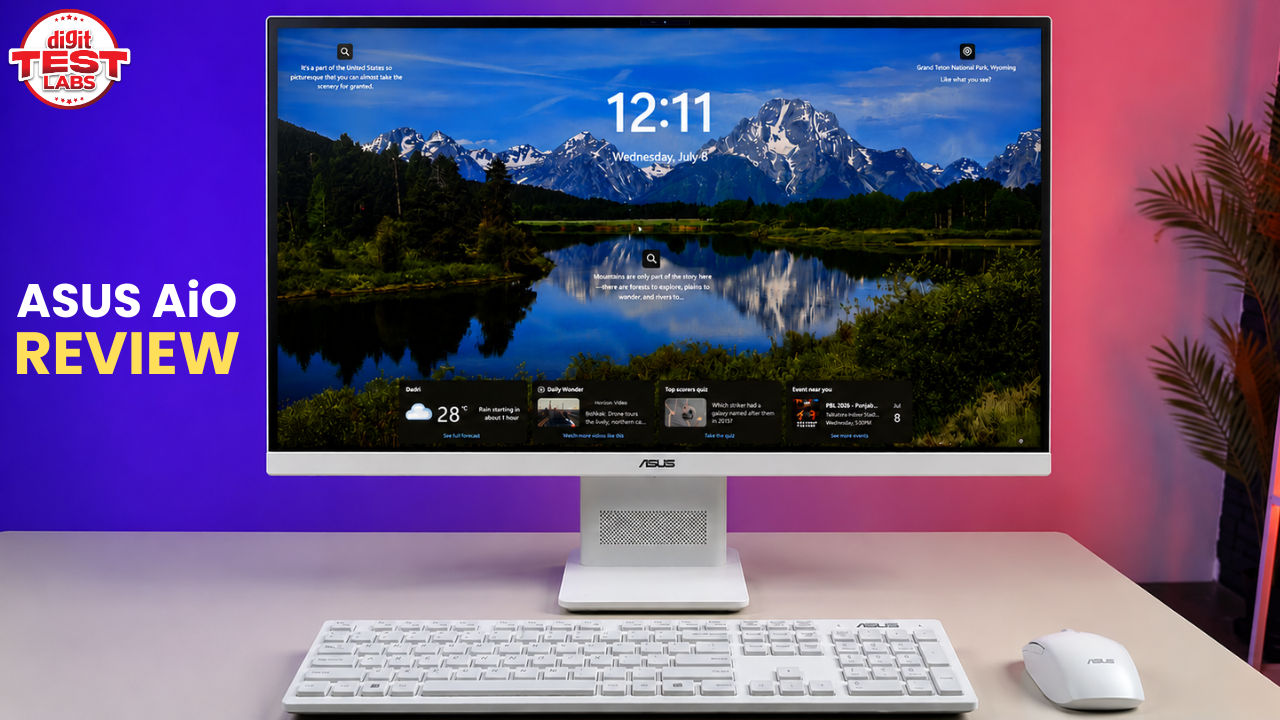

I type… a lot. And my workspace, (just like many other writers), has a hard time staying clean. Okay, let’s say I may be having a hard time keeping it clean, but that isn’t what we need to focus on. What we do need to focus on is the reason behind all that clutter. Endless gadgets, chargers, external drives, cables and all the other accessories that somehow always end up scattered here and there. So when I got the opportunity to review the new Asus AIO (All-in-One), I couldn’t help but wonder if this could finally give me a cleaner, more organised workspace. And after using this as my primary work machine for over a week, I can say that it does its job flawlessly.
Unlike a traditional desktop, there isn’t a bulky CPU tower sitting under the desk or a dozen cables running in every direction. The PC is built right into the monitor stand, making the setup look far cleaner than what I’m used to. Now, of course, good looks alone aren’t enough, especially when the Asus AIO comes with a price tag of Rs 1,11,990. So, does this device deserve your hard-earned money? Let us find out.
Also read: Asus Zenbook S14 review: Premium style at a premium price
Asus AIO: Specs, setup and installation
Before we delve deeper into the review, here is a quick look at what the device offers:
| Processor and NPU | Snapdragon X Processor (8 Cores, 8 Threads, up to 3.0GHz, 30MB Cache), Qualcomm Hexagon NPU (up to 45 TOPS) |
| Graphics | Qualcomm Adreno GPU |
| RAM | 16GB LPDDR5X |
| Storage | 1TB M.2 NVMe PCIe 4.0 SSD |
| Display | 23.8-inch Full HD (1920 × 1080) Touchscreen IPS |
| Ports (Side) | 1 × USB 3.2 Gen 1 Type-C, 1 × Headphone Jack, |
Setting up and installing the Asus AIO was super quick and easy. All you need to do is take the AIO out of the box, connect it to a power source and press the power button located on the right edge of the monitor stand and connect its receiver to a USB-A port at the back of the monitor. Once the PC powers on, simply switch on the wireless mouse. The bundled keyboard doesn’t come with a dedicated power button and automatically pairs with the system during the setup process.
Once this is done, it’s the usual Windows setup. You’ll be asked to connect to a Wi-Fi network, sign in with your Microsoft account and complete a few basic setup steps before reaching the main desktop screen. The entire process took me around 15 minutes from unboxing to getting started. And since there are hardly any cables to deal with, it all looks super clean. You also don’t have to spend time connecting a separate CPU, monitor or speakers. Everything is ready to go within minutes, making the Asus AIO one of the easiest desktops I’ve ever set up.
Asus AIO review: Design and build
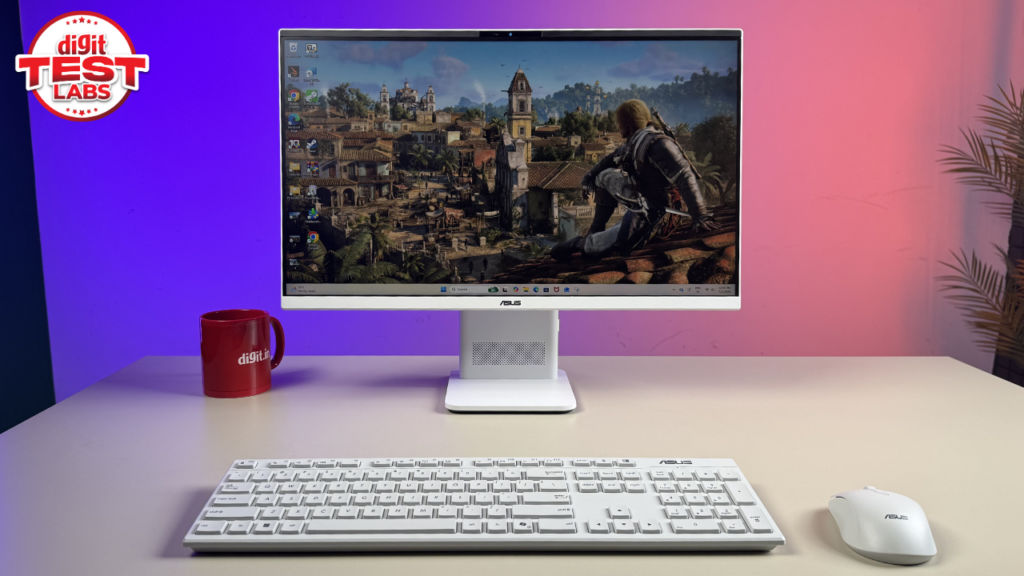
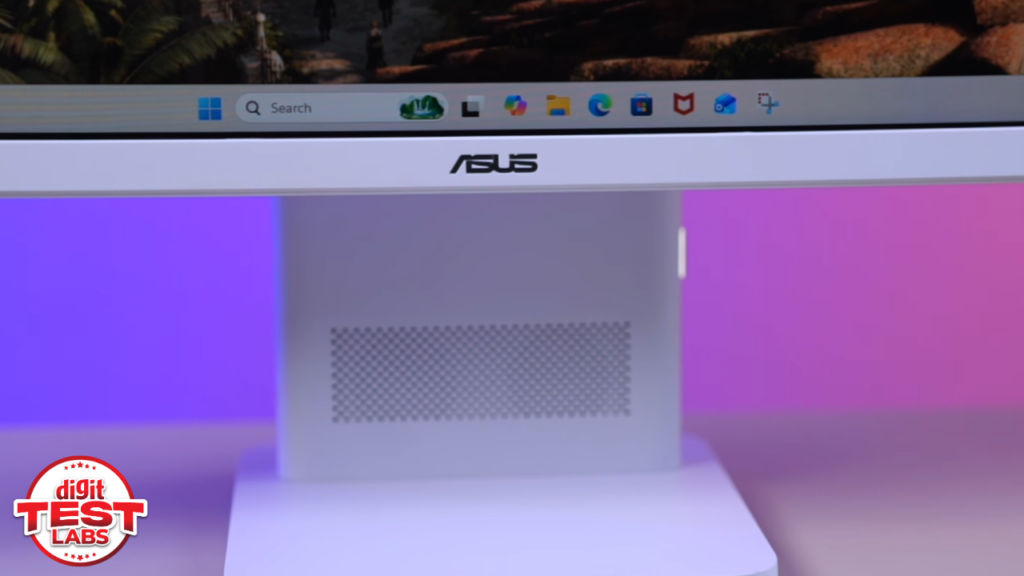
Asus has been really smart with the design here. The entire PC is inside the monitor stand, which means it takes up less space and gives you a much cleaner desk. And trust me, if your workspace gets messy as quickly as mine does, you’ll love this.
Another thing I loved is that despite everything being packed inside, this thing isn’t ridiculously heavy. I was able to take it out of the box and set it up on my work desk all by myself. So if you ever need to move it between rooms or offices, it isn’t going to be a huge task.
But, I also want to mention about something most brands don’t really get enough credit for: the ports. And Asus has done a great job here. At the back of the monitor, you get an HDMI port, Ethernet, and three USB Type-A ports. And the ports you’ll probably use every day, like the USB Type-C port and the headphone jack, are placed on the left side of the monitor stand. That means if you quickly want to plug in your headphones or connect an external device, you don’t have to reach behind the monitor every time awkwardly.
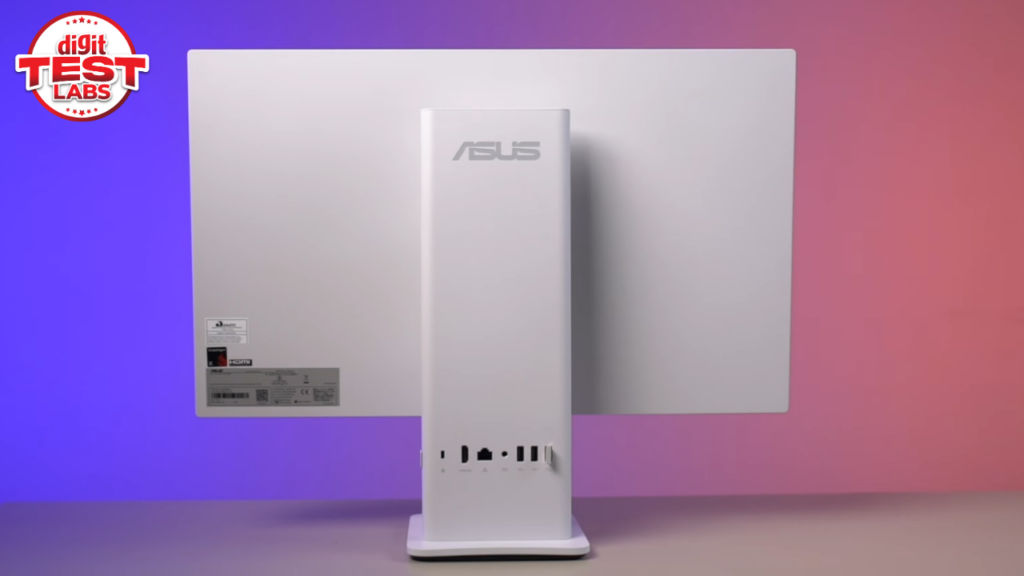
With that said, one thing that I did miss here was the height adjustment option. You can tilt the monitor to find a comfortable viewing angle, but that’s about it. If your desk or chair sits a little higher or lower than usual, you might have to rely on a monitor stand or adjust your seating position to get the screen exactly where you want it.
But overall, the monitor itself feels premium and well-built, has a reassuring weight to it, and nothing feels flimsy.
Asus AIO review: Keyboard and mouse
The Asus AIO comes bundled with a wireless keyboard and mouse. Starting with the keyboard, this is a full-sized 104-key layout, so you get a dedicated number pad and all the standard keys. And the typing experience is actually pretty decent. The keys are responsive and comfortable, once you get used to them. Personally, I come from a MacBook Air, so it definitely took me a day or so to get used to this Asus AIO. But once I adjusted, I had absolutely no issues writing long stories throughout the day.
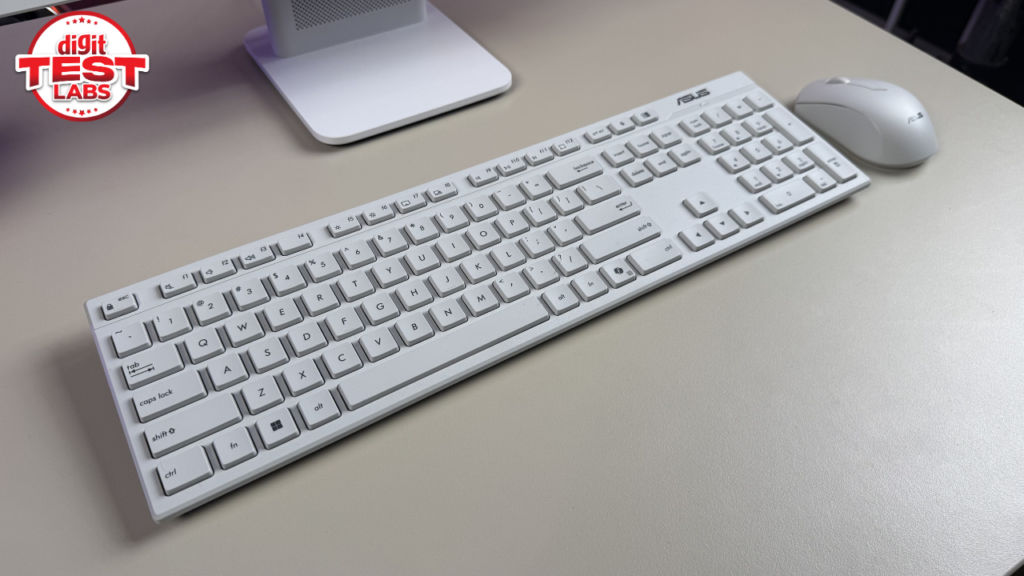
As for the mouse, performance-wise, it is completely fine and does its job well. Clicks are responsive, tracking is accurate, and the scroll wheel feels smooth. My only complaint here is, well, the size. During my usage, my wrist kept touching my desk continuously. The mouse simply felt like it was too small. Now it was not so uncomfortable that I wanted to stop using the mouse altogether, but I definitely would’ve preferred a slightly larger mouse.
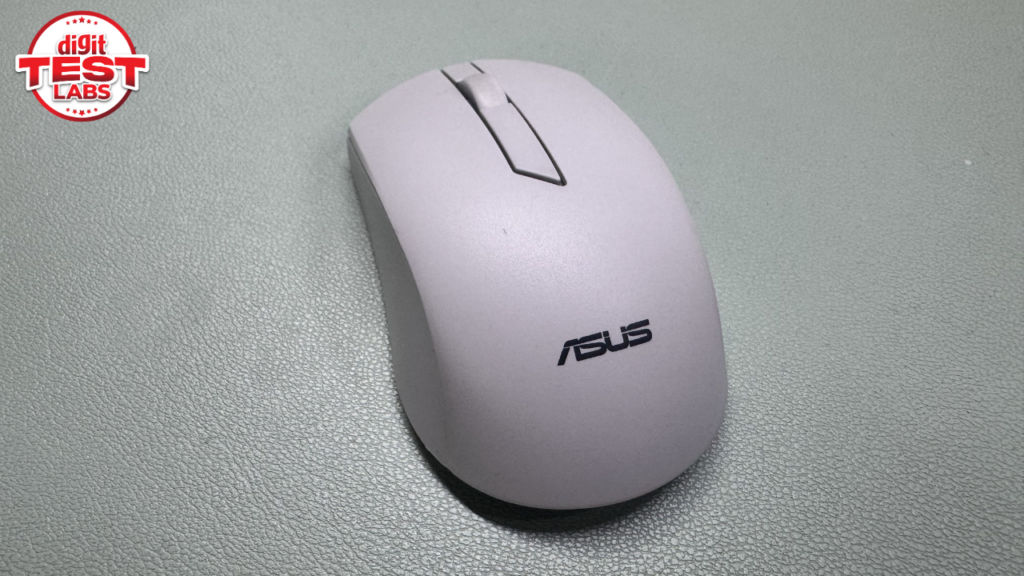
Also, while both accessories work well, they don’t really feel like accessories that come with a PC costing over Rs 1 lakh. A little more premium look and feel would’ve completed the package.
Asus AIO review: Display, webcam and speakers
The Asus AIO gets a 24-inch touchscreen IPS panel. And the first thing you’ll notice here is the slim bezels. These don’t just enhance the overall feel but also give you a little more usable screen space. Now, the touchscreen here might appeal to some users, but as for me, I only kept accidentally closing important tabs while adjusting the viewing angle of the monitor.
The good thing is that this display comes with a matte finish, which means that reflections here are never a problem. I was able to work here comfortably even when I was sitting under those bright office lights. And that is a huge advantage.
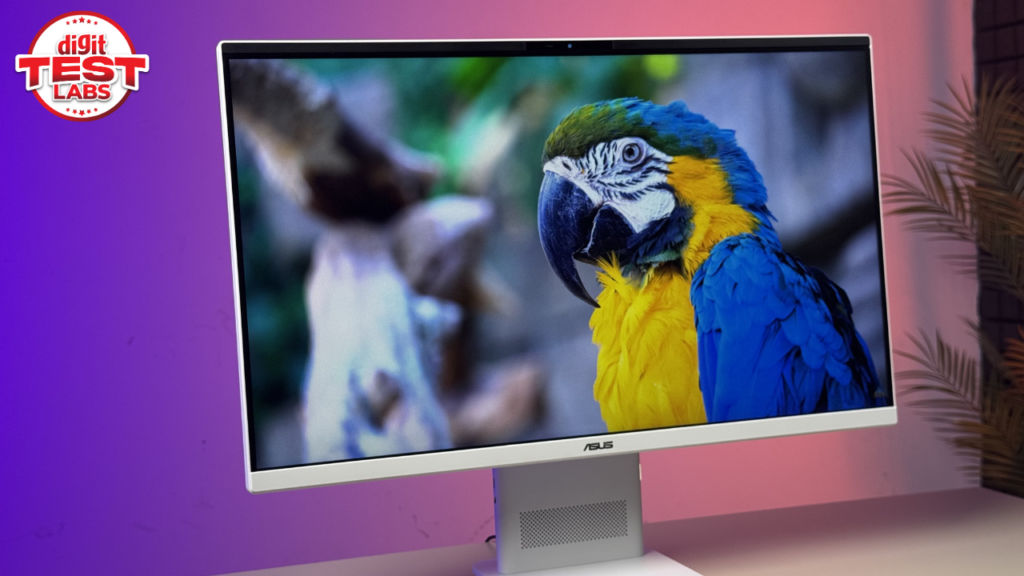
Brightness is another area where the display performs well. In fact, I spent most of my time using it at about 40 per cent brightness. Turning it all the way up to 100 per cent felt a little too bright for my eyes, so I never really needed to push it that far.
As for the webcam, it’s decent enough for everyday use. Whether it’s Teams meetings, Zoom calls or catching up with colleagues, it gets the job done without any major complaints. It’s not going to blow you away with image quality, but for a work-focused machine, it does exactly what’s expected.

The speakers, on the other hand, were a pleasant surprise. I watched the trailers for Assassin’s Creed Resynced and Marvel’s Wolverine, and the audio sounded clear throughout. Dialogues were easy to hear, and action scenes had enough depth to make them enjoyable. Now, of course, these won’t replace a dedicated pair of speakers. But for attending meetings and casual content consumption, the speakers are more than enough.
Asus AIO review: Performance and benchmarks
Now you could do everything right on a desktop, but it means very little if the performance isn’t there. And thankfully, that is not the case with the Asus AIO. This machine is super responsive, and day-to-day performance was never an issue during my time with it. Running multiple apps, keeping around 20 Google Chrome tabs open, or working across Microsoft Office apps, the PC never felt like it was struggling. Everything remained smooth, even during long work sessions.
I also ran several benchmark tests on the Asus AIO, and here’s how it went.
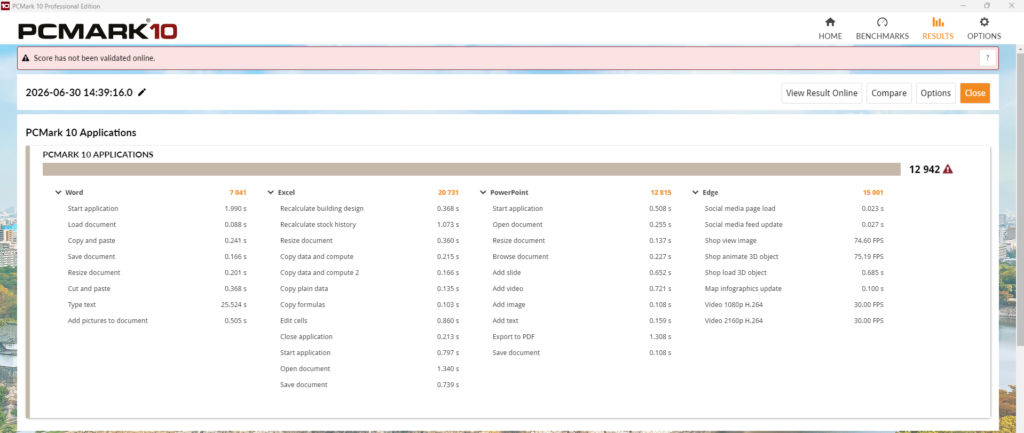
In the PCMark Applications test, the Asus AIO scored 12,942 points overall, including 7,041 in Word, 20,731 in Excel, 12,815 in PowerPoint and 15,001 in Edge. So if your work revolves around Microsoft 365, this machine is more than capable.
Moving on to Geekbench, it scored 2,121 in single-core and 10,587 in multi-core. In Cinebench R23, the machine scored 5,207 points in the multi-core test and 968 in the single-core test. And in the 3DMark Night Raid test, the Asus AIO managed 16,238 points.
Should you buy the Asus AIO?
So… coming to the Rs 1 lakh question: should you get the Asus AIO for your home or office setup? Simply put, if you’re someone who wants a desktop without a bulky tower and messy cables, this machine is built for you. It looks clean, saves up space, and comes with excellent performance and display for everyday work.
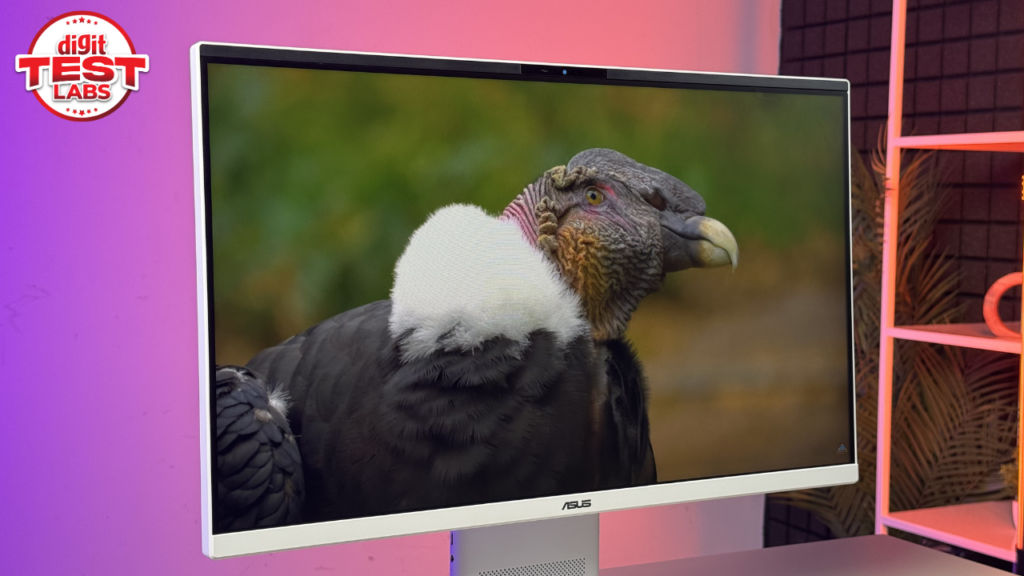
Granted, at Rs 1,11,990, this isn’t exactly an affordable desktop. Especially when previous Asus All-in-One PCs have been available for almost half that amount. So yes, you’re paying a premium. But if you have the budget and want a clean, clutter-free desktop that performs well for office work and everyday use, the Asus AIO checks all boxes.
Also read: Asus ExpertBook Ultra review: Built for business, not attention
ASUS AiO (2026) Key Specs, Price and Launch Date
| Release Date: | |
| Market Status: | Launched |


