Only NordVPN and IPVanish are available for now, with more providers expected later.
VPN support restores geo-unblocking and privacy features missing from the new OS at launch.
Previous Fire TV Sticks ran Fire OS and already supported many VPN apps.
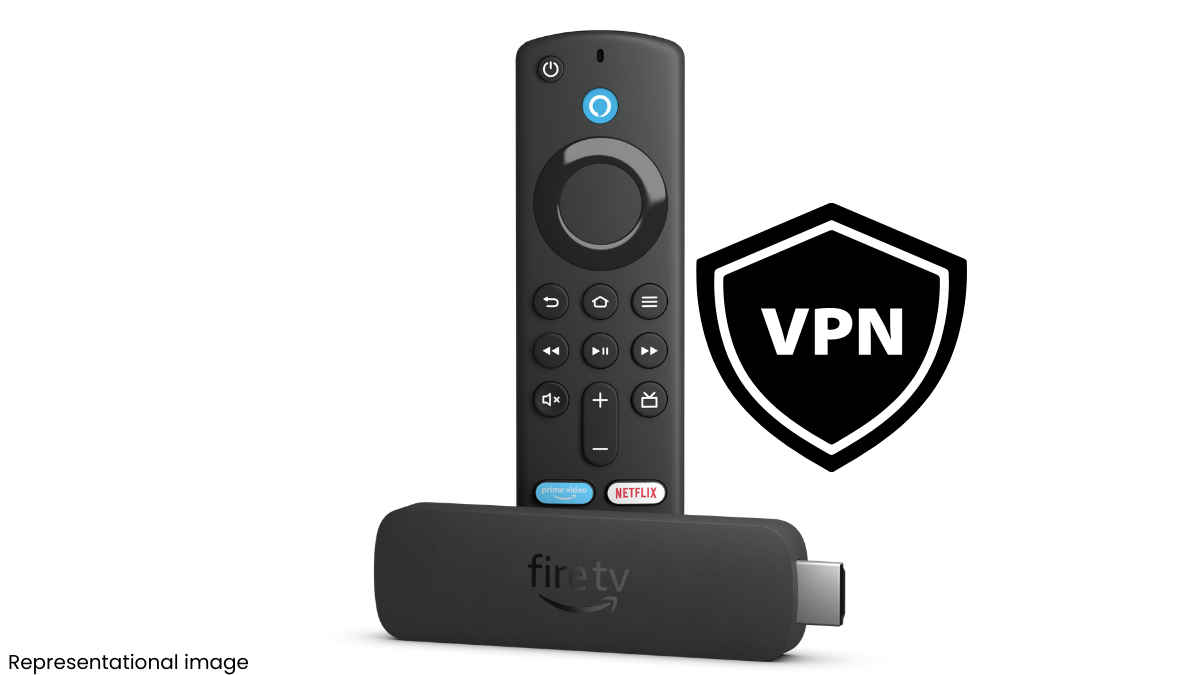
Amazon has enabled VPN support on the Fire TV Stick 4K Select, more than a month after the device launched without it. For the unversed, the 4K Select model launched as the first Fire TV device with Vega OS, a Linux-based system that replaced Android-based Fire OS. This shift had notably excluded VPN support. Well, Amazon updated Vega OS over the weekend to allow VPN functionality, but the rollout is limited. Here are the details.
 Survey
VPN on Vega OS update
Amazon has added two VPN apps for now, addressing one of the main limitations of the new Vega OS. These apps are NordVPN and IPVanish. Developers of these apps have built custom versions that are compatible with Vega OS. Other providers are expected to follow, although a timeline has not been established yet.


So, the update brings the Fire TV Stick 4K Select closer to feature parity with older Fire TV models. But until more VPN developers ship Vega OS-compatible apps, users will have limited choices.
Also Read: LG Gaming Portal brings cloud gaming to webOS TVs in India, along with official Xbox app support
Why VPN support on Vega OS Fire TV matters
VPN support on the Vega OS-based Fire TV Stick 4K Select matters for a few practical reasons that directly affect how people use their streaming device:
- Content access: Streaming apps offer different catalogues depending on the country. A VPN lets you connect to servers in other regions, so you can watch shows or films that are not available where you live. For frequent travellers, it also ensures their home library still appears when they are abroad.
- Privacy and security: A trusted VPN encrypts your connection and hides your IP address. This helps keep your viewing habits private from ISPs or anyone monitoring the network. It is useful if you often use public or shared Wi-Fi.
Restoring VPN support means users do not lose a feature they may have relied on.

How to install VPN on Fire TV
Step 1: On the Fire TV homescreen, tap the magnifying glass icon to open the search menu
Step 2: Search for the VPN name, like NordVPN or IPVanish.
Step 3: Download the app by tapping the Get option.
Step 4: Go to Apps on your Fire TV and launch the VPN you just installed.
Step 5: Sign in by entering your login credentials. You may have to register and pay for the VPN subscription if you haven’t already.
Step 6: Connect to a server by choosing the country or city you want to connect to. For instance, A US server is useful for US-only services like Hulu. A UK server is required for BBC iPlayer. Once connected, your Fire TV traffic will be routed through the VPN.
Return to your streaming apps. Your Fire TV will now behave as if it is located in the region of the VPN server you selected.
Keep reading Digit.in for similar posts.
Also Read: Google TV devices could sport solar-powered remotes in future: Why this matters
 Follow Us
G. S. Vasan
G.S. Vasan is the chief copy editor at Digit, where he leads coverage of TVs and audio. His work spans reviews, news, features, and maintaining key content pages. Before joining Digit, he worked with publications like Smartprix and 91mobiles, bringing over six years of experience in tech journalism. His articles reflect both his expertise and passion for technology. View Full Profile


