
Switched to Claude from ChatGPT? Fix these 3 privacy settings right now
 Follow Us
Claude includes several privacy options that are worth reviewing when you first start using the chatbot.
Users who prefer more privacy may want to disable settings that allow conversations to be used for improving the AI.
Claude’s Incognito Mode offers a simple way to keep sensitive conversations separate from regular chat history.

When I switched from ChatGPT to Claude, I did what most people probably do. I simply just signed in and started chatting with the AI tool. I was purely focused on testing its responses rather than digging through the settings menu. For the first few days, I hardly considered the privacy controls or other settings that could have made an impact on my user experience. Then, while exploring the app, I came across a few settings that made me pause. Some were turned on by default, even though I didn’t need them, and others were features I wanted to learn more about before deciding whether to keep them on. After spending some time tweaking Claude to match how I actually use it, I realised there are three privacy settings every new user should review. Here are the three privacy settings on Claude that you need to fix right now.
 Survey
1. Turn off location metadata if you don’t need it
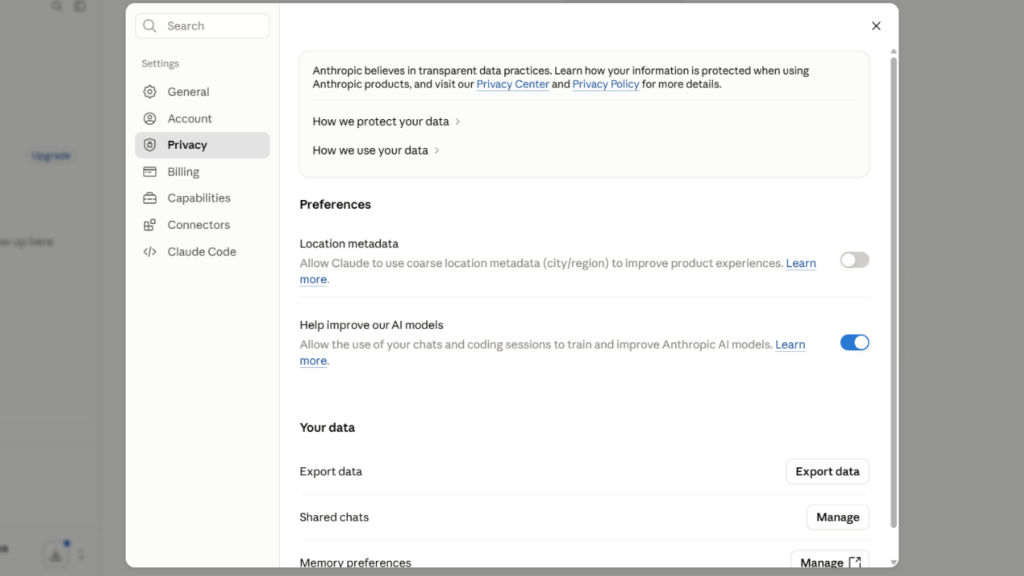
The first setting I strolled through and was shocked to know was enabled by default was the location metadata. I immediately wondered why Claude needed access to my location, so I went to read the explanation. After reading it, the reason made sense.
Anthropic says Claude can use your IP address to estimate your location and provide more relevant responses, such as nearby places, local recommendations, and weather information.
Although the function does seem reasonable if you are using Claude frequently to carry out such searches. However, what happens is that I am not using it. In case I require directions, weather updates, or even restaurant recommendations, I rely on Google Maps or Google Search. Therefore, it didn’t really make a lot of sense to give access to my location since I wasn’t making use of the additional data collected.
So I decided to turn it off, and if you’re anything like me and don’t rely on Claude for location-based answers, you may want to do the same. To do so, all you need to do is open Claude > go to Settings > select Privacy > find Location Metadata > toggle it off.
Even if you leave it enabled, it’s worth understanding what the setting does instead of accepting the default option without considering it.
Also read: Anthropic removes access to Claude Fable 5 and Mythos 5, here is why
2. Disable Help Improve Claude for private conversations
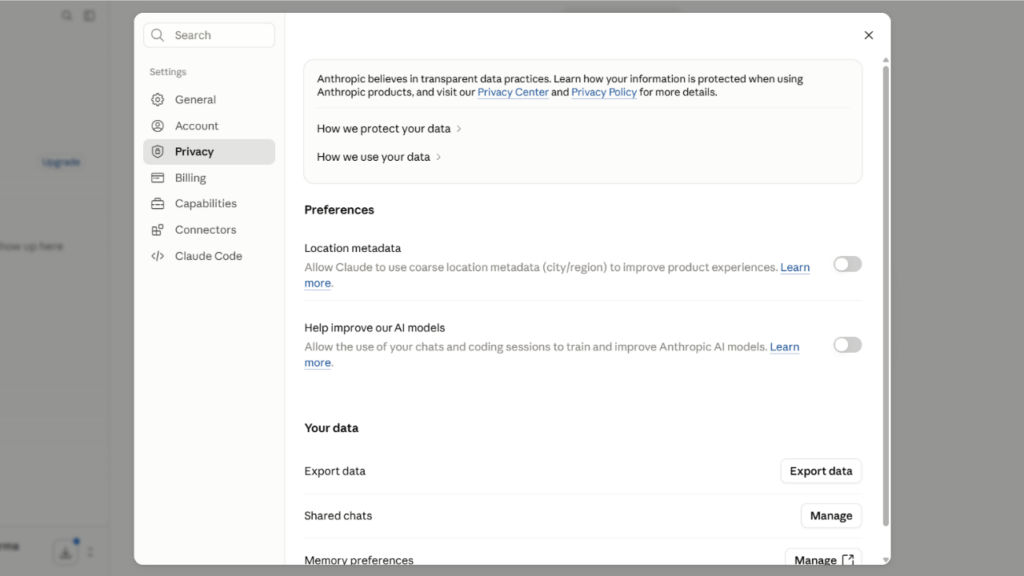
Up next, I made sure that the Help Improve Claude feature is disabled on Claude. This feature allows Anthropic to use conversations and feedback to improve its AI systems. While some users may be perfectly comfortable contributing their chats to help improve the platform. I wasn’t, and it’s not because I use Claude for anything particularly secretive.
Most of my conversations involve research, writing ideas, work-related tasks, and planning. And more importantly, those conversations are still mine, and I’d rather keep them that way.
For me, it comes down to control, as when I’m discussing article ideas, organising notes, or brainstorming projects, I don’t want to wonder whether those conversations might be used for future training purposes.
If you use Claude for work, studies, writing, or personal projects, it’s worth asking yourself a simple question: ‘Are you comfortable with your conversations being used to improve the service?’. If the answer is no, then all you need to do is head to Claude > open Settings > select Privacy > locate Help Improve Claude > turn it off.
Note: Out of all the settings I reviewed, this was probably the easiest decision for me.
3. Use incognito mode when a conversation feels personal
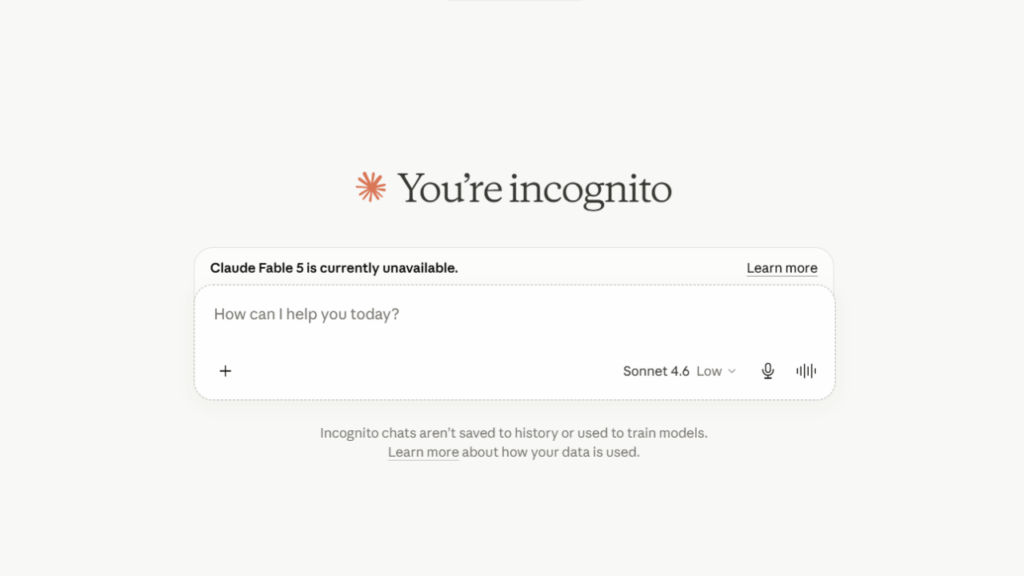
Unlike the previous two settings, this isn’t something I keep turned on or off all the time. Instead, I decide whether to use it whenever I need it. Incognito Mode is built into Claude and lets you start conversations that stay separate from your regular chats.
When I first found it, I thought it was one of those features that people can easily miss, but it’s actually very useful. Most of my chats don’t require that extra layer of privacy.
But there are times when I want a conversation to stay separate from everything else. Sometimes I might be exploring a personal topic, talking about a sensitive work issue, or asking questions that I don’t want mixed in with my regular chats.
That’s when Incognito Mode can help. It’s very easy to use; just click the Incognito icon on the top left corner of the screen when starting a new chat and begin your conversation.
You may never need it every day, but knowing it’s available means you have another privacy tool ready whenever the situation calls for it.
Also read: Samsung announces AI Soccer Mode and tempting offers on Vision AI TVs for football fans in India
Don’t ignore Claude’s settings menu
After spending some time with Claude, I realised that the experience isn’t just shaped by the prompts you write. It’s also influenced by the privacy choices you make behind the scenes.
Spending just a few minutes to tweak some of those settings will be enough to have Claude behave the way you want it to. Your preferences may be the same as mine or completely different. However, the critical aspect here is to know your options and pick one based on your comfort level.
Besides, if you’ve switched from ChatGPT to Claude recently, then you might want to check out these three privacy settings first.


