

Want to change your mobile number on Aadhaar? Here’s how you will be able to do it in two simple steps
 Follow Us
UIDAI’s new Aadhaar app lets users change their registered mobile number starting January 28, 2026, without visiting an Aadhaar centre.
The update requires an OTP sent to the old mobile number followed by face verification, ensuring only the genuine Aadhaar holder can make changes.
If you no longer have access to your old mobile number, the update cannot be done via the app and requires a visit to the nearest Aadhaar enrolment centre.
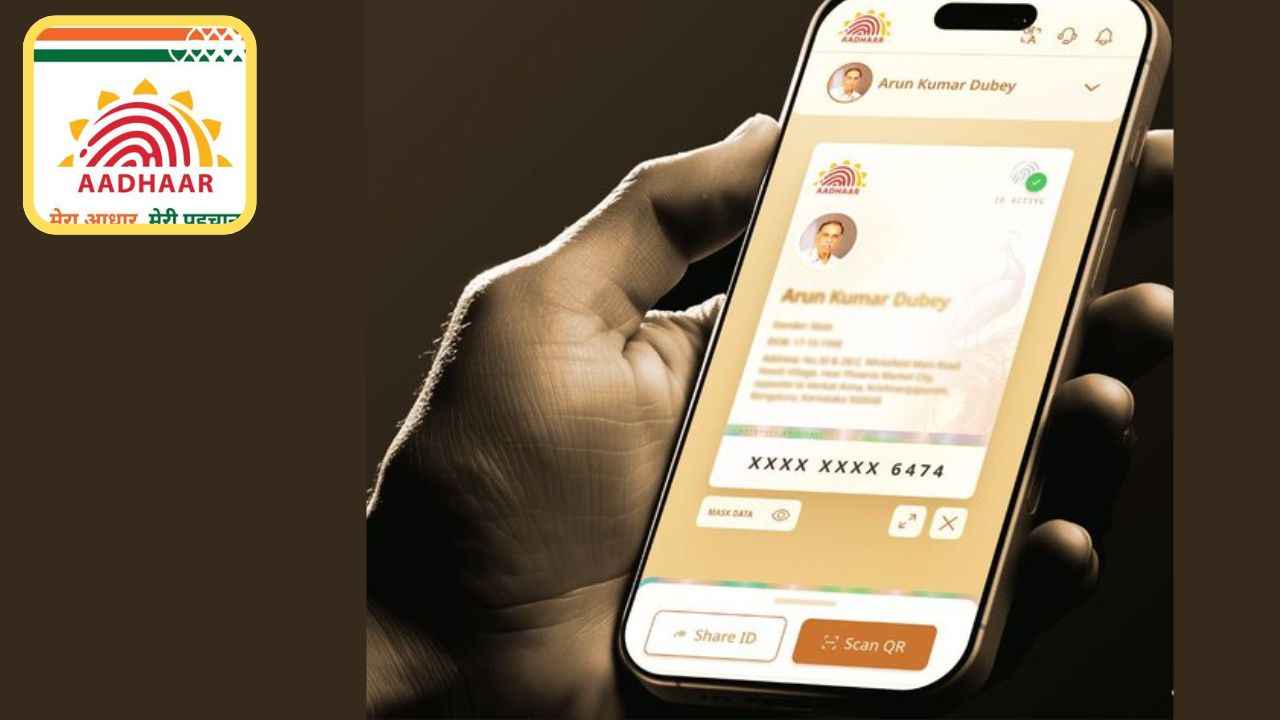

The Unique Identification Authority of India has recently announced the launch of a new Aadhaar app that aims to make Aadhaar services easier to access. From January 28, Aadhaar holders will be able to update their registered mobile number using the app, without visiting an Aadhaar centre. The update can be done from anywhere, as long as users meet certain requirements. UIDAI says the process includes simple verification steps to make sure the change is done safely and only by the rightful Aadhaar holder. The app is also designed to offer other useful services, reducing the need for physical documents.
 Survey
UIDAI has officially confirmed the launch of the full Aadhaar app through its official X account. The post said, ‘Want to change your mobile number in Aadhaar? Aadhaar is expanding its service options to allow Aadhaar number holders to update their mobile number from anywhere, anytime. The full version of the Aadhaar app arrives on 28 January 2026.’
Also read: You may soon have to pay to use Instagram, WhatsApp and FB premium features
UIDAI has also addressed users’ queries in the comment section and stated that the mobile number update feature follows a two-step verification process. First, an OTP will be sent to the old registered mobile number. Second, the user must complete face verification using the app. Only after both checks are successfully completed will the system allow the new number to be linked to Aadhaar.
Furthermore, there were many queries where the users asked whether it would be possible to update their Aadhaar mobile number if the old number was lost or inactive. Responding to such queries, UIDAI clarified that if the user does not have access to the old mobile number, the update cannot be done through the app. They further added that in such cases, the individual must visit the nearest Aadhaar enrolment centre to make the change.
Also read: iQOO 15R India launch date confirmed: Check expected price and specs
UIDAI also clarified that the rule has been introduced to prevent misuse of the feature and to ensure that only the genuine Aadhaar holder can make changes to their identity details. The authority also highlighted that the entire process inside the app is secure and guided, making it easy even for first-time users.
Apart from mobile number updates, the new Aadhaar app is designed to act as a complete digital Aadhaar solution. Users will be able to verify their identity using a QR code, update basic details like address and name, and even verify another person’s Aadhaar securely. The app also removes the need to carry a physical Aadhaar card, as digital verification will be accepted. With added security checks and guided steps, UIDAI aims to make Aadhaar services safer, faster and fully mobile for everyday use.
Also read: Thinking of applying to OpenAI? Sam Altman has a reality check on hiring in the AI era
How to change your mobile number on Aadhaar with the new Aadhaar app
Follow the steps below to update your Aadhaar linked mobile number using the new Aadhar app:
- Download and install the new Aadhar app on your device.
- Sign in to the new Aadhaar app.
- Swipe up the pop-up at the bottom of the screen.
- Under the Services section, choose My Aadhaar Update.
- Press Mobile Number Update and press Continue.
- Enter the new mobile number > tap Send OTP > enter the OTP received on your new number > tap Verify.
- Now, you will be redirected to the Face Verification screen. When there, press Face Authenticate > tap Proceed.
- Position your face within the circle, keep your phone steady, and blink when the circle turns green for verification.
- Once done, you’ll reach the payment page.
- Complete the payment to finish updating your mobile number.


