
How to remove bloatware from your Android phone: Step-by-step guide to free storage and boost performance
 Follow Us
Bloatware apps take up storage, run in the background, and can slow down your Android phone over time.
You can uninstall removable apps from Settings or disable system apps to improve performance and save battery.
Advanced methods like ADB tools, third-party apps, or rooting can remove deeper system bloatware but require caution.
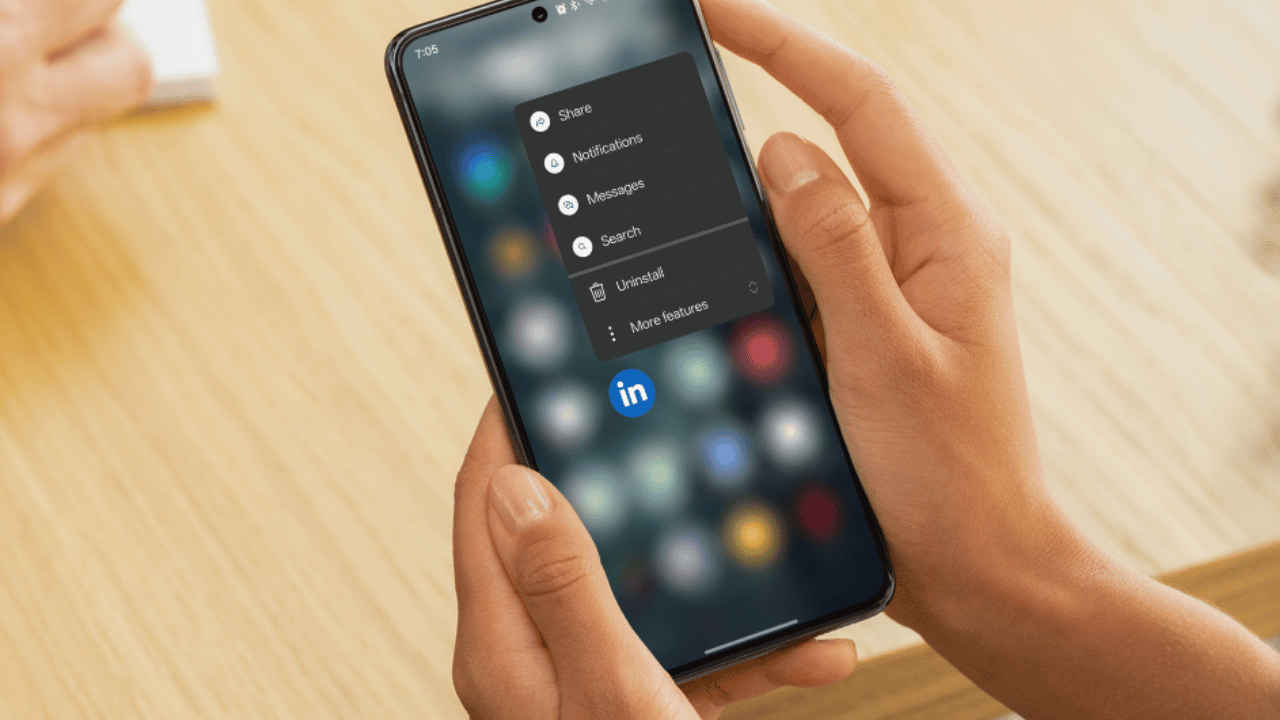

While the new device brings speed and new features, what you get along with that is bloatware. Some of these apps are made by the phone brand, while others are added by mobile carriers or partners. These apps come pre-installed on the devices as a means to market services, provide additional functionality, or generate revenue. The issue with these apps is that they are not often utilized, and they simply consume storage space, operate in the background, and, at times, provide notifications that you do not require. Eventually, bloatware can cause your smartphone to slow down. Furthermore, removing or managing these apps can help free up space and make your device run smoother. Here are easy methods you can use to remove bloatware from your smartphone.
 Survey
Method 1: Uninstall bloatware from settings
The simplest way to uninstall bloatware is through the uninstalling process from your phone settings. This method is useful in uninstalling the bloatware apps that are not locked by the system, especially the third-party apps.
1. Open the Settings app on your Android phone.
2. Go to the Apps section.
3. Select See all apps to view the full list.
4. Tap the app you want to remove.
5. Look for the Uninstall button and tap it.
6. Confirm your choice by pressing Yes.
7. Once the uninstallation of the bloatware is complete, restart your phone to clear all the background processes.
Also read: OpenAI boss Sam Altman wants students not to rely on parents for career advice, here’s why
Method 2: Disable preinstalled apps you can’t uninstall.
Some apps cannot be uninstalled because they are part of the system. However, you can disable them. Disabling an app prevents it from running, reverses updates, and conceals it from your app drawer. This may help save battery life and boost performance, even if the app is still on your device. To disable an app, follow the simple steps below:
1. Head to the Settings app.
2. Scroll down and tap Apps.
3. Select the app you want to manage.
4. Press the Disable button.
5. Confirm your choice when asked.
Method 3: Remove bloatware using ADB.
Android Debug Bridge (ADB) is a tool that lets you remove system apps from your Android phone using a computer. This method works very well and can delete apps that you normally cannot uninstall on your phone. But you must be careful. If you remove an important system app, your phone may not work properly.
Also read: OpenClaw users lost access to Gemini AI services, Google Antigravity lead Varun Mohan explains why
To do so, you will need a computer, a USB cable, and ADB installed on your computer. If you are sure that you have all the necessary things, then you can follow the steps below:
1. Enable Developer options on your phone by tapping Build number seven times in About phone.
2. Turn on USB debugging in Developer options.
3. Connect your phone to your computer.
4. Open a command window on your computer.
5. Use ADB commands to remove the app package.
Note: This method is more advanced and should be done carefully.
Method 4: Use third-party bloatware removal apps.
If the above-mentioned methods were too complex or didn’t work for you, then you can also use the third-party apps available on the Google Play Store to remove the bloatware from your device. However, do check that the app is from a trusted developer and does not ask for unnecessary permissions.
Also read: Samsung Galaxy S24 FE price drops by Rs 25,000 on Flipkart ahead of Galaxy S26 Ultra launch
Method 5: Root your Android device
Rooting gives you complete control over your Android smartphone and, when done, can help you uninstall the bloatware that is not allowed to be uninstalled otherwise. But when uninstalling apps after rooting your smartphone, you have to be careful, as with the help of rooting, you can uninstall almost any system app.
However, there are some risks involved with rooting, as it can void your warranty, make your smartphone less secure, and some incorrect changes can also damage your system. Rooting is only advised for advanced users.


