
How to turn off Liquid Glass design on your iPhone
 Follow Us
iOS 26 introduced the new Liquid Glass design with a more transparent look.
Users who prefer the old style can turn it off using the Reduce Transparency option.
You can also try tinted display or Reduce Bright Effects for a different look.
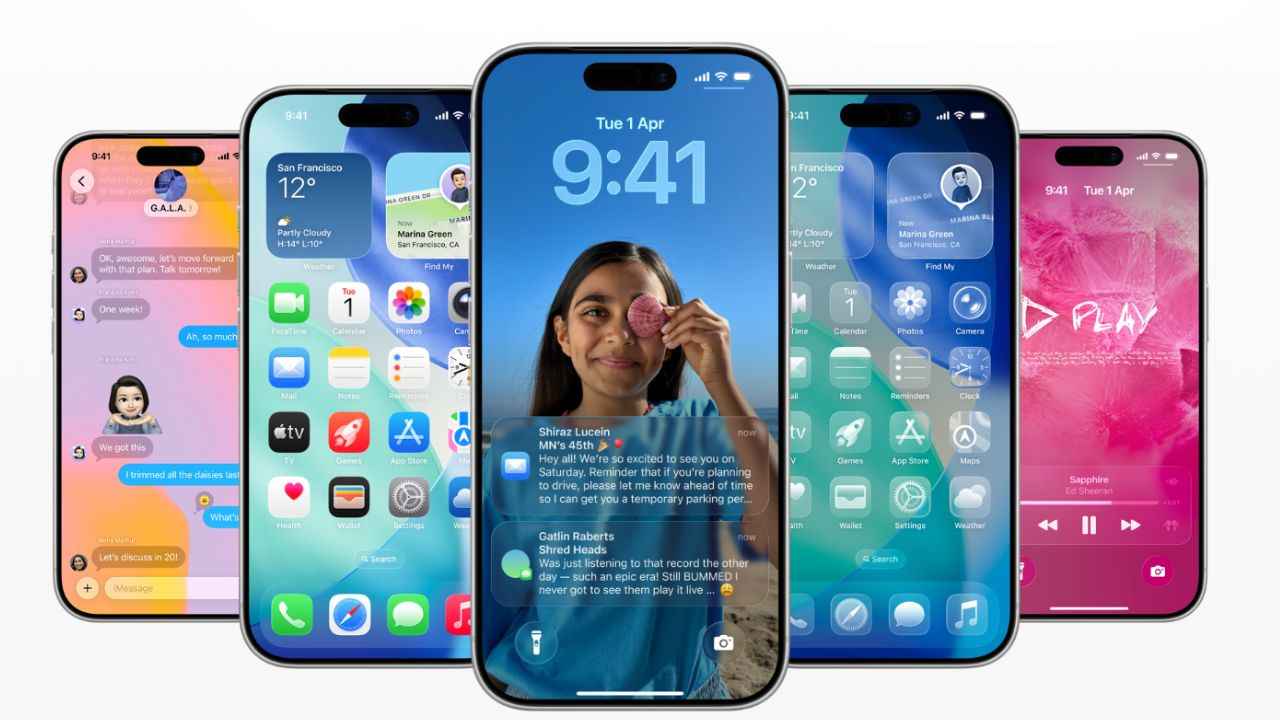

Apple introduced Liquid Glass as one of the design changes in iOS 26. With this update, Apple replaced the old blurry interface with a clearer, fluid and transparent look. While many users liked the new design concept, some preferred the older blurry interface and asked for an option to switch back. Apple initially responded to the same by reducing the transparency of Liquid Glass and making it more translucent. However, if you’re someone who wants to roll back to the old design, then here is a step-by-step guide using which you can turn off Liquid Glass design on your iPhone.
 Survey
How to turn off Liquid Glass on your iPhone
Follow the simple steps below to turn off Liquid Glass on your iPhone:
1. Head to the Settings app on your iPhone.
2. Look for Accessibility and tap it.
3. Select Display & Text Size.
4. Toggle on the button next to Reduce Transparency.
Also read: Elon Musk warns kids and mentally unwell users to stay away from ChatGPT
How to enable the tinted look on your iPhone
If you want a more tinted appearance on your iPhone display, you can enable it directly from the Settings app. Follow these steps:
1. Open the Settings app on your iPhone.
2. Tap Display & Brightness.
3. Find the Liquid Glass option.
4. Select Tinted to apply the tinted display effect.
Also read: Anthropic’s Claude AI can now visually explain concepts with interactive charts and diagrams
How to enable Reduce Bright Effects on iPhone
If you’re still not satisfied, you can also enable Reduce Bright Effects. This is a new option that reduces the bright flashing when you’re using some of the UI elements, making it more similar to the older iOS interface.
Note: At the time of writing this feature is only available on iOS 26.4 beta.
1. Open Settings on your iPhone.
2. Tap Accessibility.
3. Select Display & Text Size.
4. Scroll down and turn on Reduce Bright Effects.


