
After Sora shutdown, Elon Musk wants you to use Grok Imagine: Here is how to use it
 Follow Us
Elon Musk is promoting Grok Imagine as a top alternative to Open AI's Sora.
Grok Imagine v2 promises enhanced creativity and realism for AI generation.
Check out an easy step-by-step process to generate AI images and videos via Grok.
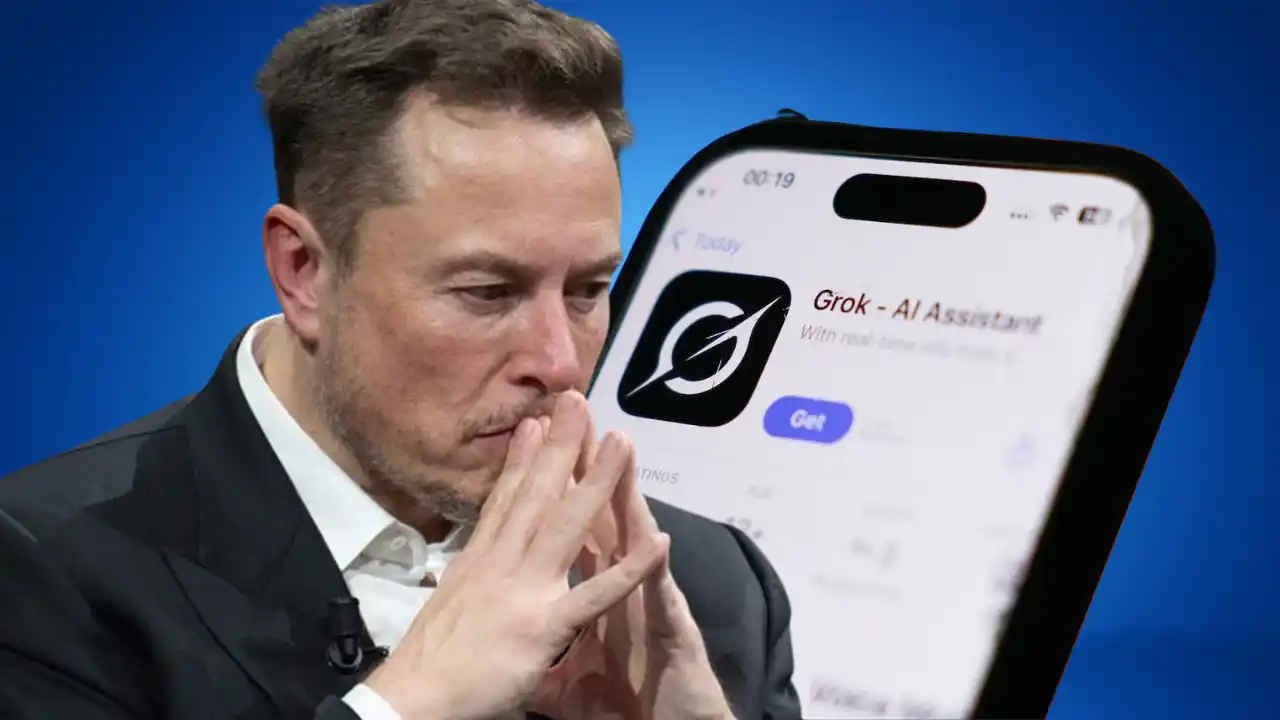

OpenAI killed its image and video generation platform, Sora, without much explanation a few days back. Ever since the news broke out, the internet has been in complete shambles. While there’s not much we know about why it happened, those who used the platform have been actively trying to find alternatives to it. Most recently, Elon Musk has been pushing Grok’s Imagine as an alternative for its image and video generation capabilities. And to be honest, it’s surprisingly a very good tool for that purpose. So, without wasting much time, let’s explore how you can use Grok Imagine with ease.
 Survey
Also Read: Best prompt for Linkedin profile pic: Gemini, ChatGPT step-by-step instruction
Elon Musk on Sora shutdown
Right after it was announced that OpenAI’s Sora would be shutting down, Elon Musk took no time to promote the alternative built within Grok. Over on X, he tweeted out suggesting that the next Grok Imagine release is going to be ‘epic’. He further suggests that the team are ‘doubling down’, meaning that their next release will have more new features involved.
Just below Musk’s tweet, the official Grok account tweeted out, ‘Can’t wait! Grok Imagine v2 is going to blow minds with next-level creativity and realism. Doubling down on the fun.’ While we’re still not sure about the release date for the next Grok imagine version, it should be interesting to see what all features it would bring to the table.
Step-by-step guide on using Grok Imagine
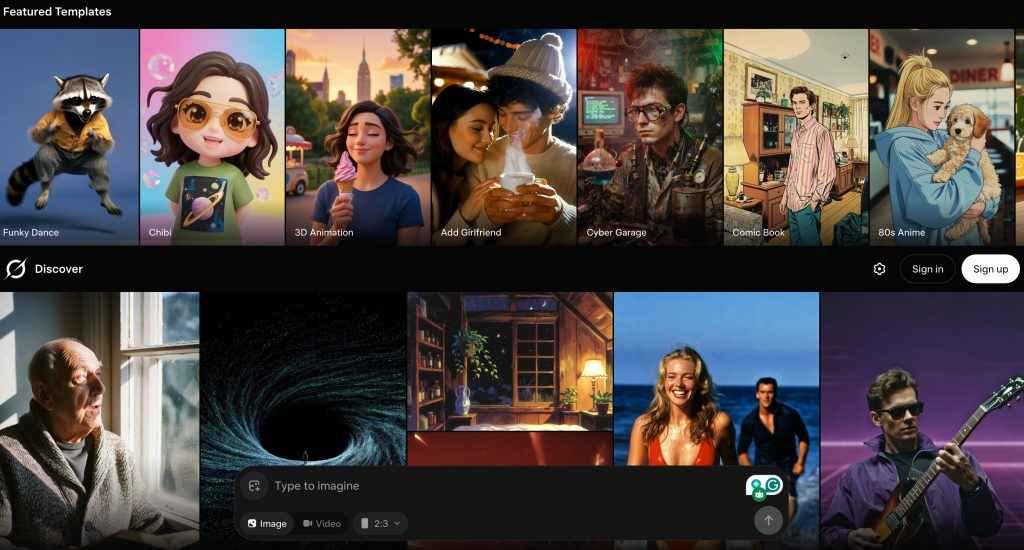
Follow the steps below to learn how you can create AI-generated images and videos using Grok Imagine:
- First and foremost, you need to access Grok AI, which can be done on either the X app or via the website.
- Once there, you need to head on over to the “Grok” tab.
- Inside the tab, you need to select the “Imagine” option.
- In there, you will get an option for the chat, where you would need to type a detailed description of the photo or video you want to create.
- Make sure that the video is in your chosen aspect ratio and select the highest resolution for the best quality.
- Once you’re done with all the settings, click on the generate button.
- Just wait for the video to generate, and in case you want to make tweaks to it, that can be done too.
- After the video is available for preview, you will get an option to download the video, which can be done from the app or the website.
Hope you understood how you can create AI-generated photos and videos using Grok’s Imagine tool. Make sure to use detailed prompts for the best results. For more such handy guides, keep on reading Digit.in
Also Read: How to import your ChatGPT memory into Google Gemini: Step-by-step guide


