
How to switch from old iPhone or Android to Galaxy Z Fold 8 in 3 simple steps
 Follow Us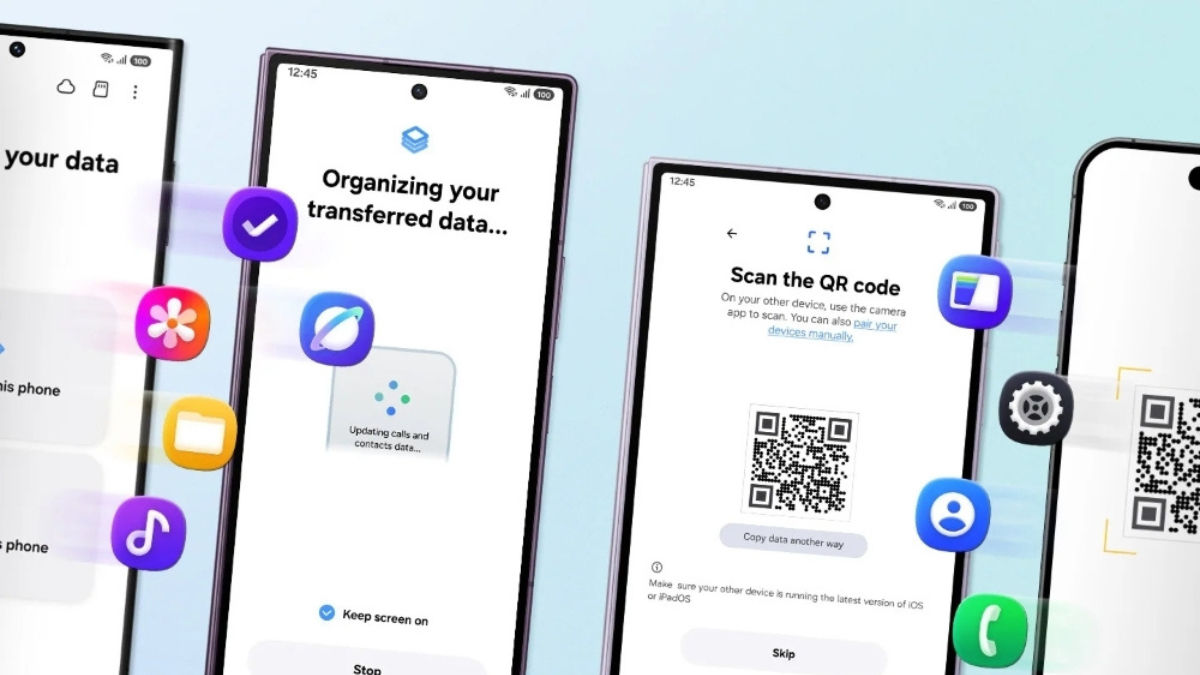

Buying a new smartphone is always exciting. What isn’t exciting, though, is moving all your personal data from your old phone to the new one. Well, if you’re currently planning to do away with your old iPhone or Android and move to the spanking new Samsung Galaxy Z Fold 8, what can put you off is not the phone. It is the thought of moving everything over. Photos, contacts, messages, passwords, and those small settings you have built up over the years can make switching feel like a chore. As someone using the Galaxy Z Fold8, I think this is one area where Samsung has made the process less painful. With One UI 9, Smart Switch can bring across more of your data, and the setup process is simpler too. You can even start the transfer by scanning a QR code on the Fold 8, rather than hunting for an app, cable or adapter before you begin.
 Survey
Also read: Samsung Galaxy Z Fold 8 review: The best book-style foldable money can buy
Here’s how you can easily switch to the Galaxy Z Fold 8 from an old iPhone or Android phone in three simple steps.
Step 1: Scan the QR code and connect your old phone
Start by setting up your Galaxy Z Fold 8. When you reach the data transfer stage, you will see a QR code on the Fold 8’s screen. Open the camera on your old phone and scan it to get started with Smart Switch.
If you are switching from an iPhone, you do not need to install the Smart Switch app separately. Once you scan the QR code, the two phones can connect wirelessly, and you can start moving your data across. That means you do not have to look for a cable or adapter before you begin.
Do note, Smart Switch can transfer data from both Android and iOS devices, although exactly what you can move will depend on your old phone, its software version, and the connection method you use.
Step 2: Bring your data across
Once your old phone is connected to the Galaxy Z Fold 8, you can choose what you want to move across. Smart Switch supports common things such as photos, videos, contacts, messages, calendars, and apps.
If you are moving from an iPhone, there is a little more that can be transferred with One UI 9. This includes passwords and passkeys, call history, accessibility settings and eSIM information. These are the sorts of things you might not think about when moving to a new phone, but having them transferred means there is less to set up again afterwards.
Just keep in mind that the data you can transfer can vary depending on the operating system, its version, and the connection method.
Step 3: Set up the Galaxy Z Fold 8 the way you like
Once your data has been transferred, you can make a few changes to how the Galaxy Z Fold 8 works and looks. You can adjust things such as swipe gestures and the Home screen layout, so you do not have to stick with the default setup.
If you want more customisation, Samsung’s Good Lock app gives you additional options for the Home screen, app switching, and other parts of the interface. This can be particularly useful if you are coming from another phone and want to change a few things to suit the way you normally use your phone.
Sharing with iPhone users
Of course, moving to a Samsung phone does not mean everyone around you will stop using an iPhone. If you regularly share files with friends or family on iPhones, Quick Share can make that a little easier. On supported Galaxy devices running One UI 9 and One UI 8.5, Quick Share can share files with iOS devices through AirDrop. I have been using this feature on the Galaxy S26 Ultra for a while, and now I use it on the Galaxy Z Fold8 as well.
Along with the Galaxy Z Fold8, Samsung says the feature is currently supported on select flagship models, including the Galaxy Z Fold8 Ultra, Galaxy Z Flip8 and Galaxy S26. Support is planned to expand to more Galaxy devices in the future.


