
Galaxy AI Audio Eraser on Samsung S26 Ultra: How to remove wind, crowd and background noise from videos
 Follow Us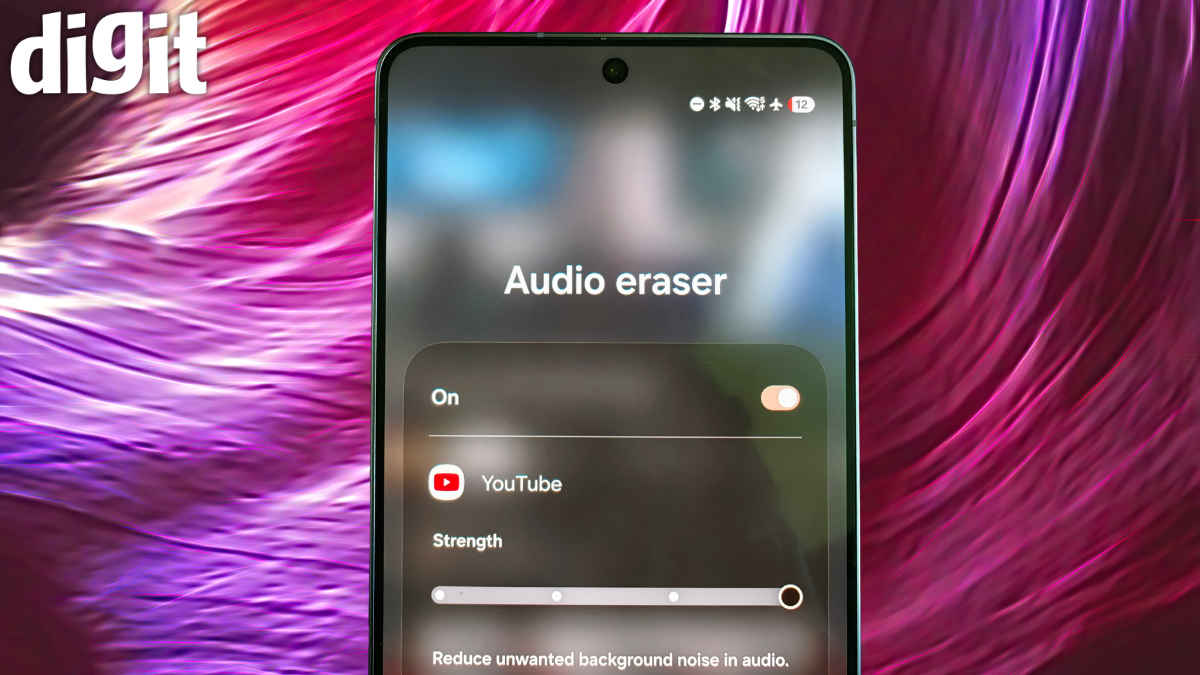

If you shoot a lot of videos on your phone, you will agree to this: bad lighting in footage can pass for artistic flair, but the audio can either make or break a clip. It can be an interview, a street shot, or even a vlog, but the second you play it back, and you hear the wind noise, traffic, or random chatter, everything ‘sounds’ ruined. Of course, there are ways to fix bad audio in clips. Usually, you can simply export the clip to a third-party app, tweak some settings, and end up with your desired output or even still, end up with mixed results.
 Survey
Also read: 7 ways Galaxy AI Writing Assist changed my daily routine on Samsung S26 Ultra
This is where Samsung’s Galaxy AI Audio Eraser on the Galaxy S26 Ultra tries to make things practical and simpler. This little feature that no one talks about much is built right into the phone and is designed to clean up unwanted noise from your videos without needing any extra tools.
What Galaxy AI Audio Eraser actually does
Audio Eraser is part of Samsung’s Galaxy AI feature set, and it focuses on separating different types of sound within a video. Instead of treating audio as one single track, the system analyses it and breaks it down into categories like voice, background noise, wind, and ambient sound.
Once the phone processes the clip, all you end up with is footage with relatively cleaner audio. The idea behind how this works is simple: lower the background noise, and keep the important parts like voices in prominence.
Of course, this is not entirely new as a concept. As I mentioned, similar tools exist in professional editing software and third-party apps, but having it built directly into the phone is what makes it practical for everyday use.
How to use Audio Eraser on the S26 Ultra
Using Audio Eraser is quick and doesn’t require you to jump into a full editing screen. You simply open the video in the Gallery app, and you will notice a small Audio Eraser icon on the screen itself (it usually appears as a sound or waveform-style button overlay, depending on the UI). Tap on it, and the phone automatically starts analysing the audio in the video. Within a few seconds, it processes the clip and cleans up unwanted noise like wind or background chatter. Once done, you can preview the improved audio instantly and choose to save the changes if you are happy with the result.
Also read: Samsung Galaxy S26 Ultra review: King of the hill
Galaxy AI Audio Eraser: What it gets right
In general use, Audio Eraser is genuinely useful, especially for common problems like wind noise. If you have ever recorded outdoors, you will know how quickly wind can overpower everything else. The Galaxy S26 Ultra does a good job of reducing that without completely sacrificing the rest of the audio.
Crowd noise is another area where it helps. If you are filming in a busy market or a public place, you can tone down the background chatter and make the speech clearer. It does not completely isolate voices like studio software would, but it improves clarity enough for social media or quick uploads.
The biggest advantage here is convenience. You do not need to move files between apps or devices. Everything happens on the phone, and it is quick.
Galaxy AI Audio Eraser: Where it still struggles
That said, Audio Eraser is not perfect, and it is important to keep expectations realistic.
In clips, where the background noise is too harsh, the output after Audio Eraser has done its task can still sound unnatural. Voices may become slightly processed or lose some depth. This is common with most AI-based audio tools, and Samsung’s version is no exception.
It also has trouble with complex audio scenes. For example, if loud music and speech overlap heavily, the system can struggle to separate them cleanly. In such cases, you may notice parts of the voice getting affected along with the noise.
Sudden sounds, like a horn blast or something dropping, are also harder to remove completely. The tool works better with continuous noise (like wind or crowd ambience) than sharp, unpredictable sounds.
Is it only on the Galaxy S26 Ultra?
The Audio Eraser feature is part of Galaxy AI, so it is not limited to just the Ultra model. Which means, if you have a Galaxy S26 or an S26 Plus, you can also use the feature on your respective phone. However, performance can vary slightly depending on the processor and overall hardware. The Galaxy S26 Ultra, being the top-end model powered by the Snapdragon 8 Elite Gen 5 chip, is likely to handle processing a bit faster and more smoothly, especially with longer clips.
Galaxy AI Audio Eraser: Should you rely on it?
For most people, Audio Eraser is not meant to replace professional editing tools. Instead, it fills a very specific gap: quick fixes. If you are a content creator, journalist, or just someone who records a lot of videos on your phone, this feature can literally save clips that would otherwise be unusable. It is particularly helpful for short-form content where speed matters more than perfection.
But if you are working on something more polished or production-heavy, you will still get better results from dedicated audio software.
Also read: Galaxy S26 Series Photo Assist tested: Which AI features are worth using?
However, the best part about Audio Eraser remains how simple it is to use. For the feature to work, you don’t need any extra apps. Instead, just a few taps inside the Gallery, and you are good to go.


