
5 ways to make slow laptop work faster
 Follow Us

Is your laptop acting like it is from 2016? Or maybe, it actually is? We’ve all been in situations where the laptop takes forever to wake up when you have to do something super important. And even when it does finally start working, apps take a long time to load, performance stutters and you can’t get even basic tasks done without facing a few hurdles. But does this always mean that it is time to spend some money and get a whole new device? Not really.
 Survey
Read on to know a couple of tricks that you must try to make your laptop feel much faster. But remember that this is more of a quick tune up rather than a complete overhaul. That said, these steps are easy to follow, do not require technical expertise, and can deliver real improvements in everyday performance. Let’s get to it.
Also read: MacBook Air M4 can be yours for under Rs 85,000 but there is a catch: All details
1. Update everything
It is tempting to ignore update notifications. They pop up at the worst times and often take longer than expected. However, skipping updates is also one of the easiest ways to slow down your system. In other words, you are basically choosing to go slow.
Operating system updates are not just about new features. They include bug fixes, performance improvements, and security patches. The same applies to apps and drivers. Outdated drivers, especially for graphics and storage, can cause lag and instability.
So, take some time out and check for updates across your laptop. Update your operating system, your browser, and key apps you use daily. Also check for driver updates through your system settings or the manufacturer’s website. Once everything is up to date, you may start noticing smoother performance right away.
2. Clean your C drive
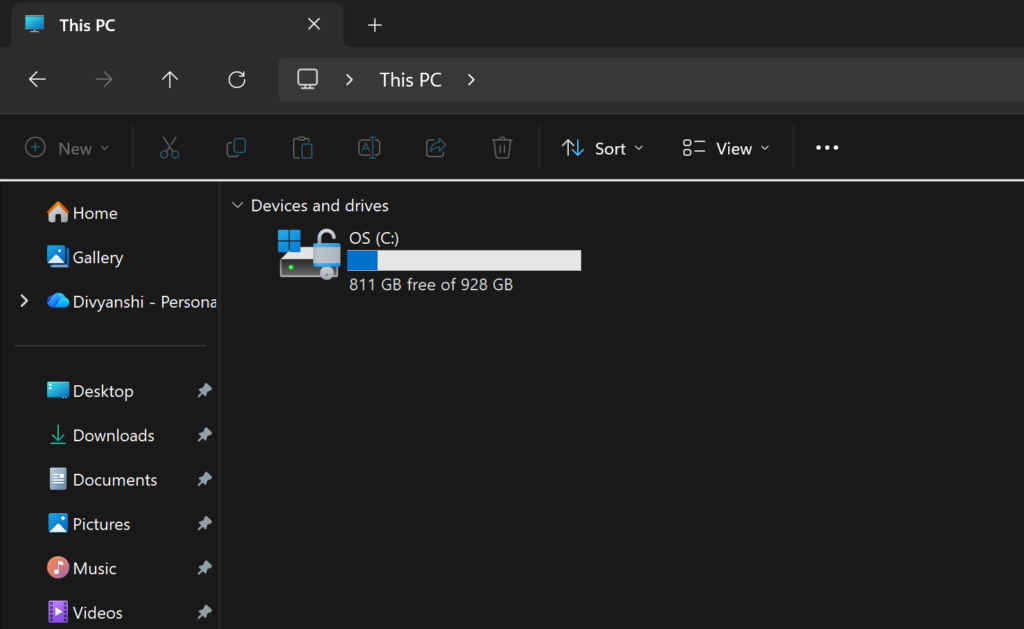
The C drive is where your entire operating system lives along with other essential files. And when this drive starts filling up, the laptop shows signs of struggle. A nearly full C drive leaves very little room for temporary files and background processes. And this is why everything from boot times to app launches tends to slow down.
The fix here is actually quite easy and quick. Just click on This PC and have a look at how full your C Drive is. If it is more than 70% full, go through your files and identify the files that you no longer need. These can be photos, videos, and large downloads. If you need all of your files, it is a good idea to move them to another drive if you have one, or consider using an external SSD.
3. Uninstall unused apps
There are a lot of apps that you might not need. Head over to control panel and take a good look at all the apps you have installed. The first step is to uninstall the ones that you haven’t used in months, and probably never will. Remember that each app takes up storage and, in many cases, runs background processes that consume system resources. So, remove unused programs instantly.
4. Clear temporary files
If you haven’t yet cleared up temporary files on your device, it is never too late to start. These files are created by the system and apps to store short term data. And they can take up a surprising amount of space and, more importantly, slow down your system. They serve no real purpose once their job is done, yet they continue to occupy valuable storage. So basically, they are meant to be deleted automatically.
The good part here is that clearing these files is quick and easy. All you need to do is type %temp% after pressing the Windows key and R on your laptop. Then, hit enter and watch as your system pulls up these files. Now, just delete all of them.
5. Manage startup apps
One of the most common reasons for a slow laptop is too many apps launching at startup. And honestly, not enough people (including me) pay attention to this. Every time you turn on your laptop, several programs may begin running in the background without you even realising it.
These startup apps consume memory and processing power right from the moment your system boots. The result is longer startup times and sluggish performance in the first few minutes of use.
The solution is to take control of what runs at startup. Open your startup settings and review the list of apps. Disable anything that you do not need immediately after booting.
You do not have to turn off everything. Focus on apps that are not essential. For example, media players, chat apps, or update services can usually wait until you launch them manually.
So before you consider replacing your device, try these fixes. You might find that your “old” laptop still has plenty of life left in it. But, in case you do need a new laptop, check out some of our recommendations here.
Also read: Dell XPS returns with a premium price tag: 5 major highlights


