
How to install and run GPT-OSS on your Windows laptop
 Follow Us
Install GPT-OSS locally on Windows with Ollama or LM Studio
Run OpenAI’s Open weight model GPT-OSS-20B offline with zero coding needed
Guide to installing open-weight GPT models on your laptop


GPT-OSS, OpenAI’s open-weight language model series released in August 2025 under the Apache 2.0 license, empowers users to run advanced AI locally, ensuring privacy and control. Available in two variants – gpt-oss-20b (21 billion parameters, suitable for laptops with 16GB RAM) and gpt-oss-120b (117 billion parameters, requiring high-end GPUs like NVIDIA H100) – these models rival proprietary models like GPT-4o in reasoning, coding, and agentic tasks. This feature story provides a beginner-friendly guide to installing and running GPT-OSS on your Windows laptop using two user-friendly tools: Ollama and LM Studio. By following these steps, you’ll have a powerful AI model running locally in no time, with minimal technical expertise required.
 Survey
Before starting, ensure your Windows laptop meets the requirements for GPT-OSS. The gpt-oss-20b model, ideal for most laptops, needs at least 16GB of RAM (or unified memory with a GPU like NVIDIA 1060 4GB). The larger gpt-oss-120b requires ~80GB VRAM, making it impractical for typical laptops. You’ll also need Windows 10 (version 17763.0 or higher) or Windows 11 and a stable internet connection for downloading model weights (~13GB for gpt-oss-20b). Ensure you have sufficient storage (at least 15GB free) and, if available, a compatible GPU for faster performance.
Downloading and installing GPT-OSS with Ollama
It is a user-friendly platform that simplifies downloading and running GPT-OSS models, with native support for the MXFP4 quantization format used by these models, optimizing them for consumer hardware.
1. Download Ollama: Visit Ollama’s website and click the “Download” button for Windows. Run the installer and follow the on-screen instructions. This sets up the Ollama server, which runs in the background and starts automatically on system boot.
2. Verify Installation: Open a browser and navigate to http://localhost:11434 to confirm the Ollama server is running. Alternatively, open a Command Prompt and type: ollama –version
You should see a version number (e.g., 0.1.44). If not, check the Ollama GitHub for troubleshooting.
3. Download GPT-OSS Model: Open the Ollama desktop app. In the dropdown menu, select “gpt-oss:20b.” When you send a message (e.g., “Hello”), Ollama will automatically download the model (~13GB). Wait for the download to complete (progress is shown in the app).
4. Run the Model: In the Ollama app, select “gpt-oss:20b” and start chatting. Alternatively, in the Command Prompt, run: ollama run gpt-oss:20b
Type any prompt (e.g., “How many zeros in a million’”) and press Enter. The response (e.g., “Seven zeros”) should appear almost instantly on a capable laptop.
Downloading and Installing GPT-OSS with LM Studio
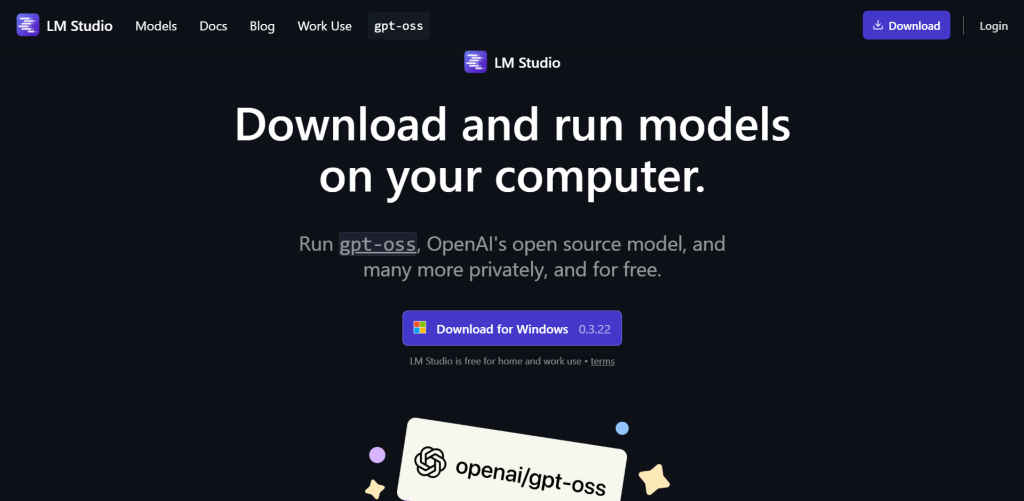
LM Studio offers a graphical interface for running GPT-OSS, ideal for users who prefer a ChatGPT-like experience with additional customization options.
1. Download LM Studio: Visit the LMStudio Website and download the Windows installer. Run it with default settings to install LM Studio. Ensure you’re using version 0.3.21 or later for GPT-OSS support.
2. Download GPT-OSS Model: Open LM Studio and go to the “Discover” tab. Search for “openai/gpt-oss-20b” and click to download. Alternatively, use the Command Prompt:
lms get openai/gpt-oss-20b
This downloads the model weights (~13GB). Wait for the download to complete.
Also read: Meet GPT-OSS: OpenAI’s 20B and 120B parameter open-weight open-source AI models
3. Run the Model: In LM Studio, select “gpt-oss-20b” from the model dropdown. Click “Run” to load the model. Enter a prompt in the chat interface and receive a response. LM Studio supports multi-turn conversations and saving chat histories for later use.
Configuring and Customizing GPT-OSS
Both tools allow you to customize GPT-OSS’s behavior:
– Reasoning Levels: Adjust the reasoning effort (low, medium, high) to balance speed and accuracy. In Ollama, set this in the system prompt (e.g., “Reasoning: high”). In LM Studio, use the settings menu to tweak reasoning levels. Low is best for quick responses, while high suits complex tasks like coding.
– Web Search (Ollama): Ollama offers a web search function (requires a free Ollama account), but it may be slow or unreliable at launch due to high demand. Enable it in the app settings if needed.
– API Integration: Ollama exposes an OpenAI-compatible API at `http://localhost:11434/v1`. Use it with tools like Apidog for debugging or to integrate GPT-OSS into custom applications.
Troubleshooting Common Issues
– Model Not Downloading: Ensure a stable internet connection and sufficient storage. Check the Ollama or LM Studio logs for errors.
– Slow Performance: If responses are sluggish, verify your laptop has at least 16GB RAM. Enable GPU acceleration (e.g., NVIDIA CUDA) if available, or reduce the reasoning level to “low.”
– LM Studio Errors: Ensure LM Studio is updated to 0.3.21 or later. Run it once before using the `lms` command in the terminal.
Installing and running GPT-OSS on your Windows laptop is straightforward with Ollama or LM Studio. Ollama offers a simpler, less technical setup, while LM Studio provides a richer graphical interface for customization. Both tools let you harness the power of GPT-OSS locally, ensuring privacy and cost savings. Whether you’re exploring AI for coding, research, or personal projects, these steps will get you started quickly.
Also read: Grok Imagine’s spicy mode under scrutiny for creating explicit AI videos of celebrities


