
Canva’s AI design brain explained: How it works, secret tips for beginners
 Follow Us
Canva’s new AI design model creates editable, layered templates instantly
Learn how Canva’s design brain works and boosts creative workflows
Top beginner tips to master Canva’s latest AI-powered design tools
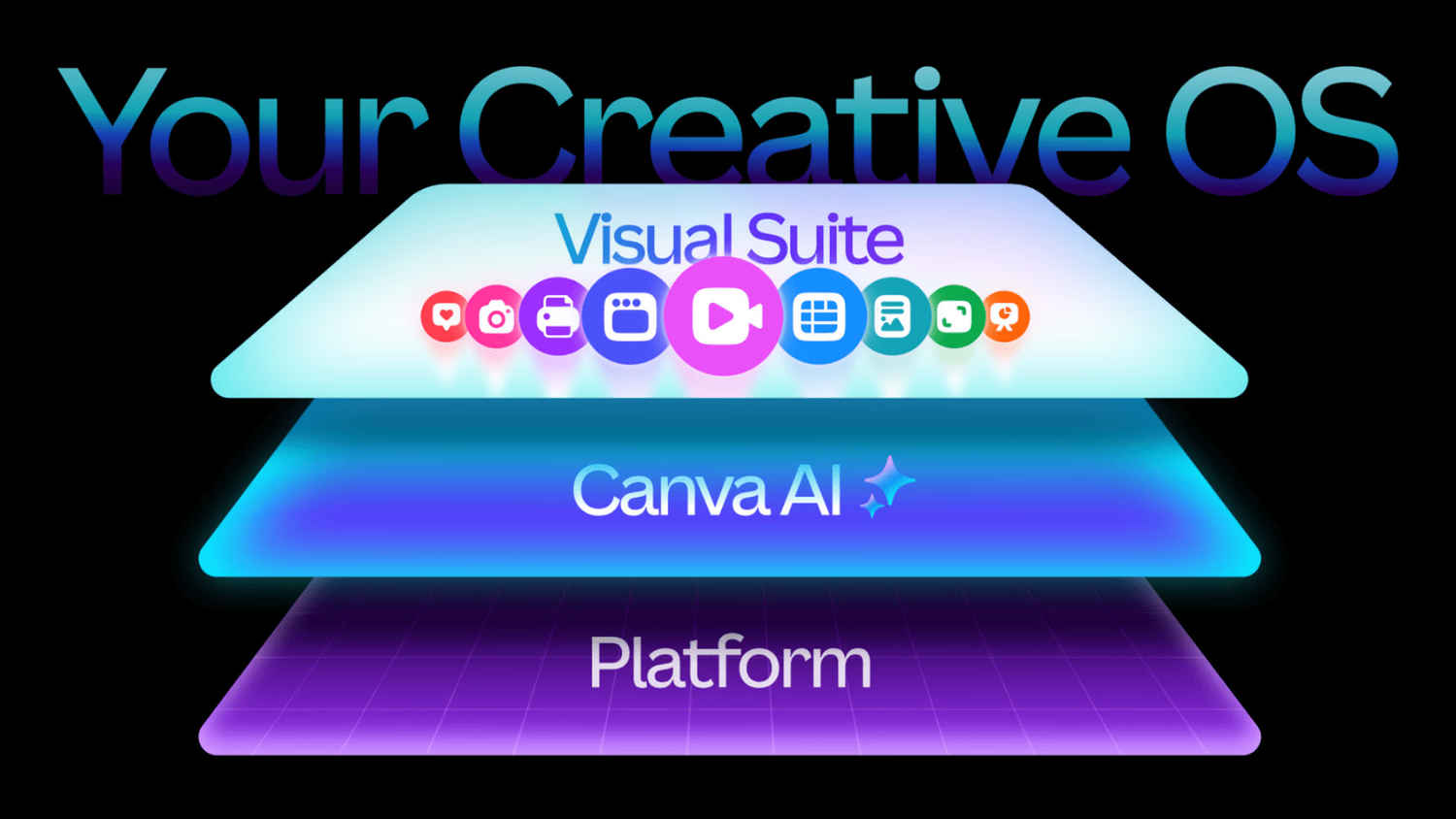

When Canva first appeared in 2013, it promised to make design accessible to everyone, no Photoshop skills required. Over a decade later, it’s doing it again, this time with artificial intelligence at its core. The company has just unveiled its very own AI design model, a foundational system that goes beyond text-to-image generation to truly “understand” design, from layers and layouts to typography and balance.
 Survey
This isn’t just Canva adding another AI button. It’s a full rebuild of how design generation works. Think of it as the difference between taking a photo and understanding how to compose one.
Also read: OpenAI and PayPal partner to let users shop and pay directly in ChatGPT
What exactly is Canva’s “design brain”?
Unlike typical image generators that spit out flat JPEGs, Canva’s model is trained on the structure of design itself. It knows how templates, text boxes, icons, and color palettes interact in a layout. When you prompt it – say, “Create a travel poster for Mumbai” – it doesn’t just make a poster image; it builds a multi-layered, editable file with all the elements placed intelligently.
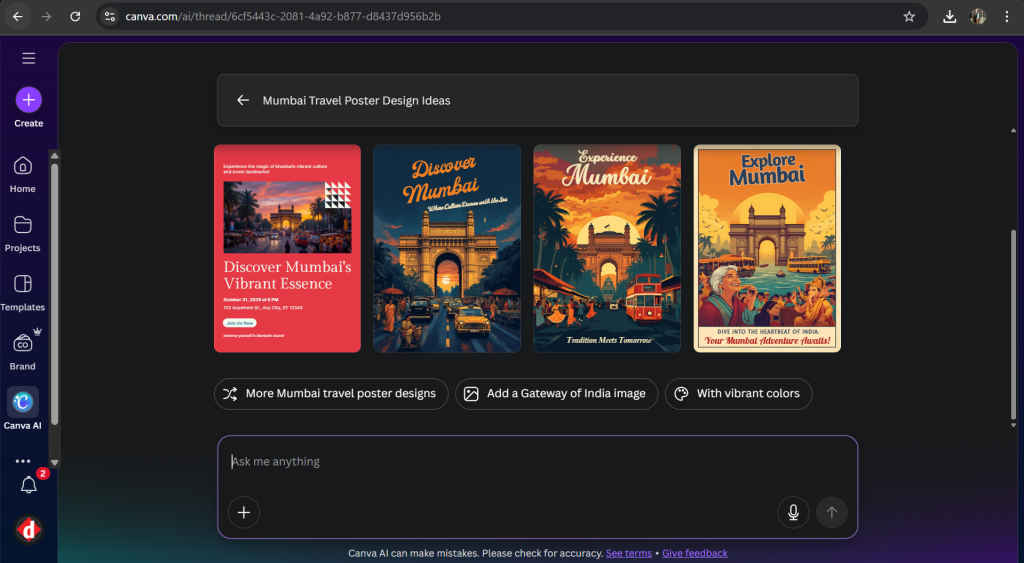
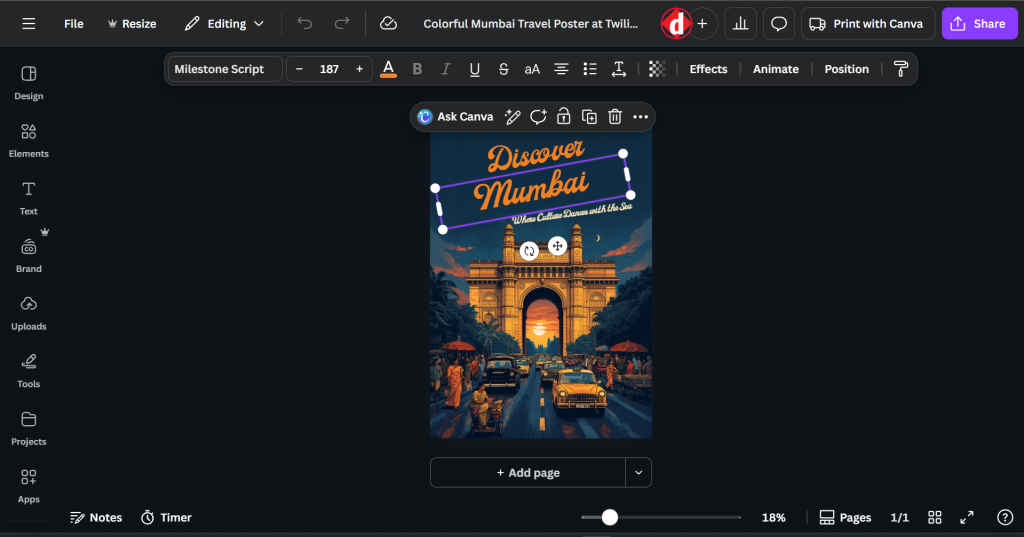
This means every part of the output, text, shapes, images, backgrounds, can be customized, resized, and reused. For creators, it’s a massive leap from “AI art” to AI-assisted design composition.
Canva calls this model the foundation for its future updates. It powers not only Magic Media and Magic Write (AI tools for image and text generation) but also the brand-new Magic Design Layers, where AI can suggest layout refinements and style adjustments in real time.
How it works under the hood
Canva’s proprietary model was trained in-house, using millions of anonymized design examples from its ecosystem, the posters, presentations, resumes, and reels that users create every day. The system doesn’t just memorize; it learns design logic:
- Spatial awareness: How margins, spacing, and visual hierarchy work.
- Style understanding: It recognizes branding consistency – fonts, color schemes, logo placements.
- Contextual design: If you’re creating a school project, it suggests educational layouts; for marketing, it opts for sharper fonts and bold visuals.
This layered understanding helps Canva’s model generate editable templates that feel human-made, a big advantage over tools that produce static images.
Also read: From Canva to Coursera: Why so many apps are rushing into ChatGPT’s new app ecosystem
Secret tips for beginners
If you’re just starting out with Canva’s AI features, here are a few ways to get the best out of it:
- Use descriptive prompts. Instead of saying “poster for event,” try “minimalist black-and-white poster for a music gig at a café.” The more specific you are, the better the layout and imagery.
- Leverage Magic Switch. Once you design something, use this feature to instantly adapt it into another format, a LinkedIn post, Instagram Story, or presentation slide, without rebuilding from scratch.
- Play with Magic Edit Layers. Canva now lets you highlight a part of your design (like an image or font) and prompt the AI to refine or replace it while keeping the rest intact.
- Combine Affinity tools. Canva’s acquisition of Affinity means you can access pro-level photo and vector editing directly inside the platform, no exporting required.
- Save and reuse brand kits. The AI adapts faster when it “learns” your fonts, colors, and tone. This makes future generations more consistent.
Why it matters
By developing its own AI model, Canva is no longer just a friendly tool for beginners – it’s positioning itself as a serious challenger to Adobe’s creative suite. But it’s also staying true to its mission: democratizing design.
For creators in India and other emerging markets, this update means less dependence on expensive software or hardware-heavy tools. Whether you’re a freelancer, student, or small business owner, Canva’s AI “design brain” offers pro-level results in a browser tab.
Also read: ChatGPT Go vs Perplexity Pro vs Gemini Pro: Features compared, which AI is best?


