
How to create viral drone shots using Google Gemini AI for Instagram and Facebook: Step-by-step guide with prompts
 Follow Us
HIGHLIGHTS
Creators are posting drone-style videos that look like they were filmed from the sky.
These viral videos are made using just one photo and Google Gemini AI.
With the right prompt, Gemini can turn a simple image into a cinematic drone shot.
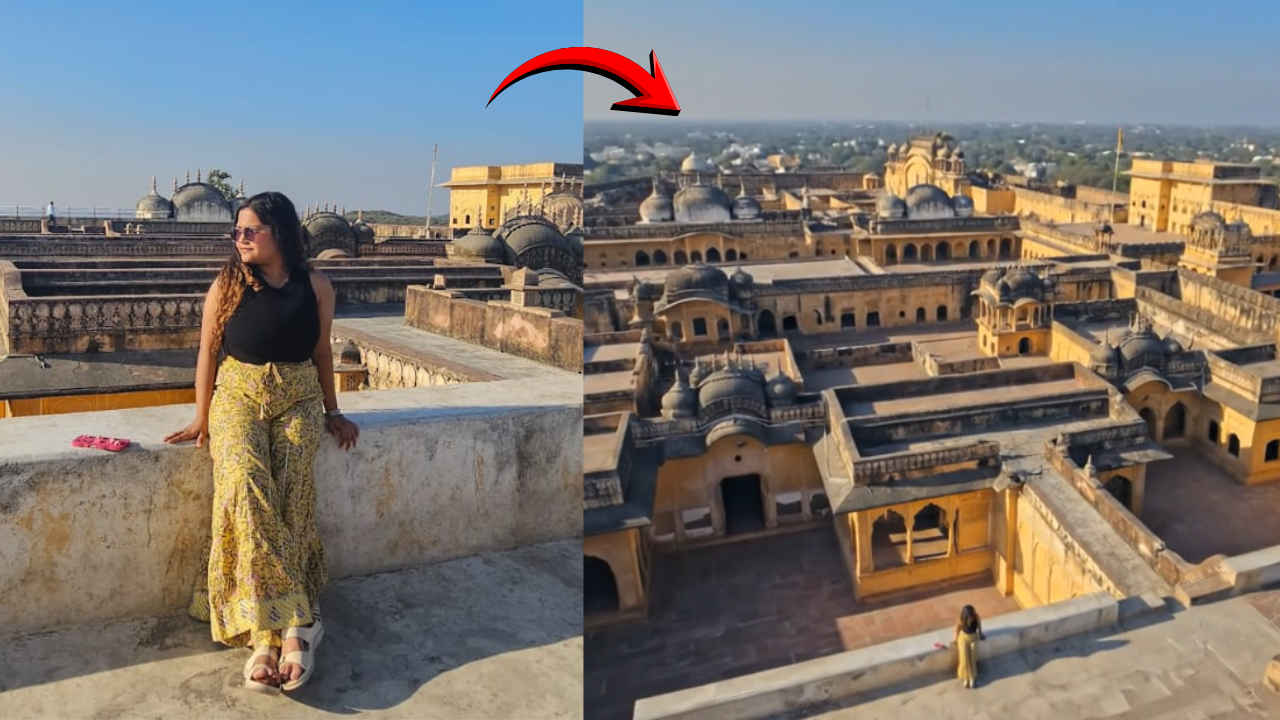

A new viral trend is taking over Instagram and Facebook. Creators are posting drone-style videos that look like they were filmed from the sky. The surprise? These videos are made using just one photo and Google Gemini AI. You don’t need a drone, editing skills, or expensive software. With the right prompt, Gemini can turn a simple image into a cinematic drone shot. In this step-by-step guide, you’ll learn exactly how to create these viral drone shots using Google Gemini AI, even if you’re a beginner. I’ll also share ready-to-use prompts so you can start creating eye-catching Reels right away.
 Survey
✅ Thank you for completing the survey!
How to create viral drone shots using Google Gemini AI
- Choose the right photo: Pick a clear and high-quality photo. Outdoor images work best, such as landscapes, buildings, roads, beaches, or cities. Photos with open space give a more realistic drone effect.
- Open Google Gemini: Go to Google Gemini on your browser or app and log in with your Google account.
- Upload your image: Select the image upload option and select your photo.
- Use a good prompt: This is the most important part. Be clear and detailed, but keep the language simple. You can use one of the sample prompts mentioned in the end of this article, or you provide your own.
- Generate and download the video: Gemini will process the request and create a short video.
- Post on Instagram and Facebook: Upload the video as a Reel. Use trending music, captions, and hashtags to boost reach.
Also read: OpenAI launches faster ChatGPT Images with GPT Image 1.5 to rival Gemini Nano Banana: How to use it
Drone shots sample prompts
- “Create a 360 degree realistic drone shot video going away from the girl/boy in the image.”
- “Create a cinematic 360-degree drone shot slowly pulling away from the subject in the image, revealing the surrounding landscape in ultra-realistic detail.”
- “Produce a realistic 360-degree panoramic drone shot that starts near the subject and expands outward into the full scene.”
- “Create a wide cinematic pull-out drone shot, starting from the subject’s face and transitioning into a full 360-degree aerial view.”
- “Generate a realistic aerial drone video that starts close to the subject and smoothly flies backward and upward, completing a full 360-degree orbit.”
- “Create a slow, steady drone fly-out shot with a full 360-degree spin around the subject, maintaining natural camera physics.”
- “Create a wide cinematic drone shot that moves away from the subject, rotating 360 degrees to reveal the surrounding landscape.”


