
How to save Live Photos as a video on your iPhone
 Follow Us
Convert Live Photos into videos directly on your iPhone without any third party app.
Combine multiple Live Photos into one smooth and easily shareable video.
Videos work on all devices and can be edited or shared like any regular clip.
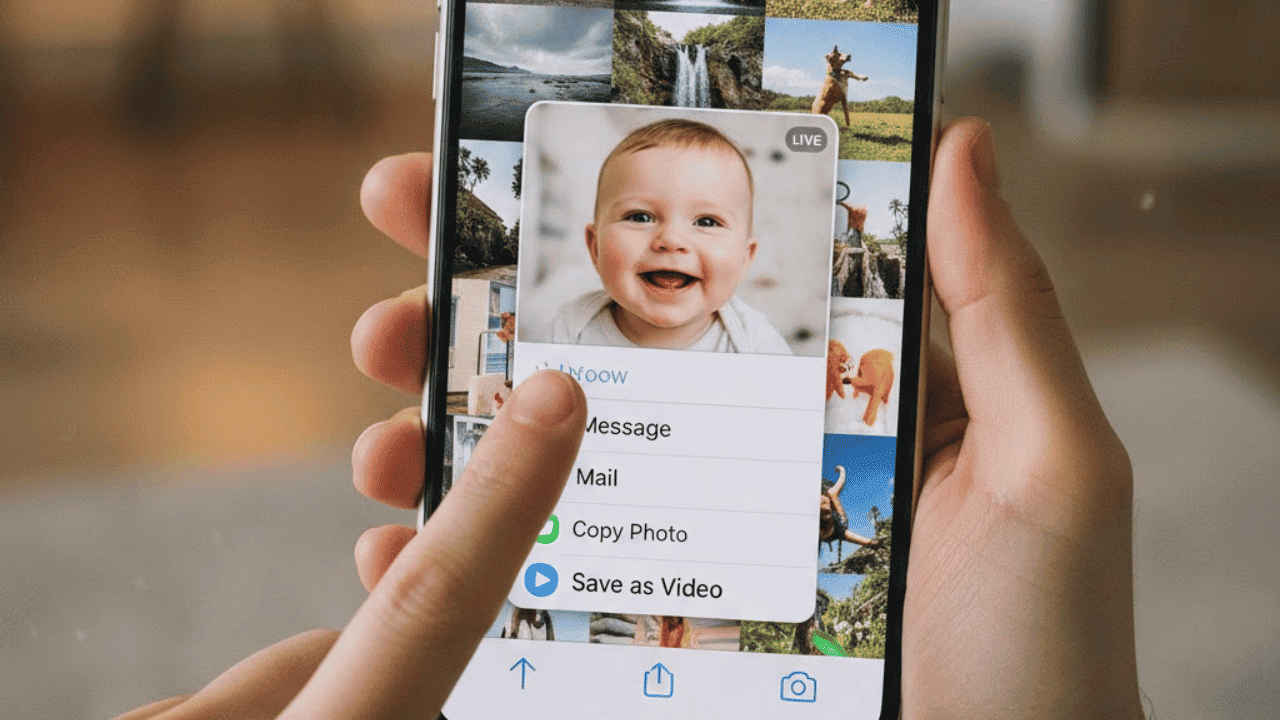

Live Photos is a feature of the iPhone that allows your device to capture more than a single image. The feature saves a short video of the movement, including the sound. While it is highly useful, as you can correct the image by changing the key frame from the Live Photo, it can still be a headache when sharing Live Photos, especially with non-Apple devices. Turning them into a video solves that problem and keeps everything easy to view and share. Here is a step-by-step guide on how you can save Live Photos as videos on your iPhone without using any third-party app.
 Survey
Things to keep in mind
Here are a few simple things you should know before you go ahead and turn your Live Photos into a video:
- Your iPhone must be running iOS 13 or later.
- Every single image you select must be a Live Photo. If you accidentally include one “Still” photo in your selection, the Save as Video option will disappear from the menu.
- Make sure that you have enough local storage on your iPhone.
- The Live Photos in the video appear in the order they were captured and not the way they were selected.
- Each Live Photo’s movement is joined together to make one smooth video.
- If you are using iCloud Photos with Optimise iPhone Storage turned on, you may need a stable internet connection so the full-resolution versions of the photos can download before the video is created.
- Once the video is made, you can edit it, share it, or save it just like any other video in the Photos app.
Also read: Google Pixel 10 price drops by over Rs 13,000, check deal details here
How to save Live Photos as videos on your iPhone
Saving Live Photos as videos on an iPhone is simple. All you need to do is to follow the steps below:
1. Launch the Photos app on your iPhone.
2. Switch to the Collections tab from below.
3. Scroll down to the Media Types and tap Live Photos.
Also read: Meta is reportedly building a Snapchat rival called Instants: Here’s what it may do
4. On the top right corner of the screen, press the Select button.
5. Now, choose the live photos you want to make a video of.
6. Tap the three-dots icon and choose Save as video.
Congratulations, you’ve successfully saved the Live Photos as video on your iPhone.
Why convert Live Photos to videos?
Converting Live Photos into a video weaves the solo moments into a story that can be shared with others. Live Photos are best used on Apple products but tend to appear as regular photos for Android phones and some cloud storage accounts.
Moreover, as you convert the Live Photos to a video, you will have a format that will work with any media player, so you can share it easily with your friends and family. Moreover, you will have the option to create a video that is a compilation of different moments, creating a single video that is a montage. It also removes the need for using advanced editing tools.


