
How to use Extend and Reframe tool in Apple Photos to improve your pictures
 Follow Us
Apple’s Extend tool can expand photos and fill extra space using AI for a more balanced look.
The Reframe feature lets users adjust a photo’s position and improve its composition after taking it.
Both Extend and Reframe tools help fix cropping and framing issues directly in the Photos app.
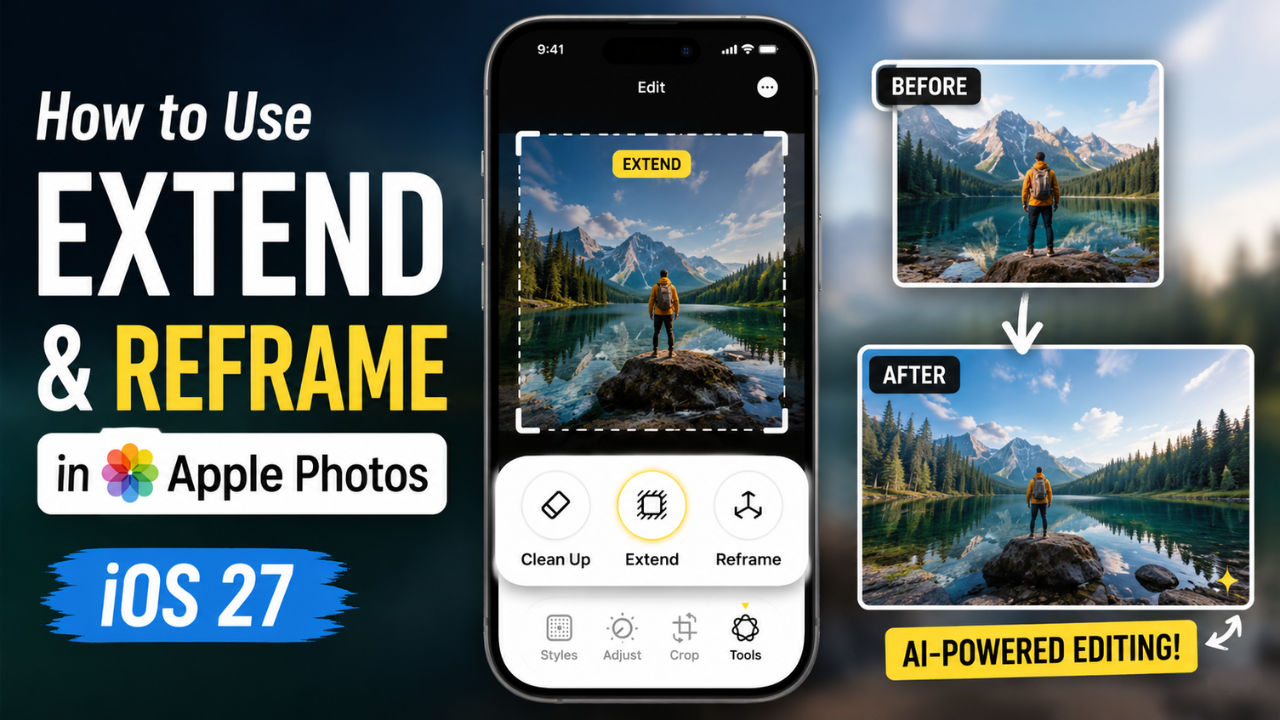

Apple has rolled out the iOS 27 beta during its WWDC26 event. While the spotlight was on the new Siri AI, Apple also brought notable updates to the Photos app. We often take pictures that do not come out as intended, leaving subjects off-centre or poorly framed. However, Apple has you covered, as with the launch of Apple Intelligence, users can now change the cropping, straighten photos, and make the whole picture better with respect to the composition. In this guide, I’ll walk you through the simple steps on how to use the Extend and Reframe tools in Apple Photos for improving your pictures.
 Survey
How to use the Extend tool in the Apple Photos app
If you have an image with tight crops, crooked horizons, or an awkward aspect ratio, you can use the new Extend tool in the Photos app to fix it. Follow the simple steps below to do so:
1. Open the Photo application on your iPhone and select the image you wish to crop.
2. Tap the Edit button available at the bottom of your screen and choose Tools.
3. Press the Extend feature, and now you can zoom out using your finger to bring into the image the environment surrounding the image you already selected for cropping.
4. Tap extend and let the on-device generative models automatically fill in the newly created margins to look perfectly natural.
Also read: Samsung Galaxy Z Flip 8 launch next month: India price, camera, display and all other leaks
How to use the Reframe tool in the Apple Photos app
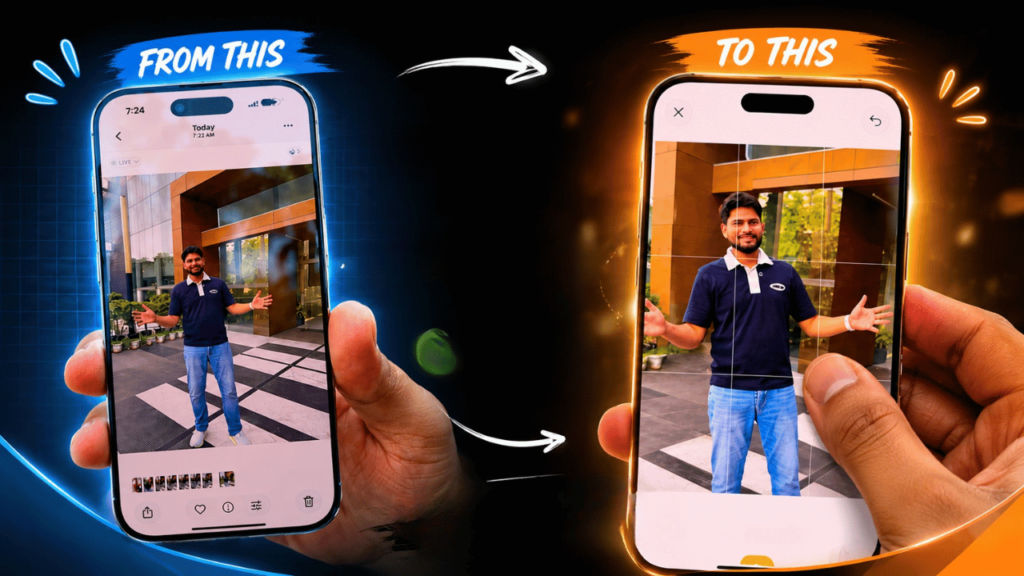
There are times when we feel that an image could have been framed better, whether due to unwanted background elements or imperfect symmetry. While this can often be fixed at the time of shooting by adjusting the camera position, Apple now also lets you make these improvements after taking the photo. Here’s how you can do it:
1. Navigate to the Photos app on your device and choose the picture that you wish to edit.
2. Hit the Edit button and then press tools and select the Reframe feature in your editing tool bar.
3. Use your finger to move your picture either left, right, upward, or downward.
Also read: Using Claude Fable 5? Anthropic says some topics are too dangerous to discuss, here is why
4. You will notice that there is a blurriness surrounding your picture when you change its perspective.
5. Pinch in or out to tighten or widen the frame on the new angle.
6. Once you release it, generative AI models will seamlessly fill in the missing edge details to match the new perspective.


