
How to make personalised AI stickers for WhatsApp
 Follow Us
Make your own WhatsApp stickers using AI and personal photos.
Upload an image, write a prompt, and generate stickers easily.
Save and share them on WhatsApp in a few simple steps.

Stickers have become a great way to express emotions online. While social media platforms come with a variety of built-in options, what they often lack is a personal touch. Now, however, you can make your stickers truly unique with the help of AI. Instead of relying on the same old packs from your keyboard or social media apps, you can create something that fits the moment using your own ideas, photos, or even inside jokes between you and the recipient. It might sound complicated, but it’s actually quite simple. You don’t need to be a designer to create them. Follow along with this article to learn how to create your own personalised AI stickers using AI.
 Survey
How to create personalised AI stickers for social media
Creating personalised AI stickers for WhatsApp and Instagram is easy; all you need to do is follow the easy steps below:
1. Open the ChatGPT website or app.
2. Press the + icon and select Add photos & files.
3. Choose a reference photo and upload it.
4. Write a prompt to generate stickers using that photo and hit Enter.
Also read: McDonald’s testing humanoid robots for customer-facing roles in China: Watch video
Prompts to generate personalised stickers
Now you need to exercise patience, as the AI tool will take some time to create your personalised stickers. Once the stickers are generated, download them and share them on your social media.
1. Emotion sticker pack
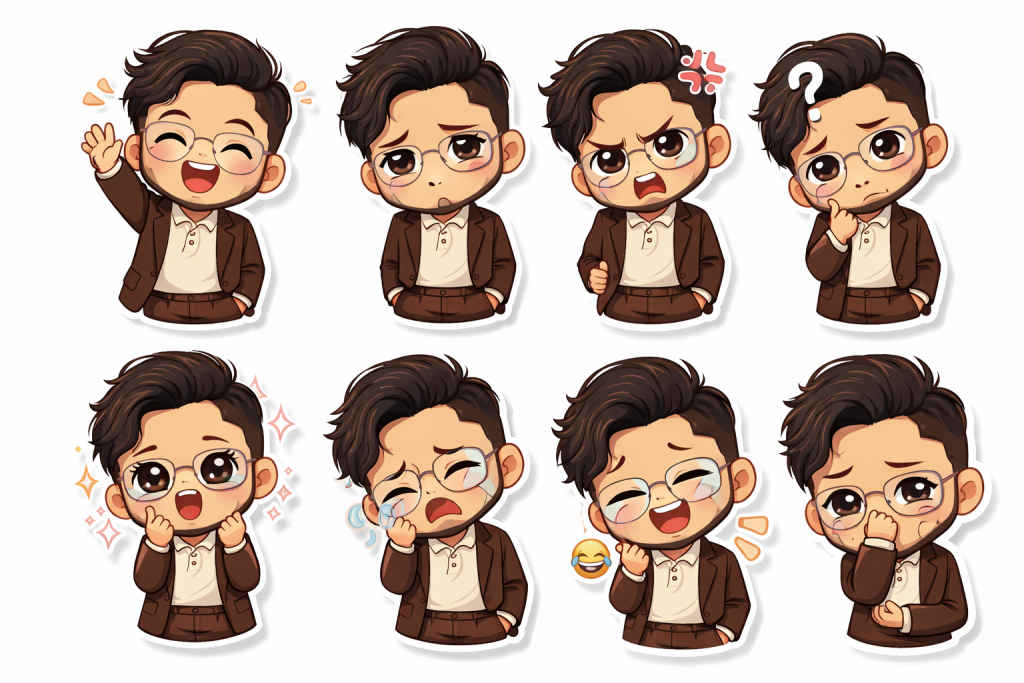
Create a pack of 6–8 chibi-style stickers based on the image I’ve uploaded. Keeping their facial features recognisable but stylised in an adorable way. Create the following expressions: happy, sad, angry, confused, excited, crying, laughing, and shy.
2. Common response stickers set\
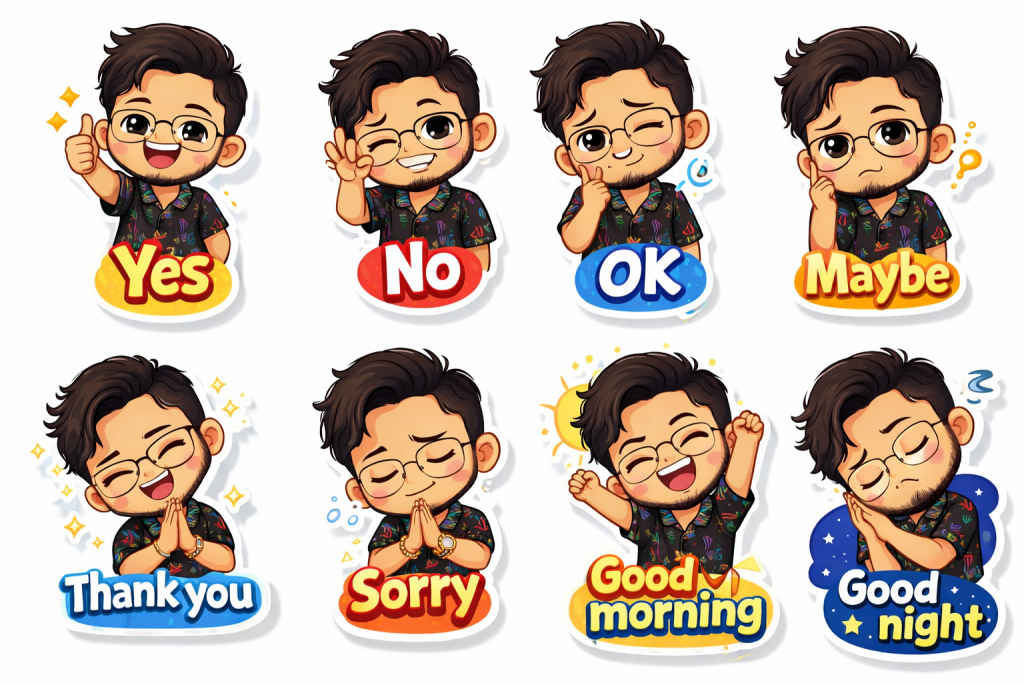
Generate a pack of 6–8 chibi-style stickers using the image I’ve uploaded. The stickers should have expressive emotions and simple, readable text. Here are the texts I want: “Yes”, “No”, “OK”, “Maybe”, “Thank you”, “Sorry”, “Good morning”, and “Good night”. Each sticker should clearly match the expression and text, with a clean bold font, bright friendly colours, chibi proportions, a white or transparent background, a sticker style, and high resolution.
3. Reaction stickers pack
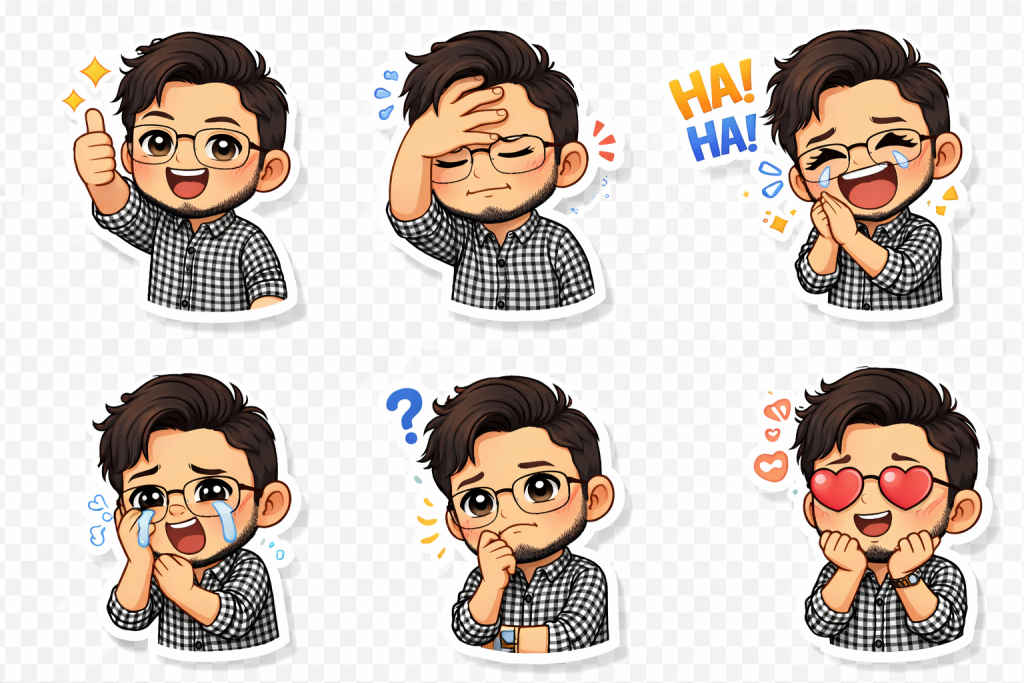
Make a pack of 6–8 chibi-style stickers based on the image I’ve uploaded. The sticker should be a stylised chibi version of the person reacting to different situations. Include the following reactions: thumbs up, facepalm, shocked, laughing hard, crying, thinking, clapping, and heart eyes. Bright vibrant colours, smooth clean outlines, expressive poses, sticker style with transparent backgrounds, high resolution, and modern messaging app aesthetic.
Also read: Navratri 2026: Top 5 Google Gemini prompts to create puja photos
4. Navratri sticker set (for girls)
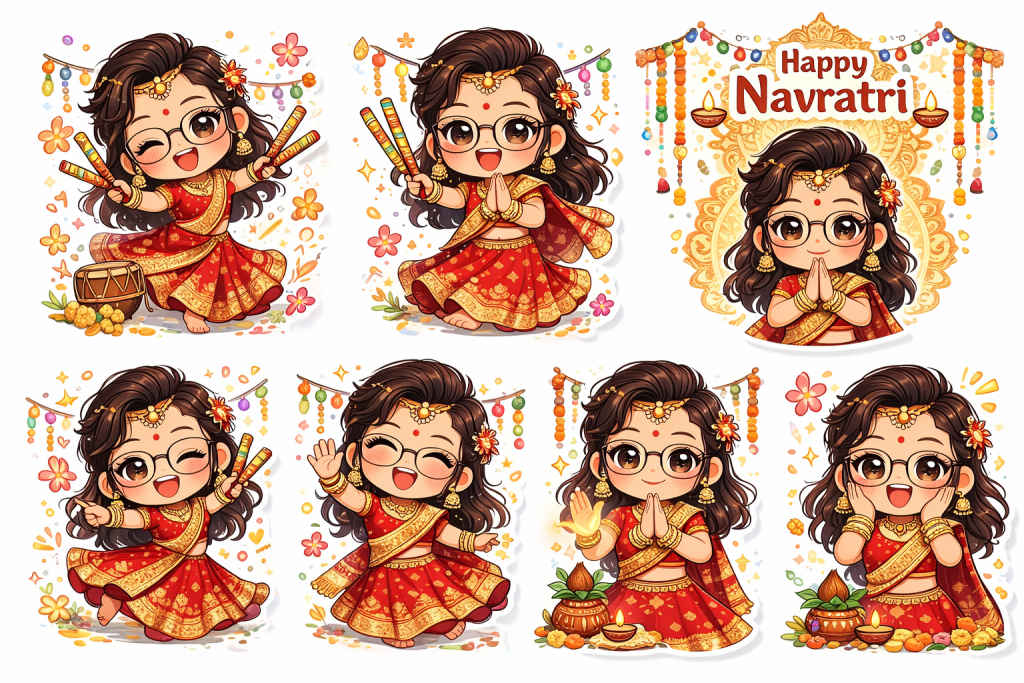
Create a pack of 6–8 chibi-style stickers based on the image I’ve uploaded. Transform the person into a cute chibi character dressed in traditional Navratri attire (for girls, a lehenga choli or kurta with festive accessories like bangles, a bindi, and jewellery). Create festive stickers: dancing garba, playing dandiya, praying (namaste), greeting “Happy Navratri”, joyful celebration, blessing pose, traditional greeting, and festive excitement. Bright, vibrant colours, Indian festive elements like garba sticks, mandala patterns, and decorative lights. Keep a chibi cute style with clean outlines, sticker format, high resolution, and a transparent or white background.
5. Navratri sticker set (for men)
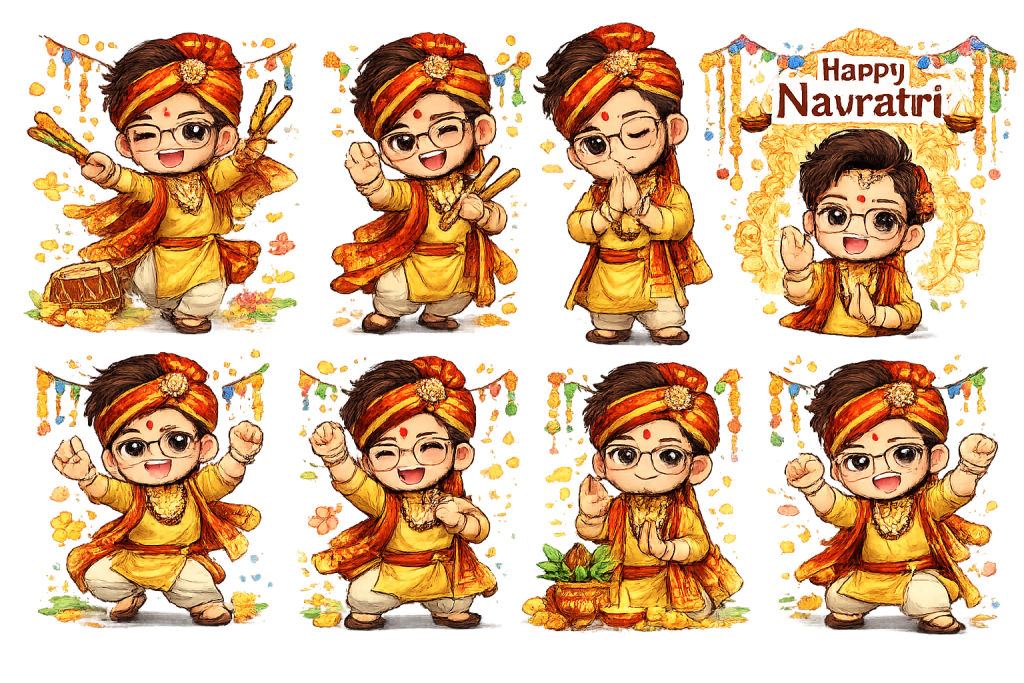
Create a pack of 6–8 chibi-style stickers based on the image I’ve uploaded. Transform the person into a cute chibi character dressed in traditional Navratri attire (for men: kurta, dhoti, or kurta-pyjama with festive accessories like dupatta, mala, tilak, and traditional jewellery). Create festive stickers: dancing garba, playing dandiya, praying (namaste), greeting “Happy Navratri”, joyful celebration, blessing pose, traditional greeting, and festive excitement. Bright vibrant colours; Indian festive elements like garba sticks, mandala patterns, and decorative lights. Keep a chibi cute style with clean outlines, sticker format, high resolution, and a transparent or white background.
6. Minimal text sticker pack
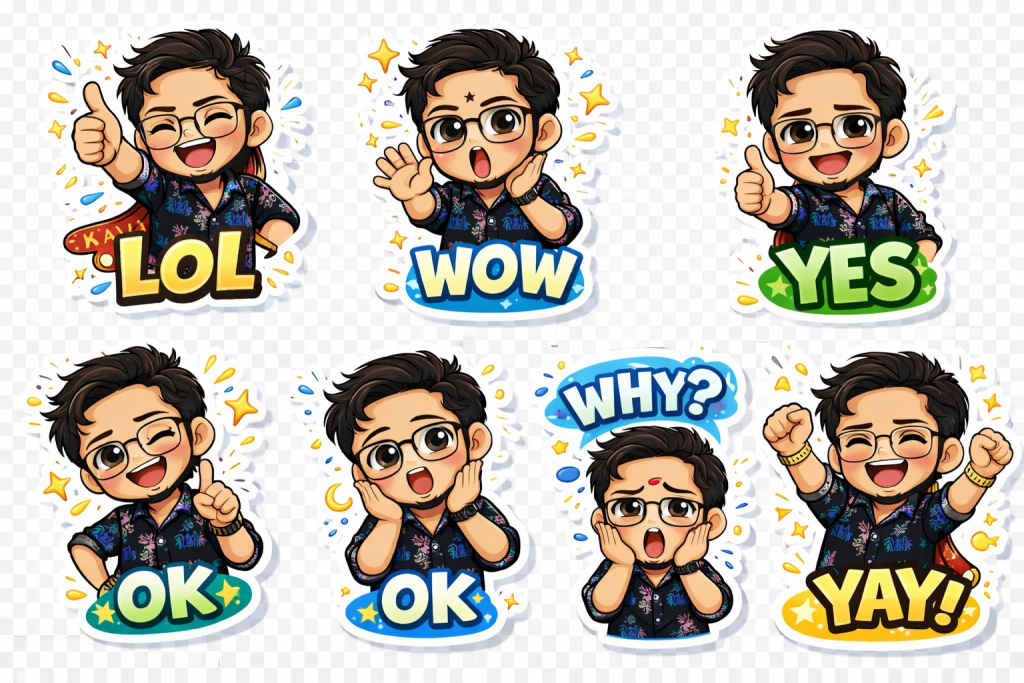
Generate a pack of 6–8 chibi-style stickers using the image I’ve uploaded. The stickers should be simple with expressive poses and bold text. Make stickers with short words: “LOL”, “WOW”, “NO”, “YES”, “OK”, “OMG”, “WHY?”, and “YAY”. They should be a clean, modern design, a bold, readable font, simple colours, chibi proportions, sticker-style with a transparent background, and high resolution.
Also read: Meta’s AI agent reportedly leaks sensitive data in internal mishap: Here’s what happened
How to send and save your AI stickers on WhatsApp (Android and iOS)
Now that you’ve created your stickers using AI. Here’s how you can save them on your WhatsApp:
Note: It works on both Android and iPhone.
1. Head to the Google Photos app.
2. Upload the sticker images.
3. Press and hold each sticker and select Copy Sticker.
4. Now launch your WhatsApp.
5. Open the chat you want to send it to.
6. Paste the sticker and choose Sent as a sticker option.
If you want to save the sticker for future use, then you can also tap the sticker and choose the Add to Favourites or Add to sticker pack option.
Alternatively, if you’re using an iPhone, then you can directly head to the default Photos app > find the stickers > press and hold the sticker you want to copy > minimise the Photos app while holding the sticker > open WhatsApp > navigate to the chat you want to send it to > drop the sticker there and press the send button.
That’s it!
Personalised AI stickers are a great way to add some fun and excitement to your conversations. I hope the article above helped you create exciting stickers.


