

How to enable enhanced protection in Chrome to get suspicious website warnings
 Follow Us
Chrome’s Enhanced Protection warns users about suspicious websites and unsafe downloads.
The feature offers stronger protection against online scams and harmful extensions.
Users can enable Enhanced Protection through Chrome’s Privacy and security settings.


Staying online has been part of our daily lives for a while now, whether it’s for online shopping, checking emails, reading news, or downloading files. However, not every website we come across is safe to visit. Some may be traps set by scammers to steal your personal information, spread harmful files to your device, or trick you into sharing your password. On top of that, as AI becomes more widespread, scammers and hackers are also using it to bypass online safety measures, and the eMudhra case is one of the most recent examples. However, if you use Google Chrome for your daily browsing, you needn’t worry too much, as the browser has a built-in feature that notifies you whenever you land on a suspicious website. Here’s how you can enable Enhanced Protection in Chrome to get suspicious website warnings.
 Survey
Things to know
However, before telling you how you can turn on enhanced protection in Chrome to receive warnings about malicious websites, there are some facts you need to know:
- There are many safe browsing options in Chrome that can protect you from any threat on the internet, but Enhanced Protection is just one of them.
- It can detect the potentially harmful websites, downloads, and extensions, even the ones that cannot be found by other safe browsing settings.
- Chrome might send additional browsing data to Google to check your security with this option turned on.
- Make sure that you study privacy information before turning it on.
- This option cannot ensure detection of all the harmful websites.
Also read: PHP issues another security warning 2 days after emergency patch: What users should do
How to enable Enhanced Protection in Google Chrome
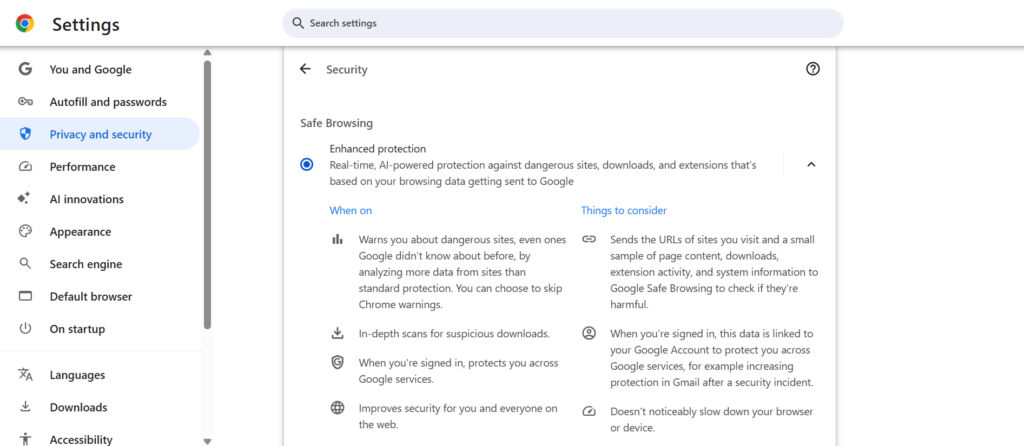
Follow the simple steps outlined below to turn on Enhanced Protection on Google Chrome:
1. Open Google Chrome on your desktop or laptop.
2. Click the three-dot menu in the top-right corner.
3. Select Settings from the menu.
Also read: Vivo V80 vs Oppo Reno 16 vs OnePlus 15R: Price in India, camera, battery and other specs compared
4. Click Privacy and security in the left-hand panel.
5. Select Security to view the Safe Browsing options.
6. Choose Enhanced protection to enable the feature.
Once enabled, Chrome will provide stronger protection against suspicious websites, unsafe downloads, and potentially harmful extensions.
If you’re using Google Chrome on an Android device, then you can simply launch the Chrome app > tap the three-dot menu > go to Settings > select Privacy and security > tap Safe Browsing > choose Enhanced protection if the option is available.


