

How to download and use Instagram on Apple TV to watch Reels on a bigger screen
 Follow Us
Instagram launches a new app for Apple TV.
Users can watch Reels and videos on a bigger screen.
The app supports remote navigation and cross-device viewing.
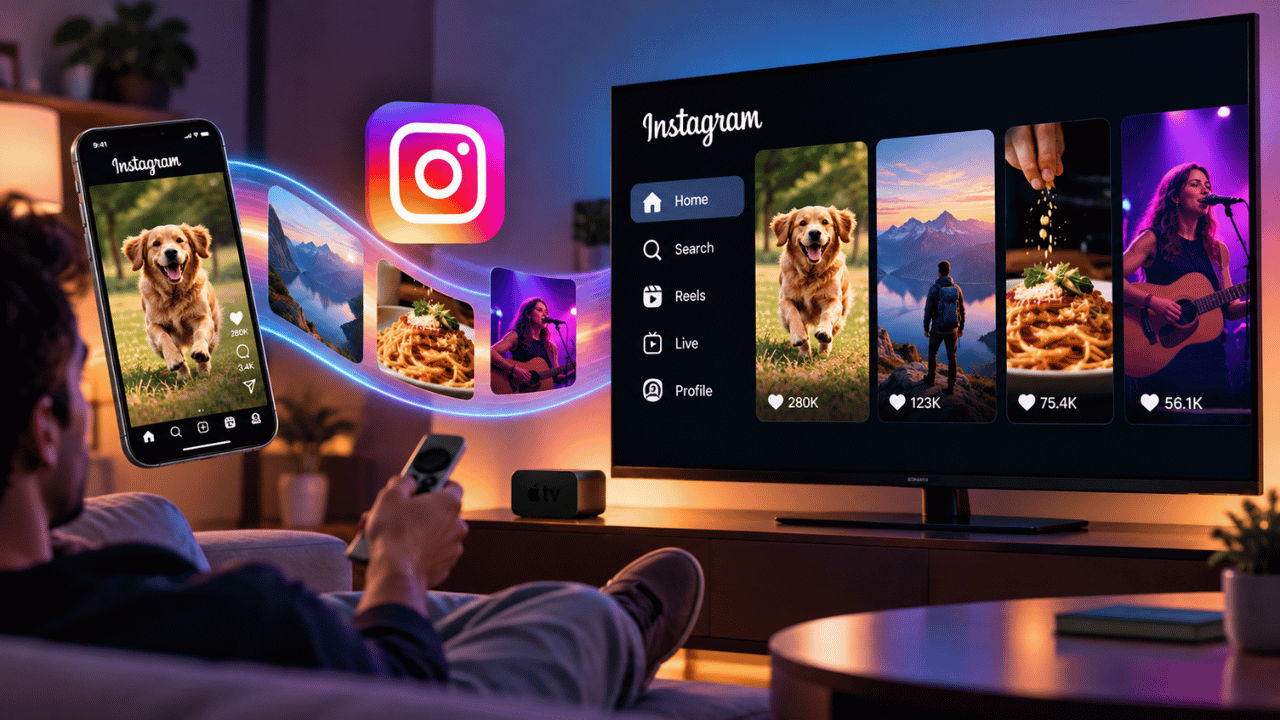

Instagram is making it easier to enjoy your favourite Reels on a bigger screen as the company recently launched a new Instagram app for Apple TV. The app allows the users to watch Reels, longer videos, and live shows directly on their television. It eliminates the need for mirroring your iPhone or iPad screen to your Apple TV for enjoying content on a bigger screen. Not only that, but the new app is also specifically designed to work with the Apple TV remote, making it easier to browse and watch videos. The new Instagram app also lets users continue watching videos from where they left off on their phones. Here is how you can download and use the all-new Instagram app on Apple TV.
 Survey
Things to know
Here are some of the things you should keep in mind before you go ahead and learn how to use Instagram on Apple TV:
- The new Instagram app only runs on tvOS 26 or later.
- The Instagram TV app is free to download from the App Store.
- You no longer need to cast the screen from your iPhone and iPad as
- The app can natively run on Apple TV, eliminating the need for iPhone or iPad casting.
- The new Instagram app on Apple TV is built in a way that it can easily be used via remote.
- Viewers can start watching on their phone and continue from where they stopped on their TV.
How to download and use Instagram on Apple TV
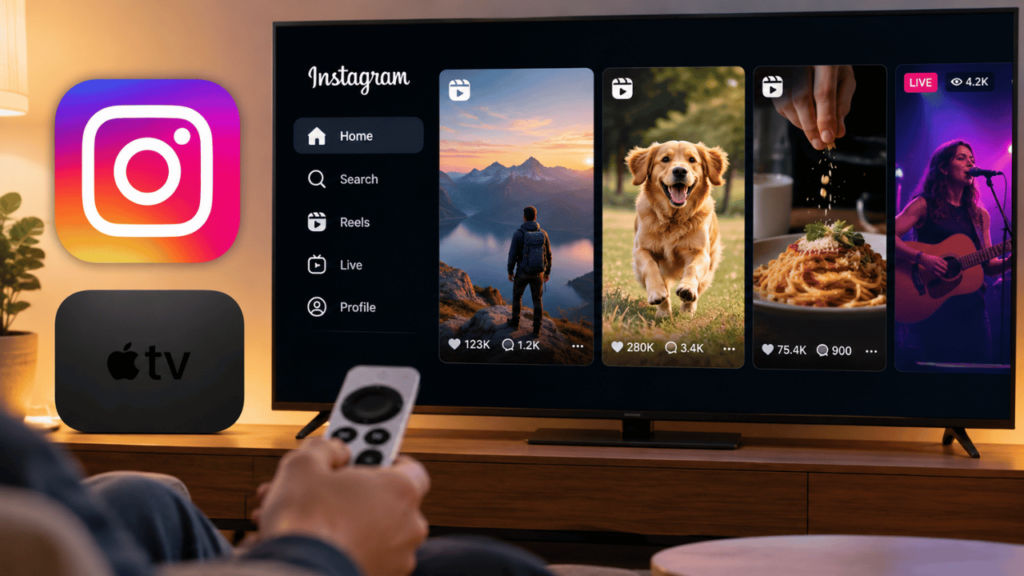
If you’re planning to watch Instagram content on a bigger screen, then the Apple TV can help. You just simply need to
1. Switch on your Apple TV and head to the App Store.
2. Now search for Instagram and press the Get button to download the app.
3. You need to follow the on-screen instructions to sign-in your Instagram account on your Apple TV.
Also read: Vivo V80 vs OnePlus 15R vs Oppo Reno 16: Price, camera, battery, processor and other specs compared
4. Once done, you can enjoy the Reels, longer videos, and live shows on the big screen.
5. Now, you can use the Apple TV remote to navigate through the new Instagram app and scroll content on the screen.


