
How to stop Grok from creating your AI generated pictures
 Follow Us
Privacy concerns grow as Grok on X is reportedly used to create AI images of real people without consent, sparking public backlash.
Simple settings changes can help turning off personalisation and revoking photo permissions limits how Grok uses your data.
The safest option is non-participation: avoiding photo uploads ensures Grok cannot generate AI images of you.
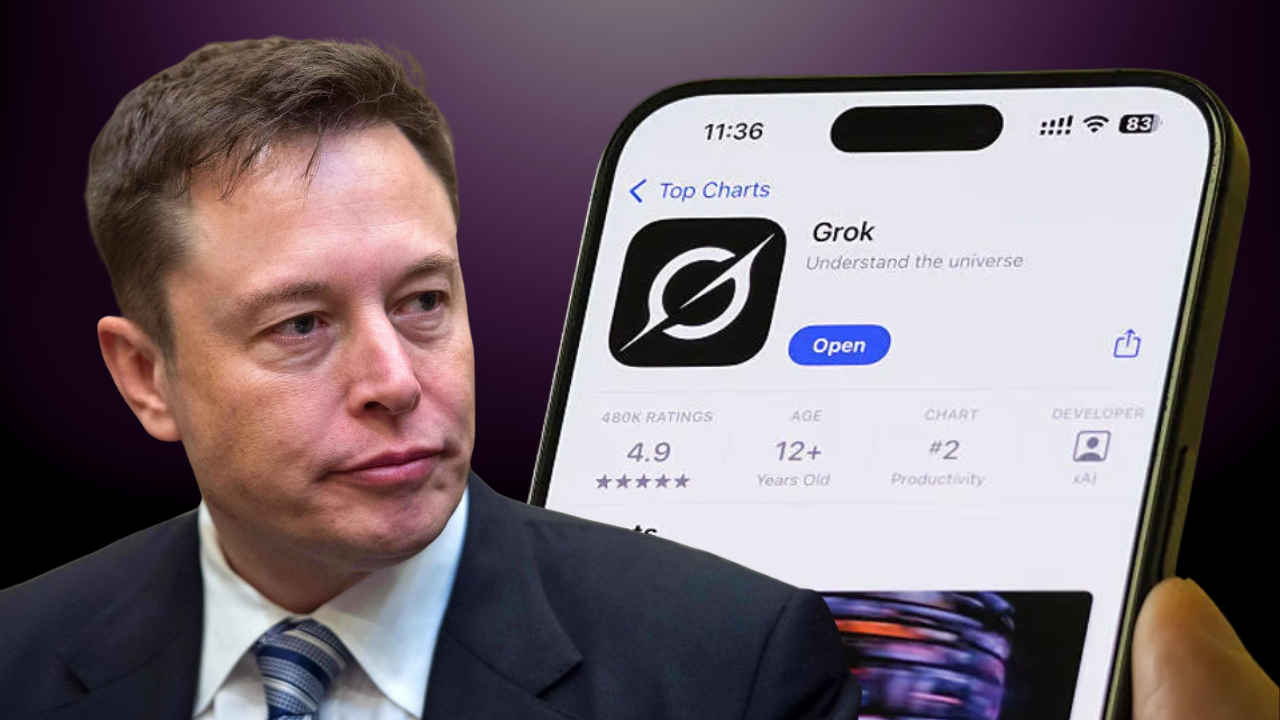

AI images are fun, but many people get uneasy when their personal photos or data are used without clear permission. Recently, Grok on X has been used to create bikini-style images of real people without their consent, raising some serious privacy concerns and public backlash. The situation escalated when Elon Musk himself joined the trend, making it feel more normalised despite ethical concerns. However, there are some ways using which you can stop Grok from creating your AI-generated pictures. When you use Grok, it relies on your settings, permissions, and uploaded content to power its features. In this article, I’ve discussed three ways you can stop Grok from creating your AI-generated pictures.
 Survey
Also read: Grok AI used to create explicit images of children, watchdog warns
Method 1: Turn off personalisation and image-related data settings
When you disable the personalisation and image-related data settings on X, then you reduce how Grok uses your activity and preferences on X, especially to personalise answers or generate images. Here’s how you can do so:
- Open Grok in your web browser.
- Tap on your profile icon.
- Select Settings and go to Data Controls.
- Find Personalise Grok using X and turn it off.
- Disable options related to image generation or creative content.
Also read: Google Pixel 10 price drops by over Rs 13,000: How to grab this deal
Method 2: Remove camera and gallery permissions
By removing camera and gallery access, you prevent Grok and the X app from accessing your photos. Hence, the AI can no longer scan, analyse, or reuse images stored on your device. While it’s better to never give the app complete gallery access in the first place, if you still want to allow access, you can grant it limited permissions. However, if you’ve already given complete access, follow the steps below to revoke it:
- Open the Settings app on your device.
- Go to Apps and select X.
- Open Permissions. Look for access related to Camera, Photos or Gallery and turn them off.
Also read: OnePlus Nord 6 said to come with biggest battery upgrade
Method 3: Do not upload photos to Grok
If you are a new user and have never used Grok, and you are worried about whether the platform can generate an AI image of you, let me assure you that you are safe for now. However, problems may arise if you plan to share your photos on the platform to join any AI image trend.
The best way to avoid Grok generating AI images of you is to never upload your photos to the tool. When your images are not available on the platform, it has no information about your facial features and therefore cannot create AI-generated images of you.


