
How to share your screen during an Instagram video call: Easy guide
 Follow Us
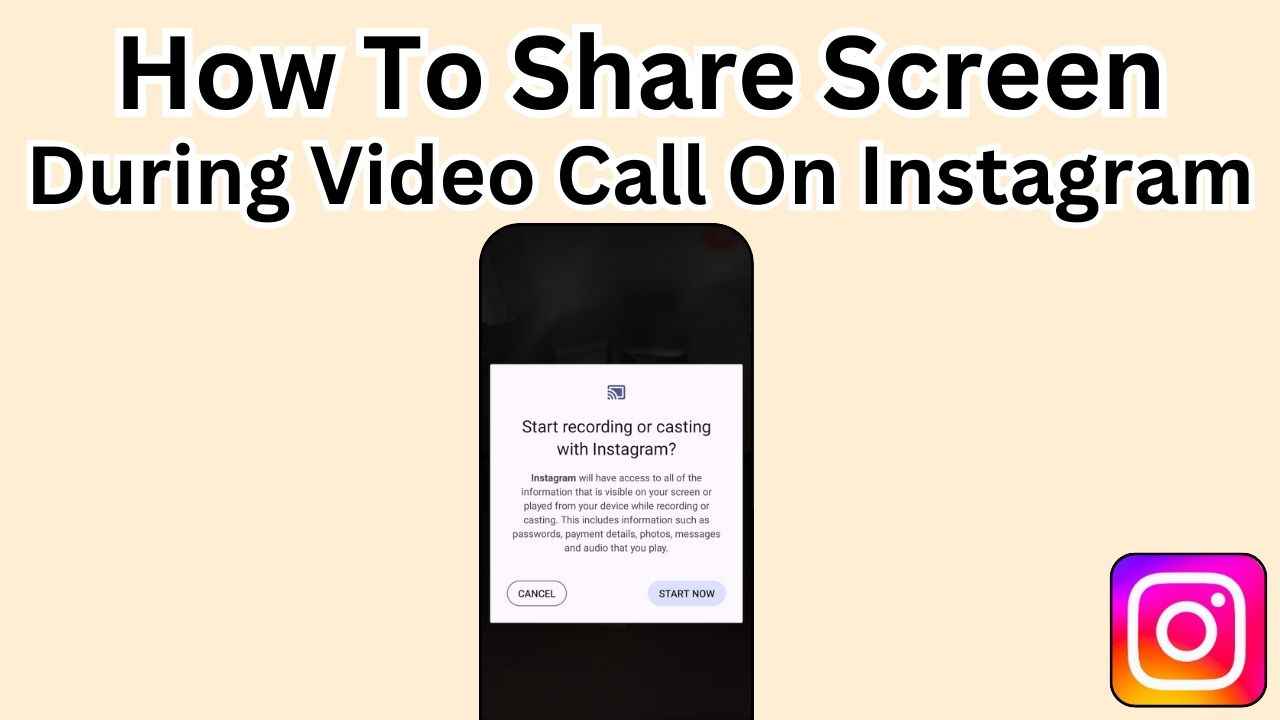
In this easy guide, we will tell you how you can easily share your screen during an Instagram video call.
Everything on your screen, including notifications, will be visible to everyone in your video call when you share your screen
Instagram video calls can include up to eight people.

In today’s digital age, staying connected with friends, family and colleagues is easier than ever. Instagram, a popular social networking platform, not only allows you to share moments through pictures and videos but also facilitates video calls, bringing you closer to your loved ones.
 Survey
During these video calls, sometimes words aren’t enough to convey your thoughts, and that’s where the screen sharing feature comes in handy. Screen sharing on an Instagram video call allows you to show others what’s happening on your phone screen in real-time.
In this easy-to-follow guide, we will tell you how you can easily share your screen during an Instagram video call.
Also read: Mastering Instagram group chats: Step-by-step guide for creating group conversations
How to share your screen during an Instagram video call
How to share your screen during an Instagram video call from Android
Step 1: Once you start a video call, tap the screen sharing option (gallery+video icon) at the bottom.
Step 2: Tap the Screen Share option.
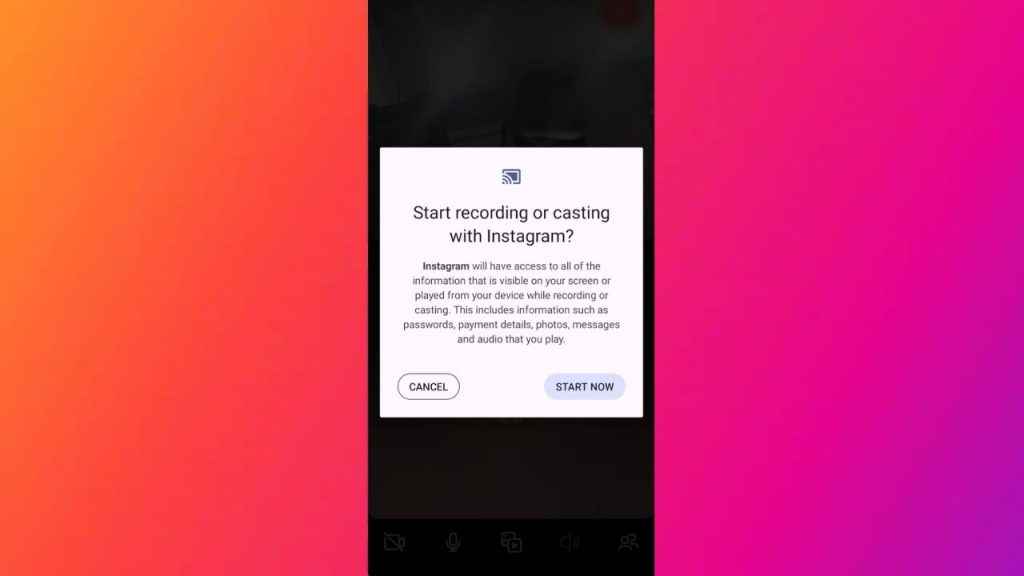
Step 3: Tap Start now.
Step 4: Tap Stop sharing from the call to stop sharing your screen.
Also read: Enhance your Instagram security: Easy guide to set up two-factor authentication for your account

How to share your screen during an Instagram video call from iPhone
Step 1: After starting a video call, tap the screen sharing option (gallery+video icon) at the bottom.
Step 2: Tap the Screen Share option.
Step 3: Now, tap the Start Broadcast option.
Step 4: To stop sharing your screen, tap Stop sharing from the call.
While you share your screen, a red icon might appear in the top left of the screen. You can also stop sharing your screen by tapping that red icon, then tapping Stop. Remember that your video call will not end when you stop sharing your screen.
It’s important to note that everything on your screen, including notifications, will be visible to everyone in your video call when you share your screen. Instagram video calls can include up to eight people.
Now that you know how to share your screen during an Instagram video call, if you are unfamiliar with how to initiate a video call or apply filters during Instagram calls, you can refer to this article.


