
PCIe lane allocation: The silent bottleneck in modern laptops
 Follow Us

You may have noticed that your latest-gen flagship laptop sometimes feels sluggish under heavy workloads, despite top‑tier CPU and GPU specs. The culprit often lies not in the cores or clocks, but in the tiny “roads” (PCIe lanes) that carry data between your processor and its peripherals. Unlike desktops, where extra lanes can be added with expansion slots, laptops must make do with a fixed lane budget dictated by the CPU package and chipset design.
 Survey
So in this article, we’ll explore exactly how those lanes are parcelled out, why sharing them can hamper bandwidth in demanding scenarios, and what you can do to spot and mitigate these silent bottlenecks.
Understanding PCIe lanes
PCIe (Peripheral Component Interconnect Express) lanes function as data highways that connect various components to your laptop’s CPU. Think of them as motorways with multiple lanes; the more lanes available, the more traffic (data) can flow simultaneously. These digital pathways have evolved through several generations, each doubling the bandwidth of its predecessor. PCIe 3.0 offers approximately 985 MB/s per lane, PCIe 4.0 delivers 1.97 GB/s per lane, and PCIe 5.0 provides an impressive 3.94 GB/s per lane.
| PCIe Generation | Year Introduced | Data Rate (GT/s) | Bandwidth per Lane (GB/s) | x1 Bandwidth (GB/s) | x4 Bandwidth (GB/s) | x8 Bandwidth (GB/s) | x16 Bandwidth (GB/s) |
|---|---|---|---|---|---|---|---|
| PCIe 1.0 | 2003 | 2.5 | 0.25 | 0.25 | 1.0 | 2.0 | 4.0 |
| PCIe 2.0 | 2007 | 5.0 | 0.5 | 0.5 | 2.0 | 4.0 | 8.0 |
| PCIe 3.0 | 2010 | 8.0 | 0.985 | 0.985 | 3.938 | 7.877 | 15.754 |
| PCIe 4.0 | 2017 | 16.0 | 1.969 | 1.969 | 7.877 | 15.754 | 31.508 |
| PCIe 5.0 | 2019 | 32.0 | 3.938 | 3.938 | 15.754 | 31.508 | 63.015 |
| PCIe 6.0 | 2022 | 64.0 | 7.563 | 7.563 | 30.250 | 60.500 | 121.000 |
Unlike their desktop counterparts, laptops operate with significantly fewer PCIe lanes due to size, thermal, and power constraints. A typical consumer laptop CPU might provide only 12-16 PCIe lanes in total, whereas desktop CPUs can offer 20+ lanes, and high-end desktop (HEDT) processors can provide 40+ lanes. This limited pool of lanes must be carefully distributed among all the laptop’s components that require high-speed connectivity.
How laptops distribute their limited PCIe resources
The allocation of PCIe lanes in laptops follows a priority-based approach dictated by the manufacturer’s design philosophy. In a typical ultrabook, the NVMe solid-state drive usually claims a 4x PCIe connection, consuming a quarter or more of the available lanes. This allocation is crucial for storage performance, enabling the rapid read/write speeds that modern operating systems and applications demand.

If your laptop features a discrete graphics card, it will likely consume another 4x PCIe connection. This is notably different from desktop systems, where graphics cards typically enjoy a full 16x connection. The reduced lane count can potentially limit GPU performance, particularly in graphics-intensive applications and games that push large amounts of data between the CPU and GPU.
Wireless connectivity components, including Wi-Fi cards, typically require 1x PCIe lanes each. While these connections demand relatively little bandwidth compared to storage or graphics, they still draw from the same limited pool of resources.
Perhaps most interesting is the case of Thunderbolt ports, which have become increasingly common in premium laptops. A Thunderbolt 3 or 4 connection requires 4x PCIe lanes to deliver its full 40 Gbps of bandwidth. This significant lane requirement explains why some laptops limit Thunderbolt ports to only 2x PCIe lanes, effectively halving the potential bandwidth to 20 Gbps.
The silent performance implications
The consequences of PCIe lane allocation become apparent during specific high-bandwidth workloads. For video editors working with 4K or 8K footage, the simultaneous demands on storage (reading video files) and graphics processing can create a bottleneck if these components share limited PCIe bandwidth. Similarly, when using external GPUs through Thunderbolt connections, performance can be significantly hampered if the port doesn’t have access to the full 4x PCIe lanes.
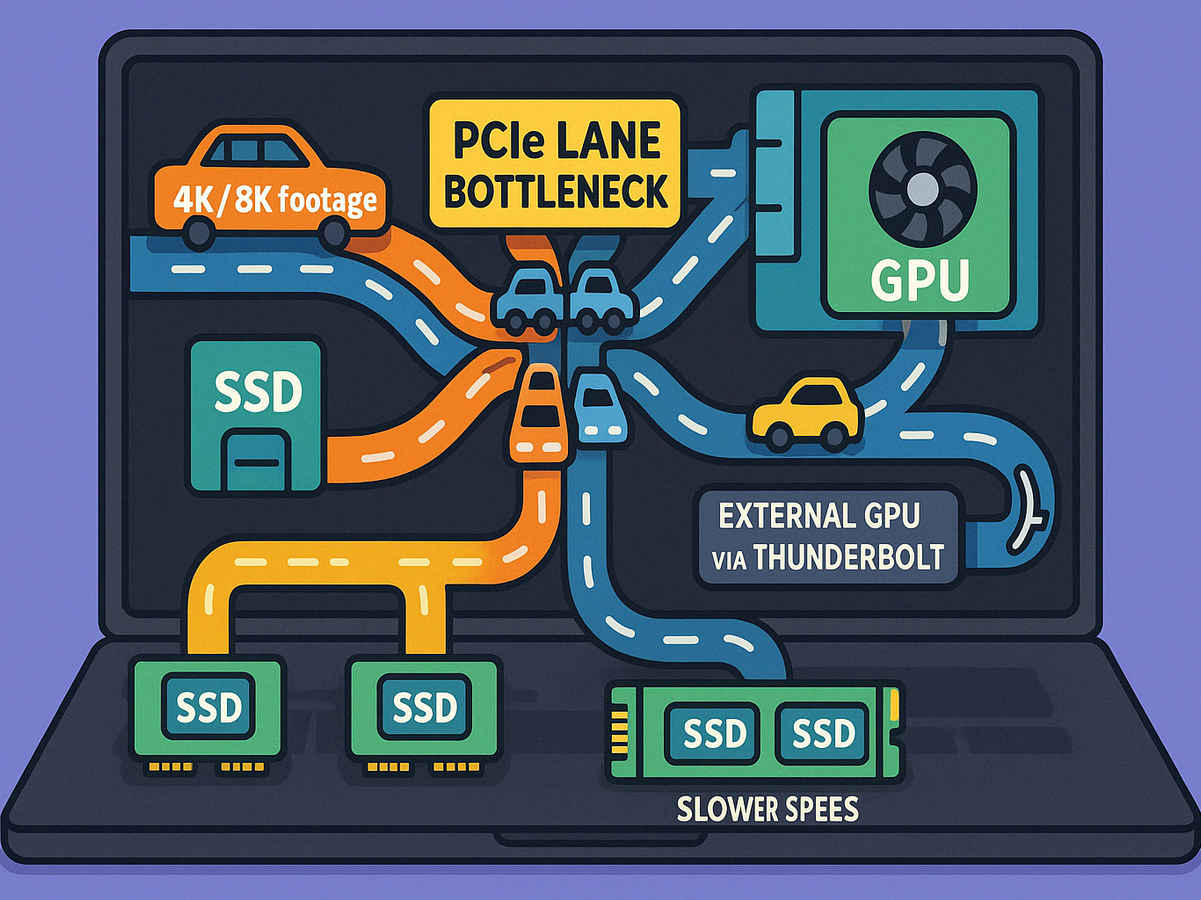
Multi-SSD setups face particular challenges in laptops. With many high-performance laptops now offering multiple M.2 slots, users might not realise that populating both slots could force their discrete GPU or Thunderbolt ports to operate with reduced bandwidth. When PCIe lanes are shared between devices, they must negotiate reduced speeds, potentially limiting overall system performance.
Resource allocation conflicts are especially evident in ultrabooks, where manufacturers must decide how to distribute extremely limited PCIe lanes. The Dell XPS 13, for instance, was noted for providing only 2x PCIe lanes to its Thunderbolt 3 port in earlier models, limiting external GPU performance. Later models addressed this limitation by providing the full 4x allocation, highlighting how manufacturers continuously refine their approach to lane distribution.
Real-world scenarios when PCIe lane allocation matters most
External GPU setups represent one of the clearest examples of PCIe lane allocation impacting performance. When using a Thunderbolt enclosure to connect a desktop GPU to your laptop, the connection is typically limited to 4x PCIe lanes at most. This represents a significant reduction from the 16x lanes the same GPU would use in a desktop, potentially reducing graphics performance by 10-30% depending on the specific workload and PCIe generation.
Also read: Best Laptops for Video Editing
Content creators working with multiple high-speed storage devices may also encounter limitations. A video editor might want to have separate NVMe drives for the operating system, media cache, and project files, but adding these drives could force bandwidth compromises elsewhere in the system.
Data scientists and researchers running machine learning workloads face similar challenges, as these tasks often require substantial data movement between storage, memory, and processing components. In these scenarios, PCIe lane allocation can become a significant factor in determining overall system performance.
Should You Be Really Concerned About This?
For the average laptop user who browses the web, uses office applications, and occasionally edits photos, PCIe lane allocation will likely never become a noticeable issue. These activities simply don’t push enough data through the system to hit the bandwidth limitations imposed by typical lane allocations.
However, professionals in creative fields, particularly those working with video, 3D rendering, or large datasets, may indeed experience performance limitations stemming from PCIe lane allocation decisions. These users should pay particular attention to the technical specifications of laptops, looking beyond processor and graphics capabilities to understand how PCIe lanes are distributed.
Gaming enthusiasts utilising external GPUS should be especially aware of Thunderbolt port specifications, as the difference between a 2x and 4x PCIe lane allocation can significantly impact gaming performance. Similarly, those planning to upgrade their laptop with multiple NVMe drives should research whether adding drives will reduce bandwidth to other components.
When selecting a laptop for professional use, consider the specific workflows you’ll be running. If you frequently transfer large files to external devices via Thunderbolt, edit high-resolution video, or use external GPUs, you may benefit from models that prioritise PCIe lane allocation to these interfaces. Some high-end mobile workstations now specify their PCIe lane configurations in technical documentation, though this information can still be difficult to find.


