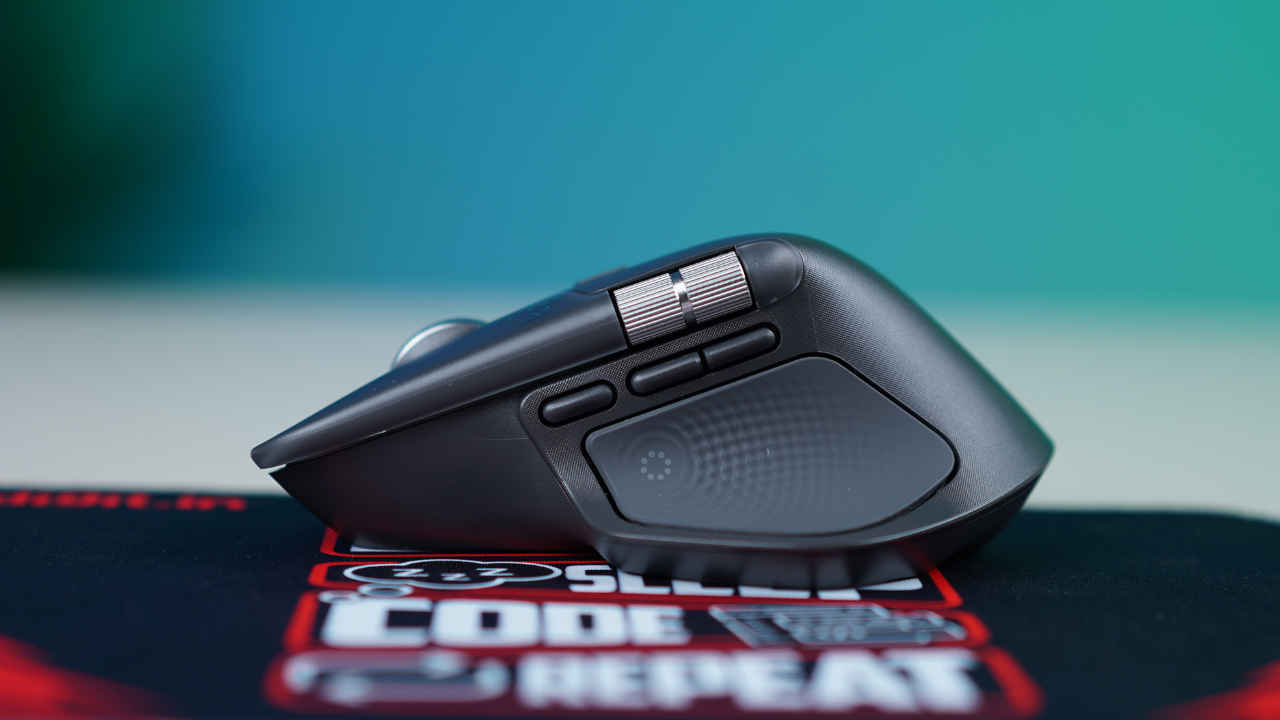
I type a lot, roughly over 3,000 words a day, and sometimes the number goes even higher. So naturally, a good mouse and keyboard combination is something I have always needed. Now, I did put a lot of thought into what keyboard I wanted, but as for the mouse, I believed that if it clicked when I asked it to and scrolled when I needed it to, it was good enough. That perception changed when I started using the Logitech MX Master 4. Priced at Rs 15,995, but retailing for around Rs 11,500 these days online, the premium mouse seems built for people who want fewer interruptions while working.
 Survey
After using the Logitech MX Master 4 for a couple of days, it feels less like a flashy upgrade and more like a deliberate shift in how work is handled. It gets a lot right, especially for productivity, but it also makes a few choices that will not suit everyone. Here are three things I liked about the MX Master 4, and two that reminded me it is a very specific kind of mouse.


Three things I liked about the Logitech MX Master 4
The biggest highlight of the Logitech MX Master 4 is the introduction of haptic feedback paired with the new Actions Ring. The company has clearly tried to add something new without disrupting existing workflows, and for the most part, it works. The haptics are subtle and controlled. You feel a gentle response when switching devices or activating certain actions, which adds a sense of intention without becoming distracting. You can tweak the intensity or turn it off completely, but once you find a level that works, it makes interactions feel more deliberate.
The Actions Ring itself quickly became my favourite feature. Triggered using a dedicated thumb button, it brings up a customisable set of shortcuts that can be system-wide or app-specific. In daily use, this reduced how often I reached for the keyboard. Adjusting brightness, controlling volume, taking screenshots, and switching between tasks became quicker and more natural. There is a small learning curve because it is a new habit, but once it settles in, it genuinely improves workflow efficiency.
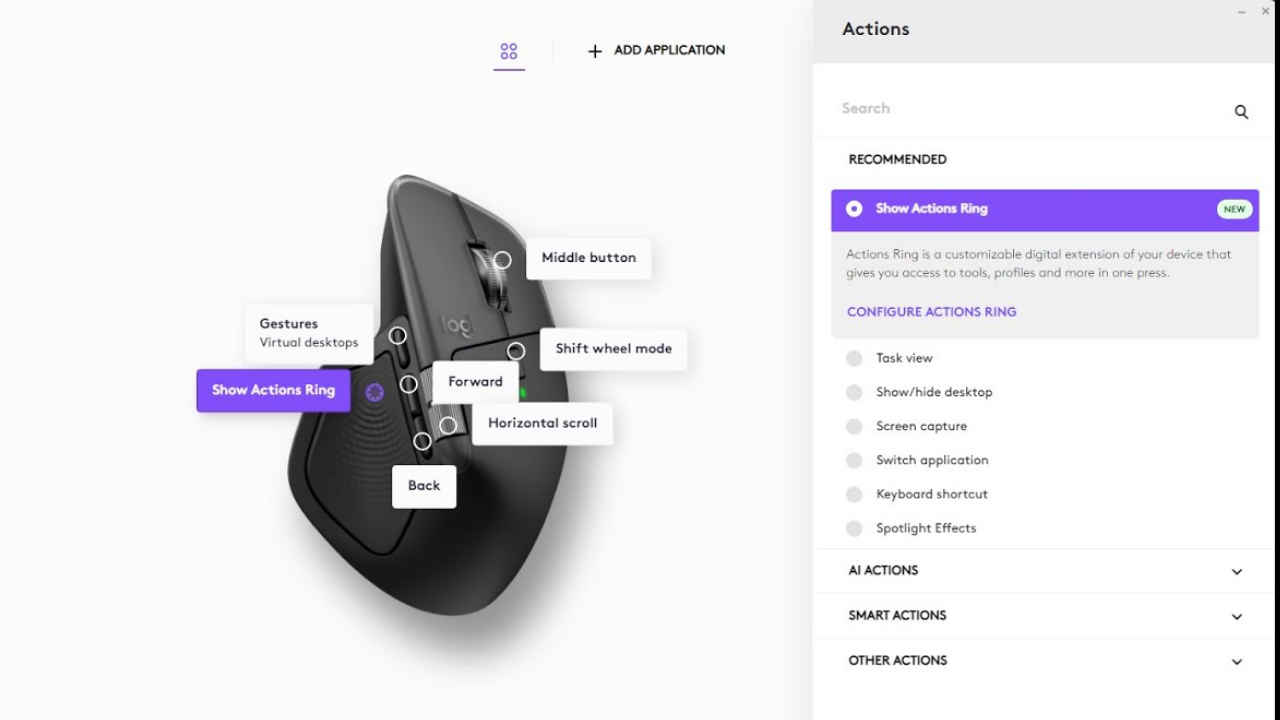
Another strength is the scrolling experience. Logitech’s MagSpeed scroll wheel remains one of the best in the business. The switch between precise scrolling and infinite scroll feels effortless. Long documents, large spreadsheets, and endless web pages suddenly feel easier to navigate. The horizontal thumb wheel adds even more value, especially for wide documents, timelines, and editing software. Once you get used to scrolling sideways with your thumb, going back to a regular mouse feels limiting.
The third thing that I started to appreciate was how quiet and responsive the clicks are. The left and right buttons feel soft, quick, and silent. This might sound like a small detail, but during long writing or editing sessions, it makes a real difference. The mouse never draws attention to itself, so I didn’t feel the need to be cautious while clicking when the office had pin-drop silence.
Two things I did not like about the Logitech MX Master 4
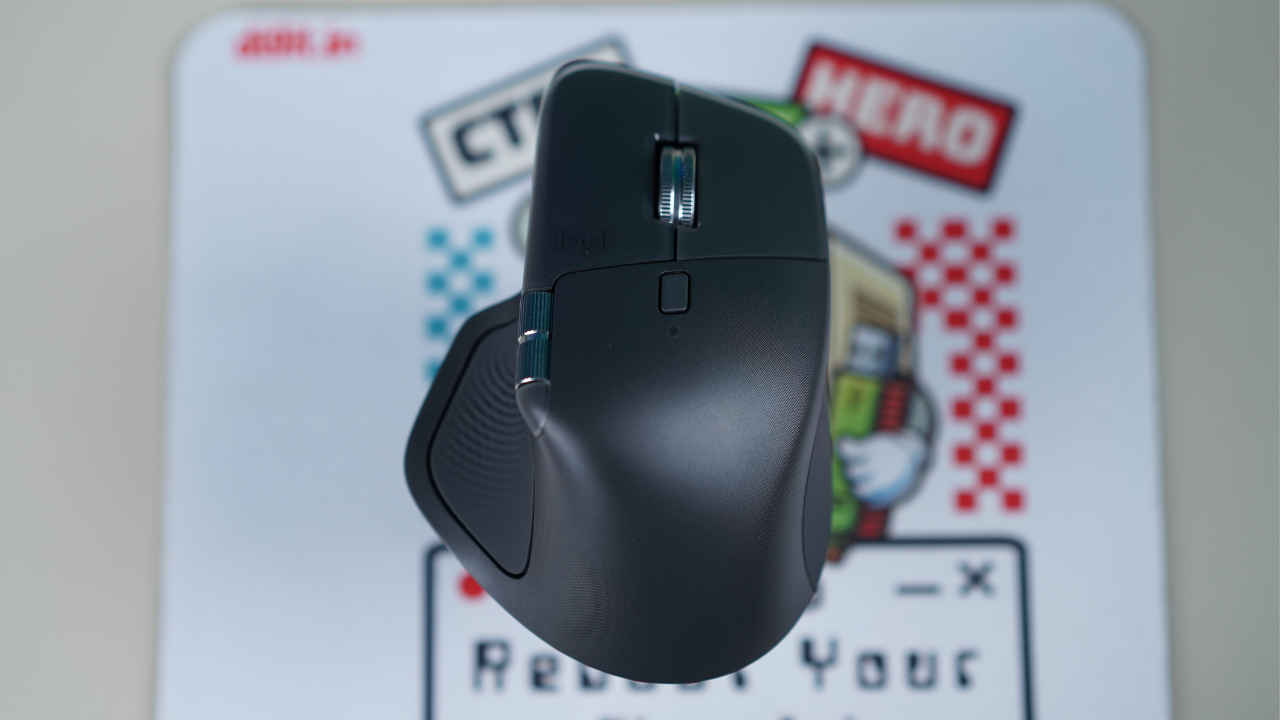
Now, let’s talk about a few misses. The first thing that took some getting used to while using the mouse was the weight. The MX Master 4 is heavy, and that is very much intentional. The weight adds stability and control, which works well for productivity tasks. However, if you are coming from a lightweight mouse, the difference is immediately noticeable. Quick movements and fast repositioning take more effort, and the mouse can feel slower at first. Over time, it starts to make sense for desk-based work, but this is not a mouse for anyone who prefers light, agile movement or fast-paced gaming.
The second thing is the choice of a USB-C dongle. Logitech includes a Logi Bolt USB-C receiver, which makes sense with newer devices but is not always convenient in practice. Many laptops, including my MacBook Air, still have limited USB-C ports, and those are often reserved for charging or displays. Desktops also continue to rely heavily on USB Type-A. In some setups, this means using an adapter, which slightly undermines the otherwise seamless experience. Bluetooth works well, and multi-device switching is excellent, but a Type-A dongle option would have made the mouse more universally practical.
With that being said, the Logitech MX Master 4 is still a pretty strong recommendation for anyone who has to multitask their way through most of the day. It is not a mouse that tries to impress through flashy design or headline-grabbing features. Instead, it focuses on reducing friction in small but meaningful ways. And once you get used to it and the features become second nature, it stops feeling like a premium accessory and starts feeling like a dependable part of your workflow.
 Follow Us
Divyanshi Sharma
Divyanshi Sharma is a media and communications professional with over 8 years of experience in the industry. With a strong background in tech journalism, she has covered everything from the latest gadgets to gaming trends and brings a sharp editorial lens to every story. She holds a master’s diploma in mass communication and a bachelor’s degree in English literature. Her love for writing and gaming began early—often skipping classes to try out the latest titles—which naturally evolved into a career at the intersection of technology and storytelling. When she’s not working, you’ll likely find her exploring virtual worlds on her console or PC, or testing out a new laptop she managed to get her hands on. View Full Profile


