
You can now lock chats in ChatGPT: Here is how
 Follow Us
ChatGPT users can hide conversations from regular chat history by moving them to Locked Chats.
Users can secure chats with a four-digit PIN, while supported devices also offer biometric authentication or screen lock.
Resetting the account PIN permanently deletes locked chats, while changing the PIN preserves them.
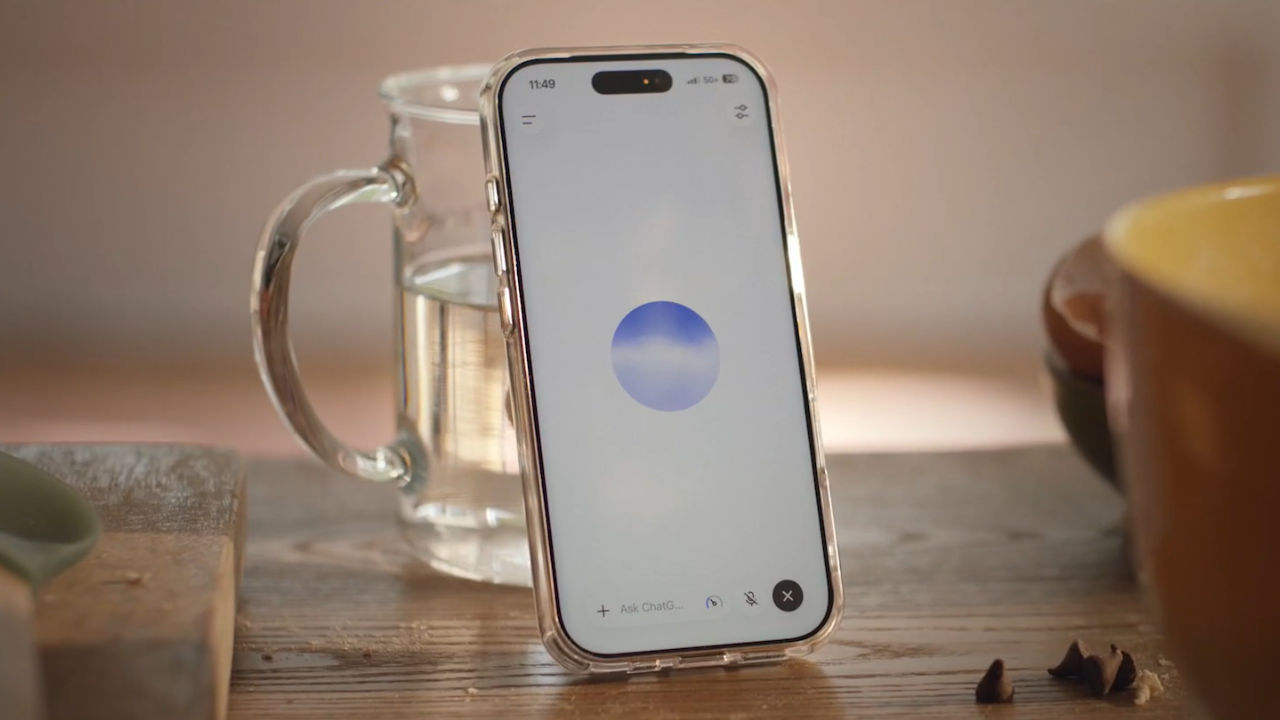

ChatGPT maker OpenAI has announced that users will be able to lock chats in the viral AI model using the new Locked Chats feature. This will help people hide chats behind a locked door so that they do not appear in the regular history. A user can access these chats from a “protected space” via a PIN on the web and desktop experience. On mobile phones, supported authentication methods include PIN, Face ID or Touch ID or the device’s screen lock. OpenAI added that the messages sent to the locked vault will not update the memory of regular chats.
 Survey
The locked chats feature is rolling out “gradually” for Free, Go, Plus, Pro, Business, Enterprise and Edu plans. Locked chats can be located in the ‘Projects’ section, and the sidebar may show a Locked chats project (with titles hidden), OpenAI noted.
Also Read: OpenAI finds AI agents bypassed monitoring safeguards in two incidents: Here is what happened
If a user resets their account PIN, the locked chats will be permanently deleted. If you wish to use the new feature, here is how you can lock a chat in ChatGPT.
How to lock chats in ChatGPT?
Step 1: Head to the ‘Projects’ section and look for ‘Locked chats’
Step 2: Create a 4-digit PIN (this PIN can be used across devices when a user is signed in on a supported device)
Step 3: Now open the conversation you want to lock
Step 4: Tap the three dots at the top and look for ‘Lock chat’ in the menu
Step 5: Select ‘Lock chat’ to confirm and enter the PIN
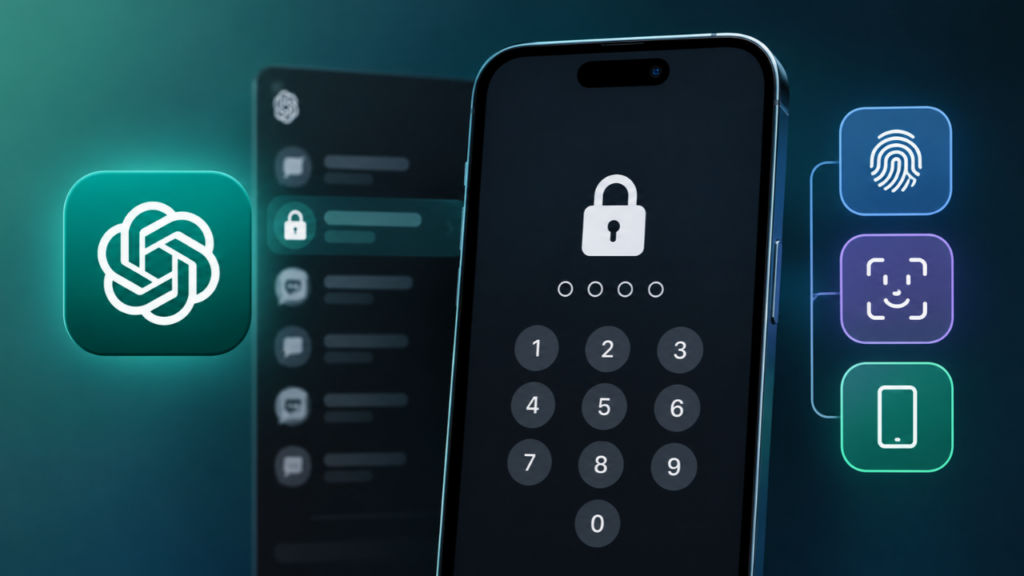
Users can unlock a chat from the ‘Unlock chat’ option in the chat view. While resetting a PIN clears all the previously locked chats, OpenAI said changing a PIN does not. Users can change their PIN by entering their existing PIN, regardless of whether they use any other authentication method or not. To change a PIN, users can go to ‘Settings’, then open ‘Security and login’. From here, choose ‘Account PIN’ and then ‘Change PIN’.
Also Read: ChatGPT can now access your Google Chrome tabs to gather information and complete tasks, here is how
To reset a PIN, users can choose ‘Reset PIN’ from the ‘Account PIN’ option and complete the identity verification process. iPhone users who wish to use Face ID or Touch ID to access these chats can do so from the Account PIN settings. Android users can enable the ‘Use device unlock’ option.
However, these optional methods will work only on the devices they are configured on alongside the existing PIN. To start a new conversation in a locked chat for the first time, users must lock the desired conversation and enter the PIN in Locked Chats to update the conversation in the Projects tab.


