

How to create golden hour images using Google Gemini: Steps with prompts
 Follow Us
Turn normal photos into golden-hour style using Google Gemini easily.
Upload image, add a prompt, and AI applies warm lighting effects.
Edit prompts to improve details and get better results.
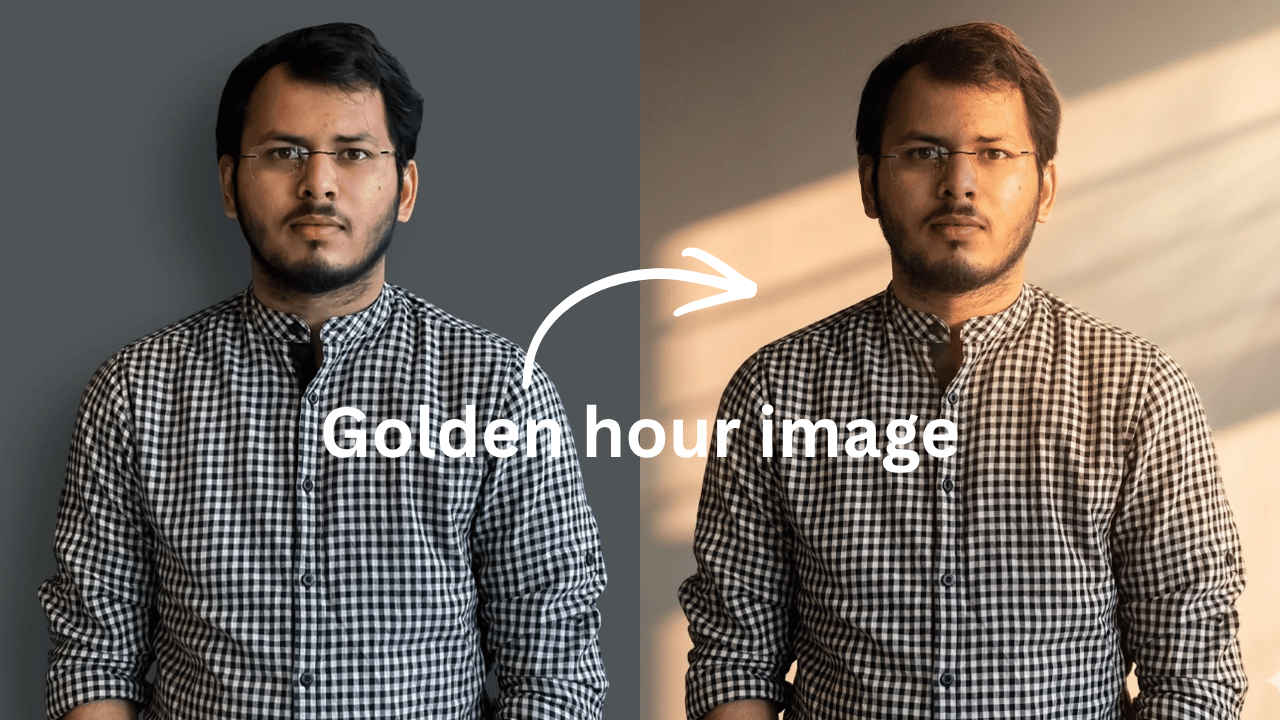

You may have noticed golden-hour images taking over social media lately. The warm, glowing light makes photos feel softer, calmer, and almost magical. Your friends haven’t suddenly invested in expensive gear or perfectly timed sunsets. Many are simply using Google Gemini to transform ordinary photos into cinematic, golden-hour style images. The good news is you don’t need professional cameras or ideal lighting to achieve this look. With Gemini, you can recreate the effect in a few simple steps using the right prompt. In this guide, I’ll show you how to convert a normal image into a stunning golden hour photograph step-by-step, quickly and easily with practical prompt examples included below here.
 Survey
How to make golden hour images using Google Gemini
If you want to change a normal photo into a golden hour-style photo, just follow the easy steps below:
1. Head to the Gemini app or website.
2. Tap the plus icon and choose Upload files.
Also read: Motorola Razr 70 Ultra specs tipped ahead of launch: Here is what we know
3. Choose an image you want to convert.
4. Write a clear prompt stating to convert your image to a golden hour image. Alternatively, you can also copy and paste the prompt below.
5. Now, press the submit button.
The AI tool will now take some time to convert the image. If you’re not satisfied with the output, you can also prompt with the corrections you want to make. Once satisfied, download the image.
Also read: WhatsApp may soon alert you if someone else is using your account on another device: Here is how
Golden hour image prompt
You can copy and paste the prompt below to make your golden hour image. Feel free to edit the prompt to your liking:
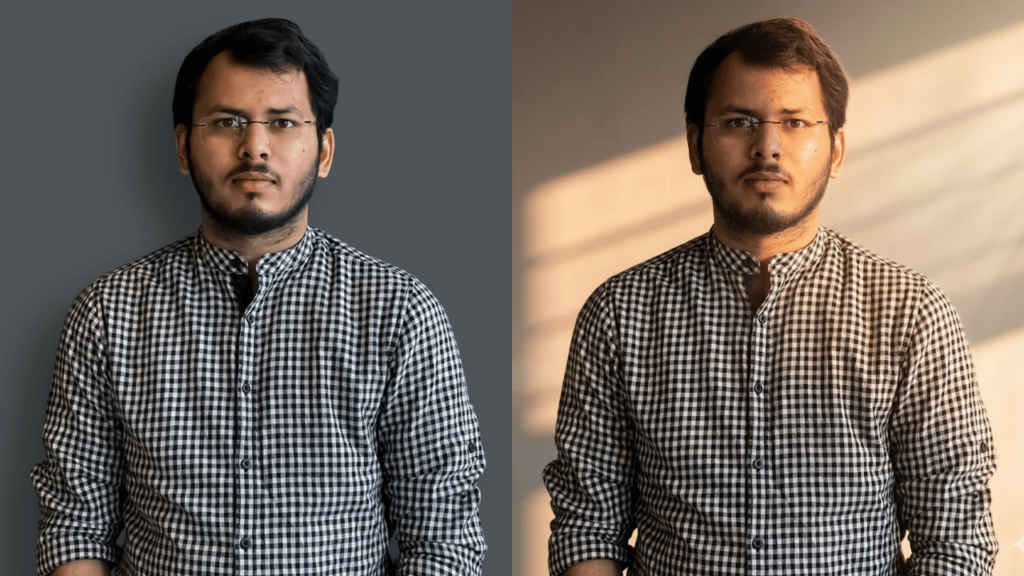
Use the uploaded image as the base reference. Keep the subject’s face, identity, pose, expression, body proportions, and framing EXACTLY the same, no changes at all.
Transform the lighting into a high-end cinematic golden hour scene with warm sunlight entering from one side at a low angle. The light should fall naturally on the face and body, creating a soft glowing highlight on the skin while maintaining balanced exposure.
Add elegant directional light streaks across the background, farming soft diagonal shadow patterns (like window light or sunset beams), giving a luxury editorial feel. Introduce subtle volumetric light rays in the air, very soft and diffused, just enough to add depth without overpowering the image.
Create a refined rim light along the edges of the hair and shoulders to separate the subject from the background, keeping it soft and premium.
Shape the lighting with gentle cinematic contrast, slightly deeper shadows on one side, but keep all facial details clearly visible (no dark patches).
Enhance skin tones with a rich golden, slightly peach-toned glow, maintaining natural texture, pores, and realism, no smoothing or artificial beauty effects.
Apply cinematic color grading:
warm highlights (golden/amber), slightly cooler and neutral shadows for contrast, giving a film-like color balance.
Background should remain minimal and elegant, softly blurred with warm gradients and smooth light falloff.
Add a subtle lens flare and soft bloom effect where sunlight hits the subject for a premium glow.
Introduce very fine film grain and a slight vignette for a cinematic finish.
Ensure lighting direction, shadows, and highlights are physically realistic and consistent.
Output in ultra-realistic 4K resolution (3840×2160), DSLR-quality, sharp focus, 85mm lens, f/1.8 aperture, high dynamic range, professional fashion photography style.
ADD-ON (THIS MAKES IT LOOK EXPENSIVE)
cinematic film still, luxury fashion editorial, soft light bloom, depth and dimension, premium Instagram aesthetic
NEGATIVE PROMPT (VERY IMPORTANT)
no face change, no pose change, no expression change, no harsh shadows, no overexposure, no artificial glow, no skin smoothing, no Al artifacts, no unrealistic lighting.


