
 E-Magazine
WhatsApp message scheduling and view-once texts rolling out in India, here is how to use these features
WhatsApp is gradually rolling out scheduled messages on iOS and Android, allowing users to choose when a message should be delivered.
Users can schedule text messages, photos and videos for individual or group chats, with delivery times ranging from 10 minutes to two weeks.
Select Android users are also getting view-once text messages, which cannot be forwarded, copied or snapped as a screenshot.
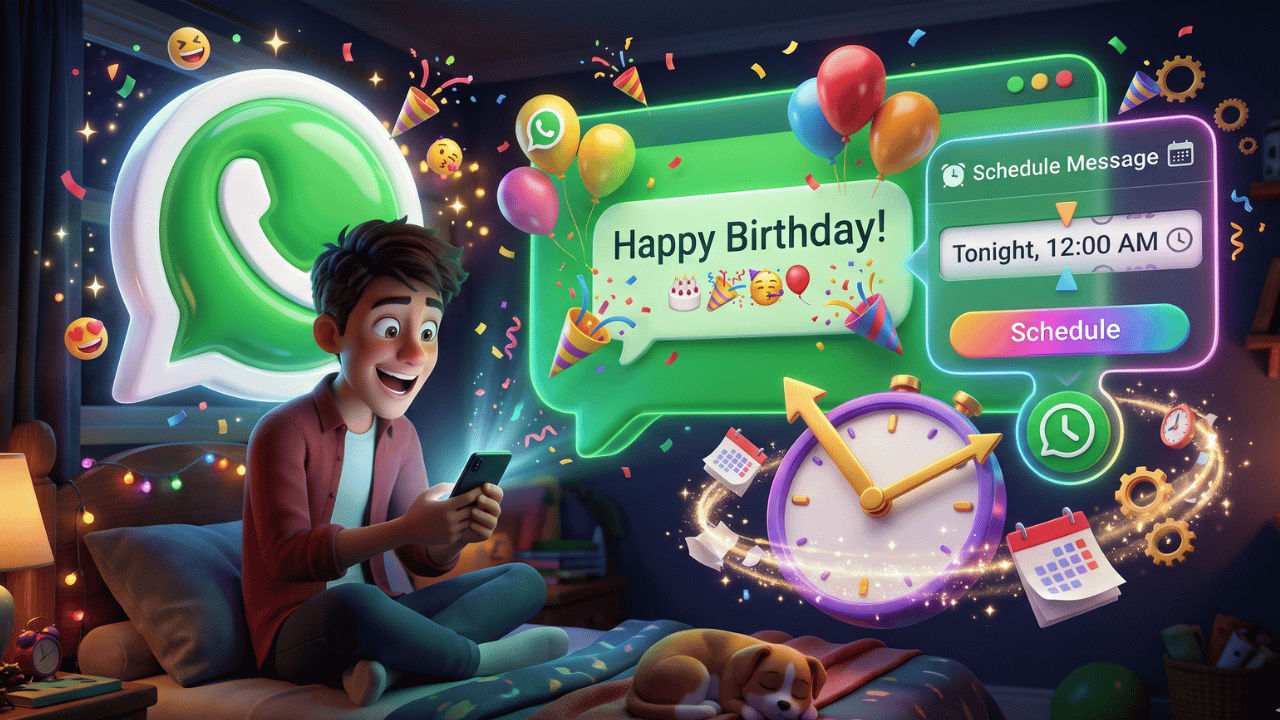
WhatsApp, Meta’s instant messaging platform, tests new features and enhancements at regular intervals. In a recent series of updates, the company was spotted testing a message scheduling feature within the app. And it appears the feature is rolling out in phases, with users getting access on iOS and Android smartphones. Moreover, Meta is also introducing the capability to send view-once text messages in the app on select Android devices. However, readers should note that due to the phased rollout, it may not be available to all iPhone and Android users.
Moreover, recent X activity from WhatsApp also hints that the company is officially rolling out scheduled messages on the platform. Reposting a post from @Yobhstar that said: “Schedule WhatsApp Messages [with a candle emoji]”, WhatsApp said, “it’s working”, along with candle emojis at both ends of the text. The feature comes as good news for people who share birthday and festive wishes or stay awake to share a message at a particular time with their loved ones.
Plus, it can help professionals avoid reliance on third-party tools for message scheduling. Based on our observation, it appears the feature is rolling out to more iPhone users, compared to their Android counterparts. If you are among the eligible users, check how you can send a scheduled message on WhatsApp.
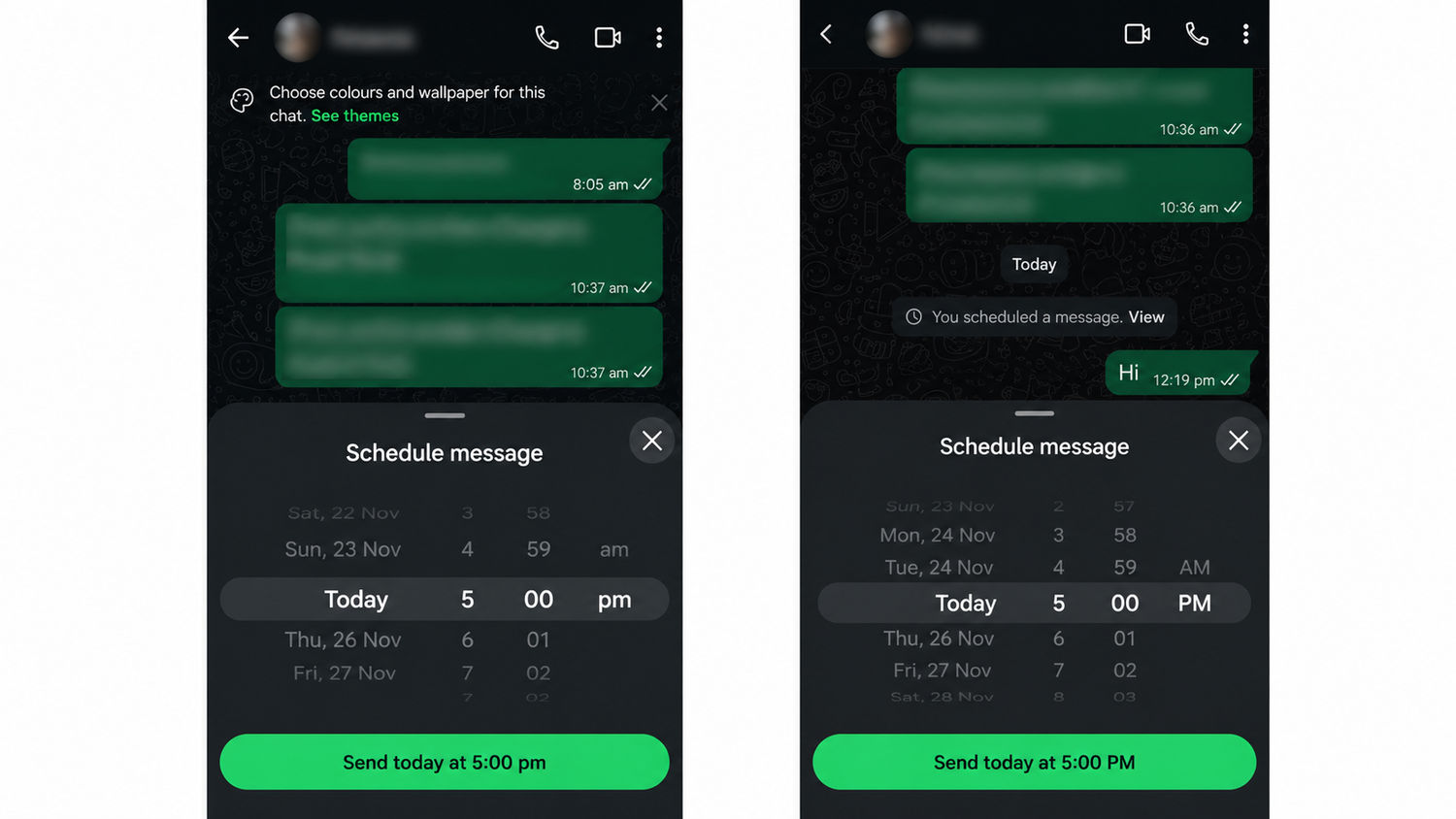
How to schedule messages on WhatsApp?
Step 1: Open WhatsApp and the chat view of the user to whom you wish to send a scheduled message
Step 2: Type a message or upload a photo and video via the media picker
Step 3: Now press and hold the send button (aeroplane icon)
Step 4: If you are eligible, an option to ‘schedule message’ will pop up
Step 5: Select the date and time from the bottom sheet
Step 6: Tap the button that highlights the scheduled message’s date and time of delivery
WABetaInfo spotted the rollout of the feature on Android and iOS beta builds last month. It reported that message scheduling will work regardless of the device’s offline state and work for both individual and group conversations. The feature supports only one message at a time. The supported time range for future messaging ranges from 10 minutes to two weeks. After a user schedules a message, a dedicated section that says “You scheduled a message. View” pops up where users can manage these messages before they are sent.
Meanwhile, some users are also seeing the view-once option for text messages in the app.
How to send view-once text messages on WhatsApp?
Step 1: Open the WhatsApp chat where you want to send a view-once message
Step 2: Type a message and long-press the send button (aeroplane icon)
Step 3: Now choose the ‘View once’ option to send the message
The feature blocks forwarding, copying and taking screenshots of these messages (as they appear in a different window than the chat screen) and can prove worthy while share sensitive information with a shorter viewing window.

Vikas Yadav
Vikas Yadav Vikas, a Copy Editor at Digit, writes to express his interest in technology. He covers consumer-centric tech news while hunting the day's most "VFM" smartphone deal. Plus, this curious geek enjoys digging into the last-mile intricacies of latest gadgets. Before Digit, he reported for Jagran English. Off work, you'll find him emotionally attached to historical sites or lost in tales of India's past. Simply put, tech is his 9-to-5, the rest is history.
View full profile