
5 Free AI-Powered Windows Apps Every AI Laptop Should Have
 Follow Us

AI-capable laptops, like those with Intel Core Ultra or AMD Ryzen AI chips, let you run powerful tools locally: transcribing meetings, generating art, editing video, enhancing webcam feeds, and chatting with GPT-style assistants.
 Survey
For reference, I tested all of these on an ASUS Zenbook S14 OLED equipped with Intel Core Ultra 7 258V and 32GB RAM. Here are five free, no-signup-needed apps, each with clear, step-by-step setup instructions:
1. Whisper – Local Speech‑to‑Text
Transcribe meetings, videos, or voice notes offline using OpenAI’s Whisper model, packaged into an easy-to-use local app.
How to install & use Whisper.cpp on Windows:
- Get the Windows build
- Download “whisper.cpp” from GitHub (use a community-built Windows binary)
- Download a model
- Copy “ggml-base.en.bin” (or another size/model) into a “models” folder inside your “whisper.cpp” directory.
- Convert any audio
- Use FFmpeg (free) to convert your audio into a compatible WAV format, 16kHz sample rate and mono channel, which is ideal for AI transcription tools like Whisper. to convert your file, run this command in Command Prompt:
ffmpeg -i input.mp3 -ar 16000 -ac 1 output.wav
“` :contentReference[oaicite:11]{index=11}
- Use FFmpeg (free) to convert your audio into a compatible WAV format, 16kHz sample rate and mono channel, which is ideal for AI transcription tools like Whisper. to convert your file, run this command in Command Prompt:
- Run transcription
- Open Command Prompt in your “whisper.cpp” folder and run:
whisper_cpp.exe –model models/ggml-base.en.bin output.wav - A .txt transcript appears automatically.
- Open Command Prompt in your “whisper.cpp” folder and run:
You’ll get offline transcription in minutes without any internet.
2. GIMP + Stable Diffusion Plugin – AI Art & Inpainting

GIMP is already a powerful free alternative to Photoshop, but with the Stable Diffusion GIMP plugin, it becomes an AI playground. You can generate images from text prompts, upscale low-res photos, and even use inpainting to edit specific areas of an image.
Inpainting allows you to mask or select a region of the image, like an unwanted object, a blank face, or background, and then tell the AI what to replace it with. For example, you can select a person’s outfit and replace it with something entirely new, or fix parts of an old photo by describing what’s missing. The result blends in naturally, as if it was part of the original image.
How to add AI to GIMP:
- Install GIMP
- Download and install GIMP (version 2.10 recommended) from gimp.org.
- Download Stable Diffusion plugin
- Use the official “gimp-stable-diffusion” from GitHub
- Add your API key
- Register at stablehorde.net > copy your API key > create a API.KEY file..
- Save it in %AppData%\Roaming\GIMP\2.10\plug-ins\
- Install plugin files
- Extract the downloaded ZIP and place the .py files into the same plug‑ins folder.
- Restart GIMP
- You’ll see a new AI menu: use Text>Image, Image>Image, and inpainting.
Image sizes must be multiples of 64 px; renders take a few minutes per 1024×1024 canvas.
3. Clipchamp – AI Video Trimming & Captioning
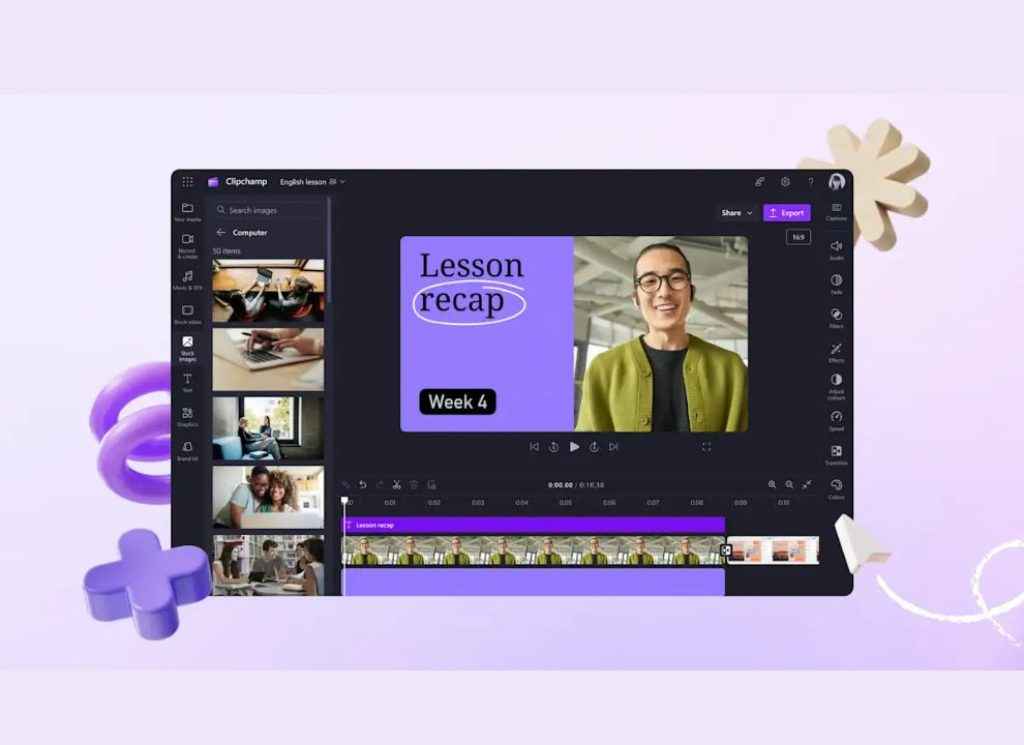
Turn raw footage into polished video with auto-captioning, silence trimming, and smart edits, all free and included in Windows.
How To Use Clipchamp:
- Open Clipchamp (built into Windows 11).
- Import your video files.
- Click Auto compose to generate cut suggestions.
- Enable Captions > Auto-generate to overlay accurate subtitles.
- Use Silence detector to trim long pauses automatically.
No sign-in or subscription needed, perfect for quick creator edits.
4. Windows Studio Effects – NPU‑Powered Webcam Enhancements
Upgrade your webcam with eye contact correction, auto framing, background blur, and voice focus, fully processed on-device.
How to enable Studio Effects:
- Go to Settings > Bluetooth & Devices > Camera.
- Select your built-in webcam.
- Toggle Eye Contact, Automatic Framing, Background Blur.
- In Settings > Sound > Input enhancements, enable Voice Focus, if available.
Works live in Zoom, Teams, OBS, all without uploading any data.
5. Phi‑3 Desktop Assistant (via LM Studio) – Offline ChatGPT
AI laptops today can do much more than just run Chrome faster. Thanks to built-in NPUs and efficient CPUs like Intel Core Ultra and AMD Ryzen AI, you can now run small AI language models (like tiny versions of ChatGPT) directly on your laptop without needing an internet connection.
These lightweight models, such as Phi-3, Mistral-7B, or Gemma, are small enough to run locally using apps like LM Studio. Here’s how to set up Phi‑3 locally:
1. Download LM Studio for Windows
- Go to the official site: https://lmstudio.ai
- Click on the Download for Windows button. It’s a free, standalone installer.
- Once downloaded, run the installer and follow the setup instructions.
- LM Studio does not require any coding, just a modern Windows PC with at least 16GB RAM (32GB recommended for smooth multitasking).
2. Install a Phi‑3 Model
- After launching LM Studio, go to the “Models” tab in the left sidebar.
- In the search bar, type “phi-3”.
- You’ll see options like:
- phi-3-mini-4k-instruct.Q4_K_M.gguf (for ultra-lightweight performance)
- phi-3-small-128k-instruct.Q4_K_M.gguf (a slightly larger version with more context memory)
- Click “Download” on the version that suits your RAM/GPU capacity. For most users, “phi-3-mini” is a great starting point.
3. Launch the Local Chat Window
- Once the model is downloaded, go to the “Chat” tab.
- In the dropdown menu, select your downloaded “Phi-3 model.”
- Click “Start Chat” to launch your private, offline AI assistant.
4. Start Chatting Offline
- Type your question or prompt into the message box.
- Adjust advanced settings if needed:
- Temperature: Controls creativity (0.2 for factual, 0.8+ for creative)
- Top-p and Max Tokens: Controls response randomness and length
- Hit “Enter”, and the AI will respond, completely offline.
If your laptop has an NPU, LM Studio will accelerate it for you.
You don’t need ChatGPT‑Plus or cloud access to experience AI-powered productivity. With these five tools, whether for transcribing, editing, creating, enhancing, or chatting, you can do powerful AI tasks locally, with zero cost and full privacy. Ideal for smart laptops: let them shine without compromise.


