

How to choose the best laptop for your business in 2026
 Follow Us
Match the laptop to the job before choosing a processor or brand.
Budget for support, security and deployment alongside the hardware.
Choose AI features and support around real work, then test the final configuration before ordering.
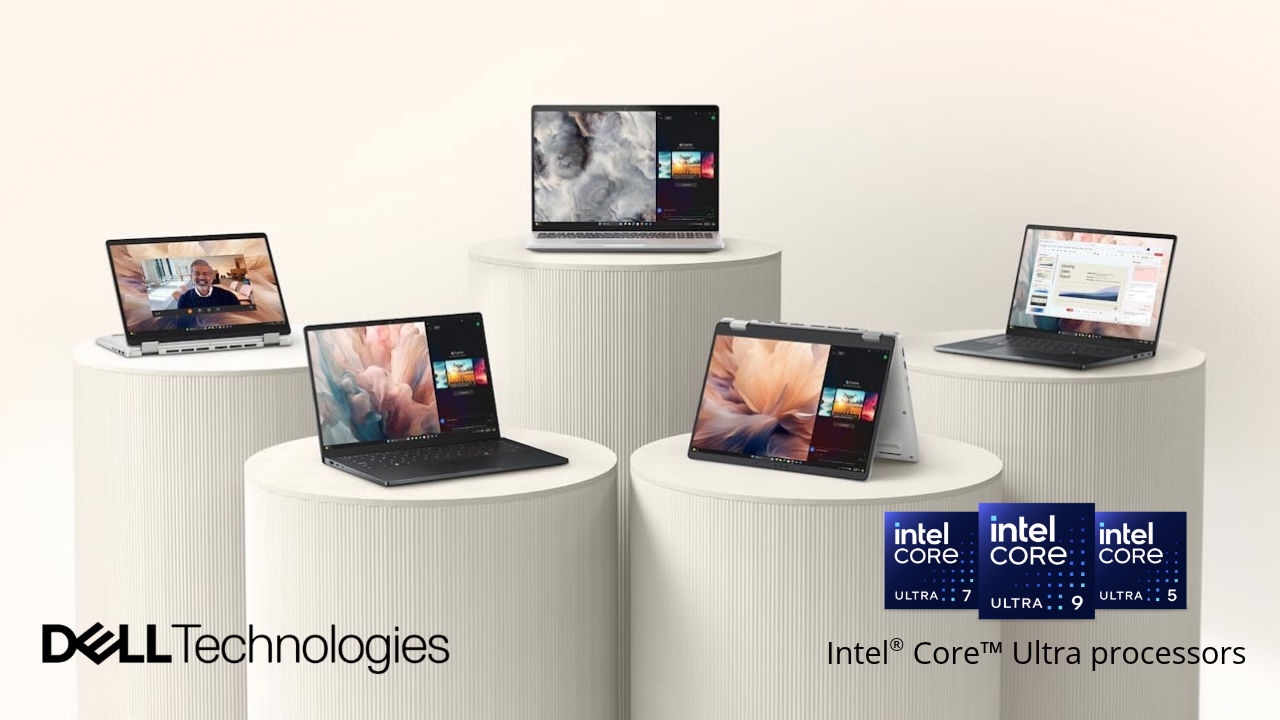

To choose a business laptop, start with the applications employees use, then compare performance, memory, security, battery life and support. For general office work, 16 GB RAM and a 512 GB SSD are sensible starting points. Development, design and engineering roles may require more memory, stronger graphics or a certified workstation.
 Survey
That starting point changes with the job. An accountant handling complex workbooks, a consultant travelling between clients and an engineer reviewing CAD assemblies should not automatically receive the same configuration. The purchase also needs to cover how the devices will be deployed, managed and repaired over their working lives.
This business laptop buying guide explains seven decisions, from setting a budget to planning a fleet refresh, with examples showing how different requirements lead to different hardware choices.
Recommended business laptop specifications by role
| Role or workload | Suggested RAM starting point | Suggested SSD starting point | What to verify |
|---|---|---|---|
| General office and browser applications | 16 GB | 512 GB | Performance with the normal apps open together |
| Finance and business analysis | 16–32 GB | 512 GB–1 TB | Workbook complexity and local data volumes |
| Sales and travelling consultants | 16 GB | 512 GB | Offline files, battery configuration and connectivity |
| Development and virtual machines | 32 GB | 1 TB | Toolchain, virtualisation and expansion needs |
| Design and engineering | 32 GB or more | 1 TB or more | Application requirements, GPU and certification |
These are suggested purchasing starting points. Check the applications, normal simultaneous usage and expected growth before setting a final specification. Specialist software and local AI models may require substantially more memory or storage.
In this guide
Recommended business laptop specifications by role
Map the work your business laptops need to do
Easy recommendations for different work roles
Step 1 Set your business laptop budget and ownership cost
Step 2 Choose the right processor RAM and storage
Step 3 Decide whether your business needs an AI laptop
Step 4 Check business laptop security and management
Step 5 Compare screen portability battery life and ports
Step 6 Choose a business laptop warranty and support plan
Step 7 Plan deployment management and laptop refresh
Five purchasing mistakes to avoid
Business laptop purchasing checklist
Frequently asked questions
Map the work your business laptops need to do
Start with the people and software, rather than a product shortlist. Record how many devices are required, which roles they serve, where those people work and who will manage the equipment. Include planned recruitment, shared devices and a reserve for replacements. A laptop purchase should account for the next stage of the business as well as today’s headcount.
For each role, list the applications used together during a normal working day. Email alone tells very little about a workload. Email alongside a video meeting, a CRM session, several browser windows and a large spreadsheet provides a much better picture. Record any specialist software, browser extensions, security agents, VPN clients, printers, scanners and other peripherals that must work with the new machines.
Ask users where their existing equipment slows them down. Does a spreadsheet take too long to recalculate? Does the laptop struggle when sharing a screen? Is the battery worn out? Are there too few ports for office equipment? These are different problems, and they will not all be solved by buying a more expensive CPU. Also distinguish device limitations from network problems, overloaded remote desktops or poorly configured software.
| Work profile | Questions to answer | Buying priority |
|---|---|---|
| Office and administration | Which apps run together, and how much data is stored locally? | Memory, usability and support |
| Finance and analysis | How large are the workbooks, reports and datasets? | CPU performance, memory and screen space |
| Sales and client services | How often is the device used away from a desk? | Weight, battery, connectivity and calls |
| Development and IT | Are containers, virtual machines or local builds required? | Memory capacity, CPU and compatibility |
| Design and engineering | Which applications need GPU acceleration or certified hardware? | Appropriate graphics, memory and certification |
Finally, decide who owns the purchasing decision after delivery. An internal IT team, an external service provider and a business owner managing devices directly will have different requirements for remote administration, setup and support.
Quick recommendations for different work roles
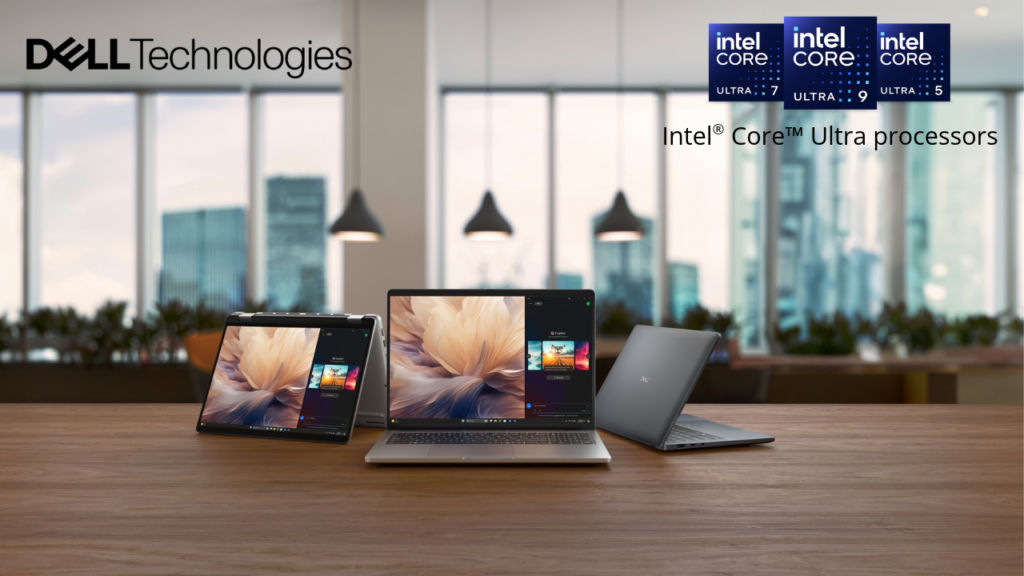
| Device | Requirement to evaluate | Configuration detail that matters |
|---|---|---|
| Dell Pro Essential PV14261 | Everyday office work and wired connectivity | RAM, SSD, RJ45 Ethernet and optional FHD IR camera |
| Dell Pro Precision 5 Series | Mainstream business work with Copilot+ requirements | Goes up to Intel® Core™ Ultra X9 378H processor in a three-piece aluminium build |
| Dell Pro Precision 5 14S | Professional applications away from the desk | Features Intel® Core™ Ultra 7 366H to Intel® Core™ Ultra X9 378H and starting weight of 1.4 kg |
| Dell Pro Precision 7 Tower T1 with Intel | Desk-based design and engineering | GPU choice up to RTX Pro 4000 Blackwell and up to 128 GB DDR5 |
| Dell Pro Precision with GB10 | A specialist AI project requiring its own hardware assessment | AI Model fit, framework compatibility, memory and measured task performance. Enables individual AI development and prototyping, supporting models from 30 billion to 200 billion parameters |
The right choice depends on the work and final configuration. The tower is a desktop workstation; it belongs in the comparison when a mobile device is not required for the demanding part of the job.
Step 1 – Set your business laptop budget and ownership cost
Compare complete configurations
A starting price is rarely enough to compare business laptops. One quote may include Windows 11 Pro, more memory and an onsite support package, while another covers a lower specification and a basic warranty. Put both into the same format before deciding which offers better value.
Request an itemised quote showing the exact model and processor, RAM, storage, display, battery, operating system, charger and support coverage. Add the dock, monitor, headset, bag and any adapters the role requires. Establish whether GST, delivery and setup are included, and ask about the availability of the quoted configuration for repeat orders.
Use total cost of ownership
For planning purposes, assess cost over a defined period, such as three years. Include the purchase price, accessories, support extensions, setup, management, expected repairs, and energy consumption all while factoring in device power draw, charging efficiency, and any battery-replacement cycles, particularly when deploying large fleets or higher-wattage workstation laptops. Software subscriptions that are identical whichever laptop is selected can sit in the wider IT budget; costs that change with the device should be included in the comparison.
Downtime belongs in this assessment, although it needs a sensible method. A machine that is cheaper to buy may become more expensive if a failure leaves an employee unable to work and no replacement is available. Conversely, buying the highest specification for every role ties up money without necessarily improving output.
| Illustrative three-year comparison | Configuration A | Configuration B |
|---|---|---|
| Laptop purchase | ₹60,000 | ₹68,000 |
| Accessories | ₹5,000 | ₹5,000 |
| Support extension | ₹9,000 | ₹6,000 |
| Setup and administration allocation | ₹6,000 | ₹4,000 |
| Total before downtime and residual value | ₹80,000 | ₹83,000 |
These figures are a hypothetical budgeting example, not actual prices or support quotations. They show why an ₹8,000 difference at purchase can become a ₹3,000 difference once other costs are included. Any advantage in uptime, manageability or resale value would need separate evidence.
A useful downtime estimate is the number of affected working hours multiplied by an agreed cost per hour. Four lost hours at ₹800 per hour would represent ₹3,200 in this illustrative calculation. Avoid assuming that every minute waiting for a repair is entirely unproductive, or counting the same loss twice through wages and revenue.
Allocate budget by role
Set configuration bands around workloads. General office employees can share one standard specification; travelling staff may need a mobility-focused option; technical teams may require more memory or workstation hardware. This makes spending easier to explain and prevents job titles alone from determining who gets the most capable machine.
If leasing or financing is being considered, compare the full payment schedule, ownership terms, return conditions and end-of-contract options with a purchase. Confirm availability and eligibility for the business. A monthly payment is useful for cash-flow planning, but it does not by itself establish a lower total cost.
Step 2 – Choose the right processor, RAM and storage
Choose a processor for the workload
Processor branding provides a starting point, but the exact CPU and laptop configuration matter. Chips within the same family can differ in core counts, graphics, NPU capability and power requirements. Cooling and manufacturer power settings also affect how a laptop performs during sustained work.
For office applications, browser-based services and video meetings, responsiveness and sufficient memory are usually more useful than a flagship processor. Heavy spreadsheet calculations, software compilation, simulations and repeated exports warrant closer attention to CPU performance. Test the actual work where possible, rather than assuming that a benchmark ranking will translate directly into time saved.
The Dell Pro Essential PV14261 illustrates a practical starting point for office roles. Its Intel configuration combines Intel® Core™ Series 3 processor options with RJ45 Ethernet, USB-C charging and optional FHD IR cameras. For a team working mainly in browser tabs, documents and spreadsheets, connectivity, sufficient RAM and support coverage deserve attention alongside the CPU.
For a more demanding mainstream configuration, the Dell Pro 5 PW514260 brings to the table a wide gamut of processors ranging up to the Intel® Core™ Ultra X9 378H. A three-piece aluminium build and improved cooling make it a relevant example for teams assessing a laptop for regular office work and travel. Compare the exact processor, RAM and business applications before choosing between this configuration and an Essential model.
How much RAM does a business laptop need
For a new general-purpose business Windows laptop, 16 GB is a sensible starting recommendation. It provides more room for concurrent applications than an entry-level 8 GB configuration. Cloud desktops and tightly controlled application environments can change the local memory requirement.
Consider 32 GB for users handling demanding spreadsheets, larger datasets, substantial multitasking, development environments or moderate creative work. Virtual machines, complex assemblies and heavier media projects may justify 64 GB or more, subject to the software and device. Measure current usage and leave room for growth instead of buying capacity purely because it is available.
Upgradeability also matters. Ask whether memory is soldered or replaceable, how many slots are available and which capacities the exact platform supports. Intel configurations of Dell Pro 5 offer up to 64 GB RAM, including LPCAMM2 on selected Intel® Core™ Ultra H models. LPCAMM2 is a replaceable memory-module format.
How much SSD storage is enough for business use
A 512 GB SSD is a practical starting recommendation for many office users. A 1 TB drive provides more room for development tools, media, local datasets and offline documents. Check the size of working files, synchronised folders and application caches, and leave space for updates and temporary files.
Faster SSD interfaces can help suitable workloads, but a headline sequential transfer rate does not describe the whole user experience. For routine office work, sufficient capacity, dependable performance and a recoverable data workflow deserve attention before the fastest interface generation. A local SSD is also not a backup, even when important files are synchronised to a cloud service.
When should a business choose a workstation
Most document, communication and business-management tasks do not need a workstation. Specialist workloads can be different. CAD, simulation, complex 3D work and demanding rendering may need particular graphics hardware, more memory and validated application support.
Independent software vendor certification (ISV certification) validates particular hardware and drivers for specified professional applications. Check the application version and configuration covered, particularly for CAD and engineering software. It does not guarantee that every project will run without errors.
The Dell Pro Precision 5 14S suits the discussion when specialist software and mobility are both priorities. Its starting weight of 1.4 kg, three-piece metal chassis, up to 38 W TDP and ISV certification provide a different set of selection criteria from a general office notebook. Also remember to test the project files and certified configuration that the team will use.
Where the work stays at a desk, the Dell Pro Precision 7 Tower T1 offers another route. Support for up to NVIDIA RTX Pro 4000 Blackwell graphics and up to 128 GB DDR5 memory makes graphics capability and memory capacity central to the configuration decision. A studio can allocate towers to demanding desk-based work while keeping laptops for client visits, rather than expecting one portable device to meet every need.
Check platform compatibility
If Windows on Arm is on the shortlist, test the complete software and peripheral environment. Windows supports emulation for many x86 and x64 applications, but drivers must have suitable Arm support. Specialist peripherals, VPNs, security tools, plug-ins and development environments deserve particular attention. Check Microsoft’s Windows on Arm compatibility guidance, then test the software and peripherals used by each affected role.
Step 3 – Decide whether your business needs an AI laptop
Understand the difference between an AI PC and a Copilot+ PC
A neural processing unit, or NPU, is a processor designed to accelerate supported AI workloads. It works alongside the CPU and GPU, rather than replacing them. Depending on the application, AI processing may happen on an NPU, on a GPU, on the CPU or in a remote service.
Microsoft’s Copilot+ PC category has specific hardware requirements, including an NPU rated at 40+ TOPS, at least 16 GB of DDR5 or LPDDR5 memory and 256 GB of SSD or UFS storage, alongside the relevant Windows requirements. TOPS means trillions of operations per second; it describes a capability figure, not the speed of every AI application. A laptop described as an AI PC does not automatically qualify. Neither does a combined CPU, GPU and NPU performance figure establish that its NPU meets the threshold.
The Dell Pro Essential PV14261 with Intel® Core™ CPUs has NPU options rated at up to 17 TOPS (Intel® Core™ 7 350). That makes it an AI PC, but does not meet the Copilot+ NPU threshold.
For more background on the hardware, see how NPUs fit into AI PCs.
Identify the application before paying for the feature
Meeting enhancements, supported transcription tools, document processing and selected content-creation features can provide reasons to choose AI-capable hardware. However, the application must support the intended hardware, and the feature must be available under the relevant licence, operating system and organisational policy.
Ask the software supplier where processing happens and whether the NPU is used. A cloud-based assistant can run on a conventional laptop, and a powerful NPU will not automatically accelerate a remote service. Likewise, an AI hotkey does not establish how useful the device will be for the team’s work.
For a refresh scheduled now, comparing an AI-capable configuration with a conventional alternative is reasonable. For a fleet that already works well, a replacement programme needs a stronger case than AI branding alone. Pilot the chosen applications with representative employees and record output quality, task completion time, battery behaviour and compatibility.
When local AI needs a separate hardware
Running an assistant through a browser is different from developing, adapting or serving models locally. In the latter case, model size, supported software, available memory and the time needed to complete a task become purchasing criteria in their own right. A general office laptop specification cannot answer those questions.
For a team evaluating Dell Pro Precision with GB10, start with a representative AI project. Specify the AI model and precision, memory requirement, framework, number of simultaneous users and acceptable response time, then test the proposed configuration. The laptop used for meetings and documents can remain a separate decision. This avoids overspending on every employee’s notebook when only a defined AI workflow needs specialist hardware.
Our guide to choosing hardware for on-device AI explores why NPU branding alone is insufficient for heavier local workloads.
Treat privacy as an application question
On-device processing can reduce the need to transmit particular data to a server. It does not mean that every AI feature on the laptop operates locally. Applications may upload prompts, documents, recordings or diagnostic information, even when some processing is performed on the device.
Establish which information may be used, where it is processed, how long it is retained and who can access the output. Contract analysis and financial document summaries also require human verification. Purchasing an AI PC does not remove the need for access controls, data-handling policies or review procedures.
Step 4 – Check business laptop security and management
Windows 11 Pro vs Home for business use
Choose the Windows edition deliberately. Windows 11 Pro provides business capabilities such as BitLocker Drive Encryption and domain-management support that may be relevant to the organisation. Windows Home can provide device encryption on supported devices, so encryption should not be reduced to a simple Home-versus-Pro label. The requirement is to establish how encryption, recovery keys, identity and policies will be administered.
Management services and subscriptions need their own consideration. A Windows 11 Pro licence does not automatically include every cloud-management product or identity-service tier. If Linux is required, verify application support, peripheral behaviour and the manufacturer’s support arrangements for the selected configuration.
Standard Windows 10 support ended on 14 October 2025. In 2026, devices still on Windows 10 need an explicit migration or eligible Extended Security Updates (ESU) plan, subject to the edition and its lifecycle. ESU can provide a transition path; it is not a substitute for planning supported hardware and software.
Look below the operating system
Hardware and firmware security complement endpoint protection. Relevant features include Trusted Platform Module (TPM) 2.0, Secure Boot, signed firmware updates, BIOS protection, authentication options and tamper detection. TPM helps protect cryptographic keys, while firmware protections address code that runs before the operating system. Their usefulness depends on configuration and management, rather than their presence in a feature list alone.
| Security area | What to check before ordering | What IT must plan |
|---|---|---|
| Storage encryption | Supported encryption and operating system | Enablement, recovery-key custody and recovery testing |
| Firmware protection | Verification, update and recovery capabilities | Controlled updates and monitoring |
| Authentication | Fingerprint, IR camera or smart-card options | Identity policy and account recovery |
| Device loss | Management and available response tools | Access revocation, recovery and remote-action procedures |
| Physical privacy | Camera shutter and suitable screen options | Appropriate use in public and client spaces |
On the Dell Pro 5 P514260 with Intel® Core™ CPUs, standard security features include TPM 2.0, quantum-resistant BIOS verification and signing updates, a chassis intrusion switch and a camera shutter. Fingerprint readers, IR cameras and smart-card configurations are optional.
Ask who will maintain the fleet
A useful business laptop should fit the organisation’s update and management process. Ask how BIOS settings are applied, drivers distributed, assets recorded and lost devices handled. Remote management capabilities need compatible configurations, provisioning and an operating process to provide value.
Dell Management Portal works with Microsoft Intune, alongside Dell client and peripheral management tools. Intel® vPro® manageability is available on relevant Dell Pro 5 configurations. These features can help an IT team, but should be assessed against the tools already in use and the licences required.
Remote wipe deserves particular care. It relies on the management platform and device conditions, including connectivity, and may not be immediate or possible in every situation. Encryption, prompt account access revocation and a documented response process remain important when a laptop goes missing.
Step 5 – Compare screen portability battery life and ports
Match screen size to where work happens
A 14-inch laptop is a useful starting point for frequent travel. A 16-inch model may be easier to use for spreadsheets, side-by-side documents and work away from an external monitor. Employees based mainly at a desk can often benefit from a laptop paired with a suitable display, rather than carrying a larger notebook everywhere. Monitors such as the Dell Pro P P2726HE and P2726H offer the flexibility of connecting using an HDMI connector or Type-C USB connector based on what your laptop has and offers a much larger 27-inch canvas for your work area.
Compare the full carrying weight, including the charger and essential accessories. The Dell Pro Precision 5 14S starts at 1.4 kg, making carrying weight a relevant part of the workstation discussion as well as the office-laptop discussion. Compare the configured device, charger and any required adapters together.
Read the display specification closely
Screen quality affects every working hour. Resolution, brightness, surface finish, colour coverage and power consumption all matter. A 16:10 display can provide useful vertical space for documents and spreadsheets; higher resolution can improve clarity but may require scaling to keep text comfortable.
For routine office work, a readable anti-glare display is a sensible priority. Creative users should check colour coverage and accuracy more closely. Two panels in the same laptop family can differ substantially. Dell Pro 5 configurations with Intel® Core™ processor, for example, include WUXGA options with 62.5% sRGB coverage and other panels specified at 100% sRGB. WUXGA means 1920 × 1200 pixels, while sRGB coverage describes how much of that colour space a screen can reproduce. The family name alone does not identify the right screen for design work.
OLED, touch and high refresh rates should each justify their cost. OLED can be useful for suitable visual work, while touch may help particular workflows. Higher refresh rates can improve perceived smoothness. None should automatically take priority over battery needs, colour requirements or support. If a privacy screen is required, confirm availability for the selected model.
How to assess business laptop battery life
Battery capacity in watt-hours measures stored energy, not hours of work. Processor behaviour, screen brightness, meetings, connectivity and software all influence runtime. Ask for the battery configuration on the quote and assess it with a representative working day.
For example, Dell’s up-to-22.8-hour Pro 5 battery is the result of using the Pro 5 14 configuration with an Intel® Core™ Ultra 5 336H vPro® processor, 32 GB of LPCAMM2 memory, a WUXGA OLED display in dark mode and a 70 Wh battery.
The Pro 5 configuration list includes 45 Wh, 57 Wh and 70 Wh batteries. Charging performance also depends on the adapter and battery combination. For the listed 70 Wh battery, ExpressCharge and ExpressCharge Boost require at least a 100 W adapter. Check the supplied charger, any dock’s available charging power and whether charging claims were measured with the machine shut down.
Test the parts people use all day
Spend time with the keyboard, touchpad and webcam before a fleet purchase. Check key placement, shortcut behaviour, palm comfort and the feel of the touchpad. Employees who enter figures repeatedly may prefer a numerical keypad, while travelling staff may place more value on a compact chassis.
For client-facing roles, evaluate microphone intelligibility, camera behaviour in ordinary room lighting and speaker quality. Dell Pro 5 configurations offer camera choices including an optional 8 MP RGB HDR and IR camera, alongside dual noise-cancelling microphones and dual 2 W speakers. The 8MP camera’s listed video output is 1440p at 30 fps, a reminder that sensor resolution and transmitted video resolution are different specifications.
Ports deserve the same practical check. Count the equipment connected at once, including monitors, storage, headsets, network cables and security devices. The Dell Pro Essential PV14261 includes RJ45 Ethernet, which can be useful for desks and client sites relying on wired networking. USB-C charging also reduces reliance on a proprietary charging connector. Check the dock and display outputs of the exact laptop: a USB-C connector alone does not identify its data speed, display capability or available power. Confirm monitor resolution and refresh-rate support through the complete laptop, cable and dock combination before standardising accessories.
Step 6 – Choose a business laptop warranty and support plan
Read the service commitment
A warranty and a support package serve related purposes, but the terms matter more than the label. Establish the coverage period, repair location, contact hours, diagnostic process, exclusions and escalation route. Ask what happens when a device fails at an employee’s home or at a branch outside the main office location.
An onsite next-business-day commitment should not be treated as a guaranteed repair by the following day. The contract may have diagnostic requirements, cut-off times, location limits and parts conditions. Confirm whether the commitment refers to response, attendance or resolution, and obtain the relevant India terms for the device and service being purchased.
Compare accidental-damage coverage, battery cover and storage-retention options separately. Standard hardware warranties do not necessarily include these. For employees carrying sensitive data, ask whether retaining a failed drive is available, how it affects service and what secure-disposal obligations remain.
Plan a replacement process
For deadline-dependent roles, a configured spare laptop may restore work more quickly than even a good repair service. Determine how employees would sign in, restore access and recover files on a replacement device. Test this process before a failure rather than relying on an unopened spare in a cupboard.
The right support level depends on the business’s tolerance for disruption and its internal capacity. An office with IT staff, spare devices and flexible workloads may assess coverage differently from a distributed team with no local assistance. Compare support against those conditions, then keep service records and contacts accessible.
Include repairability in the purchase
Replaceable batteries, accessible storage and modular ports can make particular repairs easier. Dell Pro 5 configurations feature modular USB-C ports, mainboards and customer-replaceable batteries. Ask about the repair process, authorised parts, warranty implications and the skill needed for each task.
Material choices and environmental certifications can also inform procurement. Check the exact product’s certification and regional registration, alongside serviceability and end-of-life arrangements. Recycled content is useful information, but it should be considered with device longevity, repair access and responsible retirement.
Step 7 – Plan deployment management and laptop refresh
Standardise around a manageable number of configurations
Two or three approved configurations can cover many businesses: a general productivity model, a travel-focused model and a technical configuration. The right number depends on the roles and applications. Standardisation should reduce administrative work without forcing specialist users onto unsuitable equipment.
Record configurations at component level. Include the processor, RAM, SSD, display, battery, operating system, security options, connectivity and support package. Agree how substitutions will be handled if availability changes. A different screen or wireless module may affect a deployment even when the replacement carries the same family name.
Pilot the full working environment
Test a representative device with the final software, security tools and peripherals. Use real spreadsheets, approved datasets, calls, shared drives and specialist applications. Check sleep and wake behaviour, docking, external displays, VPN access, printer functions and recovery procedures. Repeat key checks after the organisation’s policies and endpoint tools have been applied.
Agree acceptance criteria before the pilot. These might cover completion time for a representative export, acceptable call quality, a working-day battery target or stable operation with particular peripherals. Keep the tests repeatable so an alternative configuration can be compared fairly.
Define what ready to work means
A delivered laptop still needs an assigned owner, asset record, updates, approved applications, authentication, encryption and recovery arrangements. Establish which tasks are performed by the supplier, the IT team or a service provider. If factory configuration or direct shipment to employees is offered, confirm its scope, cost and India availability.
For distributed staff, plan the first sign-in, reliable access to setup instructions and a support route if provisioning fails. Test account recovery and the handling of a replacement device. These details often have more effect on a rollout than an incremental increase in processor speed.
Set a review and retirement policy
Choose a planned review period and assess the fleet regularly for battery health, application performance, security support, repair history and employee needs. Three years can be a useful cost-planning window without becoming a rule that every machine must be replaced at that point. Some devices will remain suitable longer; others may need replacement sooner.
Before resale, recycling or reassignment, remove organisational access and sanitise storage using an approved process appropriate to the media and data sensitivity. Keep disposal records and verify what any retirement service provides. A normal file deletion is not a complete data-retirement procedure.
Five purchasing mistakes to avoid
Choosing on purchase price alone
A lower quote can be appealing, but check whether it leaves out the operating system, memory, accessories or service required. Compare equivalent configurations and the agreed ownership period before calling it better value.
Buying too little memory
An entry configuration may feel adequate in a demonstration and become restrictive with the full application environment. Check concurrent usage and upgrade options, particularly where memory is soldered and cannot be expanded later.
Allowing too many unrelated models into the fleet
Unplanned purchases can multiply chargers, docks, drivers and repair processes. Maintain approved configurations and a clear exception process for specialist roles. Consistency is useful when it reduces work for employees and IT alike.
Assuming optional features are included
An IR camera, larger battery, premium screen, vPro processor or enhanced support package may be absent from the quoted unit. Treat the configuration sheet as the purchasing reference and have the supplier confirm required features in writing.
Ordering before testing compatibility and support
A laptop can perform well in general tests and still fail a particular workflow. Pilot the software, devices and management setup, then verify service coverage where employees actually work. Both checks should happen before a volume order.
Business laptop purchasing checklist
| Decision | Confirmation required |
|---|---|
| Workload | Applications, simultaneous usage and specialist requirements recorded |
| Budget | Complete quote and ownership costs compared on the same basis |
| Performance | CPU, RAM, storage and GPU suited to representative work |
| AI | Supported features, processing location and eligibility checked |
| Security | Operating system, encryption, authentication and recovery defined |
| Mobility | Screen, carrying weight, battery and charger assessed |
| Connectivity | Required peripherals, monitors and network connections tested |
| Support | Coverage, locations, exclusions and response terms confirmed |
| Deployment | Pilot passed and setup responsibilities assigned |
| Lifecycle | Repair, replacement, refresh and data-retirement processes agreed |
TL:DR Summary
Choosing the best laptop for your business in 2026 starts with a clear picture of the work. Match performance and memory to the applications, select the screen and battery around working conditions, and establish how the device will be secured, maintained and repaired. AI capability belongs in that assessment where supported features provide a useful reason to buy it.
The Dell Pro Essential PV14261 provides an office-productivity example, while the Dell Pro 5 PW514260 brings a different mainstream platform into the decision. Dell Pro Precision 5 14S addresses mobile workstation requirements, and Pro Precision 7 Tower T1 shows when desk-based professional hardware belongs in the fleet. Teams considering Dell Pro Precision with GB10 should evaluate their specialist AI workflow separately. Matching those choices to actual work gives the business a clearer budget and a fleet it can support throughout its working life.
FAQs
What is the best laptop for business use in 2026?
There is no single model for every role. A general productivity device should offer sufficient memory, an SSD, a comfortable screen and keyboard, appropriate security and dependable support. Technical workloads may need workstation hardware, while frequent travellers may prioritise weight and battery life. Compare exact configurations using the applications that matter.
How much RAM should a business laptop have?
For a new general-purpose Windows business laptop, 16 GB is a sensible starting recommendation. Consider 32 GB for heavier multitasking, spreadsheets, development or creative work. Workstations and substantial virtual-machine workloads may need more. Application requirements and measured usage should determine the final capacity.
Is a consumer laptop suitable for business?
A consumer laptop can run business applications and may suit particular requirements. Check whether its operating system, support coverage, repairability and management features fit the organisation. A business-focused range is worth considering where consistent configurations, fleet administration and service options are priorities.
Are an AI PC and a Copilot+ PC the same thing?
No. AI PC is a broader description, while Microsoft's Copilot+ category has defined requirements for the NPU, memory, storage and Windows platform. Verify the exact configuration. The presence of an NPU or an AI key alone does not establish Copilot+ eligibility.
Should a business choose a 14 inch or 16 inch laptop?
A 14-inch device often suits frequent travel, while a 16-inch screen can be useful for spreadsheets and working without a monitor. Compare actual weight, battery, keyboard layout and display quality. Desk-based users may prefer a portable laptop paired with an external monitor.
Is onsite support worth paying for?
It can be useful where sending equipment away would disrupt work or employees cannot reach a repair centre easily. Assess the contract, covered locations, diagnostic requirements and service commitments. A spare-device process remains useful where work must resume quickly.
When does a business need a workstation?
Consider one when the applications or projects require professional graphics, substantial memory, sustained compute capability or specific ISV certification. CAD, simulation and demanding 3D work warrant application-level checks. Routine office work generally calls for a different balance of hardware and mobility.
Should business laptops be bought or leased?
Compare cash flow, total payments, support coverage, ownership and end-of-contract obligations. Purchasing may suit a business retaining devices over a flexible period; leasing may suit a defined refresh process. The available terms and the organisation's plans should decide the outcome.
How long should a business keep its laptops?
Use a planned review cycle rather than an automatic expiry date. Continue using devices that remain secure, reliable, economical to support and suitable for the applications. Replace them when performance, battery condition, repair costs or software support make continued use impractical.
Which details should appear on the final quote?
Record the exact model, processor, memory, storage, display, battery, operating system, charger, required security features, connectivity and support package. Include accessories, setup, delivery, GST treatment and substitution conditions. This prevents the quoted product family from masking material differences between configurations.


