
How to use WhatsApp via Apple CarPlay in your car: Complete guide
 Follow Us
WhatsApp now works smoothly with Apple CarPlay for calls and messages.
You get a simple view with recent chats and favourite contacts.
Voice replies and one-tap calls help reduce distractions while driving.
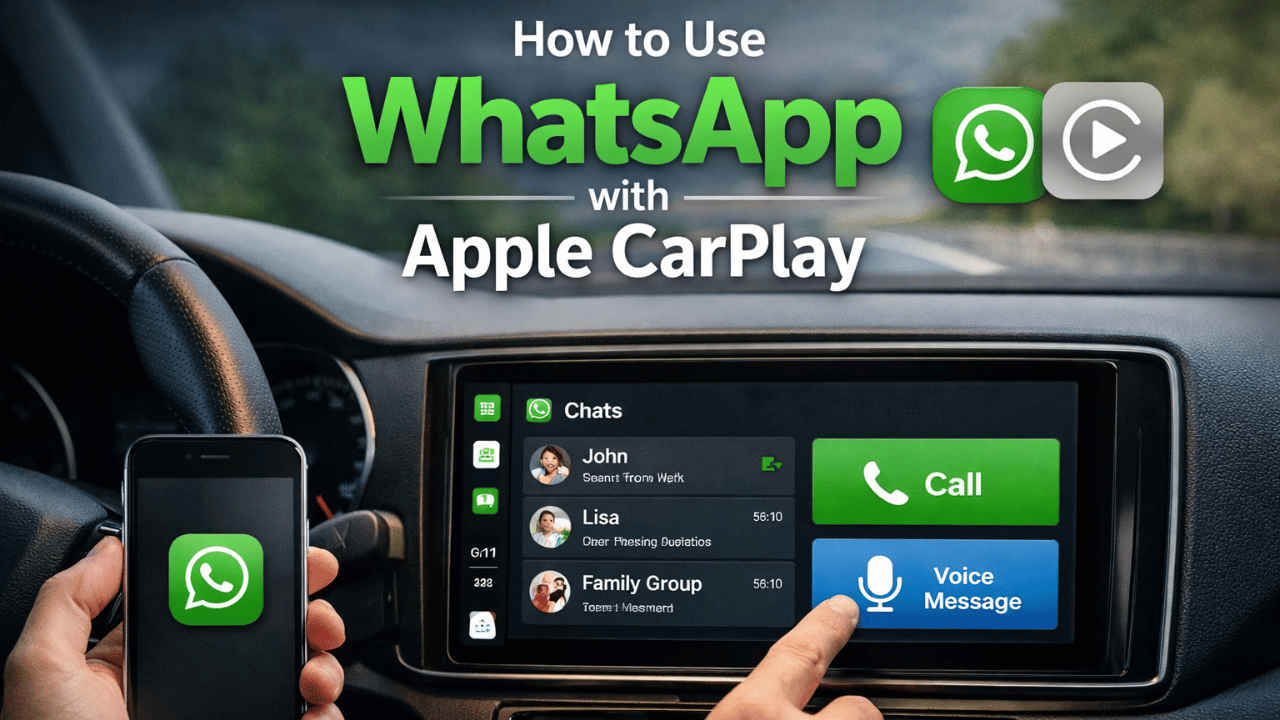

WhatsApp has recently rolled out an update that improves its support for Apple CarPlay, allowing drivers to stay focused on the road and avoid worrying about missing important messages. With the update now live, drivers can quickly answer calls or reply to texts directly through the car screen. Users also get a cleaner interface that displays chats and calls in a simple and organised way. The function had been under test for quite a while, but WhatsApp has now rolled it out for all users. This makes car conversations safer, simpler, and more convenient. Additionally, it will help the app integrate with notifications.
 Survey
While WhatsApp used to work with CarPlay previously as well, it was in a limited way and mostly depended on voice commands. However, with the latest update, now the experience feels more like using the app on a phone but adapted for driving. Users can see a list of recent chats and call history right on the car display. There is also a separate section for favourite contacts, making it easier to reach the people you talk to most.
Also read: Elon Musk seeks Sam Altman’s removal, OpenAI calls lawsuit a harassment campaign
The new update adds quick buttons that let users send messages using voice typing or start a call with just a tap. This reduces distractions and helps drivers focus more on the road. The design is simple, so users do not have to spend time searching for options.
Prerequisites
Before you go ahead and learn how to use WhatsApp via Apple CarPlay in your car, here are some things that you need to be aware of:
- You should be using an iPhone 5 or later.
- A vehicle that supports Apple CarPlay (wired or wireless).
- Ensure your iPhone is running on iOS 26.4 or later.
- Update WhatsApp via the App Store to the most recent version.
- Siri on your iPhone should be enabled.
- Face ID or Touch ID should not be enabled on WhatsApp.
Also read: Android 17 beta brings built-in controller remapping: What it is and how it works
How to use WhatsApp via Apple CarPlay in your car
Follow the easy steps below to use WhatsApp with Apple CarPlay in your car:
1. Connect your iPhone to your car using Apple CarPlay.
2. If prompted on your car’s infotainment screen, select Allow or Use CarPlay.
3. Look for the WhatsApp icon on your car’s infotainment system.
4. If you don’t see it, go to Settings > General > CarPlay on your iPhone, select your car, tap
5. Customize, and drag WhatsApp to the top of the list.
Now you can answer calls or reply to text directly through the car’s screen.


