
How to use Muse Image AI to create and edit images
 Follow Us
Muse Image AI creates and edits images using text prompts.
Users can try photo edits, effects, and creative AI tools.
The tool is useful but still needs some improvements.
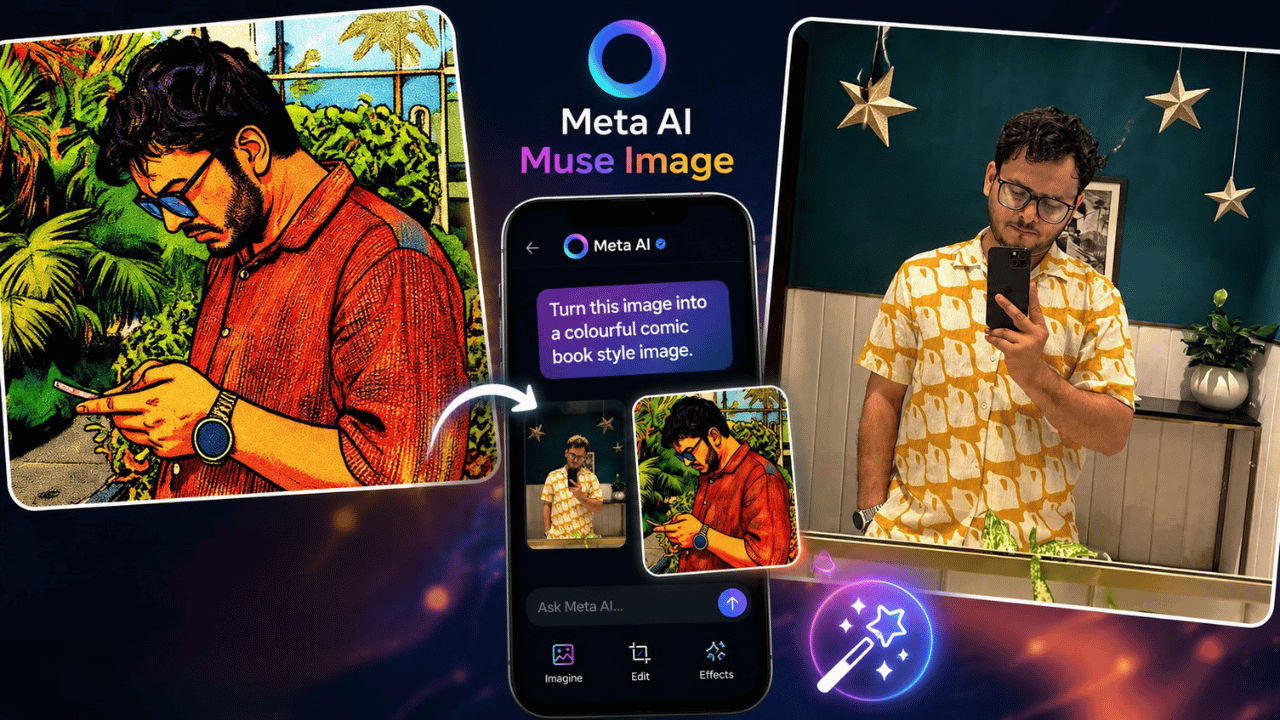

Meta has recently launched a new AI tool called Muse Image. It lets you create and edit pictures using plain text, no design skills needed. You just type what you want, and the AI tool does its magic. With the new tool you can generate new images, fix old photos, swap out objects, or turn a rough sketch into something polished. Aside from that, the tool also brings fun AI effects to Instagram Stories. Whether you want to build a picture from scratch or change small details in one you already have, Muse Image makes it simple. Here is a detailed step-by-step guide on how to use the Muse Image AI tool.
 Survey
Things to know
Here are some of the things you need to know about the new Muse Image AI:
- Muse Image works inside Meta AI on apps like WhatsApp and Instagram.
- You can type a prompt to generate a fresh image or upload a photo and describe changes like a new background, different lighting, new clothing, or added objects.
- Instagram Stories gets more than 30 AI effects to play with too.
- Meta AI keeps track of your earlier prompts, so you can keep adjusting the same image without starting over.
- Basic features are free, though some advanced tools may need a paid Meta subscription.
- The feature is rolling out in select countries first, with Facebook and Messenger support coming later.
Also read: Microsoft reveals severance benefits after layoffs, offers up to 39 weeks salary
How to use Muse Image AI
Follow the simple steps below to use the Muse Image AI:
1. Open Meta AI inside WhatsApp or Instagram.
2. Type a prompt describing the image you want.
3. To edit a photo, upload it and explain the changes you want made.
4. Use the markup tool to circle or sketch the exact area you want changed.
5. Check the result and keep refining it with more prompts until it looks right.
Also read: After 37 years at Microsoft, Xbox VP shares emotional message after losing his job
Muse Image AI: Image prompts to try
Here are some easy prompts I tried to test the AI tool with the results I got:
Create new images
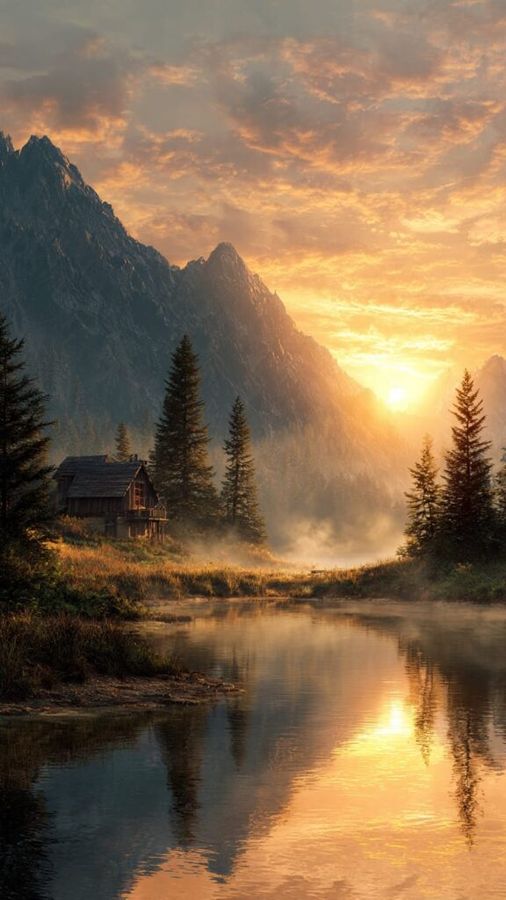
Create a peaceful mountain sunrise with a wooden cabin beside a lake.
Sketch-based edits
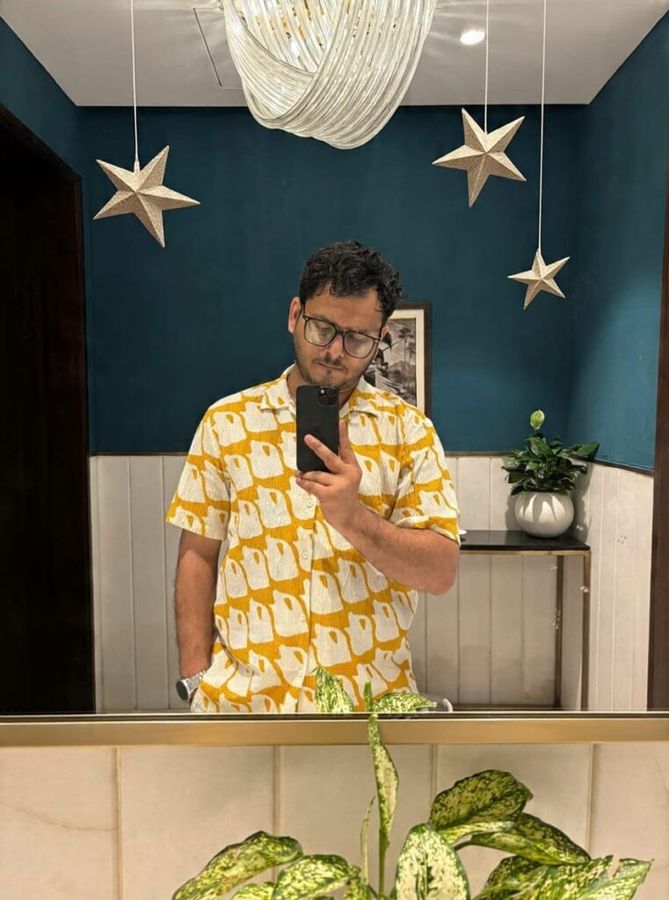
Make the green stars look like realistic stars hanging from the ceiling, and ensure they match the overall mood and aesthetics of the scene.
Instagram Story effects

Turn this image into a colourful comic book-style image.
What do I feel about the new Muse Image AI?
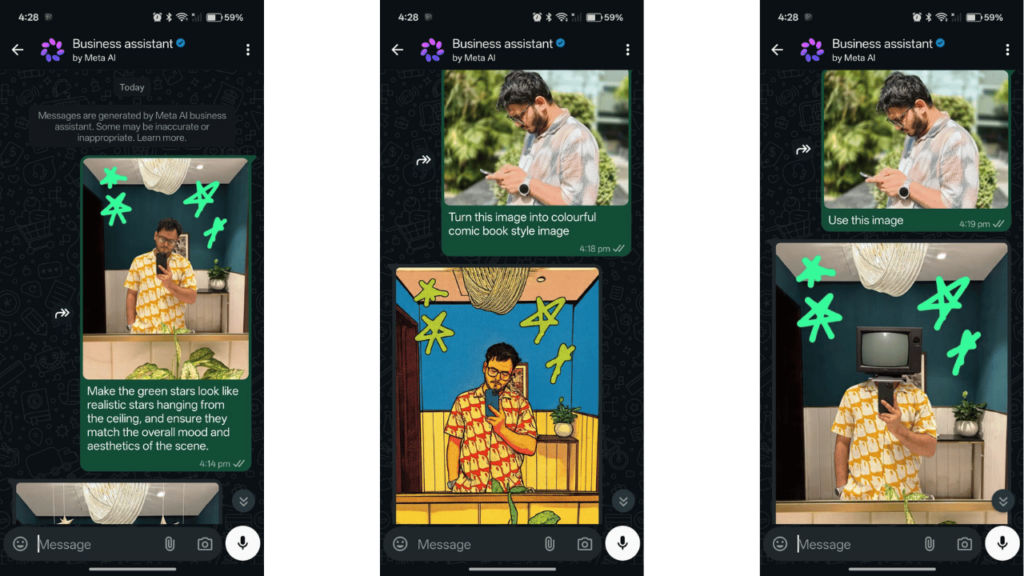
After testing the tool for a considerable amount of time I feel like the tool lacked multiple sections. First of all, the image created by the tool was not satisfactory, and I had to generate multiple iterations of it just to get a decent-looking image that comes somewhere near my prompt. In comparison, when I gave the same image and the same prompt to ChatGPT it did a fantastic job.
Aside from that, the AI tool lacks the ability to deal with multiple images in a single chat. To test that, I tried giving the tool a second image in the continuation of the chat, but it used the image I uploaded initially, completely ignoring the image that I uploaded next. Even when I tried re-uploading the image, it used the 1st image and created an image that was way out of context.


