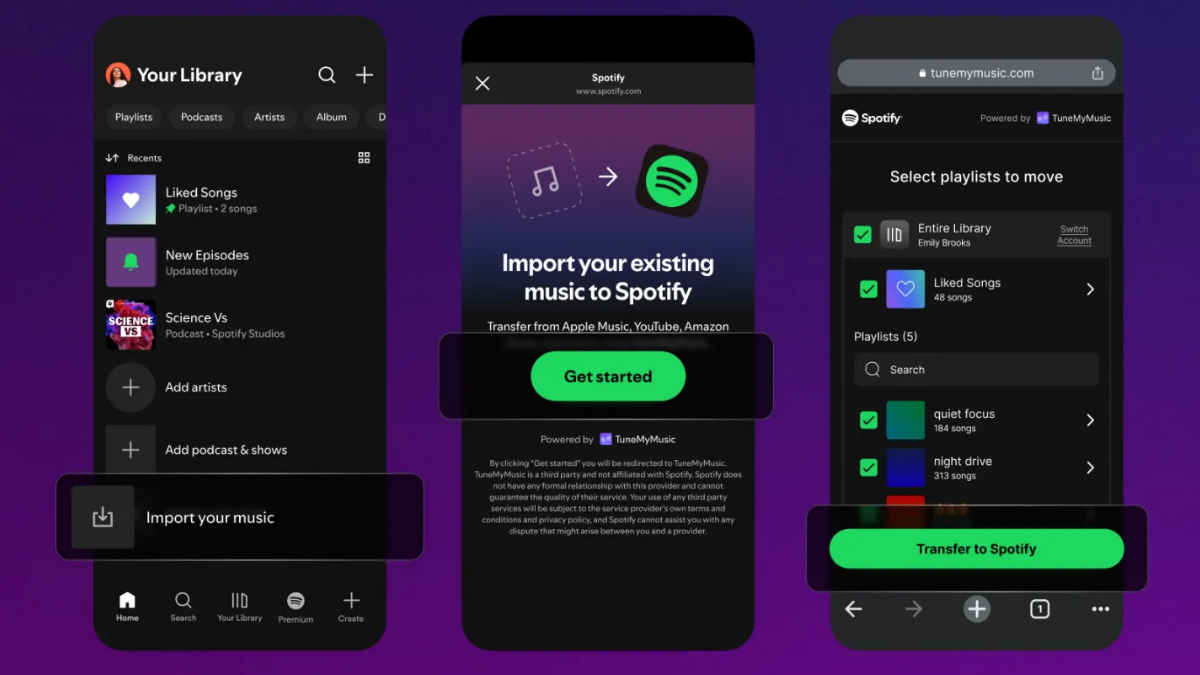
When you switch music apps, you would want to carry over your playlists, too. Rebuilding playlists manually takes hours. Some of my personal playlists on YouTube Music have 500 to 1000 songs, and my only way to transfer these playlists to my current streaming app of choice, Spotify, has been third-party migration tools. One of these tools, TuneMyMusic, is now integrated directly into the Spotify app. This should ideally remove most of the friction associated with migrating music without losing metadata. Here, I will be sharing the process and my experience using this built-in option. But if you want more control or need extra features, I have listed third-party tools like Soundiiz, FreeYourMusic, and SongShift for your perusal. Each handles metadata differently, works with different library formats, and deals with DRM rules in its own way. We will look at how these tools work, how much they cost, and which one is worth paying for if you have a large library. By the end, you will know whether the built-in Spotify option is enough or if another workflow feels smoother.
 Survey
Why Spotify integrating with TuneMyMusic matters
Spotify wants to reduce switching friction. If users can carry their playlists across in minutes, they are more likely to commit to Spotify without worrying about starting from scratch. Playlist portability also reduces cross-platform fragmentation, since people often use more than one service for different moods or devices. Smooth migration helps Spotify retain users and makes the onboarding journey cleaner.


How these playlist transfer tools work
Playlist transfer depends on three things: metadata, formats, and DRM.
- Metadata includes track titles, ISRC codes, album info, and artwork. Some platforms have slight naming differences, so tools try to match songs using a mix of text and ID data.
- Library formats differ between apps, so conversion is needed before uploading to Spotify.
- DRM rules can block certain tracks, especially older or region-restricted ones. Tools show you which songs failed to match so you can replace them manually.
Let’s now check out how to use these tools one by one.
Also Read: Spotify defaults to Fewer Repeats as the preferred shuffle style: What that means, why it matters
Spotify’s built-in TuneMyMusic tool
How it works
1. Open Spotify on desktop or mobile.
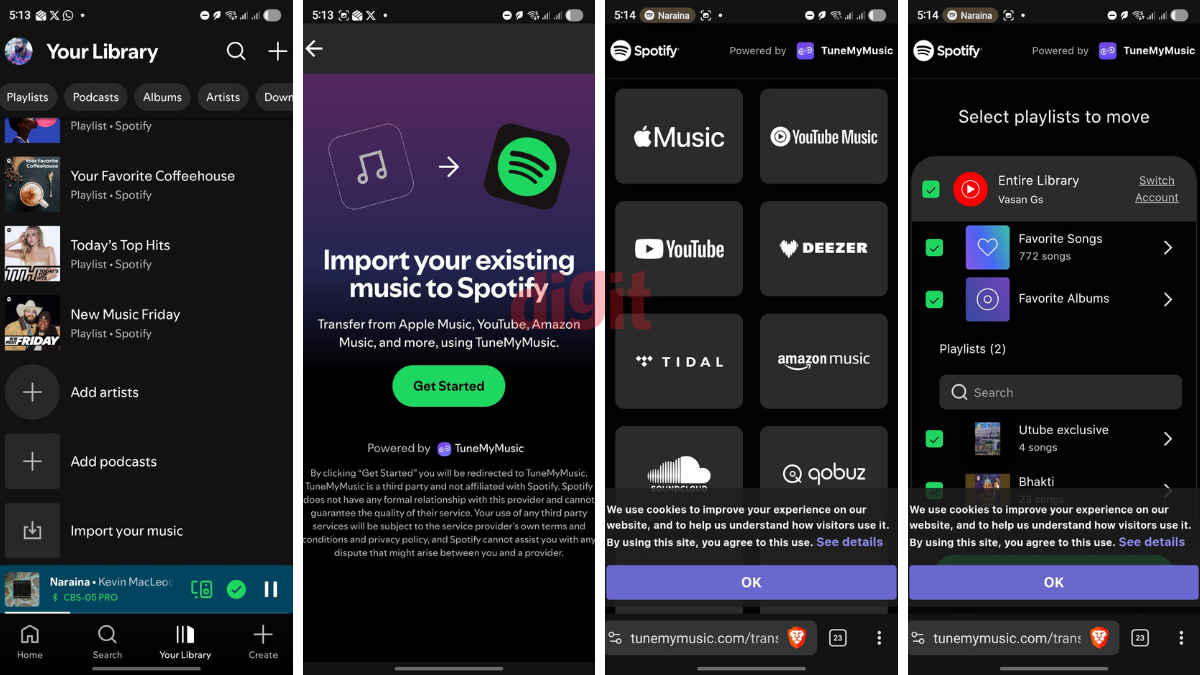
2. Go to ‘Import your music’ in the settings or library section. You will be directed to the TuneMyMusic website on your default mobile browser.
3. Select the service you want to import from.
4. Sign in to that platform. Give required permissions.
5. Choose the playlists you want.
6. Hit import and wait.
Things to know
- No extra app needed
- Stable and fast because it uses direct integration
- Clean interface
- Good metadata accuracy for most mainstream music
- Free for basic usage
- One-way transfer, which means this method doesn’t allow transferring from Spotify to other platforms.
- Limited advanced controls in this method
- Doesn’t offer bulk editing or deep playlist management
- Not ideal for large libraries with complex tagging. It showed me only small playlists. Unfortunately, the ones with 500 or more tracks weren’t listed for the transfer. This could be due to the TuneMyMusic Free tier’s limitation.
Pricing
- Free Tier allows transfer of up to 500 songs only.
- For anything more, you have to choose the Premium plan, which costs $2 per month (billed annually).
This could work for most users with small to medium libraries. Perhaps Spotify and TuneMyMusic will iron out the kinks, and this built-in solution will get better with time.
Meanwhile, here are some alternatives:
Soundiiz
How to use it
1. Open the Soundiiz website.
2. Create an account.
3. Connect the platforms you use, including Spotify.
4. Select the source playlist.
5. Convert or sync it to Spotify.
6. Review the match results and confirm.
Pricing
- Free tier allows basic transfers up to 200 tracks per playlist
- Premium: monthly and yearly plans for bulk transfers and auto-sync
Things to know
- Supports the most platforms
- Auto-sync lets you mirror playlists across services
- Useful interface for power users
- Best features locked behind a premium paywall
- The interface may feel heavy if you only need one import
Soundiiz suits users with large, multi-platform libraries. Auto-sync is worth it if you keep switching between apps and want your playlists consistent everywhere.
FreeYourMusic
How to use it
1. Install the app on Windows, macOS, Android, or iOS.
2. Open the app and pick a source service.
3. Log in to both platforms.
4. Select playlists or full libraries.
5. Start the transfer.
6. Check the failed matches list and replace songs if needed.
Pricing
- Free tier: limited transfers; limit to 600 songs and 1 playlist.
- One-time lifetime purchase available
- Subscription option for full access. Plans start at Rs 245.79 per month (billed annually)
Things to know
- Fast transfers, especially for huge playlists
- Offline desktop app reduces login issues
- A lifetime licence makes it cheaper long-term
- Good for bulk import of entire libraries
- UI feels basic
- Free tier is very limited
FreeYourMusic is ideal if you have a large library and want a one-time payment instead of a recurring subscription. Speed is good, but metadata accuracy varies with niche tracks.
SongShift (iOS only)
How to use it
1. Install SongShift from the App Store.
2. Connect Spotify and the source service.
3. Choose a playlist to shift.
4. Review matches for errors.
5. Confirm the transfer.
Pricing
- Free tier: allows transfer of one playlist at a time
- Premium: one-time or subscription options
Things to know
- Clean, simple UI
- Should work well for quick single-playlist transfers
- The Review screen lets you fix mismatches easily
- iOS only though
- Not ideal for full library moves
- Advanced features require a premium
SongShift is best for Apple users who want a quick, lightweight way to move playlists without complications. It is not built for massive libraries.
Which tool should you choose?
For most people, Spotify’s integrated TuneMyMusic tool is enough. It handles common playlists smoothly, keeps metadata intact, and avoids the hassle of extra logins.
If you need more control and are ready to pay up, you can try the premium versions of Soundiiz, TuneMyMusic and FreeYourMusic. If you are an iOS user, try SongShift. The least annoying workflow for Spotify users would be the built-in import option.
So, if you are moving thousands of tracks or switching between services often, a premium tool is worth it. If you only need a one-time import, stick to Spotify’s native option.
Keep reading Digit.in for similar stories.
Also Read: Spotify app gets videos, lyrics, queue management on Apple TV
 Follow Us
G. S. Vasan
G.S. Vasan is the chief copy editor at Digit, where he leads coverage of TVs and audio. His work spans reviews, news, features, and maintaining key content pages. Before joining Digit, he worked with publications like Smartprix and 91mobiles, bringing over six years of experience in tech journalism. His articles reflect both his expertise and passion for technology. View Full Profile