You can create and customise your avatar through the Instagram app for Android and iPhone.
After you create your Instagram avatar, you will have personalised stickers of your avatar to share with your friends in a direct message or add to your stories.
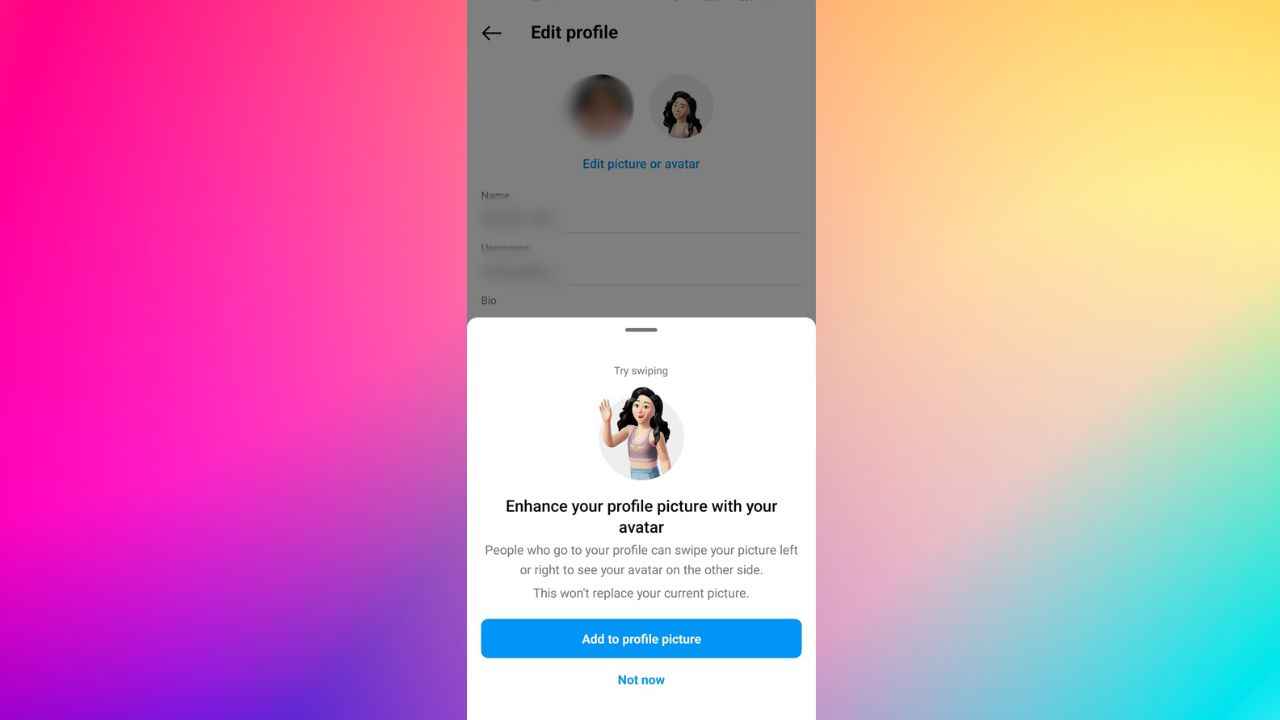
You can add your avatar to the other side of your profile picture, allowing users who visit your profile to swipe left or right between the two.

In the vast world of social media, Instagram stands out as one of the favourite platforms for sharing life’s moments with friends and followers. One way users showcase their unique personalities is through avatars – fun, personalised representations of themselves.
 Survey
Whether you’re new to Instagram or a seasoned user, creating your avatar can be an exciting way to stand out and express your style in a visually engaging manner.


In this step-by-step guide, we’ll walk you through the process of creating and editing your Instagram avatar.
Also read: Create own stickers on Instagram: Easy guide to turn your photos into stickers
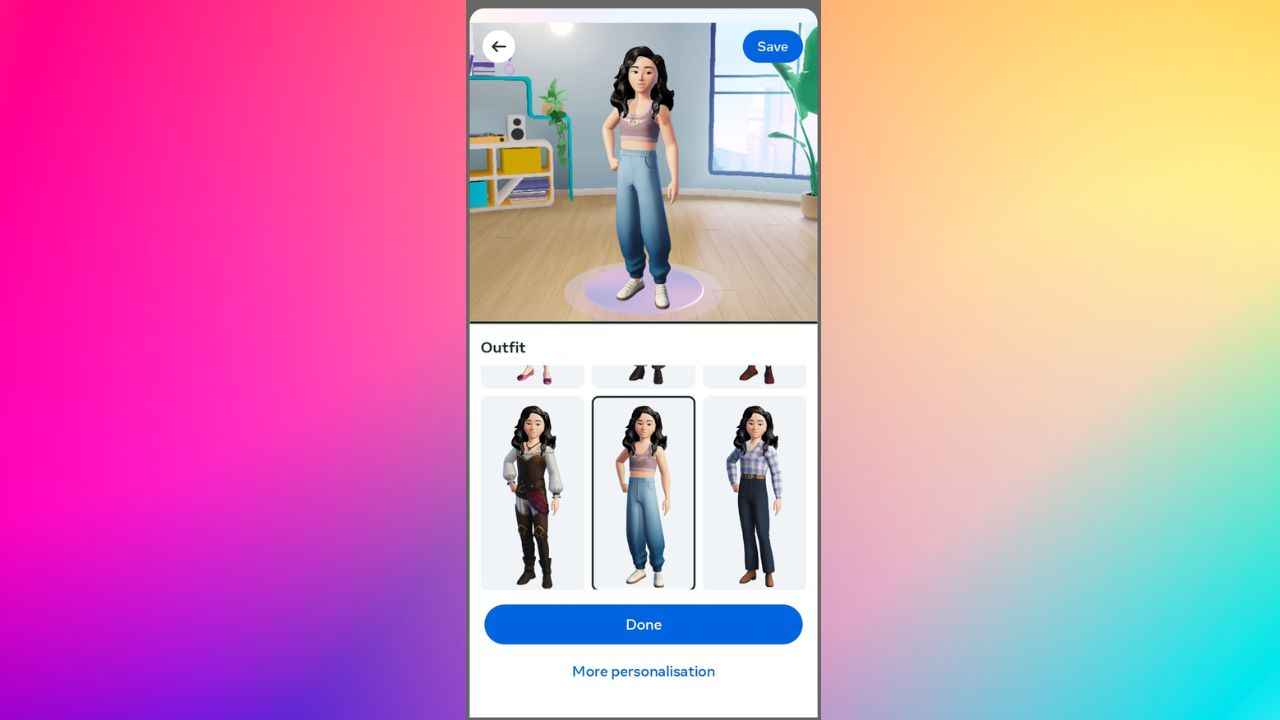
How to create an avatar on Instagram
Step 1: Open the Instagram app on your Android device or iPhone.
Step 2: Tap your profile picture in the bottom right corner to go to your profile.
Step 3: Tap Edit Profile at the top.
Step 4: Now, tap the avatar icon present on the right side of your profile picture.
Step 5: Select the Create avatar option.
Step 6: Now, choose your avatar’s skin tone, then tap Next.
Step 7: Personalise your avatar with hairstyles, outfits and more.
Step 8: Tap Done and Save changes to save and create your avatar.
After you create your avatar, you will have personalised stickers of your avatar to share with your friends in a direct message or add to your stories.
Also read: How to find & customise your Instagram QR code: Step-by-step guide
How to edit your avatar on Instagram.
Step 1: Open the Instagram app.
Step 2. Tap your profile picture in the bottom right corner to go to your profile.
Step 3: Tap Edit Profile at the top.
Step 4: Now, tap your avatar.
Step 5: Select the Edit avatar option.
How to add or remove your avatar from your profile picture
Instagram allows you to add your avatar to the other side of your profile picture, allowing users who visit your profile to swipe left or right between the two.
Step 1: Open the Instagram app.
Step 2: Tap your profile picture present at the bottom right corner.
Step 3: Tap Edit Profile at the top.
Step 4: Now, tap your avatar.
Step 5: Now, turn the toggle on/off next to Add to profile picture to add or remove your avatar from your profile picture.
How to delete your avatar on Instagram
Step 1: Open the Instagram app.
Step 2. Tap your profile picture present at the bottom right corner to go to your profile.
Step 3: Tap Edit Profile at the top.
Step 4: Tap your avatar.
Step 5: Now, select the Edit avatar option.
Step 6: Tap the Appearance option.
Step 7: Tap the bin icon present at the top.
Step 8: Tap Delete to confirm.
 Follow Us
Ayushi Jain
Tech news writer by day, BGMI player by night. Combining my passion for tech and gaming to bring you the latest in both worlds. View Full Profile


