
 E-Magazine
WhatsApp Events now lets you invite people who don't have an account, here is how
Non-WhatsApp users can RSVP as Going, Maybe or Not going by entering their name and mobile number.
A new Events Home will let users create invites, customise them, track RSVPs and set reminders in one place.
Unknown guests cannot see your phone number, and the event address is visible to them only after they respond.
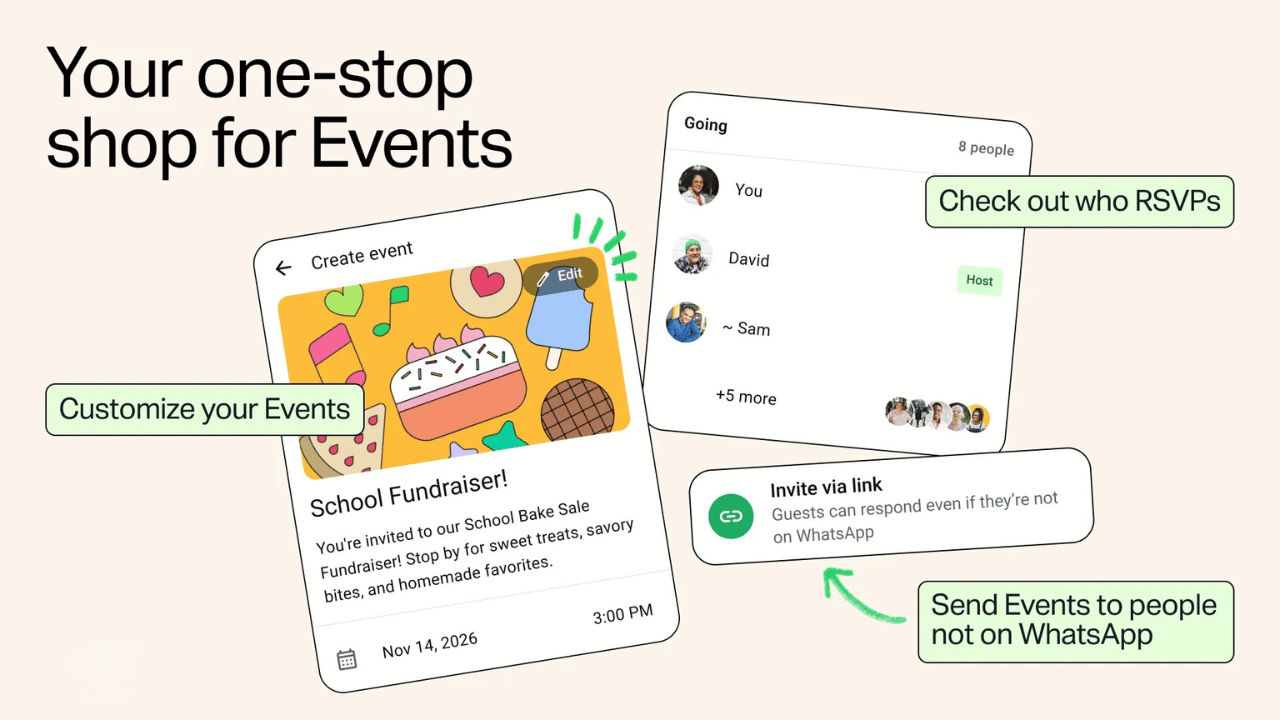
Meta's instant messaging platform tests new features and enhancements for its app at regular intervals. In a recent move, the company is making changes to its Events feature. With these improvements, WhatsApp noted that users can also invite people who are not on the platform. This will let people send event invites to everyone, whether or not the recipient has a WhatsApp account. Guest accounts can access the details via the shared event invite link and can respond without downloading WhatsApp or making an account.
People who do not have a WhatsApp account can choose from three options: Going, Maybe and Not going. After selecting the relevant option, users will be prompted to enter their name and mobile number to proceed.
The company also noted it is introducing a new Events Home to create and customise invites for members and check RSVPs in one place. This way, WhatsApp users will be able to "keep everyone on the same page with custom reminders and the option to add a plus one".
less planning, more getting together! now Events on WhatsApp lets you create an invite, collect RSVPs and chat with your guests, all in one place even friends without WhatsApp can RSVP
— WhatsApp (@WhatsApp) November 5, 2026
Further, WhatsApp states that your phone number will not be visible to unknown guests. Guests who do not have a WhatsApp account can only see an event's address after they respond. The changes to Events are rolling out and will be available to everyone in the upcoming weeks.
Users can navigate to WhatsApp Settings to view and manage a list of upcoming and previous events (which they created or were invited to) from the Events tab. Meanwhile, here is how you can create a WhatsApp event.
How to create an event in WhatsApp?
Step 1: Open WhatsApp and tap on the attachment icon in the chat window
Step 2: Choose 'Events' and agree to the terms, if prompted
Step 3: Add a cover image from the pencil icon at the top right
Step 4: Add the name and description of the event
Step 5: Enter the event date and duration (from the start time and end time)
Step 6: Add a location and update the reminder settings
You can choose to toggle on the 'WhatsApp call link' and select the appropriate settings and 'Guests can bring another person' based on your requirements. You can now share the link with anyone, regardless of whether they have a WhatsApp account or not.