
 E-Magazine
TV settings you should change for a better experience
A new smart TV comes with a lot of features and settings, many of which a regular user won't know the use of. And having all these smarts toggled doesn't necessarily mean you get the best experience out of the box. Some of the features are meant to make the television look impressive in a showroom, while some are meant to promote content on the screen and collect viewing data for these advertisements. So, they aren't all useful. We have shortlisted seven such settings that are worth reviewing. We will tell you why you should consider turning them off.
Turn off automatic content recognition (ACR)
Many smart TVs use a technology called Automatic Content Recognition (ACR) to identify what you watch. It isn't used for nefarious purposes. Rather, it analyses the audio or video playing on your TV to recognise the content, build viewing profiles, improve recommendations and deliver personalised ads.
Here's how ACR appears on TVs from popular brands and how you can disable it:
- LG: Go to Settings > General > System > Additional Settings (or Advanced Settings). Turn off Live Plus, Live Promotion and Content Recommendations.
- Samsung: Go to Settings > All Settings > General & Privacy > Terms & Privacy. Turn off Viewing Information Services and interest-based advertising.
- Sony: Go to Settings or Initial Setup and turn off Samba Interactive TV.
- Hisense / TCL (Google TV): Go to Settings > System > Privacy and turn off Viewing Information Services, if the option is available.
- Fire TV: Go to Settings > Preferences > Privacy Settings. Turn off Automatic Content Recognition and Device Usage Data.
- Additionally, you may turn off mic/camera permissions, and disconnect the TV from the internet if you are using a streaming device
Note that the exact names and menu paths vary across brands and models. Also, disabling ACR does not necessarily stop all data collection by the television or its installed applications. That's the reality of smart and connected world we live in.
Disable Ads and usage diagnostics
Smart TV brands see advertisements as a source of revenue. This is why TV screens show sponsored recommendations, promotional banners and content suggestions based on viewing activity.
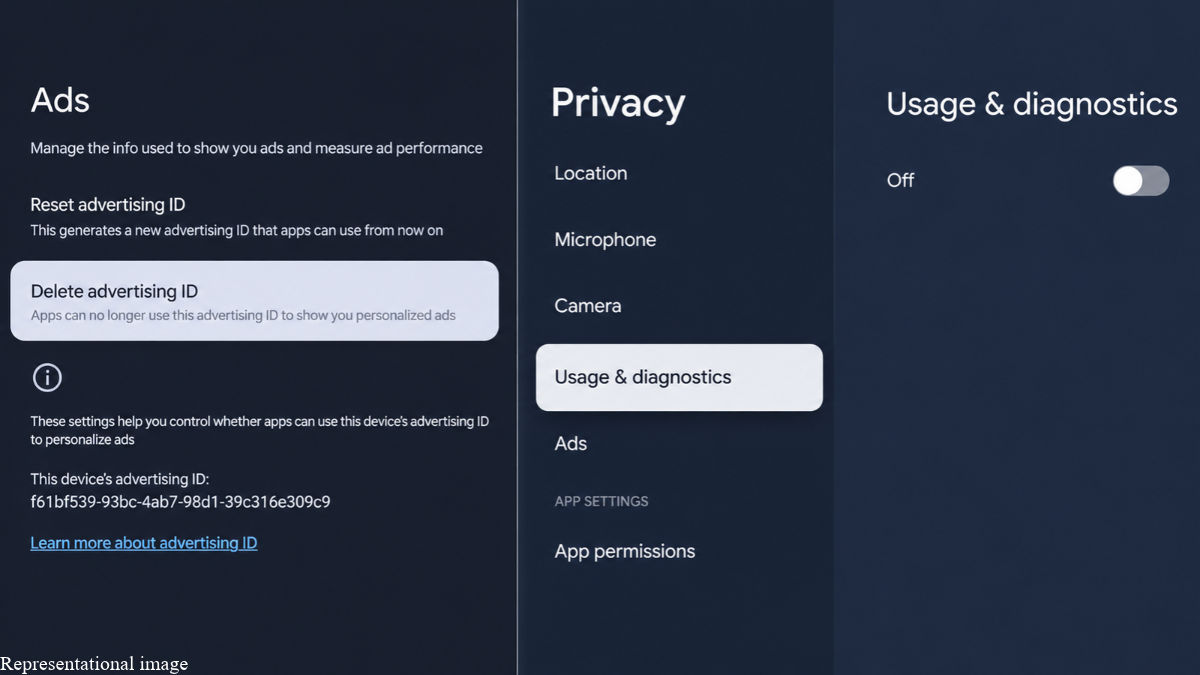
If you don't want ads personalised for you, you can disable advertising-related permissions and usage diagnostics. Look under Privacy or Advertising settings for options such as Interest-Based Ads, Limit Ad Tracking and Usage and Diagnostics.
Google TV offers another option. You can delete the television's advertising ID under Settings, Privacy and Ads. Note, you would still see ads but they would be based on other information and may not be personalised. You see the idea is to reduce unnecessary tracking and promotional content, not to expect a completely ad-free television.
Choose a more accurate picture mode
Most televisions offer several picture modes, including Vivid, Dynamic, Standard, Cinema and Filmmaker Mode. The default setting is not always the most accurate one.
Vivid and Dynamic modes often increase colour saturation, contrast and brightness. This can make a television look impressive in a brightly lit showroom, but it may not reproduce films and television programmes as intended. You should switch to Cinema, Movie or Filmmaker Mode for a more natural picture. Filmmaker Mode is particularly useful because it is designed to preserve the original frame rate, colour characteristics, neutral D65 white point and aspect ratio while disabling unnecessary post-processing.
As a general rule of thumb, we suggest choosing a warm colour temperature, reduce Sharpness to its neutral setting and disable Noise Reduction.
And disable these AI-enhancements if the result doesn't make sense to you: AI Picture, AI Brightness, AI Upscaling and Dynamic Contrast.
Disable motion smoothing for films, but not necessarily sports
When I visit someone else's home, motion smoothing on their television is one thing that bothers me a lot. It can be named as MEMC (Motion Estimation, Motion Compensation), Motionflow, TruMotion and Auto Motion Plus on different TVs. It is meant to make movement and animations look smoother. Since movies are commonly shot at 24 frames per second, a motion-smoothened content looks like a TV serial. This unnatural smoothness is called Soap Opera Effect.
Turn off motion interpolation when watching films and scripted television programmes. However, while watching cricket, football or any other sports content, enabling motion smoothing can help make fast-moving action and camera pans appear smoother. You can experiment with low, medium and high settings if you want.
So, go ahead. Review these settings according to how you use your television. After all, it is to make sure your television works the way you want it to, rather than using the TV as its maker wants you to.
Keep reading Digit.in for similar stories.

G. S. Vasan G.S. Vasan is the chief copy editor at Digit, where he leads coverage of TV, audio, and appliances. His work spans reviews, news, features, and maintaining key content pages. Before joining Digit, he worked with publications like Smartprix and 91mobiles, bringing over seven years of experience in tech journalism. His articles reflect both his expertise and passion for technology.
View full profile