macOS is packed with features, but many of them fly under the radar, especially for casual users. In this guide, we’re sharing over 20 underrated Mac tips and tricks that will not only make your daily workflow smoother, but also add a little fun to your Mac experience.
Whether you’re new to macOS or a seasoned user, there’s always something new to discover. From hidden gestures and keyboard shortcuts to quirky Terminal commands and productivity boosters, these tips will help you unlock the full potential of your MacBook, without needing to install anything fancy or dig through complicated settings.
Instead of using Control + Click, just “tap with two fingers” on your trackpad to open the right-click menu. It’s faster, requires only one hand, and becomes second nature after a few uses.
This trio keeps your workspace clean and distraction-free.
Also read: How to Use Intel AI Playground Effectively and Run LLMs Locally (Even Offline)
Open “Terminal,” then type “Say” followed by whatever you want your Mac to say. Your Mac will literally speak the sentence aloud. Try it with anything.
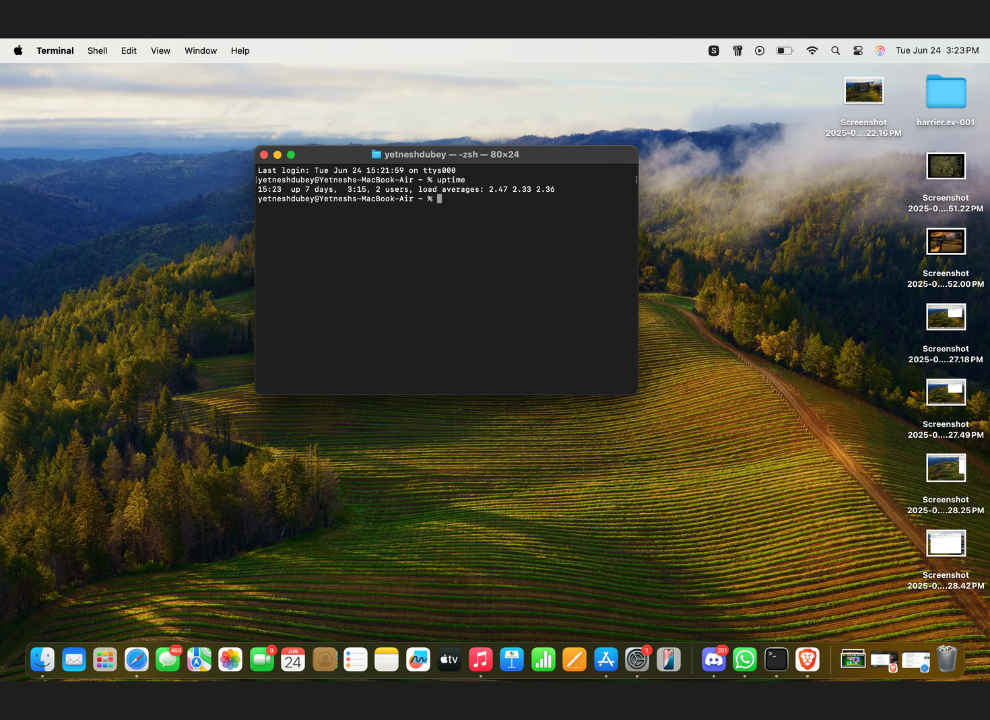
In Terminal, type:
uptime
You’ll see how many hours or days your Mac has been running continuously.
First, install Homebrew with this command in Terminal:
/bin/bash -c “$(curl -fsSL https://raw.githubusercontent.com/Homebrew/install/HEAD/install.sh)”
Then run:
echo ‘eval “$(/opt/homebrew/bin/brew shellenv)”‘ >> ~/.zprofile
eval “$(/opt/homebrew/bin/brew shellenv)”
Then run:
brew install cmatrix
Then run:
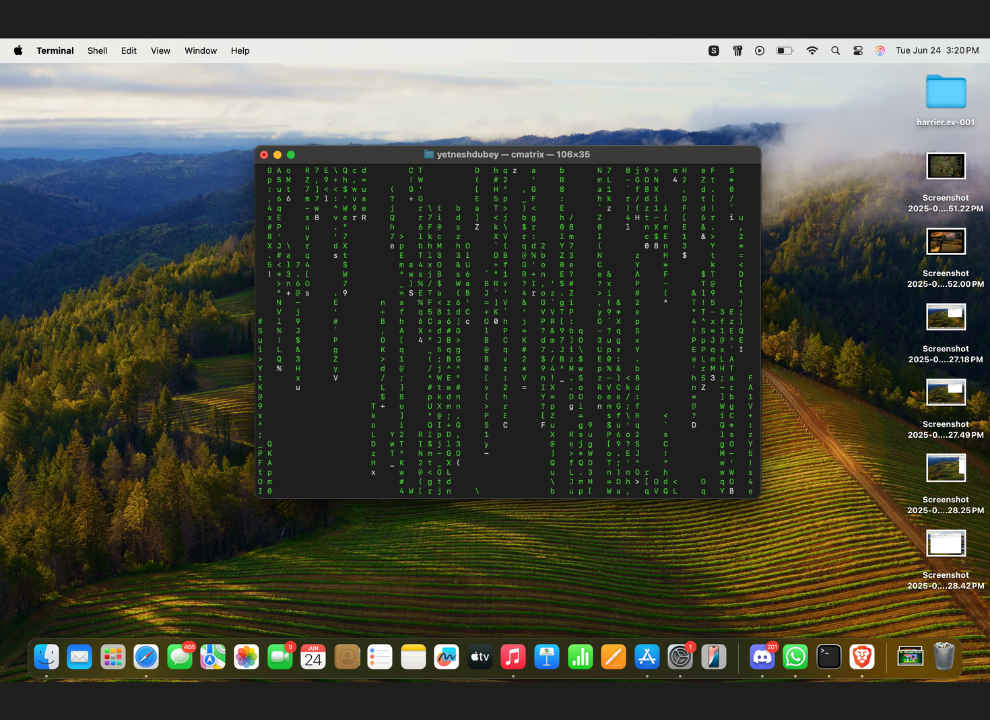
cmatrix
Enjoy the Matrix simulation right in your Terminal window.
After installing Homebrew, type:
brew install samtay/tui/tetris
Then run:
tetris
Now you can play Tetris right inside Terminal. No joke.
Instead of relying on Launchpad (which only lets you delete some apps), open “Finder > Applications,” drag the app to the “Trash,” and then right-click Trash and select “Empty Trash.”
Also read: Apple’s ‘Lessons’ campaign shows how Mac and AI tools aim to support students
Download “AppCleaner,” then open it. It scans for associated files and helps you remove apps entirely. Just drag and drop any unwanted app into it.
Press Control + Up Arrow to activate Mission Control and instantly see every open window across your desktops.
Hit Command + Option + Escape to bring up the Force Quit Applications window. Select the app that’s frozen and force it to close.
Press Command + Shift + 5 to bring up the screen capture and recording toolbar. Choose between full screen, selected area, or screen recording.
Tap the Function (fn) key to bring up the emoji and symbol panel. Type “rupee”, “euro”, “degree”, or any symbol you need. (Note: This won’t work in Google Docs.)
Perfect for power users with lots of tabs open.
Click the “Reader icon” in Safari’s address bar to remove clutter from web pages. Or long-press the button if the icon isn’t visible. Great for focused reading.
Instead of jumping one block at a time, press Option + Shift + Volume Up or Down to make small, precise volume changes.
If you’ve integrated ChatGPT into your macOS (via a shortcut or overlay), you can type commands like:
“ChatGPT: Take a look at my screen and explain the second paragraph”
And get your AI assistant to help you without leaving the document.
Click on a file and press “Return.” You’ll instantly enter rename mode. Much faster than right-clicking and selecting Rename.
In Finder, go to “View > Show Path Bar.” This adds a small path bar at the bottom showing your exact location in the file system.
The Option key reveals extra functionality in many places:
macOS has so many clever tricks built in—most of us just never notice them. Whether you’re managing files, cleaning up your desktop, fine-tuning sound, or playing with Terminal animations, these tips are all about making your MacBook faster, easier, and more fun to use.
Let us know in the comments which one was your favourite, and don’t forget to share this with another Mac user who needs an upgrade in their daily workflow.