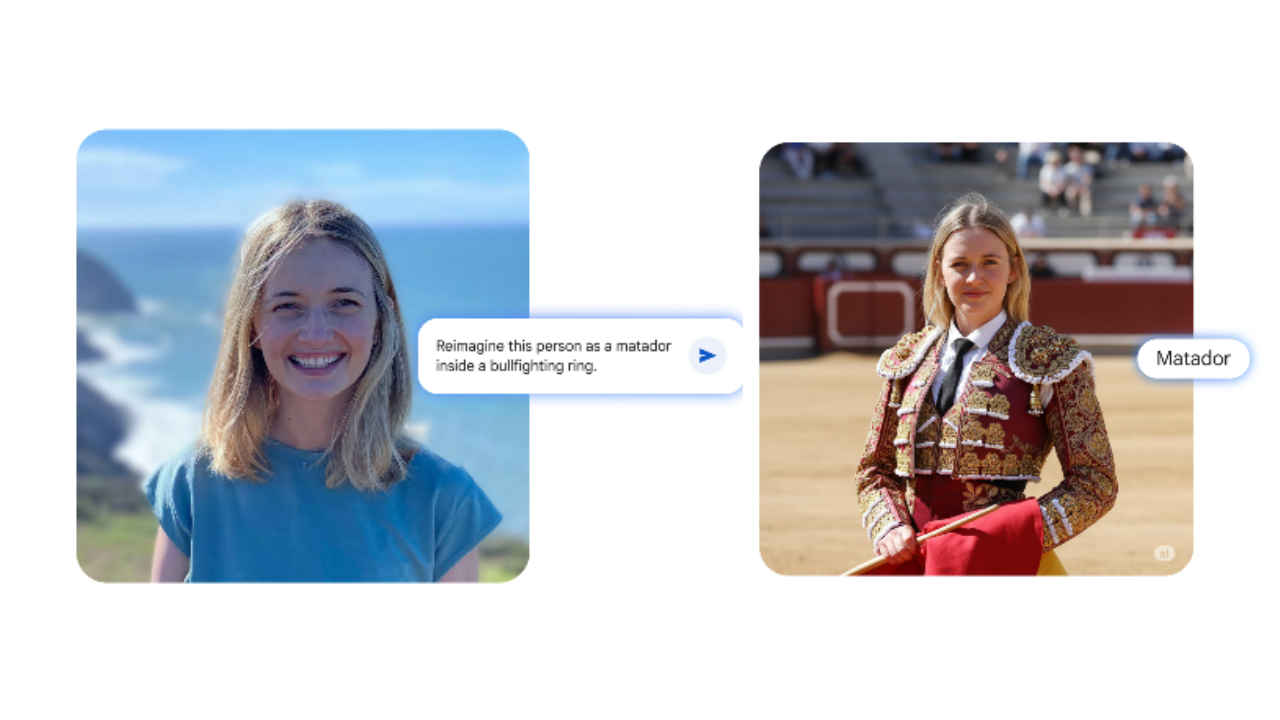
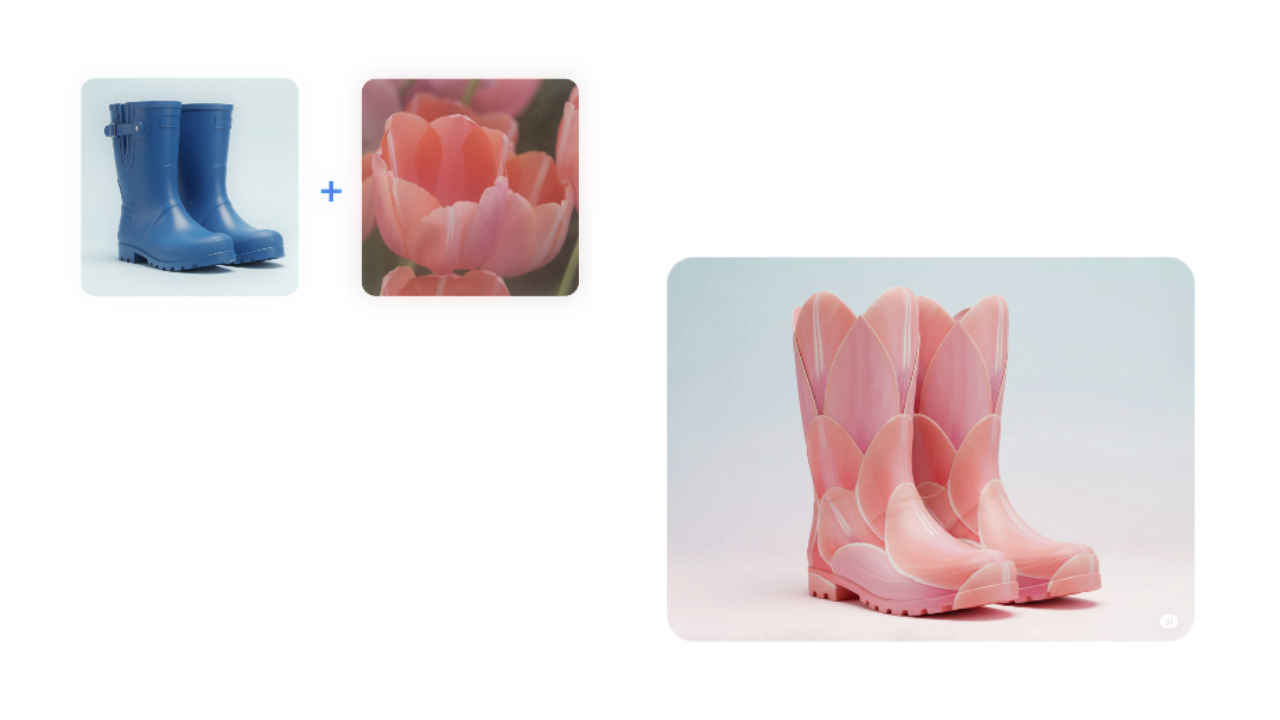
Google has updated its Gemini app with a new image editing model from Google DeepMind. The app now lets you create, edit, merge and transform images with more accuracy and control than ever before. Users can experiment with backgrounds, outfits, and even combine photos in fun ways while keeping the subjects looking natural.
With the update, the app even allows multi-turn edits and style transfers, giving users a creative playground to bring any idea to life. Here’s a step-by-step guide to using these new features.
How to change background and outfits using Gemini
Step 1: Open the Gemini app on your phone.
Step 2: Upload a picture you want to edit.
Step 3: Describe the changes you want. For example, “change background to a beach” or “put a red jacket on me.” Gemini will understand your instructions and make the edits while keeping the subject recognisable.
Step 4: Once Gemini generates the image, you can save it directly to your device.
Step 2: Upload images that you want to combine, like a photo of yourself and your pet.
Step 3: Describe the new scene. Type a prompt like, “Place me and my dog on a basketball court.” Gemini will blend the photos into a single image.
Step 4: Save your merged photo.
How to mix up designs
Step 1: Open the Gemini app on your phone.
Step 2: Upload the photos for style inspiration. Select the image with the pattern, colour, or texture you want to use and the image you want to apply it to.
Step 3: Enter the prompt. For example, “Apply the color of these flowers to my shoes” or “Use the butterfly wing pattern on this dress.” Gemini will transfer the design while keeping the original object intact.
Step 4: Once the edited image is ready, save it directly to your device.
All images edited in Gemini include a visible watermark and an invisible SynthID digital watermark to indicate AI generation.
Ayushi works as Chief Copy Editor at Digit, covering everything from breaking tech news to in-depth smartphone reviews. Prior to Digit, she was part of the editorial team at IANS.