Audacity includes integrated AI tools for tasks such as stem separation, noise suppression, and speech transcription, all of which run locally through OpenVINO plugins. These features are particularly useful for creators working with podcasts, music tracks, or interview recordings, enabling them to isolate vocals, clean up background interference, or generate transcripts without needing third-party software or an internet connection.
Performance may vary depending on your system, but for context, I’m using an ASUS Zenbook S14 OLED with 32GB RAM, a 512GB SSD, and an Intel Core Ultra 7 258V processor as my daily driver. In my experience, the performance has been absolutely fine, even when running heavier models like Whisper for transcription or 4-stem separation tasks.
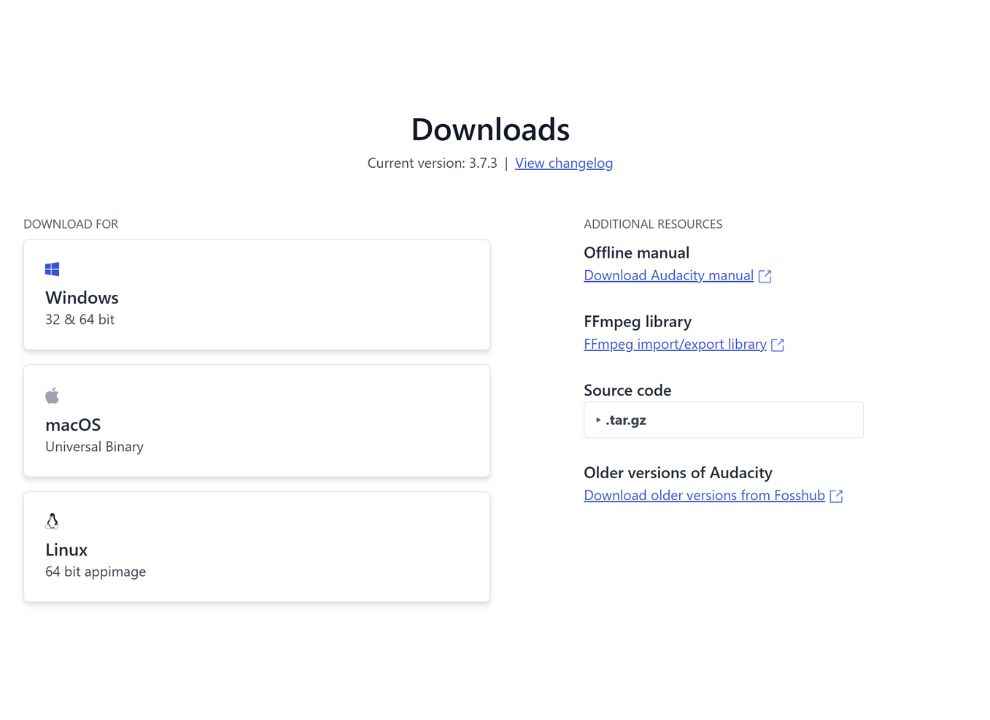
Run the installer, select the desired AI models (e.g., noise suppression, music separation, transcription), and complete the installation process.
Enable OpenVINO in Audacity:
Open Audacity.
Navigate to Edit > Preferences > Modules.
Locate mod-openvino and set it to Enabled.
Restart Audacity to apply the changes.
Step 2: Perform AI-Powered Stem Separation
Stem separation allows you to isolate individual components (e.g., vocals, drums, bass) from a mixed audio track. This makes it easier to remix songs, remove unwanted elements, or enhance specific parts during editing.
Import Your Audio File:
Go to File > Open and select the audio file you wish to process.
Select the Audio Track:
Click on the track to ensure it’s selected.
Apply Music Separation:
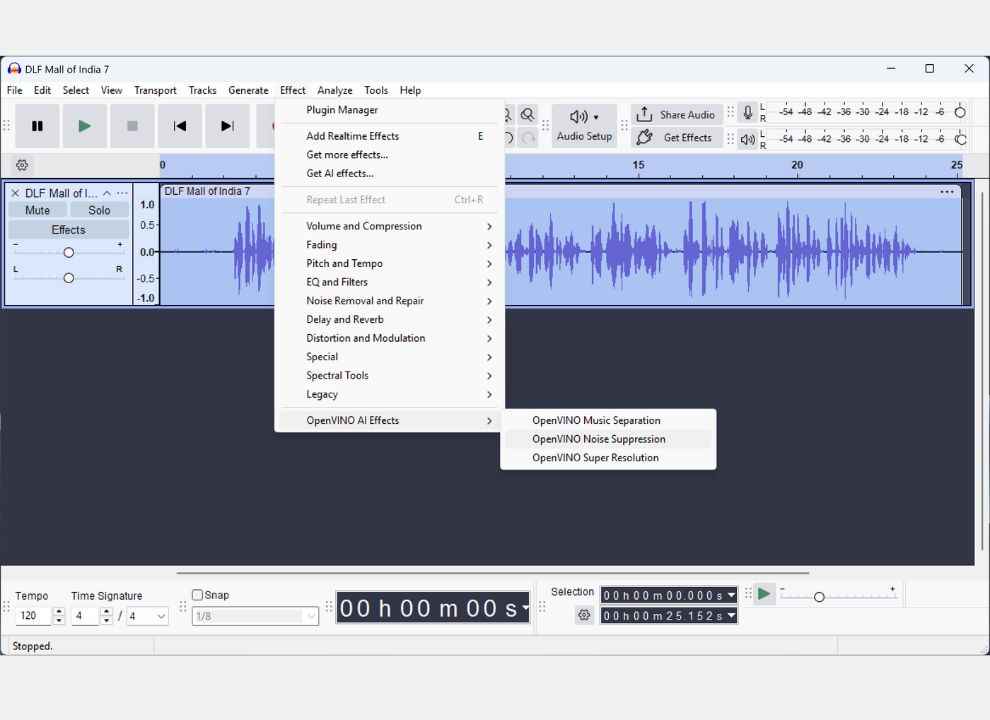
Navigate to Effect > OpenVINO AI Effects > OpenVINO Music Separation.
Configure Separation Settings:
Choose between:
2-Stem: Separates into vocals and instrumental.
4-Stem: Separates into vocals, drums, bass, and other instruments.
Select the processing device (CPU, GPU, or NPU) based on your system’s capabilities.
Execute the Separation:
Click Apply and wait for the process to complete. Processing time may vary depending on the length of the track and your hardware specifications.
Step 3: Utilize AI-Based Noise Suppression
Improve the clarity of your audio recordings by minimising background noise and distractions. This helps your voice stand out more clearly, making the final output sound cleaner and more professional.
Select the Audio Segment:
Highlight the portion of the track you want to clean.
Apply Noise Suppression:
Go to Effect > OpenVINO AI Effects > OpenVINO Noise Suppression.
Adjust Parameters:
Modify settings such as suppression level and sensitivity to achieve the desired noise reduction.
Step 4: Transcribe Audio Using Whisper Integration
Transcribe spoken words from your audio tracks into text using the Whisper model. It’s a handy tool for generating captions, documenting interviews, or making your content more accessible.
Highlight the Audio for Transcription:
Select the segment of the track containing speech.
Initiate Transcription:
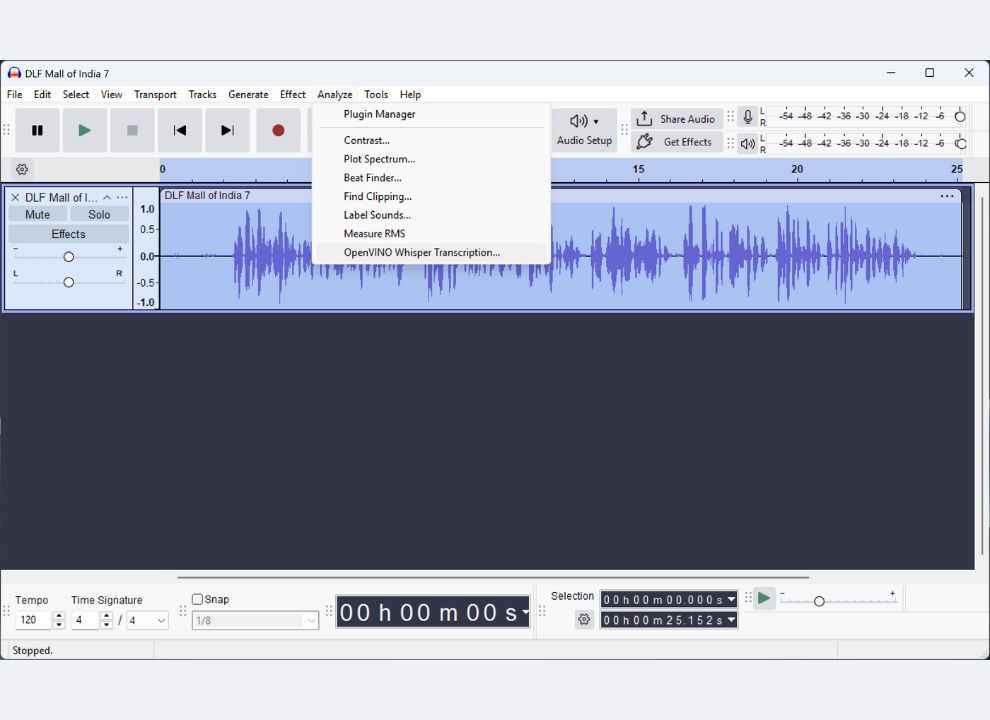
Navigate to Analyze > OpenVINO Whisper Transcription.
Configure Transcription Settings:
Choose the appropriate Whisper model (e.g., base, medium, large) based on your accuracy and performance needs.
Set the language or opt for auto-detection.
Execute and Review:
Click Apply to start the transcription process.
The transcribed text will appear as a label track aligned with the audio.
Export Transcription:
Go to File > Export > Export Labels to save the transcription as a text file.
Step 5: Enhance Audio Quality with OpenVINO Super Resolution
OpenVINO Super Resolution upscales lower-quality audio by restoring lost detail and improving fidelity, particularly helpful when working with compressed or old recordings.
Select Low-Quality Audio Choose the part of the track that sounds dull, muffled, or degraded.
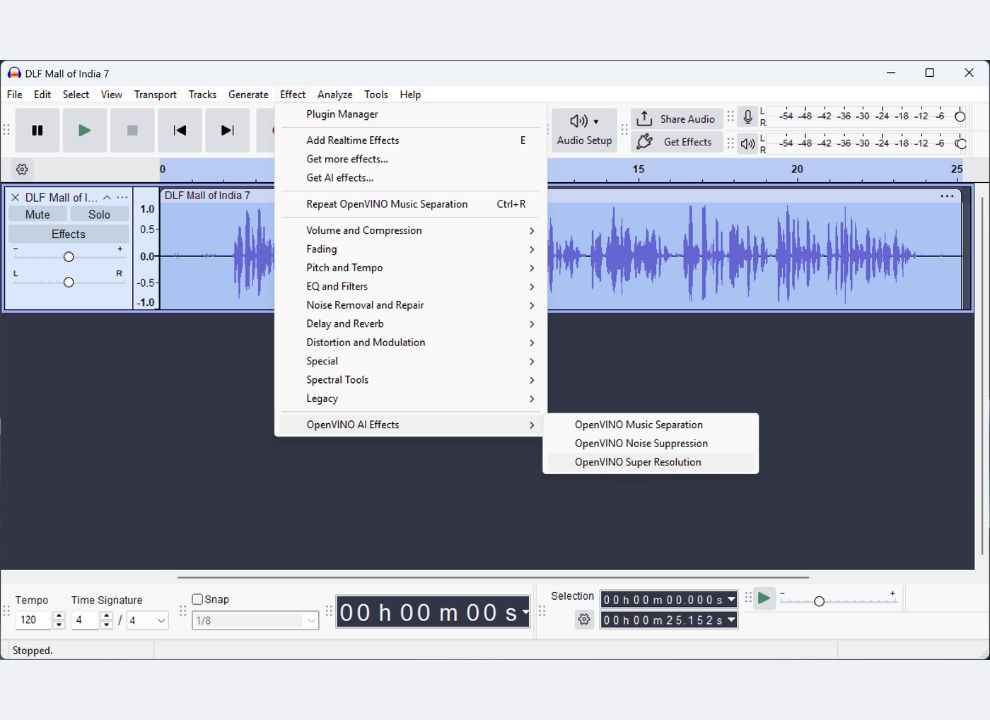
Navigate to Super Resolution Effect Effect > OpenVINO AI Effects > OpenVINO Super Resolution
Choose Quality Level Options may include mild, standard, and aggressive enhancement modes depending on your install.
Preview and Apply Listen to a preview before finalising. Once satisfied, click Apply.
This feature is especially effective for reviving archived audio, podcast edits, or refining user-generated content recorded in subpar conditions.
Tips for Optimal Performance
Hardware Acceleration: Utilize GPU or NPU acceleration if available to speed up processing times.
Model Selection: Larger models offer higher accuracy but require more computational resources. Choose based on your system’s capabilities and project requirements.
Batch Processing: For multiple files, consider using Audacity’s batch processing features to automate repetitive tasks.
Yetnesh works as a reviewer with Digit and likes to write about stuff related to hardware. He is also an auto nut and in an alternate reality works as a trucker delivering large boiling equipment across Europe.