| | | |
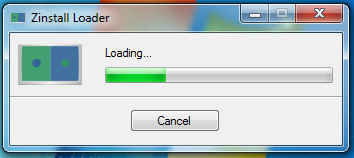
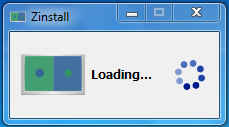
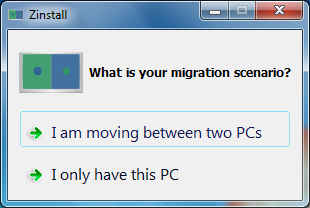
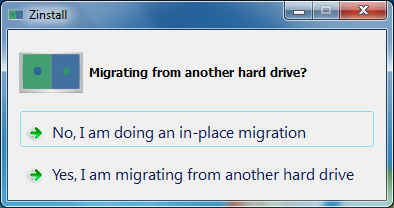
| The ZInstall Wizard unpacks | ZInstall takes a little time to load and activate | Now you select a Migration scenario. We selected “I only have this PC” | Now you can select whether you are migrating from the same hard disk or an XP installation on an old hard disk. We selected “No, I am doing an in-place migration” |
| | | |
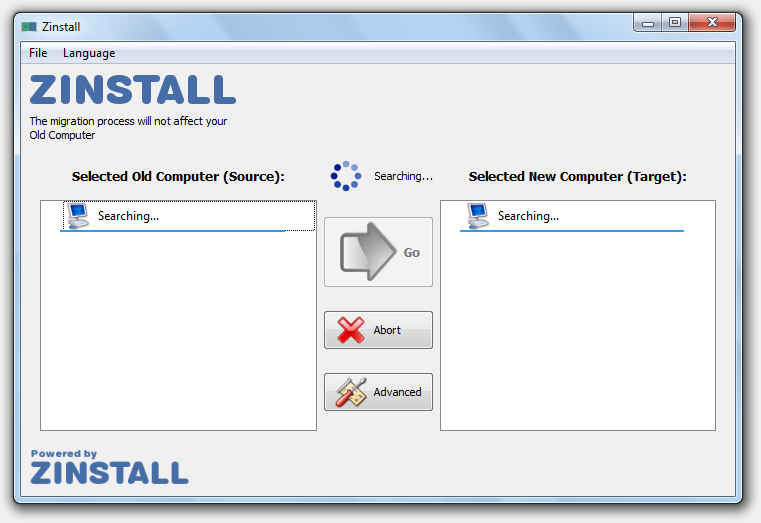
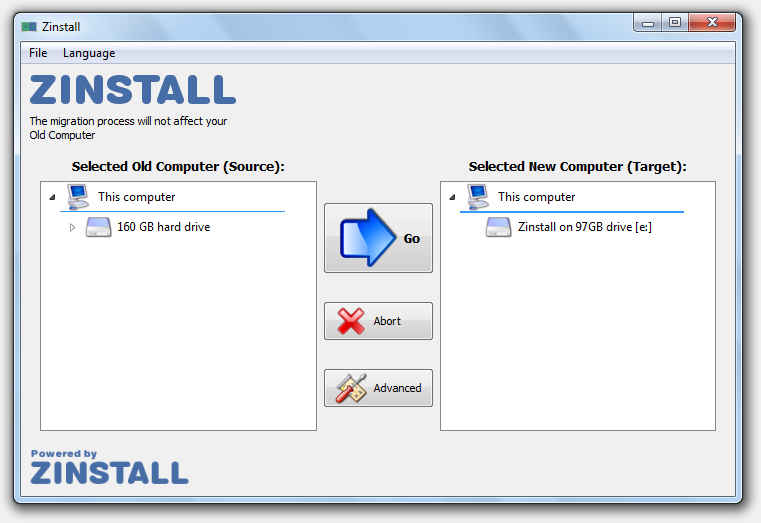
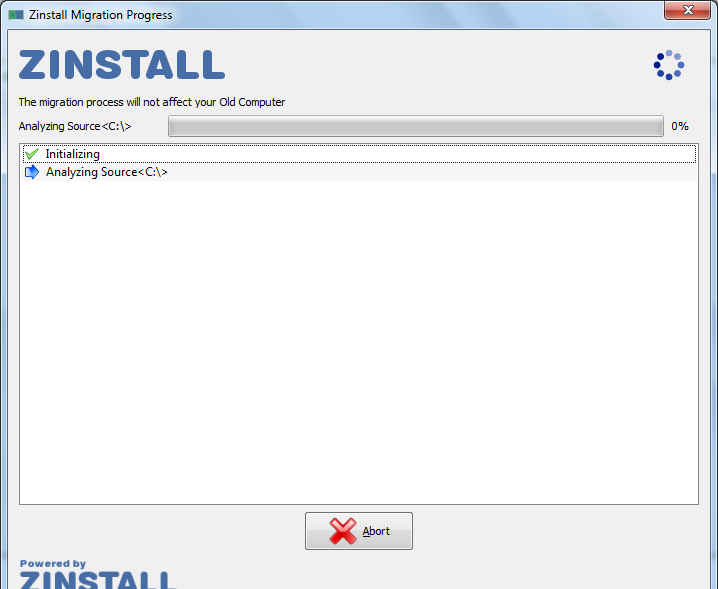
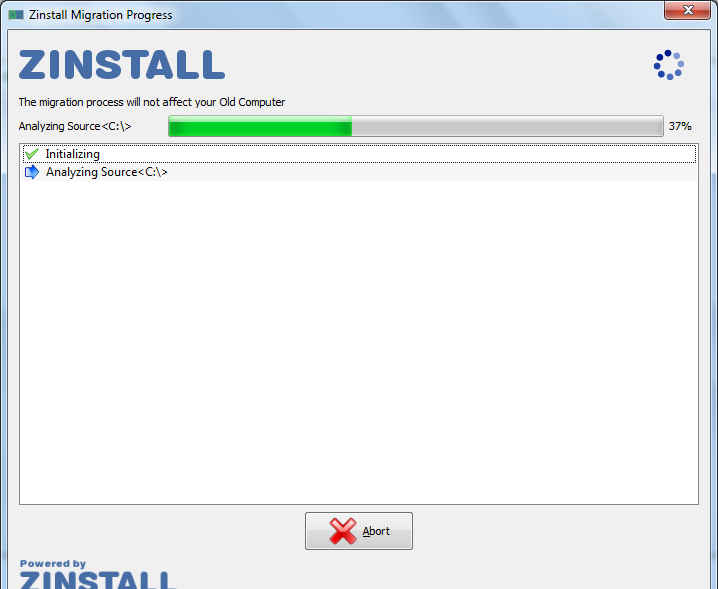
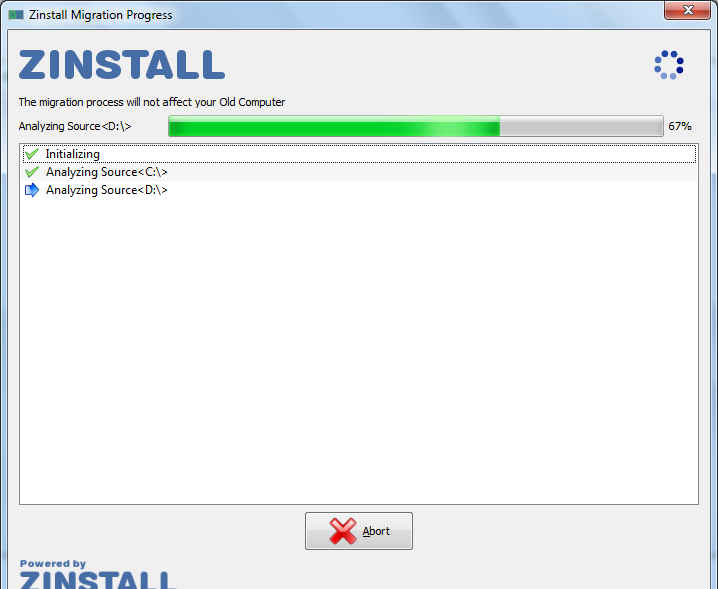
| The Zinstall wizard now searches for an old installation of XP as per your migration scenario. | It will then display the old installations detected by it, and will allow you to detect a destination for the virtualized install. | The migration process begins by analyzing the selections. | The analysis and migration process takes quite some time. |
| | | |
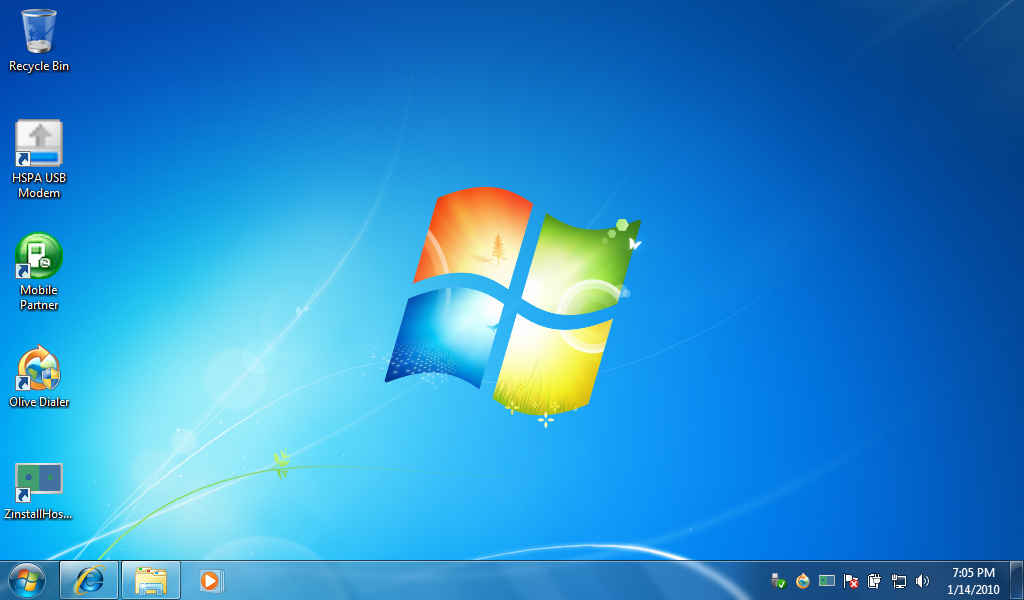
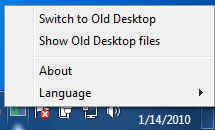
| The migration will retain your old disk structure, thereby retaining all your old data in the new install. | The migration process itself will take a couple of hours as an image of you old systemw ill be made and adjusted to work on the new virtualized hardware. | And you’re done! The new system will have an icon in the system tray which will allow you to switch between your Windows 7 and XP machines at any time. | The ZInstall system tray icon gives you access to your old or new systema and its files. |
|
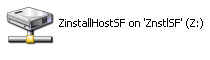
| Your old system files are accessible in the new Windows 7 system, and your new system’s files are visible in the old XP system as network shares. |