As a gamer, I know the feeling too well – you miss a shot, fumble a clutch moment, and immediately your eyes dart to the mouse, the keyboard, the WiFi. Surely it wasn’t you. And honestly? Sometimes it isn’t. But before you spend Rs. 15,000 on a new piece of gear, it’s worth checking what the problem could be under the hood. The settings that are running your hardware matter just as much as the hardware itself. Get them wrong, and even the best mouse on the market will betray you. Get them right, and you still miss shots – well, at that point, the problem might just be you.
Here are five settings that you should change today.
Also read: You can play Resident Evil Requiem for free, here is how
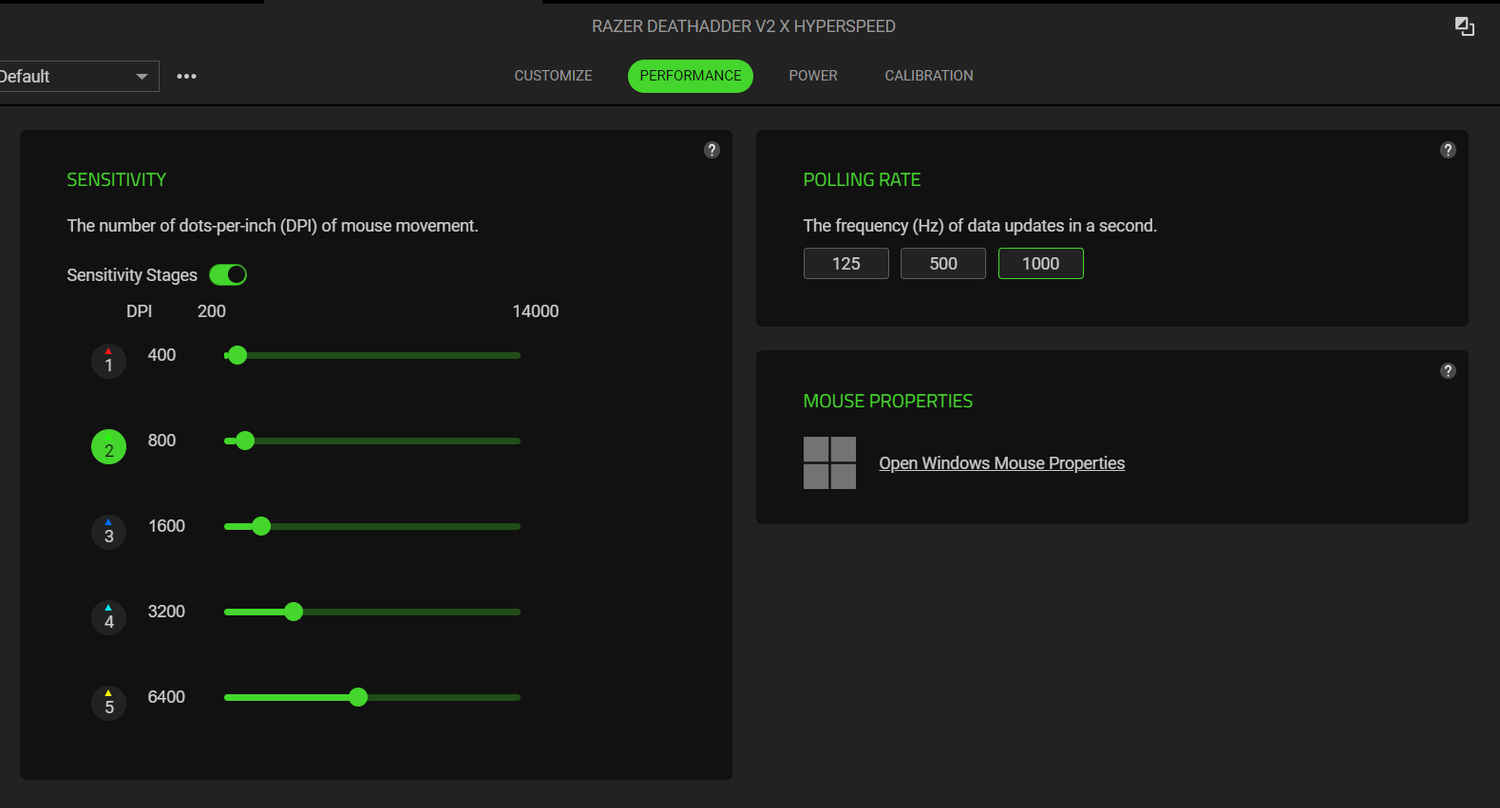
The number on the box is a marketing figure, not a recommendation. High DPI sounds better because you get more dots per inch which means more precision, right? Wrong. In practice, it amplifies hand tremors and makes micro-corrections nearly impossible. Most professional FPS players have their mice between 400 and 1600 DPI, relying on arm movement rather than wrist flicks to control crosshair placement. Find a sensitivity that forces you to use your full arm and feels uncomfortably slow at first. Give it some time and you will be that much closer to getting out of silver in Valorant.
Polling rate determines how often your mouse reports its position to your PC, measured in Hz. A 125 Hz mouse updates 125 times per second. A 1000 Hz mouse updates every millisecond. The difference is cursor smoothness and input lag. At 125 Hz, you’re potentially losing 8ms of responsiveness before the game even receives your input. Most modern gaming mice default to 1000 Hz, but it’s worth verifying in your mouse software. If you’ve never checked, you may have been playing at a fraction of your mouse’s potential.
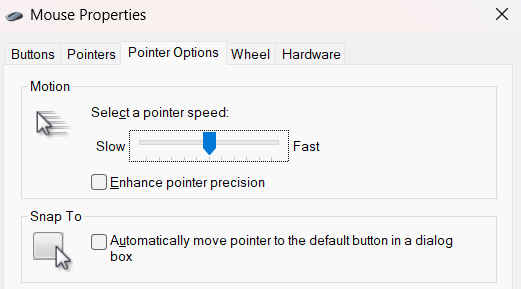
Mouse acceleration changes cursor speed based on how fast you physically move the mouse. Move slowly, travel a short distance. Move quickly, travel a much longer one even if the physical distance was identical. This makes building consistent muscle memory nearly impossible, because the same physical motion produces different in-game results. You can disable it in Windows by going to Mouse Settings, then Additional Mouse Options, and unchecking “Enhance pointer precision” under Pointer Options. It feels strange for a day, then immediately way better.
Also read: Death Stranding 2 PC requirements released: Check out here
Before you close your Windows mouse settings, there is another thing I want you to do. Set your Windows pointer speed to exactly 6/11 – the middle notch on the slider. Any other value applies a Windows-level multiplier to your raw sensor data, which can interfere with the accuracy of your DPI settings and create inconsistencies that bypass in-game sensitivity controls. 6/11 gives you 1:1 input with no pixel skipping or artificial acceleration.
Raw input tells your game to receive mouse data directly from the hardware, ignoring any Windows-level processing. Without it, your mouse signal passes through the operating system before reaching the game, picking up potential interference along the way. Most modern titles offer a raw input toggle buried in the mouse or control settings. Enable it, and you’ve completed the chain – sensor to game, nothing in between.
Also read: Xbox gamers not happy with new Microsoft Gaming CEO: Here’s why