Windows is packed with smart features, but unless you’re digging through every menu, a lot of them fly completely under the radar. In this guide, we’re sharing 11 underrated Windows tips and tricks that can seriously level up your PC experience. These tips were tested on a PC running Windows 11 Home, version 24H2. So make sure your PC is running this version or newer.
Whether you’re new to Windows or have been using it for years, there’s always a new shortcut or setting that can make your workflow smoother, your games run better, or even just add a bit of fun to everyday tasks. No third-party apps, no complicated setup, just powerful, built-in tools waiting to be discovered.
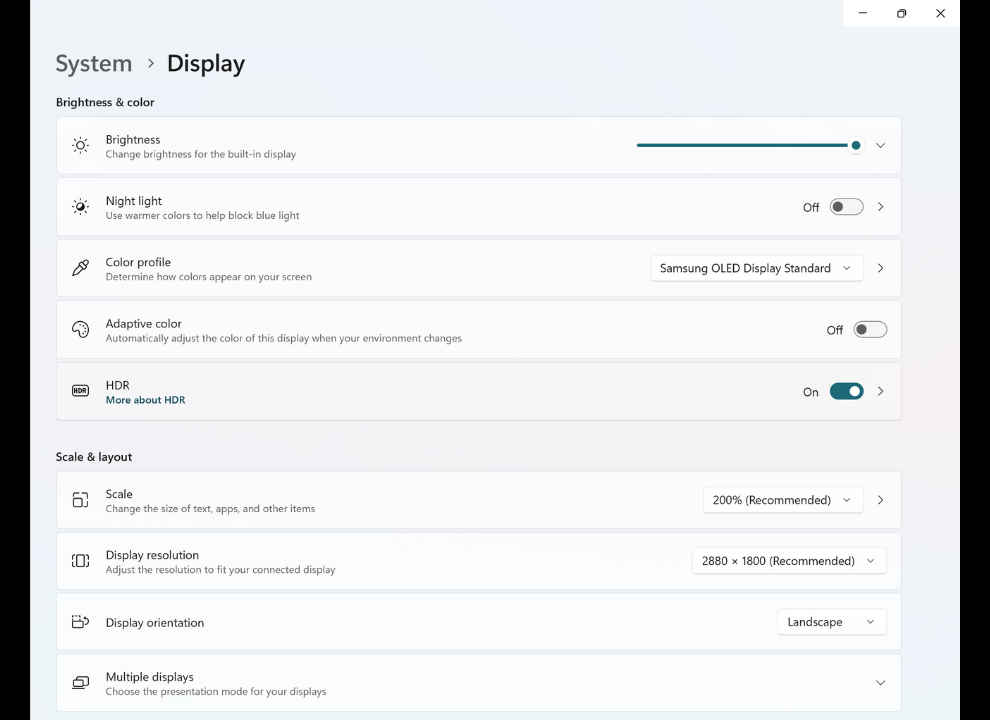
Head to Settings > Display, and enable HDR. This boosts your screen’s brightness and contrast, making colours pop, especially useful if you’ve got an HDR-compatible monitor.
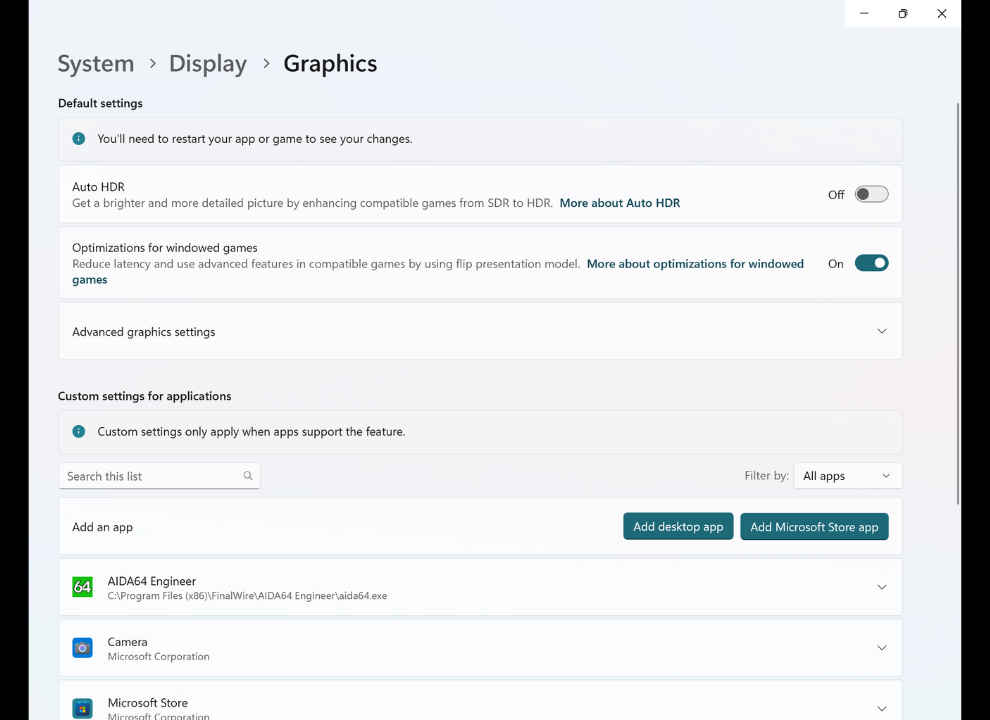
Still in the Display > Graphics section, turn on Auto HDR to make supported games look significantly better. While you’re there, also enable Optimisations for Windowed Games to reduce latency during gameplay.
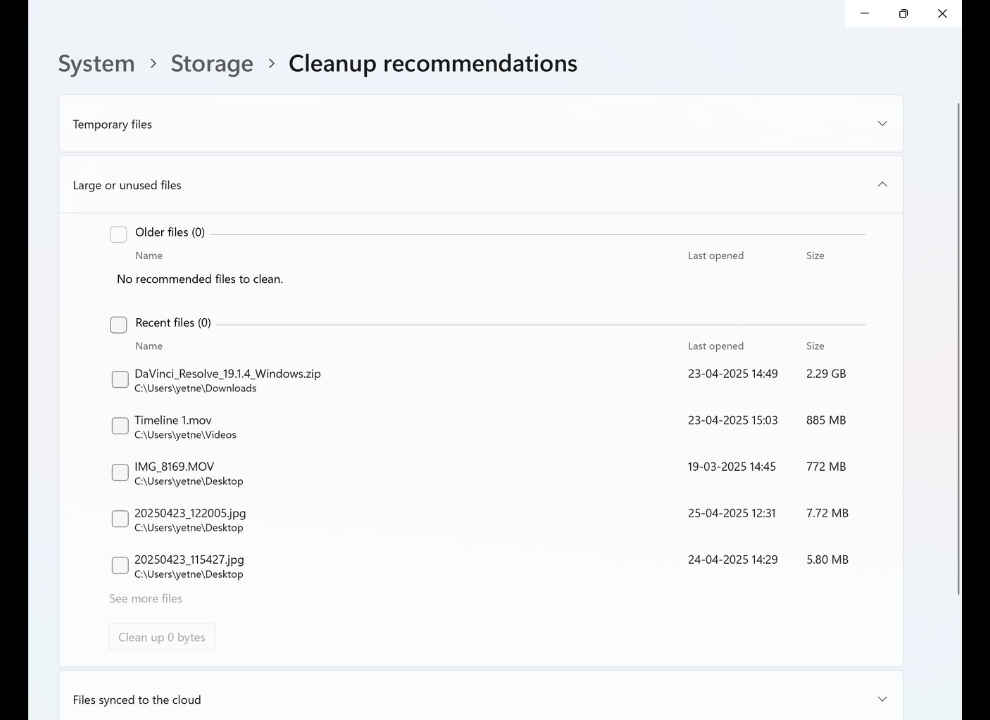
Go to System > Storage > Cleanup Recommendations. Windows will show you unnecessary files like temp data, cache, and unused apps. Select them and hit Clean Up. You might free up gigabytes of space—instantly speeding up your PC.
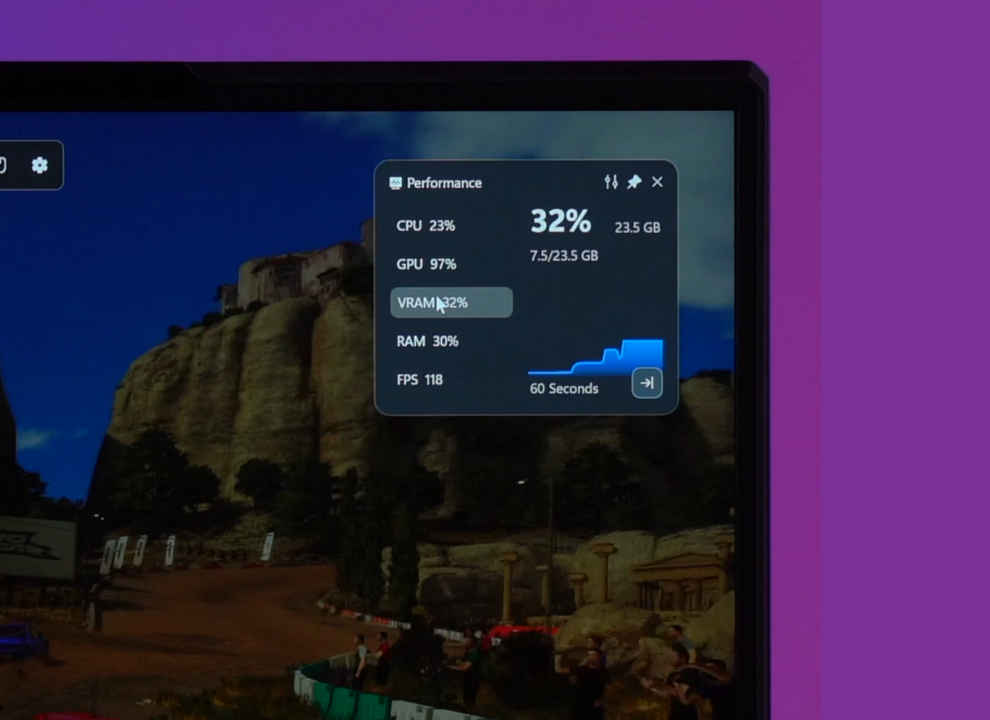
Press Windows + G to launch the Game Bar. Pin the Performance tab, then minimise it. Launch any game, and you’ll get real-time stats on your CPU, GPU, and RAM usage—great for troubleshooting or benchmarking.
Want to save that clutch moment? Again, press Windows + G, and under the Capture widget, click Start Recording.
To improve quality, go to Settings > Gaming > Captures and set Video Frame Rate to 60FPS and Quality to High.
Stuck on a level? Press Windows + G, then click the Game Assist icon. A widget browser opens right inside the game—use it to watch YouTube tutorials or guides without ever alt-tabbing.
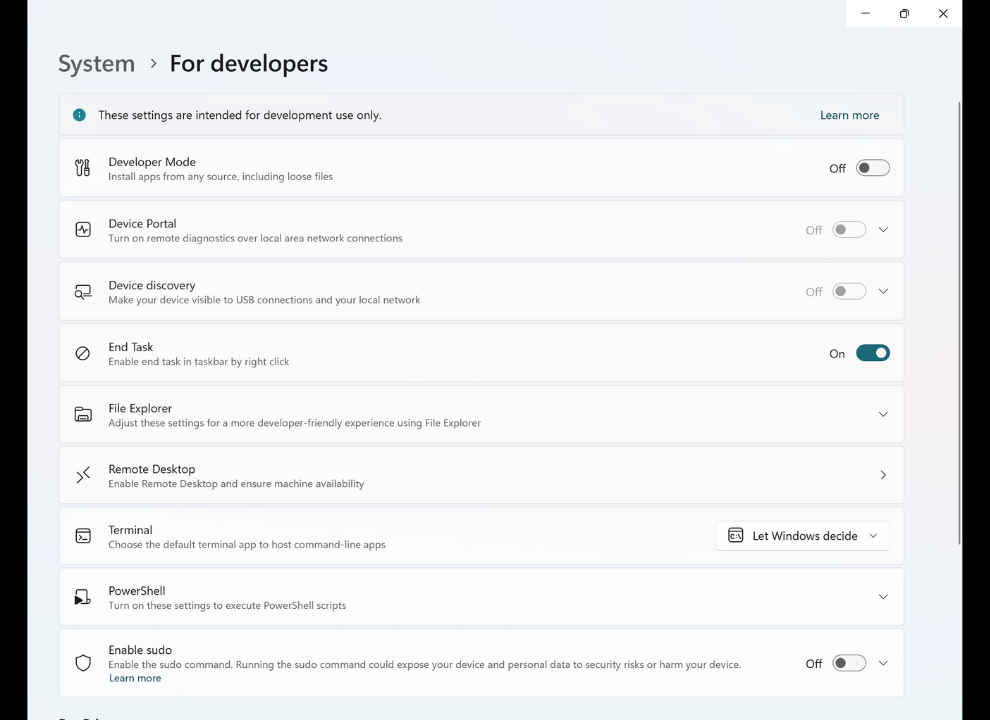
Navigate to Settings > System > For Developers, scroll to File Explorer, and turn on Show File Extensions. This makes it easier to differentiate file types and avoid risky extensions like .exe hiding as .jpg.
Still under For Developers, enable the End Task toggle. Next time a program freezes, just right-click it on the taskbar and select End Task, no need to open Task Manager.
Want a second File Explorer or browser window? Just Shift + Left Click the app on the taskbar. Each click opens a fresh instance.
Go to Settings > Accounts > Sign-in Options > Dynamic Lock. Enable Allow Windows to lock your device when you’re away. Now, when you leave with your paired phone, your PC will auto-lock—no more forgetting to press Win + L.
Open Windows Search Settings from the Start menu. Under Find My Files, switch from Classic to Enhanced. After initial indexing, this makes finding any file lightning-fast.
Hit Windows + . (period) to open the emoji menu. Click the Symbols tab (second last on the right) to access currency signs, maths symbols, and more. Great for quick typing!