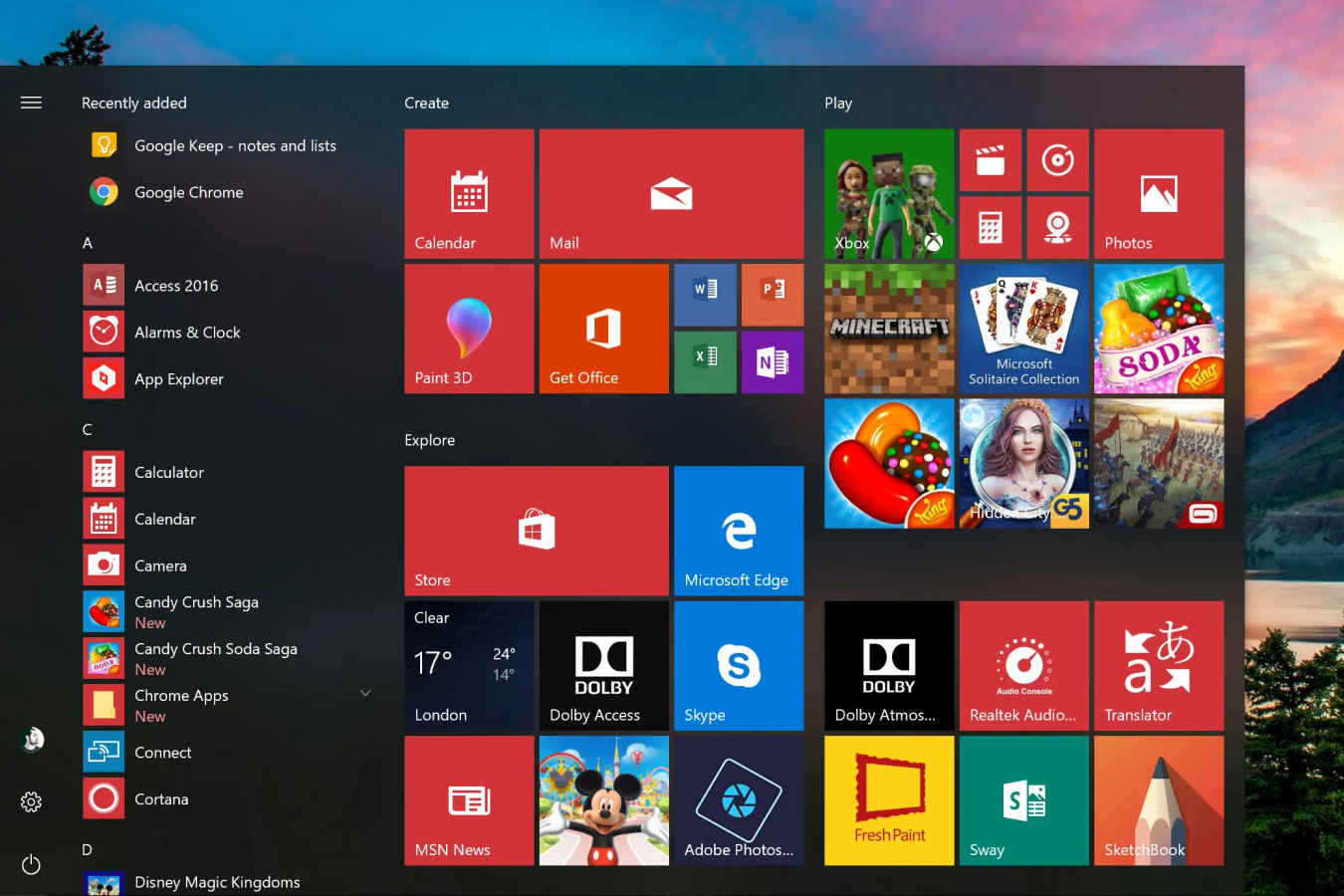
It’s a tale as old as time for PC users: you unbox your brand-new Windows laptop, excited by the promise of blazing-fast performance, only to find it’s bogged down with pre-installed programs you never asked for. From trialware to manufacturer-specific utilities and even games, this digital baggage, known as “bloatware,” can clutter your system, consume precious storage, and slow down your computer from the moment you turn it on.
For many users, this is just an annoying fact of life. But for a growing number of tech-savvy individuals, a process called “debloating” is the key to unlocking their Windows 11 laptop’s true potential.
Also read: Data commons MCP explained: Google’s AI model context protocol for developers
Bloatware isn’t malware, but it can be just as unwelcome. It’s the software that PC manufacturers or Microsoft itself pre-installs on a new machine. While some of it might be useful to a specific subset of users, much of it is either unnecessary, redundant, or designed to serve a company’s commercial interests, such as a limited-time trial of an antivirus program that will soon nag you for a subscription.
This unwanted software can manifest in several forms:
These programs and services run in the background, consuming CPU cycles, RAM, and disk space, leading to slower boot times, decreased responsiveness, and reduced battery life.
The concept is simple: by removing these unnecessary programs and services, you free up system resources, allowing your laptop to run more efficiently. Users who have debloated their systems often report a noticeable difference in performance. One user on a tech forum noted their CPU usage at idle dropped from 40-60% to just 1-2% after debloating, with a corresponding decrease in fan noise and an increase in battery life.
Debloating can also be a matter of privacy. Many of the pre-installed features are designed to collect data on your usage. By removing them, you take back control of your digital footprint.
There are several approaches to debloating, ranging from simple, manual methods to more advanced, automated scripts.
This is the safest and most straightforward way to start. It involves using Windows’ built-in tools to uninstall unwanted apps one by one.
Tip: Optimize your startup. After uninstalling, take a moment to review which apps launch with your PC.
Also read: Gaming peripherals 101: Your guide to building a custom mechanical keyboard
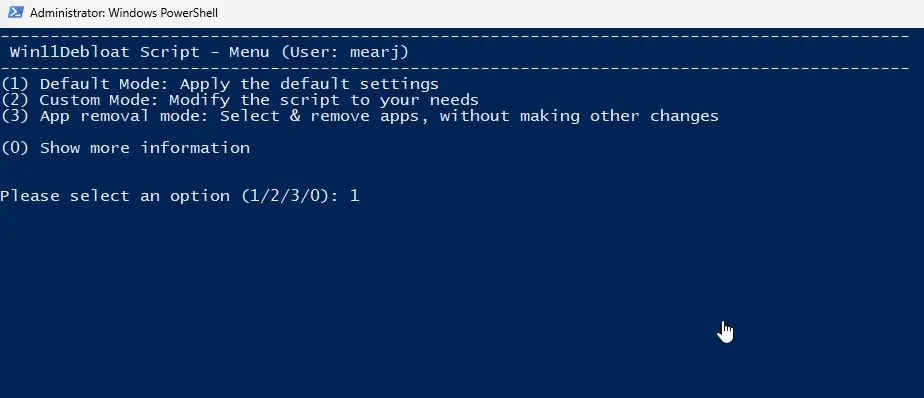
For more stubborn or deeply integrated bloatware that doesn’t show up in the Settings menu, you can use PowerShell, a command-line tool. Several open-source PowerShell scripts are available online that are specifically designed to remove a comprehensive list of bloatware.
For users who want the thoroughness of a script without the command-line interface, there are third-party applications with a graphical user interface (GUI). Tools like SophiApp or Chris Titus Tech’s Windows Utility provide a user-friendly way to manage your debloating process. These tools often allow you to not only uninstall apps but also disable telemetry, privacy-invading features, and other non-essential services with a few clicks.
While the goal is to remove unnecessary software, be careful not to delete essential system components. Here is a list of applications and processes that are generally safe to keep as they are vital for system functionality and security:
The debate over what constitutes “bloatware” will likely continue as operating systems evolve to cater to a wider audience. But for those who value speed, privacy, and a minimalist digital environment, debloating is a powerful way to reclaim their Windows 11 laptop from the digital clutter. Whether you choose a manual approach or an automated tool, the end result is a leaner, faster, and more personal computing experience.
Also read: Macrohard by Musk’s xAI: The AI-powered rival to Microsoft explained